
1. Introducción y másview
The Alienware X17 R2 is a high-performance VR Ready Gaming Laptop designed for demanding tasks such as gaming, video editing, and graphic design. It features a 17.3-inch Full HD display with a 360Hz refresh rate and 1ms response time, powered by a 12th Gen Intel Core i7-12700H processor and NVIDIA GeForce RTX 3070 Ti graphics with 8GB GDDR6 memory. This manual provides essential information for setting up, operating, maintaining, and troubleshooting your device.
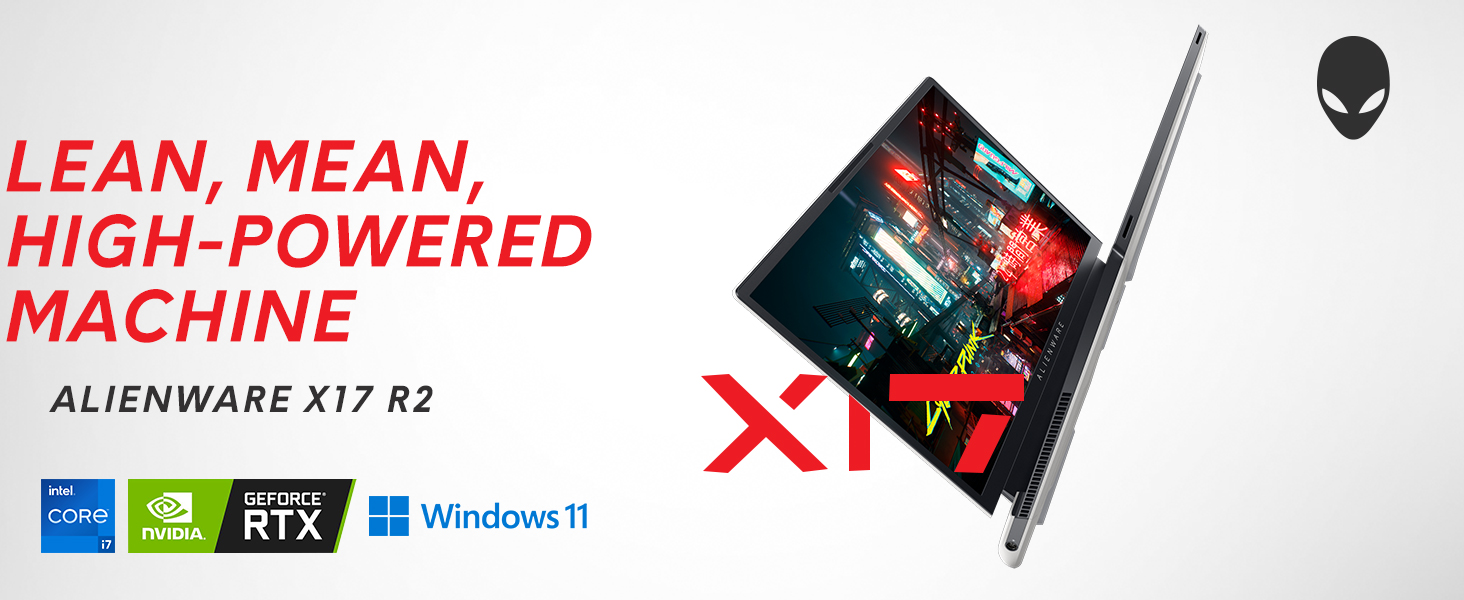
Image: Alienware X17 R2 showcasing its powerful components and sleek design.
2. ¿Qué hay en la caja?
Upon unboxing your Alienware X17 R2, ensure all the following components are present:
- Alienware X17 R2 Notebook
- Adaptador de corriente (factor de formato pequeño de 240 W)
- Cable de alimentación
- Documentación (incluido este manual)
3. Configuración
3.1 Encendido inicial
- Connect the power adapter to the laptop's power/DC-in port and then to a power outlet.
- Abra la tapa de la computadora portátil.
- Press the Alienware head power button located on the keyboard deck to turn on the laptop.
- Siga las instrucciones en pantalla para completar la configuración de Windows 11 Home.
3.2 Conexión de periféricos
Utilize the various ports available for connecting external devices:
- USB 3.2 Gen 1 Tipo A: Para dispositivos USB estándar.
- USB 3.2 Gen 2 Type-C with Power Delivery: For high-speed data transfer and charging compatible devices.
- Thunderbolt 4 / USB 3.2 Gen 2 Type-C with Power Delivery: For ultra-fast data transfer, display output, and power delivery.
- HDMI2.1: Conectarse a pantallas externas o televisores.
- Mini Display Port 1.4: Connect to external displays.
- Killer E3100 RJ-45 2.5G Ethernet: Para conexión de red cableada.
- Conector para auriculares global: Para entrada/salida de audio.
- Ranura para tarjeta micro SD: Para ampliar el almacenamiento o transferir files.
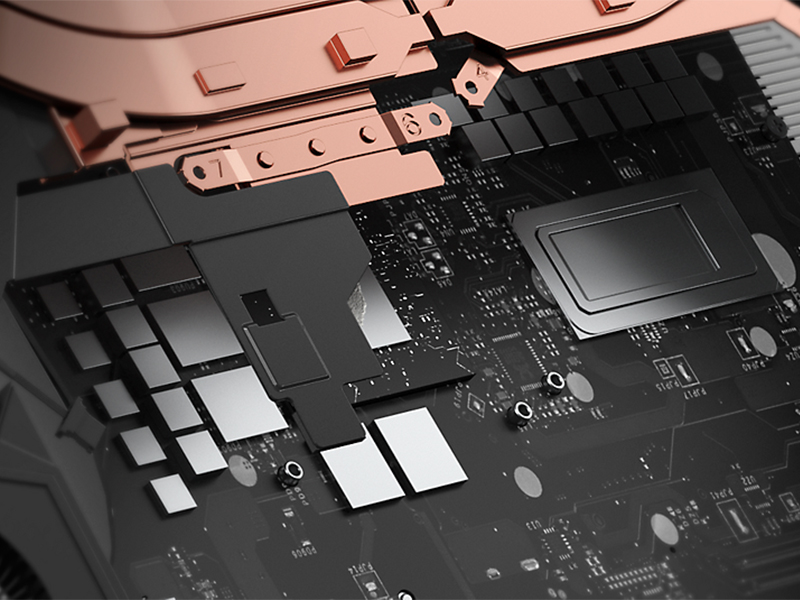
Imagen: Detallada view of the Alienware X17 R2's rear and side ports.
4. Operación de su computadora portátil
4.1 Funciones de visualización
The 17.3-inch Full HD display offers a 360Hz refresh rate and 1ms response time for smooth visuals. It also features ComfortView Plus technology to reduce blue light emissions, enhancing viewing comfort during extended use. Dolby Vision support provides an authentic visual experience with enhanced color profiles.
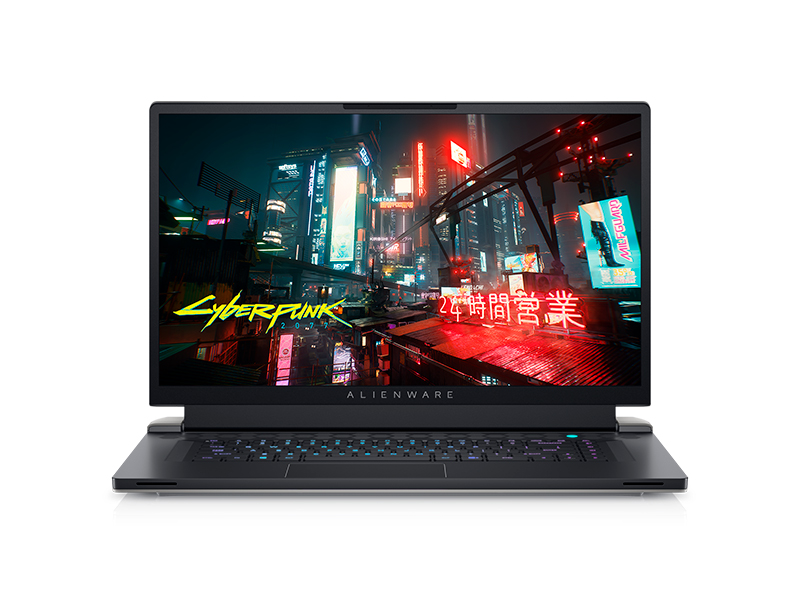
Image: Laptop screen showing vibrant game graphics with Dolby Vision and Atmos branding.
4.2 Keyboard and Lighting
The Alienware X17 R2 features an AlienFX keyboard with customizable backlighting, supporting 16.8 million colors. You can personalize the lighting effects, including wave patterns or solid colors, through the Alienware Command Center software. The power button, shaped like the Alienware head, also illuminates and can be customized.
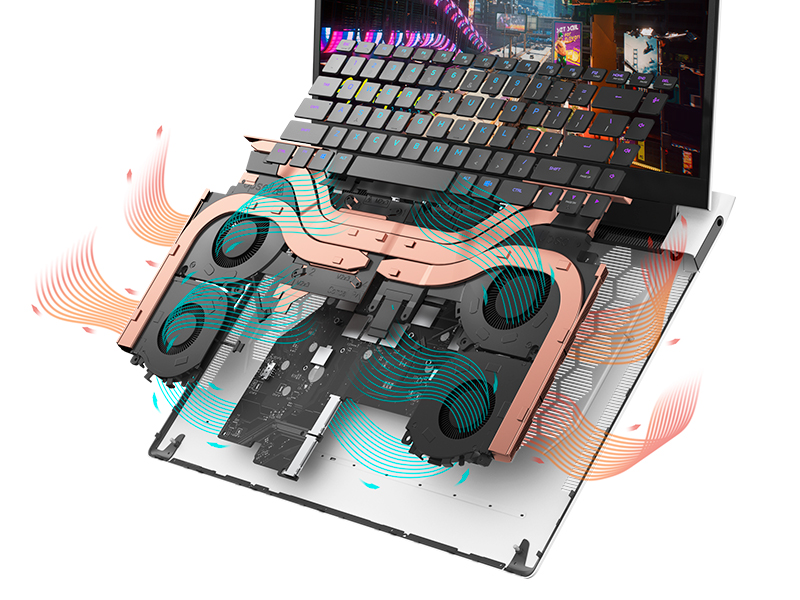
Image: The Alienware X17 R2 keyboard with customizable RGB lighting.
Sistema de audio 4.3
The laptop is equipped with stereo speakers, including two 2W tweeters and two 2W woofers, totaling 8W for rich audio output. Dolby Atmos support further enhances the immersive sound experience.
4.4 Conectividad
Enjoy high-speed wireless connectivity with Wi-Fi 6 (802.11ax) and Bluetooth. The USB 3.2 Gen 2 Type-C ports offer data transfer speeds up to 40Gbps, ensuring rapid file transfers and peripheral performance.

Imagen: Trasera view of the Alienware X17 R2 showing connectivity options and lighting.
5. Mantenimiento
5.1 Gestión térmica
The Alienware X17 R2 features an advanced thermal design utilizing Element 31, an encapsulated gallium-silicone thermal interface material. This system maximizes airflow by expelling warm air through side vents and drawing in cooler air from the top of the keyboard, helping to keep the laptop cool during intensive use.
Imagen: interna view of the Alienware X17 R2's cooling technology.
5.2 Limpieza y cuidado
- Regularly clean the screen with a soft, lint-free cloth and a screen-safe cleaning solution.
- Use compressed air to clear dust from the keyboard and ventilation ports.
- Avoid placing heavy objects on the laptop or exposing it to extreme temperatures.
6. Solución de problemas
If you encounter issues with your Alienware X17 R2, consider the following general troubleshooting steps:
- Sin energía: Ensure the power adapter is securely connected to both the laptop and the power outlet. Try a different outlet if necessary.
- Problemas de visualización: If the screen is black, try connecting an external monitor to determine if the issue is with the laptop's display or graphics card. Restart the laptop.
- Disminución del rendimiento: Close unnecessary applications, check for background processes, and ensure your system drivers are up to date. Overheating can also cause slowdowns; ensure vents are clear.
- Problemas de conectividad: Si tiene problemas de Wi-Fi, reinicie el router y la laptop. Si tiene problemas de Bluetooth, asegúrese de que el dispositivo sea detectable y esté dentro del alcance.
- Errores de software: Restart the laptop. If problems persist, check for Windows updates or consider reinstalling problematic software.
For more detailed troubleshooting or persistent issues, refer to the official Alienware support websitio o póngase en contacto con el servicio de atención al cliente.
7. Especificaciones
| Característica | Especificación |
|---|---|
| Tamaño de pantalla de pie | 17.3 pulgadas |
| Resolución de pantalla | 1920 x 1080 píxeles |
| Resolución máxima de pantalla | 1920x1080 píxeles |
| Procesador | Familia de procesadores Core i7 de 4.7 GHz (Intel Core i7-12700H) |
| RAM | 16 GB DDR5 (4800 MHz) |
| Disco duro | SSD de 1 TB (M.2 PCIe NVMe) |
| Coprocesador gráfico | NVIDIA GeForce RTX 3070 Ti |
| Tamaño de RAM de la tarjeta gráfica | 8 GB GDDR6 |
| Tipo inalámbrico | 802.11ax (Wi-Fi 6), Bluetooth |
| Número de puertos USB 3.0 | 3 |
| Sistema operativo | Inicio de Windows 11 |
| Peso del artículo | 6.82 libras |
| Dimensiones del producto | 11.79 x 15.72 x 0.82 pulgadas |
| Color | Luz lunar |
| Fuente de poder | Funciona con pilas |
| Baterías | Se requieren 1 batería de iones de litio (incluidas) |
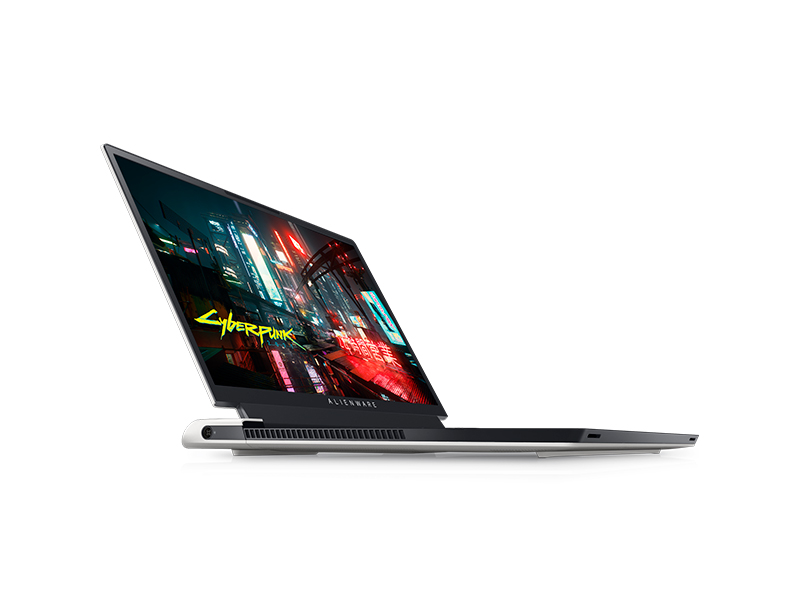
Image: Key specifications of the Alienware X17 R2.
8. Garantía y soporte
Your Alienware X17 R2 laptop comes with a manufacturer's warranty. Please refer to the included warranty documentation for details on coverage, terms, and conditions. For technical support, driver downloads, or service requests, visit the official Alienware support websitio o comuníquese con su departamento de servicio al cliente.