
1. Producto terminadoview
The VisionTek VT8000 is a versatile USB-C docking station designed to expand your laptop's connectivity and display capabilities. It supports up to four 4K displays simultaneously via HDMI or DisplayPort, making it suitable for complex multi-monitor setups. This docking station connects to your host system using a single USB-C or USB-A connection and provides 100W of Power Delivery to compatible laptops.
Las características principales incluyen:
- Quad 4K Display Compatibility: Connects four 4K displays (3840 x 2160 @ 60Hz) simultaneously through HDMI or DisplayPort.
- Diversas opciones de conexión: Features 4x HDMI, 4x DisplayPort, 4x USB-A (5Gbps), 1x USB-C PD (30W for peripherals), Audio/Mic combo, SD/Micro SD card readers, 2.5 Gigabit Ethernet, and a Kensington Lock slot.
- Robust 100W USB-C Power Delivery: Delivers up to 100W of power to charge your connected laptop (power supply included).
- Universal Device Support: Compatible with USB 3.0, USB-C, and M1 Mac systems, as well as Windows, macOS, and ChromeOS.
- Advanced Enterprise Features: Includes Wake on LAN, MAC Address Pass-Through, and PXE Boot.

Image 1.1: The VisionTek VT8000 USB-C 4X Monitor Docking Station, showcasing su diseño compacto y múltiples puertos.
2. Contenido del paquete
Asegúrese de que todos los artículos estén presentes en el paquete:
- Estación de acoplamiento VisionTek VT8000
- 180W DC 20V/9A Power Adapter
- Cable USB-C a USB-C (1 m)
- Adaptador USB-C a USB-A
- Manual de usuario (este documento)
3. Instrucciones de configuración
Follow these steps to set up your VisionTek VT8000 docking station:
3.1. Instalación del controlador
The VT8000 utilizes DisplayLink technology for multi-monitor support. Before connecting the docking station, it is recommended to install the latest DisplayLink drivers for your operating system. Visit the official DisplayLink website or VisionTek support page to download the appropriate drivers.
- Download the latest DisplayLink drivers for Windows, macOS, or ChromeOS.
- Install the drivers by following the on-screen instructions. Restart your computer if prompted.
3.2. Conexión de la estación de acoplamiento
- Conecte la electricidad: Plug the 180W power adapter into the DC 20V port on the rear of the docking station, then plug the adapter into a power outlet. The power LED on the front of the dock will illuminate.
- Conectarse al sistema host: Use the provided USB-C to USB-C cable to connect the docking station's 'COMPUTER' port to your laptop's USB-C port. If your laptop only has USB-A ports, use the included USB-C to USB-A adapter with the USB-C cable.
- Conectar pantallas: Connect your monitors to the available HDMI or DisplayPort outputs on the rear of the docking station. The VT8000 supports up to four displays.
- Conectar periféricos: Plug your USB devices (keyboard, mouse, external drives) into the USB-A ports. Connect your headset or speakers to the Audio/Mic combo jack. For wired network access, connect an Ethernet cable to the 2.5 Gigabit Ethernet port.

Imagen 3.1: Detallada view of the VisionTek VT8000 docking station ports, including HDMI, DisplayPort, USB-A, USB-C, Ethernet, and audio jacks.

Image 3.2: Front and rear port layout of the VT8000, illustrating connections for additional devices, displays, and networking.
4. Funcionamiento de la estación de acoplamiento
4.1. Configuración de la pantalla
Once connected, your operating system should detect the external displays. You may need to configure display settings (resolution, orientation, extension/mirroring) within your OS display settings.
- Ventanas: Right-click on the desktop, select 'Display settings'.
- Mac OS: Go to System Settings (or System Preferences) > Displays.
The VT8000 supports various display configurations:
| Sistema anfitrión | 1 Pantalla | 2 pantallas | 3 pantallas | 4 pantallas |
|---|---|---|---|---|
| Ventanas | 5120 x 2880 @ 60Hz (DP Stream 1+2) or 4096 x 2160 @ 60Hz (HDMI) | 5120 x 2880 @ 60Hz (DP Stream 1+2) or 4096 x 2160 @ 60Hz (HDMI) | Display 1-2: 5120 x 2880 @ 60Hz, Display 3-4: 4096 x 2160 @ 60Hz | 4096 x 2160 a 60 Hz |
| macOS | 4096 x 2160 a 60 Hz | 4096 x 2160 a 60 Hz | 4096 x 2160 a 60 Hz | 4096 x 2160 a 60 Hz |
| Sistema operativo Chrome | 4096 x 2160 a 60 Hz | 4096 x 2160 a 60 Hz | 4096 x 2160 a 60 Hz | 4096 x 2160 a 60 Hz |

Image 4.1: Visual representation of the VT8000's ability to extend up to four displays, with resolution details for different operating systems.
4.2. Suministro de potencia
The VT8000 provides up to 100W of Power Delivery to your host laptop via the USB-C connection, ensuring your device remains charged while connected. The dedicated USB-C PD (30W) port on the front is for charging mobile devices or other low-power peripherals.
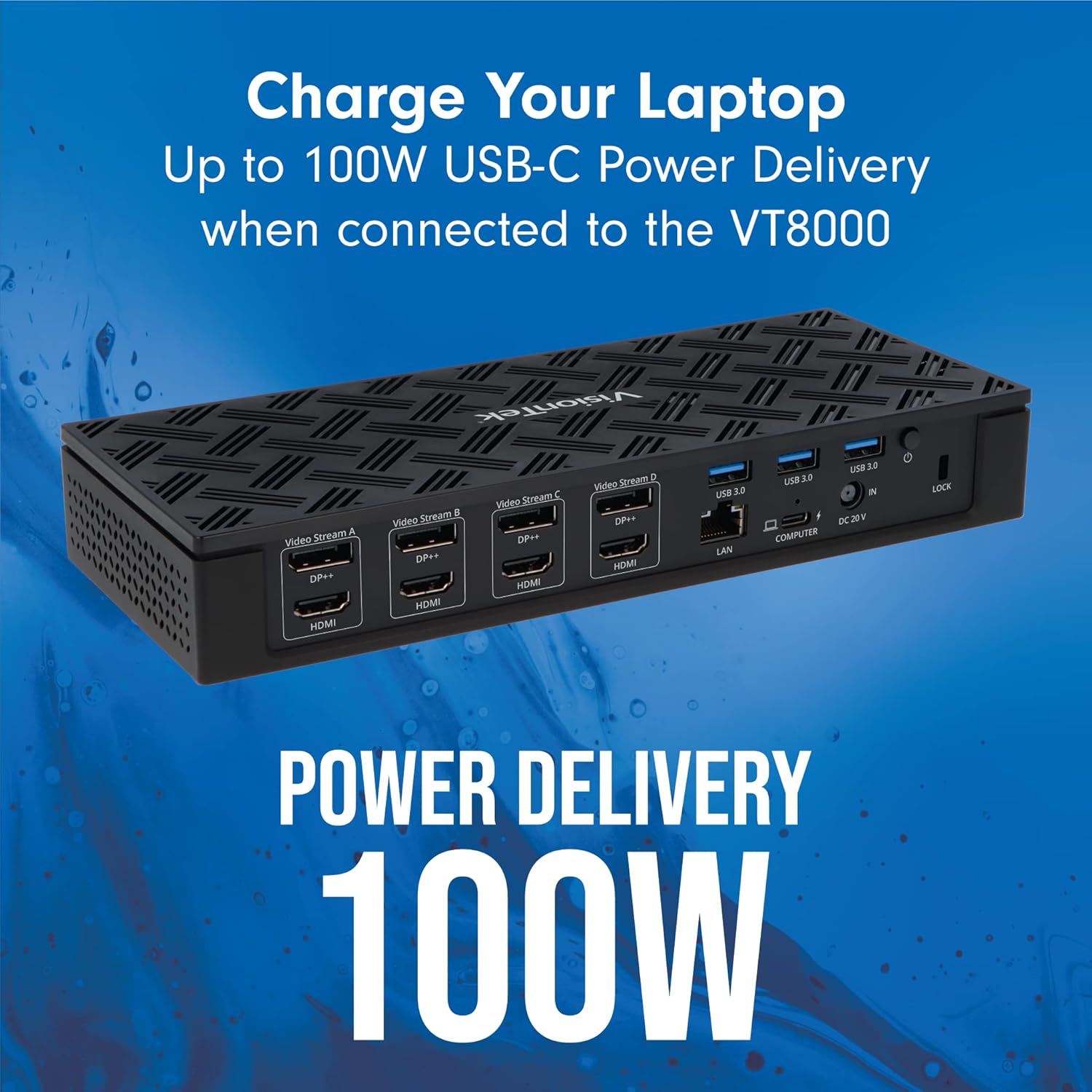
Image 4.2: The VT8000 docking station providing 100W USB-C Power Delivery to a connected laptop.
4.3. Compatibilidad universal
The docking station is designed for broad compatibility with Windows, macOS (including M1 Macs), and ChromeOS systems that have a USB-C or USB-A port (USB 3.0 or higher recommended for optimal performance).

Image 4.3: A laptop connected to the VT8000, illustrating its universal compatibility with various operating systems.
5. Mantenimiento
To ensure the longevity and optimal performance of your VisionTek VT8000 docking station, follow these maintenance guidelines:
- Limpieza: Use a soft, dry, anti-static cloth to clean the exterior of the docking station. Avoid using liquid cleaners or aerosol sprays, which can damage the device.
- Ventilación: Asegúrese de que la estación de acoplamiento esté ubicada en un área bien ventilada para evitar el sobrecalentamiento. No obstruya las aberturas de ventilación.
- Sistema de organización de cables: Mantenga los cables organizados y libres de torceduras o dobleces excesivos para evitar daños en los cables y puertos.
- Almacenamiento: Cuando no utilice la estación de acoplamiento durante períodos prolongados, desconecte el adaptador de corriente y guarde la estación de acoplamiento en un lugar fresco y seco.
6. Solución de problemas
If you encounter issues with your VT8000 docking station, refer to the following troubleshooting steps:
6.1. No hay salida de pantalla
- Comprobar conexiones: Ensure all display cables (HDMI/DisplayPort) are securely connected to both the docking station and the monitors.
- Verificar la conexión del host: Confirm the USB-C cable connecting the dock to your laptop is firmly seated.
- Ciclo de energía: Disconnect the power adapter from the docking station, wait 10 seconds, then reconnect it. Restart your computer.
- Verificación del conductor: Ensure the latest DisplayLink drivers are installed and updated. Reinstall if necessary.
- Entrada del monitor: Verify your monitors are set to the correct input source (HDMI or DisplayPort).
6.2. Intermittent Display or Device Disconnections
- Integridad del cable: Inspect all cables for damage. Try using different cables if available.
- Fuente de alimentación: Ensure the 180W power adapter is correctly connected and providing stable power.
- Estabilidad del conductor: Outdated or corrupted DisplayLink drivers can cause instability. Update or reinstall drivers.
- MacBook Sleep Issues: Some users report display disconnection after a MacBook enters sleep mode. Restarting the MacBook often resolves this. Ensure your macOS is updated and DisplayLink drivers are current. Adjust power settings to prevent deep sleep if this issue persists.
6.3. No Power Delivery to Laptop
- Compruebe el adaptador de corriente: Confirm the 180W power adapter is fully connected to the dock and a working power outlet.
- Cable USB tipo C: Ensure you are using the provided USB-C to USB-C cable, which supports Power Delivery.
- Compatibilidad con portátiles: Verifique que su computadora portátil sea compatible con USB-C Power Delivery.
6.4. Problemas de conectividad de red
- Cable de ethernet: Verifique la conexión del cable Ethernet tanto a la base como a su enrutador/módem.
- Verificación del conductor: Ensure network drivers are correctly installed.
- Enrutador/Módem: Reinicie su equipo de red.
7. Especificaciones
| Característica | Especificación |
|---|---|
| Número de modelo | VT8000 |
| Marca | VisionTek |
| Conexión de host | USB-C or USB-A (via adapter) |
| Salidas de video | 4x HDMI, 4x DisplayPort (supports up to 4 displays simultaneously) |
| Resolución máxima | 4096 x 2160 @ 60Hz (Quad Display), 5120 x 2880 @ 60Hz (Dual Display on Windows) |
| Puertos USB-A | 4 USB 3.0 (5 Gbps) |
| Puertos USB-C | 1x USB-C PD (30W for peripherals) |
| Entrega de potencia | Hasta 100 W para alojar una computadora portátil |
| Ethernet | Ethernet de 2.5 gigabits |
| Audio | 1x Audio/Mic Combo Jack |
| Lector de tarjetas | Lector de tarjetas SD / Micro SD |
| Seguridad | Ranura de bloqueo Kensington |
| Sistemas operativos | Windows 11, 10, 8.1, 7 | macOS 10.10 and later | ChromeOS |
| Dimensiones (LxAnxAl) | 3.86 x 2.5 x 1.5 pulgadas |
| Peso | 1 libra |
8. Garantía y soporte
8.1. Información de garantía
VisionTek products are covered by a manufacturer's warranty. For specific details regarding the warranty period and terms for your VT8000 docking station, please refer to the warranty card included with your product or visit the official VisionTek webSitio. Conserve su comprobante de compra para reclamaciones de garantía.
8.2. Soporte técnico
If you require technical assistance or have questions not covered in this manual, please contact VisionTek customer support. Support resources, including FAQs and contact information, can be found on the official VisionTek websitio:
VisionTek Websitio: www.visiontek.com
When contacting support, please have your product model number (VT8000) and a detailed description of your issue ready.