
Introducción
This manual provides instructions for the FEINODI 6-in-1 Lightning to HDMI Adapter. This multi-port adapter is designed to expand the connectivity of your iPhone or iPad, offering HDMI video output, USB ports for peripherals, and SD/Micro SD card reading capabilities, along with a charging port.
Características del producto
- Diseño multipuerto 6 en 1: Includes HDMI port, 2 USB 3.0 ports, SD card slot, Micro SD card slot, and a Lightning charging port.
- Full 1080P HDMI Output: Mirrors content from your device screen to HDMI-enabled equipment (TV, projector, monitor) with resolutions up to 1080P.
- USB Peripheral Support: Connect USB flash drives, mice, keyboards, card readers, cameras, printers, and other USB devices.
- Lector de tarjetas SD / TF: Facilitates easy transfer of photos and videos from SD/Micro SD cards to your iPhone/iPad. Supports standard photo and video formats.
- Amplia compatibilidad: Compatible with iPhone 7/7 Plus up to iPhone 14 Pro Max, and various iPad/iPod models running iOS 9.2 or above.
- Conectar y usar: No additional app required for basic functions.

Imagen: Más alláview of the FEINODI 6-in-1 adapter showing its various ports: Lightning charging, HDMI, 2 USB ports, SD card slot, and Micro SD card slot.
Instrucciones de instalación
- Conectarse a iPhone/iPad: Plug the Lightning connector of the adapter into your iPhone or iPad's Lightning port.
- Conectar HDMI (opcional): For video output, connect an HDMI cable from the adapter's HDMI port to your TV, projector, or monitor. Select the correct HDMI input on your display device.
- Conectar dispositivos USB (opcional): Insert USB peripherals like a mouse, keyboard, or USB flash drive into the USB 3.0 ports.
- Insert SD/TF Card (Optional): Insert your SD or Micro SD card into the corresponding slot.
- Connect Power (Recommended): For stable operation, especially when using multiple ports or high-power USB devices, connect a Lightning charging cable to the adapter's charging port and then to a power source.

Image: The adapter connected to an iPhone, illustrating the insertion of SD and Micro SD cards, and the connection of a power adapter for stable operation.
Instrucciones de funcionamiento
Salida de vídeo HDMI
Connect the adapter to your iPhone/iPad and an HDMI display. The device screen will be mirrored to the external display. This supports resolutions up to 1080P. Note that apps with HDCP video copyright protection (e.g., Netflix, Amazon Video, Hulu) are generally not supported for mirroring.
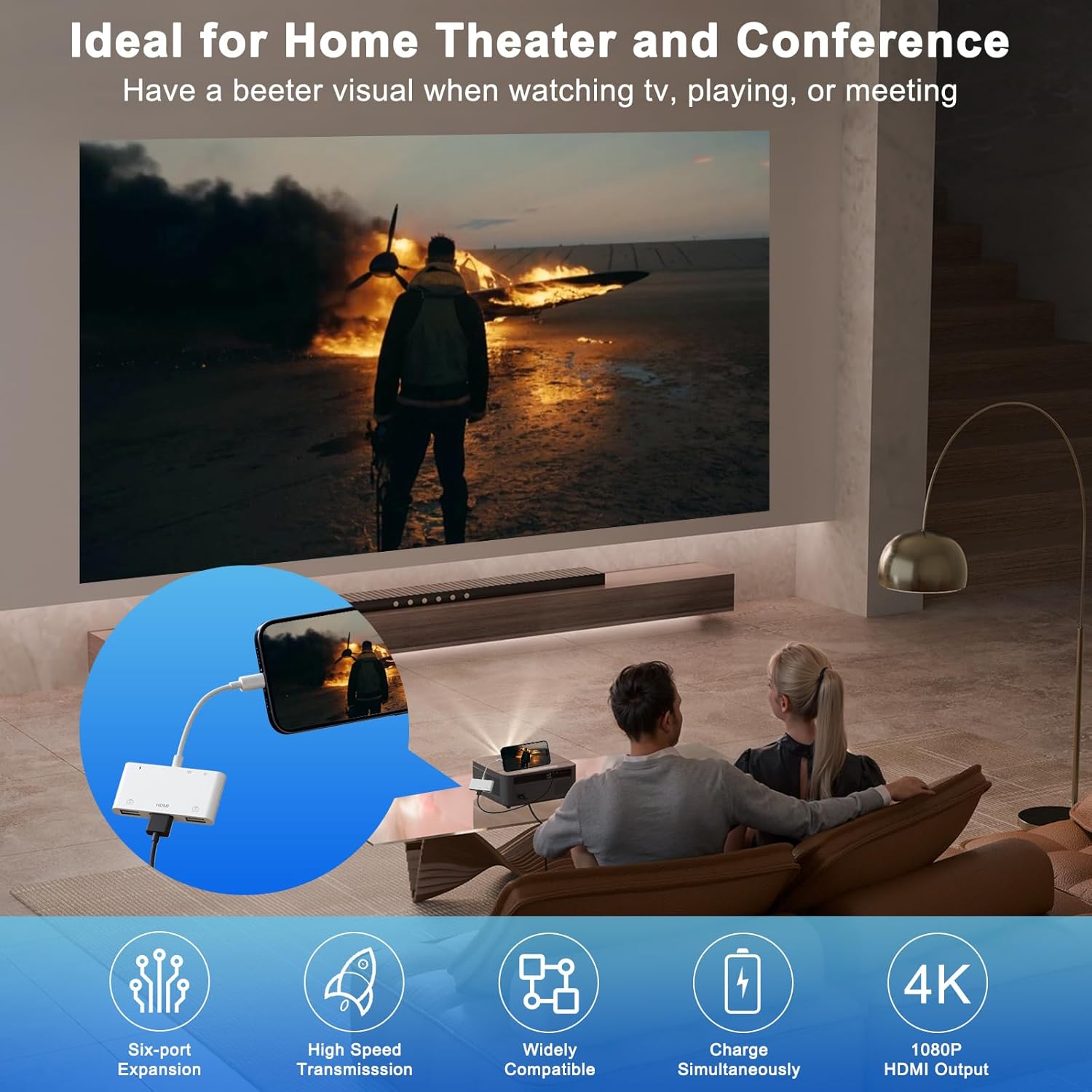
Image: An iPhone connected to the adapter, which is then connected to a projector, demonstrating screen mirroring for presentations or entertainment.

Image: A list of applications that work with HDMI mirroring (e.g., YouTube, Safari, Office) and those that do not support it due to copyright protection (e.g., Netflix, Amazon Video).
Conexión de dispositivo USB
Plug your USB devices into the adapter's USB 3.0 ports. For iOS 13 and above, you can connect a mouse and keyboard for enhanced productivity. For mouse usage, enable Assistive Touch in your iPhone/iPad settings (Settings > Accessibility > Touch > Assistive Touch).

Image: Demonstrations of connecting a mouse and keyboard for typing, and transferring photos from a camera to an iPhone via the adapter.
Transferencia de datos de tarjeta SD/TF
Insert your SD or Micro SD card into the appropriate slot. For iOS 13 and later, you can import and export photos, videos, and various file types (EXCEL, WORD, PDF, MP3, MP4) using the "Files" app. For iOS 9.2-12.4, only one-way transmission (importing photos/videos) is supported.
Nota: The SD card, TF card, and USB interfaces cannot be used simultaneously for card reading. Only one card reading operation can be in progress at a time.

Image: Visual instructions detailing the process of transferring photos and files between an iPhone/iPad and a USB device using the adapter and the "Files" app.
Funcionalidad de carga
The adapter includes a Lightning charging port. Connect your Lightning charging cable to this port and a power adapter to charge your iPhone/iPad while using the adapter's other functions.
Mantenimiento
- Keep the adapter clean and dry. Avoid exposure to liquids.
- Do not expose the adapter to extreme temperatures.
- Handle the adapter and its cables gently to prevent damage to connectors.
- Conservar en un lugar fresco y seco cuando no esté en uso.
Solución de problemas
- Sin salida HDMI:
- Asegúrese de que el cable HDMI esté conectado de forma segura tanto al adaptador como a la pantalla.
- Verifique que la pantalla esté configurada en la fuente de entrada HDMI correcta.
- Connect a power source to the adapter's charging port for stable operation.
- Some apps with copyright protection (HDCP) do not support mirroring.
- Dispositivo USB no reconocido:
- Ensure your iPhone/iPad is running iOS 13 or above for full USB peripheral support.
- Connect a power source to the adapter's charging port. Some USB devices require more power.
- For mouse functionality, ensure Assistive Touch is enabled in iOS settings.
- La tarjeta SD/TF no se lee:
- Ensure the card is inserted correctly into the appropriate slot.
- Only one card (SD or TF) can be read at a time. Do not use USB ports for card reading simultaneously.
- Compruebe si la tarjeta está dañada o corrupta.
- Unstable Connection / Intermittent Functionality:
- Always connect a power source to the adapter's Lightning charging port for optimal stability.
- Remove your phone case if it interferes with the adapter's connection to your iPhone/iPad.
- Asegúrese de que todos los cables estén conectados de forma segura.
Video: Demonstration of the 6-in-1 USB Camera Adapter's features, including HDMI mirroring, file transfer, and peripheral connections.
Presupuesto
| Número de modelo | 797444725056 |
| Dimensiones del producto | 4.92 x 2.75 x 1.37 pulgadas |
| Peso del artículo | 1.44 onzas |
| Tipo de conector | Iluminación |
| Resolución HDMI | Hasta 1080P |
| Puertos USB | 2 x USB 3.0 |
| Lector de tarjetas | SD, Micro SD (TF) |
| Puerto de carga | Iluminación |
| Sistema operativo compatible | iOS 9.2 y superior |
Garantía y soporte
For warranty information or technical support, please refer to the product packaging or contact FEINODI customer service directly. Contact details are typically available on the manufacturer's official websitio o a través de su plataforma de compra.