
Dzees D3K
Manual del usuario de la cámara de seguridad solar Dzees D3K
Modelo: D3K
Brand: Dzees
Thank you for choosing the Dzees Solar Security Camera. This manual provides essential information for setting up, operating, and maintaining your device. Please read it thoroughly before use to ensure optimal performance and safety.
1. Introducción
The Dzees D3K Solar Security Camera is an advanced wireless outdoor surveillance solution designed for comprehensive home security. It features 2K resolution for clear imaging, 360° pan and 90° tilt capabilities for wide coverage, and is powered by an efficient solar panel for continuous operation. Equipped with intelligent AI detection, color night vision, and an IP66 weather-resistant design, the D3K provides reliable monitoring in various environmental conditions.
Características principales:
- 2K PTZ Camera: Supports 355° horizontal and 90° vertical rotation with 4X digital zoom for comprehensive coverage.
- Funciona con energía solar: High-efficiency solar panel ensures continuous power supply, reducing the need for manual charging.
- Detección inteligente de IA: Accurately distinguishes between individuals, packages, vehicles, and animals, minimizing false alarms.
- Funciones de alarma: Features a loud siren, spotlight, and sound alerts to deter intruders.
- Visión nocturna en color: Proporciona vídeo nítido y a todo color incluso en condiciones de poca luz.
- Resistente a la intemperie IP66: Designed to withstand various weather conditions, ensuring year-round protection.
- Almacenamiento flexible: Supports up to 128GB memory card (not included) and offers 2 years of free 3-day loop cloud storage.
2. Contenido del paquete
Verifique el contenido del paquete al desembalarlo para asegurarse de que todos los componentes estén presentes:
- Dzees Solar Security Camera
- Panel solar
- Soporte de montaje
- Tornillos y anclajes de montaje
- Cable de carga USB
- Manual de usuario (este documento)
3. Producto terminadoview
Familiarize yourself with the main components of your Dzees Solar Security Camera:

Figure 3.1: Dzees Solar Security Camera D3K and accompanying solar panel.
- Lente de la cámara: Captura vídeo con resolución 2K.
- Focos: Provide illumination for color night vision and deterrence.
- Sensor PIR: Detecta movimiento basándose en firmas de calor infrarrojas.
- Micrófono: Captura audio para comunicación bidireccional.
- Vocero: Emite audio para comunicación bidireccional y sirena.
- Solar Panel Port: Connects the solar panel for continuous charging.
- Botón de reinicio: Se utiliza para restablecer la cámara a la configuración de fábrica.
- Ranura para tarjeta micro SD: Para almacenamiento de video local (admite hasta 128 GB, tarjeta no incluida).
- Antenas: Para una conectividad Wi-Fi estable.
4. Guía de configuración
4.1 Carga inicial
Before initial use, fully charge the camera using the provided USB cable. Connect the USB cable to the camera's charging port and a standard 5V/2A USB power adapter (not included). A full charge typically takes several hours.
4.2 Instalación de la aplicación
Download and install the "Dzees Home" app on your smartphone or tablet. The app is available on both the Apple App Store and Google Play Store.

Figure 4.1: The Dzees Home app interface, displaying multiple camera feeds and control options.
- Buscar "Dzees Home" in your device's app store.
- Descargue e instale la aplicación.
- Registre una nueva cuenta o inicie sesión si ya tiene una.
4.3 Emparejamiento de cámaras
Follow these steps to connect your camera to your Wi-Fi network and the Dzees Home app:
- Open the Dzees Home app and tap the "+" icon to add a new device.
- Seleccione el modelo de su cámara de la lista.
- Power on the camera. The camera will emit a voice prompt indicating it's ready for pairing.
- Siga las instrucciones de la aplicación para conectar la cámara a su red Wi-Fi de 2.4 GHz. Note: This camera only supports 2.4GHz Wi-Fi.
- Escanee el código QR que aparece en la pantalla de su teléfono con la lente de la cámara.
- Una vez conectado, la cámara confirmará que el emparejamiento fue exitoso.

Figure 4.2: Illustration of the solar-powered, wire-free setup, emphasizing 2.4GHz WiFi connectivity and solar charging efficiency.
4.4 Montaje de la cámara
Choose a suitable location for mounting your camera, ensuring it has a clear view of the area you wish to monitor and that the solar panel receives adequate direct sunlight throughout the day.
- Marque los puntos de perforación utilizando el soporte de montaje como plantilla.
- Perfore agujeros e inserte anclajes de pared si lo va a montar sobre mampostería o panel de yeso.
- Fije el soporte de montaje a la pared utilizando los tornillos proporcionados.
- Conecte la cámara al soporte de montaje.
- Connect the solar panel cable to the camera's solar panel port. Position the solar panel to maximize sun exposure.
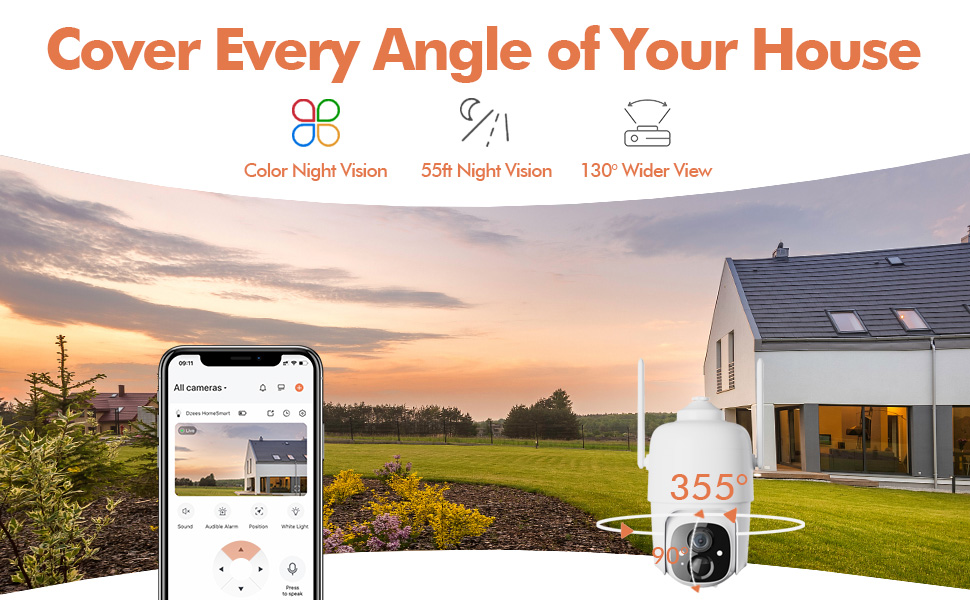
Figure 4.3: The Dzees camera mounted outdoors, showcasing its IP66 weather-resistant design, capable of operating in various weather conditions.

Figure 4.4: The camera's advanced PIR motion detection in action, highlighting its ability to detect movement within a specified zone.
5. Operación de la cámara
5.1 en vivo View y reproducción
Acceda a la transmisión de video en vivo y vuelva aview recorded events through the Dzees Home app.
- From the app's home screen, tap on the camera's thumbnail to enter the live view interfaz.
- Use the timeline or event list to navigate and play back recorded footage.

Figure 5.1: The Dzees Home app displaying live camera feed with controls for pan, tilt, digital zoom, and night vision settings.
5.2 Panorámica, inclinación y zoom (PTZ)
Controlar la cámara viewing angle directly from the app:
- En vivo view, use the directional controls to pan (355° horizontal) and tilt (90° vertical) the camera.
- Pinch to zoom in or out for 4X digital zoom. Note: This is digital zoom, not optical zoom.
- Set up to 5 preset points for quick navigation to frequently monitored areas.

Figure 5.2: Illustration of setting up and utilizing up to 5 preset positions for rapid camera view ajuste.
5.3 Detección de movimiento y alertas
Customize your detection settings to receive relevant alerts:
- Vaya a la configuración de la cámara en la aplicación.
- Enable AI detection to differentiate between people, packages, vehicles, and animals.
- Define custom activity zones to focus detection on specific areas and ignore others.
- Adjust detection sensitivity to reduce unwanted notifications.
- Reciba notificaciones push instantáneas en su teléfono cuando se detecte movimiento.
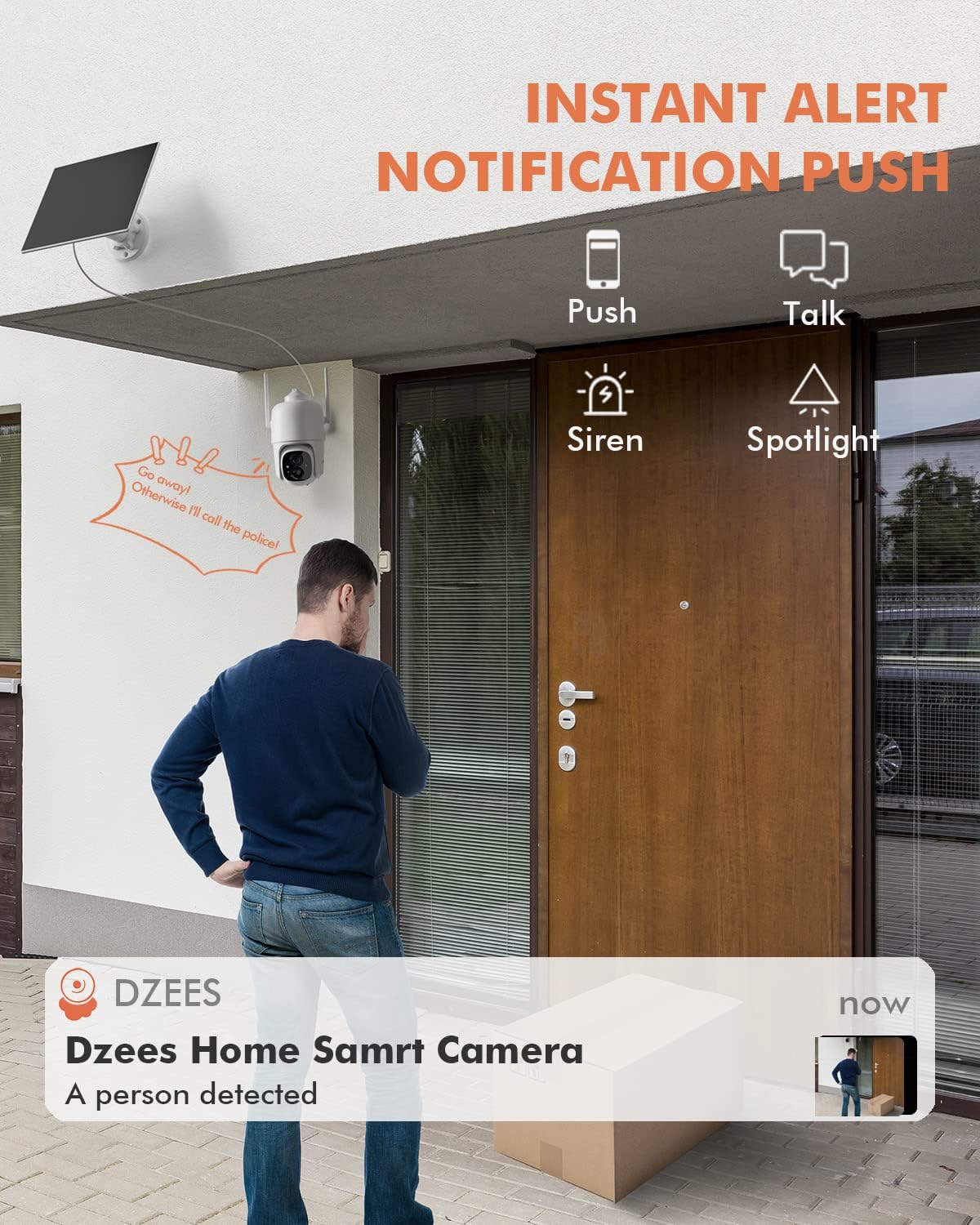
Figura 5.3: Example of an instant push notification received on a smartphone when the camera detects a person.
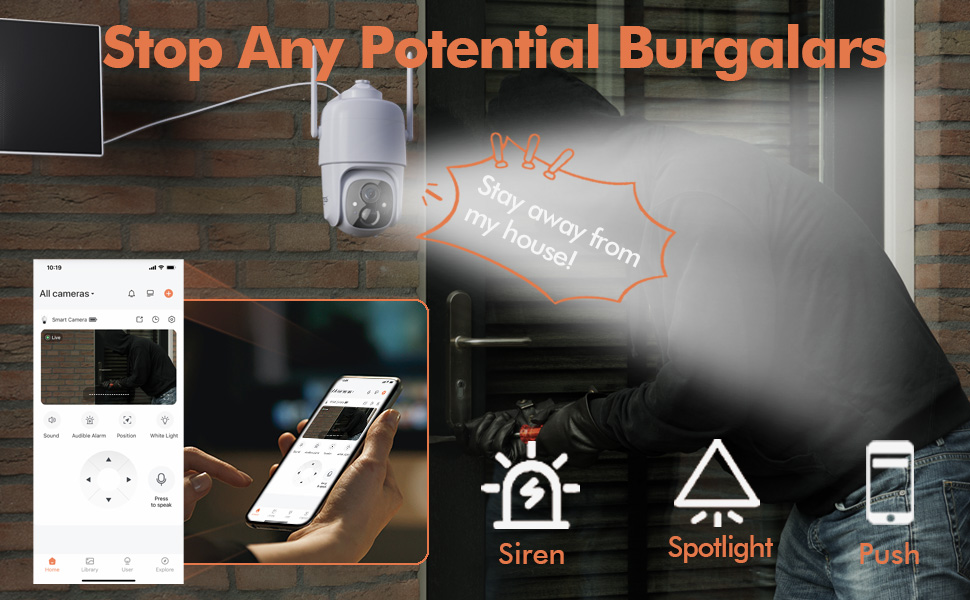
Figure 5.4: Detailed motion detection settings within the Dzees app, allowing for customization of detection zones and sensitivity.
5.4 Audio bidireccional
Communicate with visitors or deter intruders using the camera's built-in microphone and speaker:
- En vivo view, toque el icono del micrófono para hablar a través de la cámara.
- Toque el ícono del altavoz para escuchar el audio desde la ubicación de la cámara.
5.5 Spotlight and Siren
Enhance security with active deterrence features:
- Manually activate the spotlight or siren from the live view interface in the app.
- Configure automatic activation of the spotlight or siren upon motion detection in the camera settings.
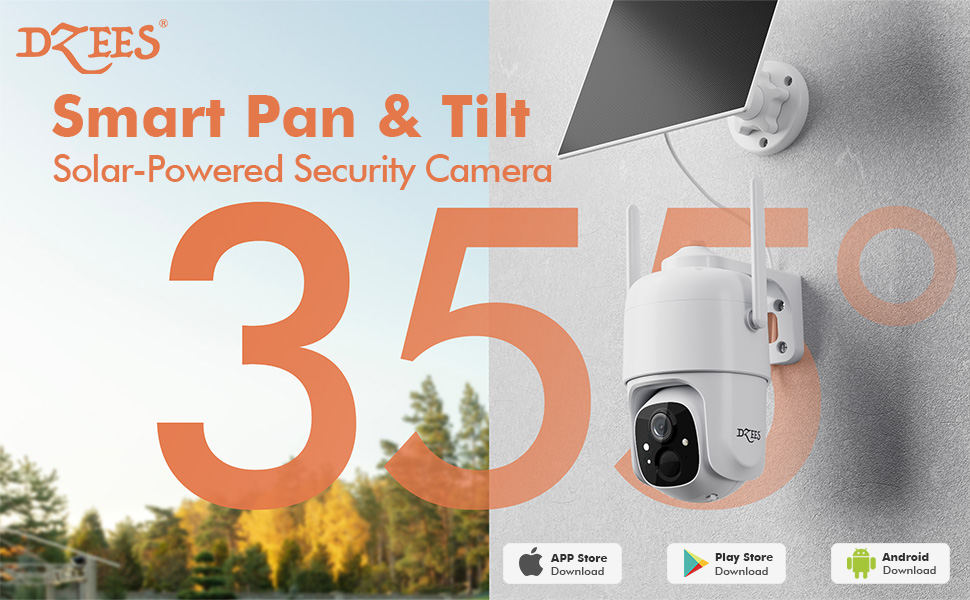
Figure 5.5: The camera's active deterrence features, including siren, spotlight, and instant push notifications, designed to deter potential intruders.
5.6 Opciones de almacenamiento
Your Dzees camera offers flexible storage solutions for your recordings:
- Almacenamiento local: Insert a Micro SD card (up to 128GB, not included) into the camera's SD card slot for continuous or event-based recording.
- Almacenamiento en la nube: Enjoy 2 years of free 3-day loop cloud storage. A 30-day trial of the Plus Plan is available for new users, offering upgraded cloud storage and advanced AI features.

Figure 5.6: The camera's support for both local Micro SD card storage (up to 128GB) and free 3-day cloud storage.
6. Mantenimiento
Regular maintenance ensures the longevity and optimal performance of your Dzees Solar Security Camera:
- Cleaning the Lens and Solar Panel: Limpie periódicamente la lente de la cámara y el panel solar con un paño suave.amp cloth to remove dust, dirt, or debris. This ensures clear video quality and efficient solar charging.
- Comprobación del estado de la batería: Monitor the battery level in the Dzees Home app. Ensure the solar panel is receiving sufficient direct sunlight to maintain charge.
- Actualizaciones de firmware: The Dzees Home app will notify you of available firmware updates. It is recommended to update the camera's firmware to ensure you have the latest features and security enhancements. Follow the in-app instructions for updating.
7. Solución de problemas
If you encounter issues with your Dzees Solar Security Camera, refer to the following common problems and solutions:
7.1 La cámara no se conecta al Wi-Fi
- Asegúrese de que su red Wi-Fi sea de 2.4 GHz. La cámara no es compatible con Wi-Fi de 5 GHz.
- Comprueba la intensidad de la señal wifi donde se encuentra la cámara. Si la señal es débil, acércala al router.
- Verifique que haya ingresado la contraseña de Wi-Fi correcta.
- Try resetting the camera by pressing and holding the reset button for 5 seconds until you hear a prompt. Then, attempt pairing again.
7.2 La batería no se carga o se descarga rápidamente
- Asegúrese de que el panel solar esté conectado de forma segura a la cámara.
- Verify that the solar panel is positioned to receive direct sunlight for several hours daily, without any obstructions (e.g., trees, eaves).
- Clean the surface of the solar panel regularly to remove dirt or dust that may hinder charging efficiency.
- In prolonged cloudy or rainy weather, the battery may drain. Consider temporarily charging the camera via USB if needed.
7.3 Exceso de falsas alarmas
- Adjust the motion detection sensitivity in the Dzees Home app to a lower setting.
- Utilize the activity zone feature to exclude areas with frequent irrelevant motion (e.g., busy streets, swaying trees).
- Enable AI detection to filter out non-human movements.
7.4 Mala calidad de imagen
- Limpie la lente de la cámara con un paño suave y sin pelusa.
- Ensure a strong Wi-Fi connection for optimal streaming quality.
- Check for any physical obstructions in front of the lens.
7.5 No Night Vision
- Verify that night vision mode is enabled in the Dzees Home app settings.
- Ensure the camera's spotlights are not obstructed.
If the issue persists after trying these solutions, please contact Dzees customer support for further assistance.
8. Especificaciones técnicas
| Característica | Especificación |
|---|---|
| Número de modelo | D3K |
| Resolución de vídeo | 2K / 3MP |
| Ángulo de giro | 355° |
| Ángulo de inclinación | 90° |
| Zoom digital | 4X |
| Rango de visión nocturna | Up to 55 feet (Color Night Vision supported) |
| Resistencia a la intemperie | IP66 |
| Fuente de poder | Solar Powered (with built-in rechargeable battery) |
| Conectividad | Wi-Fi de 2.4 GHz, Bluetooth |
| Almacenamiento local | Tarjeta Micro SD (hasta 128 GB, no incluida) |
| Almacenamiento en la nube | Free 3-day loop storage (2 years included) |
| Dimensiones (L x An x Al) | 5.8 x 7 x 8 pulgadas |
| Peso | 1.06 libras (480 gramos) |
| Material | Acrilonitrilo butadieno estireno (ABS) |
9. Garantía y soporte
Dzees is committed to providing high-quality products and excellent customer service.
- Garantía: Your Dzees Solar Security Camera comes with 2 years of after-sales support, ensuring peace of mind.
- Apoyo técnico: An experienced technical team is available for 24/7 lifetime support. For any inquiries or assistance, please contact Dzees customer service.
- Recursos en línea: Visit the official Dzees Store for more product information, FAQs, and support resources: Dzees Store on Amazon.
Ask a question about this manual
Ask about setup, troubleshooting, compatibility, parts, safety, or missing instructions. Manuals+ will review the question and use this page’s manual context to help answer it.