
1. Introducción
The Razer Barracuda X is a versatile 4-in-1 USB-C wireless headset designed for immersive home gaming and seamless on-the-go audio. It offers true versatility and freedom, backed by long-lasting comfort, powerful drivers, and a crystal-clear microphone. This manual provides essential information for setting up, operating, maintaining, and troubleshooting your headset.

Image: The Razer Barracuda X headset in a gaming environment, showcasing its sleek design and wireless capability.
2. Contenido del paquete
Asegúrese de que todos los siguientes elementos estén incluidos en su paquete:
- Razer Barracuda X Wireless Gaming Headset
- Dongle inalámbrico tipo C
- Removable Razer HyperClear Cardioid Mic
- Cable de carga tipo C
- Cable adaptador de tipo A a tipo C
- Manual de usuario (este documento)

Image: The Razer Barracuda X headset with its included accessories: the USB-C wireless dongle and the detachable HyperClear Cardioid Mic.
3. Configuración
3.1 Carga de los auriculares
Before first use, fully charge your Razer Barracuda X headset using the provided Type-C charging cable. Connect the Type-C end to the headset's charging port and the USB-A end to a power source (e.g., computer USB port, wall adapter).
3.2 Wireless Connectivity (2.4GHz USB-C Dongle)
For low-latency gaming audio, use the 2.4GHz wireless connection:
- Plug the Type-C wireless dongle into your desired device (PC, PlayStation, Nintendo Switch, Android device). If your device only has a USB-A port, use the included Type-A to Type-C adapter cable.
- Power on your Razer Barracuda X headset. It will automatically connect to the dongle.
3.3 Conectividad Bluetooth
For mobile use or devices without a USB-C port, connect via Bluetooth:
- With the headset powered on, press and hold the SmartSwitch button (usually indicated by a Bluetooth icon) until the LED indicator blinks blue, indicating pairing mode.
- On your device, search for Bluetooth devices and select "Razer Barracuda X" to pair.

Image: The Razer Barracuda X headset connected to multiple devices, highlighting its SmartSwitch dual wireless capability for seamless transitions between 2.4GHz and Bluetooth.
3.4 Conexión del micrófono
Insert the detachable Razer HyperClear Cardioid Mic into the microphone jack located on the left earcup. Ensure it is firmly seated.
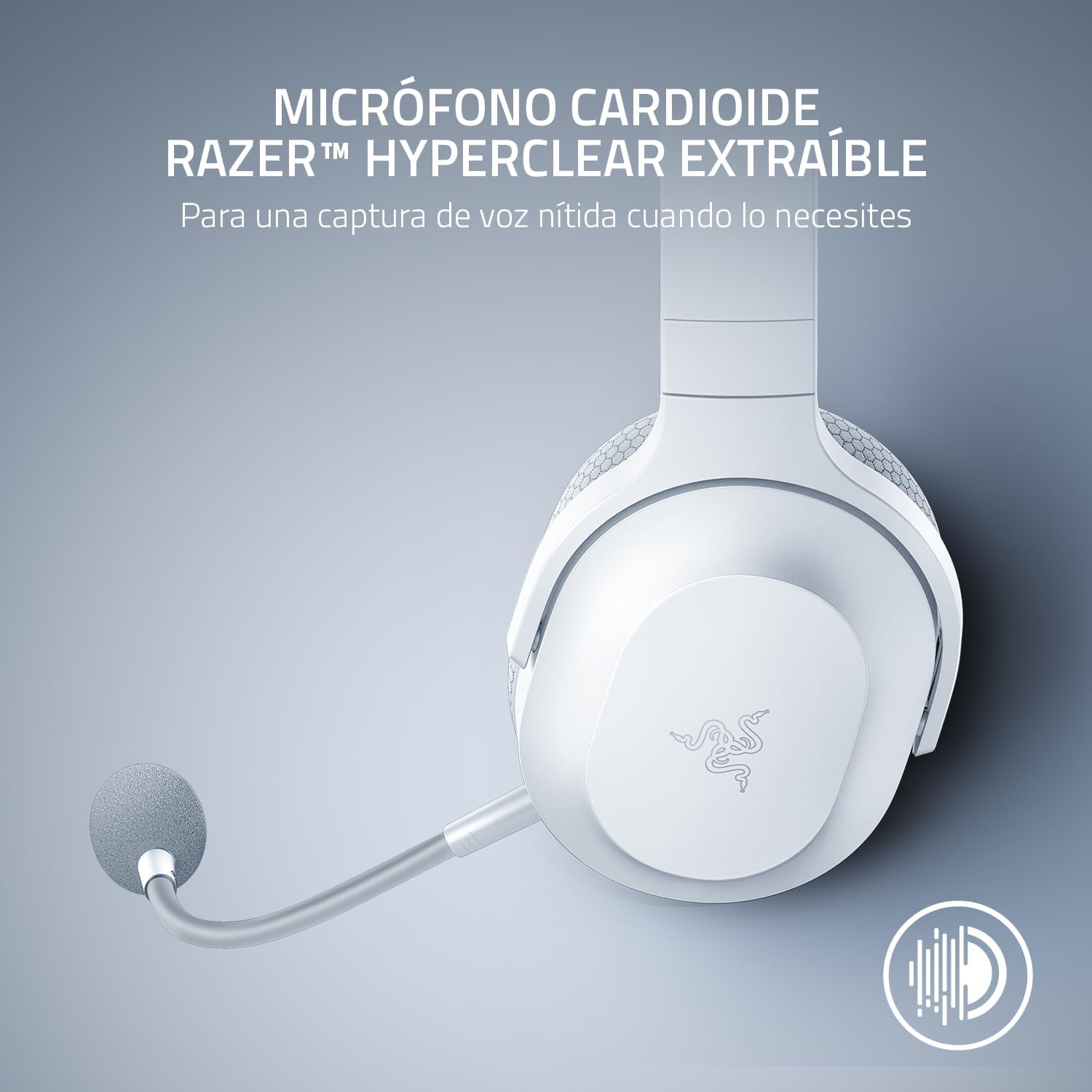
Image: The Razer Barracuda X headset with its detachable HyperClear Cardioid Mic, designed for clear voice capture.
4. Funcionamiento de los auriculares
4.1 Encendido y apagado
- Para encender: Mantenga presionado el botón de encendido hasta que se encienda el indicador LED.
- Para apagar: Mantenga presionado el botón de encendido hasta que el indicador LED se apague.
4.2 Control de volumen
Adjust the audio volume using the volume roller located on the left earcup.
4.3 Silenciar el micrófono
Press the microphone mute button on the left earcup to toggle the microphone on or off. An LED indicator on the mic will show its status.
4.4 SmartSwitch Dual Wireless
The SmartSwitch feature allows you to seamlessly switch between 2.4GHz wireless and Bluetooth connections. When connected to both, the headset will prioritize the 2.4GHz connection for gaming. If a call comes in on your Bluetooth-connected phone, the headset will automatically switch to the Bluetooth connection. After the call, it will switch back to 2.4GHz.

Image: Close-up of the Razer Barracuda X headset's on-headset controls, including the volume wheel, power button, and mic mute button.
4.5 Comodidad y ergonomía
The Barracuda X features a lightweight 250g ergonomic design with breathable memory foam ear cushions and swiveling earcups, ensuring comfort during long gaming sessions or daily commutes.

Imagen: Un detalle view of the Razer Barracuda X headset's ergonomic design, highlighting the comfortable ear cushions and lightweight build.
5. Mantenimiento
5.1 Limpieza
- Utilice un paño suave y seco para limpiar los auriculares.
- Evite utilizar productos químicos agresivos o materiales abrasivos.
- Para las almohadillas de los oídos, límpielas suavemente con un paño húmedo.amp paño y deje que se seque al aire por completo.
5.2 Almacenamiento
Store the headset in a cool, dry place away from direct sunlight and extreme temperatures. When not in use, consider storing it in a protective case to prevent damage.
6. Solución de problemas
6.1 No Audio/Poor Audio Quality
- Comprobar volumen: Ensure the headset volume is not muted or set too low.
- Conectividad: Verify the 2.4GHz dongle is properly inserted and the headset is connected, or that Bluetooth is successfully paired. Try re-pairing if necessary.
- Configuración de dispositivo: Confirm the Razer Barracuda X is selected as the default audio output device in your computer's or console's sound settings.
- Interferencia: Aléjese de otros dispositivos inalámbricos que puedan causar interferencias.
6.2 El micrófono no funciona
- Marcar silencio: Ensure the microphone is not muted via the headset button or your device's software.
- Conexión: Re-insert the detachable microphone firmly into its jack.
- Configuración de dispositivo: Verify the Razer Barracuda X microphone is selected as the default input device in your computer's or console's sound settings and application settings (e.g., Discord).
6.3 Headset Not Powering On/Charging
- Cargar batería: Connect the headset to a power source using the Type-C charging cable and allow it to charge for at least 30 minutes.
- Check Cable/Port: Ensure the charging cable and port are not damaged. Try a different cable or USB port.
6.4 Apagado automático
The headset may automatically power off after a period of inactivity to conserve battery. This is a normal feature. To prevent this during active use, ensure audio is consistently playing through the headset.
7. Especificaciones
| Característica | Detalle |
|---|---|
| Marca | Razer |
| Nombre del modelo | BarracudaX |
| Número de modelo | RZ04-04430200-R3U1 |
| Color | Blanco |
| Tecnología de conectividad | 2.4GHz Wireless, Bluetooth 5.2, USB-C |
| Tipo de controlador de audio | Controlador dinámico |
| Tamaño del controlador de audio | 40 milímetros (Razer TriForce) |
| Respuesta de frecuencia | 20 Hz - 20,000 Hz |
| Impedancia | 32 ohmios |
| Sensibilidad | 96 dB |
| Micrófono | Micrófono cardioide Razer HyperClear desmontable |
| Duración de la batería | Hasta 50 horas |
| Peso | 9.6 onzas (250 g) |
| Colocación de orejas | Sobre la oreja |
| Tipo de control | Control de medios, táctil |
| Características adicionales | SmartSwitch Dual Wireless, 250g Ergonomic Design |

Imagen: Una explosión view diagram illustrating the Razer TriForce 40mm drivers, designed for distinct high, mid, and low audio frequencies.
8. Garantía y soporte
8.1 Información de garantía
The Razer Barracuda X Wireless Gaming Headset comes with a Garantía del fabricante de 2 añosConserve su comprobante de compra para reclamaciones de garantía.
8.2 Atención al cliente
For further assistance, technical support, or warranty inquiries, please visit the official Razer support websitio o el Tienda Razer en Amazon.