
Introducción
This manual provides detailed instructions for the setup, operation, and maintenance of your PUSAT One Shot Pro Wireless Gaming Mouse. Please read this manual thoroughly before using the product to ensure optimal performance and longevity.
Contenido del paquete
Verifique que todos los artículos enumerados a continuación estén presentes en su paquete:
- Ratón inalámbrico para juegos PUSAT One Shot Pro
- Receptor inalámbrico USB
- Cable de carga USB-C a USB-A
- Additional Side Buttons (interchangeable)
- Manual de usuario (este documento)

Figura 1: PUSAT One Shot Pro mouse, charging cable, and interchangeable side buttons, displayed with its retail packaging.
Producto terminadoview
Familiarize yourself with the various components and controls of your PUSAT One Shot Pro Wireless Gaming Mouse.
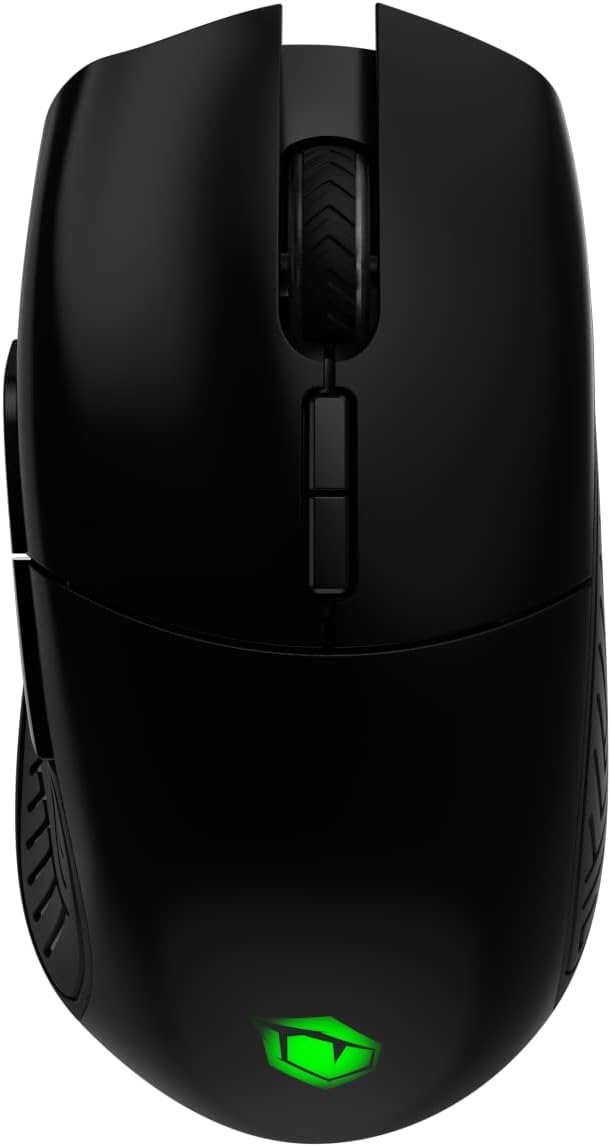
Figura 2: Arriba view of the PUSAT One Shot Pro mouse, showing the left and right click buttons, scroll wheel, and DPI switch buttons.

Figura 3: Lado izquierdo view of the PUSAT One Shot Pro mouse, highlighting the two programmable side buttons and textured grip.

Figura 4: Abajo view of the PUSAT One Shot Pro mouse, showing the optical sensor, ON/OFF switch, user profile switch, and the compartment for the USB receiver.
Funciones de los botones:
- Botón de clic izquierdo: Función de clic principal estándar.
- Botón derecho del ratón: Función de clic secundario estándar.
- Rueda de desplazamiento: Scrolls content up/down, also functions as a middle click button.
- DPI Switch Buttons: Ajusta la sensibilidad del mouse (DPI) sobre la marcha.
- Programmable Side Buttons (8 total): Customizable buttons for various functions, often used for macros or in-game actions.
- Usuario Profile Switch (Bottom): Allows switching between different user-defined profiles.
- ON/OFF Switch (Bottom): Enciende o apaga el mouse.
Configuración
Conexión del mouse:
- Locate the USB wireless receiver. It is typically stored in a compartment on the underside of the mouse (refer to Figure 4).
- Remove the USB wireless receiver from its storage slot.
- Plug the USB wireless receiver into an available USB port on your computer (PC or Notebook).
- Flip the ON/OFF switch on the bottom of the mouse to the "ON" position.
- Su computadora debería detectar e instalar automáticamente los controladores necesarios. El ratón estará listo para usar una vez finalizada la instalación.
For optimal wireless performance, ensure the USB receiver is placed in a location with minimal interference and a clear line of sight to the mouse.
Instrucciones de funcionamiento
Uso básico:
- Mueva el mouse sobre una superficie plana para controlar el cursor en su pantalla.
- Use the left and right click buttons for primary and secondary actions.
- Rotate the scroll wheel to navigate through documents or web páginas.
Ajuste de PPP:
The PUSAT One Shot Pro mouse features adjustable DPI (Dots Per Inch) settings, allowing you to change cursor sensitivity. Use the dedicated DPI switch buttons, usually located near the scroll wheel, to cycle through preset DPI levels (1,000 to 16,000 DPI). Each change typically corresponds to a visual indicator, such as an RGB lighting color change, though specific indicators may vary.
Botones programables:
The mouse is equipped with 8 programmable buttons. To customize these buttons, you will typically need to download and install the official PUSAT software from the manufacturer's website. This software allows you to assign macros, keyboard functions, or other commands to each programmable button.
Cargando
The PUSAT One Shot Pro mouse is equipped with a rechargeable Lithium Ion battery (700 mAh) and supports both wired and wireless charging.
Carga con cable:
- Connect the USB-C end of the charging cable to the port on the front of the mouse.
- Connect the USB-A end of the charging cable to an available USB port on your computer or a USB wall adapter.
- The mouse's RGB lighting or an indicator light will typically show the charging status.

Figura 5: The PUSAT One Shot Pro mouse connected via its USB-C charging cable.
Carga inalámbrica:
The PUSAT One Shot Pro supports wireless charging. To charge wirelessly, place the mouse on a compatible wireless charging pad. Ensure the mouse is correctly positioned on the charging pad for the charging process to initiate. The mouse's indicator lights will typically confirm that wireless charging is active.
Note: A wireless charging pad is sold separately and is not included with the mouse.
Mantenimiento
Limpieza:
- Asegúrese de que el mouse esté apagado antes de limpiarlo.
- Utilice un paño suave y sin pelusa ligeramente seco.ampLimpie con agua o una solución de limpieza suave la superficie del mouse.
- Evite utilizar productos químicos agresivos, limpiadores abrasivos o disolventes.
- Use compressed air to remove dust and debris from crevices and around buttons.
- Limpie periódicamente el sensor óptico en la parte inferior del mouse con un hisopo de algodón para garantizar un seguimiento preciso.
Cuidado de la batería:
- Evite descargar completamente la batería con frecuencia.
- Guarde el ratón en un lugar fresco y seco cuando no lo utilice durante períodos prolongados.
- Si lo va a almacenar durante un tiempo prolongado, cargue la batería aproximadamente al 50 % para prolongar su vida útil.
Solución de problemas
| Problema | Posible causa | Solución |
|---|---|---|
| El ratón no responde |
|
|
| Movimiento del cursor errático o retrasado |
|
|
| Los botones no funcionan o las funciones programables no están activas |
|
|
| La carga inalámbrica no funciona |
|
|
Presupuesto
| Característica | Detalle |
|---|---|
| Marca | CENTRAR |
| Modelo | One Shot Pro |
| Conectividad | 2.4 GHz inalámbrico (receptor USB) |
| Rango de DPI | 1,000 - 16,000 ppp |
| Número de botones | 8 (Programable) |
| Tipo de sensor | Óptico |
| Tipo de batería | 1 batería de iones de litio (incluida) |
| Capacidad de la batería | 700 mAh |
| Cargando | USB-C Wired, Wireless Charging Compatible |
| Dimensiones (L x An x Al) | 12.5 x 6.6 x 4.2 cm |
| Peso | 110 gramos |
| Color | Negro |
| Plataforma de hardware | PC, Notebook |
Información de seguridad
- No exponga el mouse a temperaturas extremas, humedad o luz solar directa.
- Evite dejar caer o someter el mouse a impactos fuertes.
- No intente desmontar ni modificar el ratón. Esto podría anular la garantía y causar daños.
- Keep the mouse away from liquids. If liquid enters the device, discontinue use immediately and contact support.
- Dispose of the battery according to local regulations. Do not dispose of batteries in general household waste.
Garantía y soporte
For warranty information and technical support, please refer to the warranty card included with your product or visit the official PUSAT website. If you encounter any issues not covered in this manual, please contact PUSAT customer service for assistance.