
OMOTON WK003
OMOTON 2.4GHz Wireless AZERTY Keyboard Instruction Manual
Modelo: WK003
Marca: OMOTON
1. Introducción
Thank you for choosing the OMOTON 2.4GHz Wireless AZERTY Keyboard. This ultra-slim, silent keyboard is designed for comfortable and efficient typing across various Windows operating systems. This manual provides detailed instructions for setting up, operating, maintaining, and troubleshooting your new keyboard to ensure optimal performance.
2. Contenido del paquete
Please check the package contents carefully. If any items are missing or damaged, please contact OMOTON customer support.
- 1 x OMOTON 2.4GHz Wireless AZERTY Keyboard
- Receptor 1 x USB
- 1 x Manual de usuario
3. Guía de configuración
Follow these steps to set up your OMOTON wireless keyboard:
- Instale las baterías: Open the battery compartment on the back of the keyboard. Insert two AAA batteries (not included), ensuring correct polarity. Close the compartment.
- Insertar receptor USB: Locate the USB receiver, which is magnetically stored in the battery compartment. Plug the USB receiver into an available USB port on your computer.

Image: Battery compartment with USB receiver and AAA batteries.
- Encendido: Slide the ON/OFF switch located on the top right side of the keyboard to the "ON" position.
- Conectar: Your computer should automatically detect and install the necessary drivers for the keyboard. No additional software is required.

Image: Plug & Play setup with USB receiver.
El teclado ya está listo para usar.
4. Instrucciones de funcionamiento
4.1 Escritura básica
Simply begin typing. The keyboard features a standard AZERTY layout for familiar use.
4.2 Fn Lock Function
The keyboard includes a convenient Fn Lock function. By default, the F1-F12 keys perform their standard function. To access the multimedia shortcuts directly without pressing the Fn key, activate the Fn Lock.
- Activate/Deactivate Fn Lock: Prensa Fn + Échap simultaneously. When activated, the multimedia functions (e.g., volume control, home page) will be directly accessible by pressing F1-F12. When deactivated, F1-F12 will perform their standard functions, and multimedia actions will require pressing Fn + Fx.

Image: Fn Lock function and multimedia keys.
4.3 Atajos multimedia
The keyboard provides 12 multimedia shortcuts for quick access to common functions. These can be used directly when Fn Lock is active, or by pressing Fn in combination with the respective F-key when Fn Lock is inactive.
| Llave | Función |
|---|---|
| F1 | Silenciar |
| F2 | Bajar volumen |
| F3 | Subir volumen |
| F4 | Pista anterior |
| F5 | Reproducir/Pausa |
| F6 | Pista siguiente |
| F7 | Brightness Down (System Dependent) |
| F8 | Brightness Up (System Dependent) |
| F9 | Buscar |
| F10 | Página de inicio |
| F11 | Copiar |
| F12 | Pasta |
4.4 Compatibilidad
This keyboard is compatible with Windows 11, 10, 8, 7, XP, and Vista, making it suitable for a wide range of desktop and laptop computers.
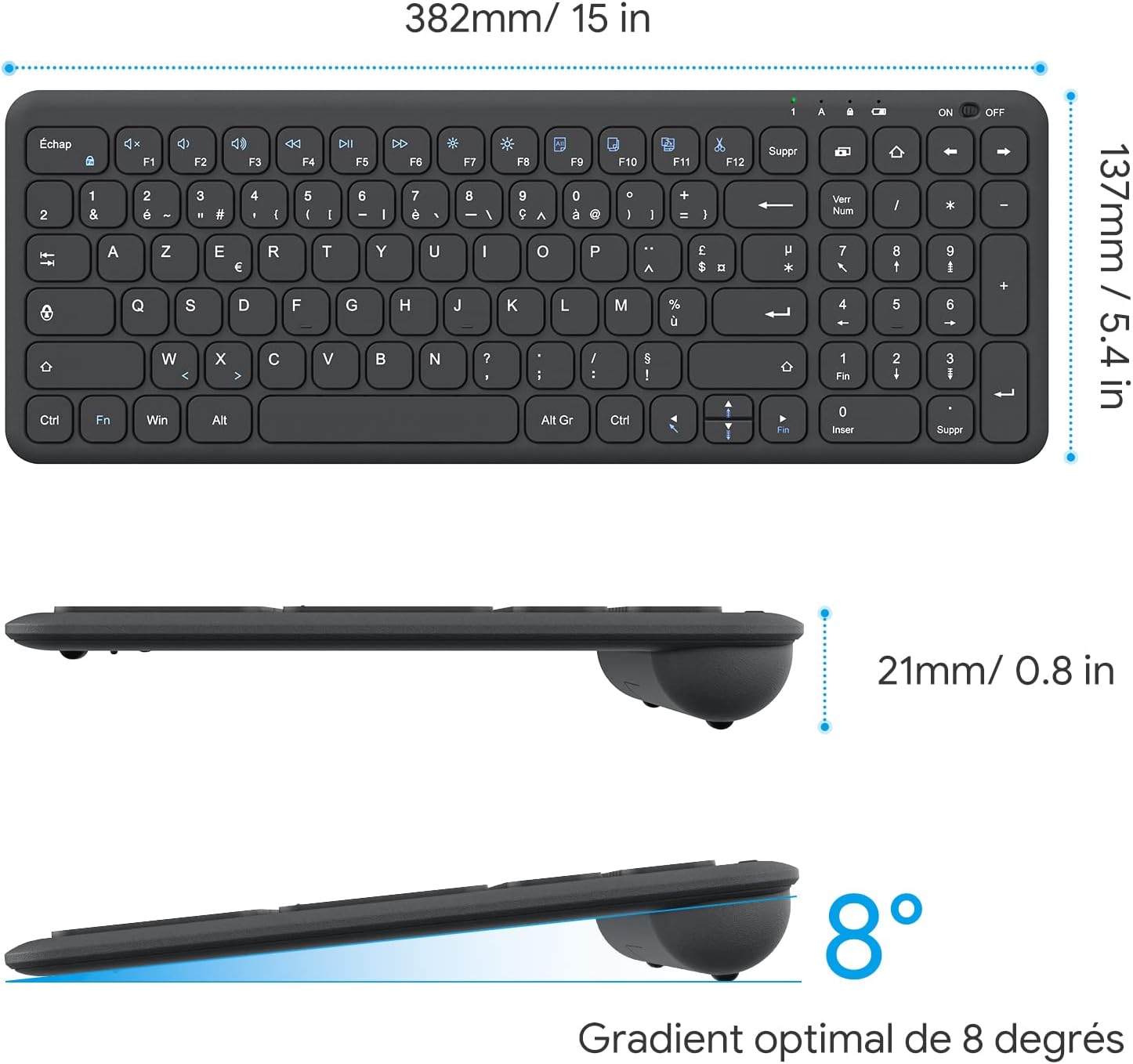
Image: Keyboard compatibility with Windows systems.
5. Mantenimiento
5.1 Reemplazo de batería
When the keyboard's performance degrades or the indicator light flashes, it's time to replace the batteries. Open the battery compartment on the back and replace the two AAA batteries with new ones, observing polarity.
5.2 Limpieza
Para limpiar el teclado, frote suavemente la superficie con un paño suave.amp cloth. Avoid using harsh chemicals or abrasive materials. Ensure the keyboard is turned off before cleaning.
5.3 Almacenamiento del receptor USB
For convenience and to prevent loss, the USB receiver can be magnetically stored inside the keyboard's battery compartment when not in use or during transport.
6. Solución de problemas
Si tiene problemas con su teclado, consulte las siguientes soluciones comunes:
- El teclado no responde:
- Asegúrese de que el teclado esté encendido.
- Compruebe que las baterías estén correctamente instaladas y tengan suficiente carga. Reemplácelas si es necesario.
- Verifique que el receptor USB esté conectado correctamente a un puerto USB que funcione en su computadora. Pruebe con otro puerto USB.
- Reinicie su computadora.
- Lagging or intermittent input:
- Ensure the keyboard is within the effective operating range (up to 10 meters) of the USB receiver.
- Reduce potential interference by moving the keyboard closer to the receiver or away from other wireless devices (e.g., Wi-Fi routers, cordless phones).
- Check battery level. Low batteries can affect wireless performance.
- Teclas específicas que no funcionan:
- Limpie suavemente alrededor de la tecla afectada para eliminar cualquier residuo.
- If the issue persists, contact OMOTON customer support for further assistance.
7. Especificaciones
Detailed technical specifications for the OMOTON Wireless AZERTY Keyboard:
| Característica | Detalle |
|---|---|
| Marca | OMOTON |
| Modelo | WK003 |
| Tecnología de conectividad | 2.4 GHz inalámbrico (receptor USB) |
| Disposición del teclado | Azerty |
| Dispositivos compatibles | PC, Desktop, Laptop |
| Sistemas operativos compatibles | Windows 11/10/8/7/XP/Vista |
| Características especiales | 12 Multimedia Shortcuts, Fn Lock, Silent Keys, Ultra-Slim Design, Magnetic USB Receiver Storage |
| Color | Negro |
| Fuente de poder | Pilas 2 x AAA (no incluidas) |
| Dimensiones (L x An x Al) | 38.1 x 13.7 x 2 cm (15 x 5.4 x 0.8 pulgadas) |
| Número de llaves | 99 |
| Tipo de interruptor de llave | Tactile (Scissor-mechanism) |
| Optimal Gradient | 8 grados |

Image: Keyboard dimensions and ergonomic design.

Image: Scissor-mechanism key design.
8. Información de garantía
OMOTON products typically come with a manufacturer's warranty. Please refer to the warranty card included with your product or visit the official OMOTON webVisite el sitio web para conocer los términos y condiciones detallados de la garantía. Conserve su recibo de compra como comprobante para cualquier reclamación de garantía.
9. Atención al cliente
If you have any questions, require technical assistance, or experience issues not covered in this manual, please do not hesitate to contact OMOTON customer support. You can usually find contact information on the OMOTON official websitio o a través del minorista donde compró el producto.
Ask a question about this manual
Ask about setup, troubleshooting, compatibility, parts, safety, or missing instructions. Manuals+ will review the question and use this page’s manual context to help answer it.