
1. Introducción
This manual provides essential information for the proper installation, operation, and maintenance of your SUNMI T2s Lite 15.6-inch Android Point of Sale (POS) system. Please read this manual thoroughly before using the device to ensure optimal performance and safety. Keep this manual for future reference.
2. Información de seguridad
- No exponga el dispositivo a temperaturas extremas, humedad o luz solar directa.
- Evite dejar caer o someter el dispositivo a impactos fuertes.
- Utilice únicamente el adaptador de corriente incluido con el dispositivo. El uso de un adaptador incorrecto podría causar daños o incendios.
- No intente desmontar ni reparar el dispositivo usted mismo. Consulte a personal de servicio técnico cualificado.
- Mantenga el dispositivo alejado del agua u otros líquidos.
- Asegúrese de que haya una ventilación adecuada alrededor del dispositivo durante su funcionamiento.
3. Contenido del paquete
Verifique que todos los artículos estén presentes en el paquete:
- SUNMI T2s Lite POS Terminal
- Adaptador de corriente
- Cable de alimentación
- Guía de inicio rápido (si corresponde)
- Tarjeta de garantía (si corresponde)
Si falta algún artículo o está dañado, comuníquese con su proveedor de inmediato.
4. Producto terminadoview
The SUNMI T2s Lite is an integrated Android-based POS system designed for retail environments. It features a 15.6-inch capacitive touchscreen display and various connectivity options.
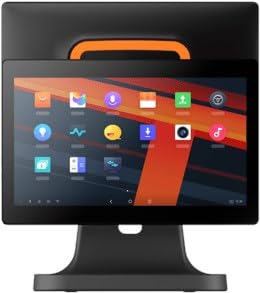
Figura 4.1: Frente view of the SUNMI T2s Lite POS system. This image displays the main 15.6-inch touchscreen, which is the primary interface for operating the device. The design is compact and suitable for various retail settings.
4.1 componentes clave
- Pantalla táctil de 15.6 pulgadas: High-resolution (1920x1080) capacitive touch interface.
- Botón de encendido: Located typically on the side or rear for turning the device on/off.
- Puertos USB: For connecting peripherals such as barcode scanners, external printers, or cash drawers.
- Puerto Ethernet: Para conectividad de red cableada.
- Entrada de energía: Para conectar el adaptador de corriente.
- Cámara frontal: For specific applications requiring image capture.
5. Configuración
5.1 Desembalaje y colocación
- Retire con cuidado el dispositivo y todos los accesorios del embalaje.
- Place the POS terminal on a stable, flat surface in a well-ventilated area.
- Ensure there is sufficient space around the device for cable connections and heat dissipation.
5.2 Conexión de la alimentación
- Conecte el cable de alimentación al adaptador de corriente.
- Plug the power adapter into the power input port on the back of the SUNMI T2s Lite.
- Conecte el otro extremo del cable de alimentación a una toma eléctrica con conexión a tierra.
5.3 Initial Boot and Network Connection
- Press and hold the power button until the screen lights up. The device will boot into the Android operating system.
- Siga las instrucciones en pantalla para la configuración inicial, incluida la selección del idioma y la zona horaria.
- Conexión Wi-Fi: Ir a Configuración > Red e Internet > Wi-Fi, seleccione su red e ingrese la contraseña.
- Conexión Ethernet: Connect an Ethernet cable from your router/switch to the Ethernet port on the device. The device should automatically connect to the wired network.
5.4 Conexión de periféricos
- Dispositivos USB: Plug USB peripherals (e.g., barcode scanner, external printer, cash drawer) into the available USB ports. The system will typically recognize them automatically.
- Dispositivos Bluetooth: Ir a Configuración > Dispositivos conectados > Bluetooth, enable Bluetooth, and pair with your desired device.
6. Instrucciones de funcionamiento
6.1 Encendido / Apagado
- Para encender: Mantén presionado el botón de encendido hasta que se encienda la pantalla.
- Para apagar: Press and hold the power button until a power menu appears. Select "Power off" and confirm. Alternatively, a short press of the power button will put the device to sleep.
6.2 Uso de la pantalla táctil
- Grifo: Para seleccionar un elemento o activar un botón.
- Toque y mantenga: Para abrir menús contextuales o arrastrar elementos.
- Golpe fuerte: Para desplazarse por las listas o navegar entre pantallas.
- Pellizcar para hacer zoom: Para acercar o alejar las imágenes o web páginas.
6.3 Navegación del sistema operativo Android
- Pantalla de inicio: The central hub for your applications and widgets.
- Cajón de aplicaciones: Acceder a todas las aplicaciones instaladas.
- Panel de notificación: Deslice hacia abajo desde la parte superior de la pantalla para view notificaciones y configuraciones rápidas.
- Ajustes: Configure Wi-Fi, Bluetooth, display, sound, and other system options.
6.4 Basic POS Functions
The specific POS functions will depend on the software application installed on your device. Refer to the documentation provided with your POS software for detailed instructions. Generally, you will:
- Launch your POS application from the home screen or app drawer.
- Inicie sesión con sus credenciales de usuario.
- Process transactions using the touchscreen and connected peripherals (e.g., scanning items, accepting payments).
- Print receipts if an external or integrated printer is configured.
7. Mantenimiento
7.1 Limpieza del dispositivo
- Siempre apague y desenchufe el dispositivo antes de limpiarlo.
- Utilice un paño suave y sin pelusa ligeramente seco.ampLimpie con agua o un limpiador suave, no abrasivo, la pantalla y las superficies exteriores.
- No rocíe líquidos directamente sobre el dispositivo.
- Evite utilizar productos químicos agresivos, disolventes o materiales abrasivos.
7.2 Actualizaciones de software
Regularly check for and install system and application updates to ensure optimal performance, security, and access to new features. You can usually find system updates in Configuración > Sistema > Actualización del sistema.
7.3 Almacenamiento
When not in use for extended periods, store the device in a cool, dry place, away from direct sunlight and extreme temperatures. If storing for a long time, ensure the battery is charged to about 50% to prolong its lifespan.
8. Solución de problemas
Esta sección aborda problemas comunes que podrías encontrar. Para problemas más complejos, contacta con atención al cliente.
- El dispositivo no se enciende:
- Asegúrese de que el adaptador de corriente esté conectado de forma segura al dispositivo y a una toma de corriente que funcione.
- Verifique que la toma de corriente funcione.
- Intente mantener presionado el botón de encendido durante 10 a 15 segundos para forzar el reinicio.
- Touchscreen is unresponsive:
- Reinicie el dispositivo.
- Asegúrese de que la pantalla esté limpia y libre de residuos o líquidos.
- Network connection issues (Wi-Fi/Ethernet):
- Check if the Wi-Fi is enabled and you are connected to the correct network with the right password.
- For Ethernet, ensure the cable is properly connected and your router/switch is working.
- Reinicie su enrutador/módem.
- Peripherals (e.g., printer, scanner) not working:
- Asegúrese de que el periférico esté conectado correctamente al puerto correcto.
- Check if the peripheral has its own power supply and is turned on.
- Verify that the necessary drivers or software for the peripheral are installed and configured within your POS application.
9. Especificaciones
The following are key technical specifications for the SUNMI T2s Lite:
| Característica | Especificación |
|---|---|
| Marca | Sunmi-san |
| Fabricante | Sunmi |
| Resolución de pantalla nativa | 1920x1080 píxeles |
| Tecnología de conectividad | Bluetooth, Ethernet, USB, WLAN |
| Descripción de la cámara | Frontal |
| ASIN | B0B53FLFT8 |
10. Garantía y soporte
The SUNMI T2s Lite POS system comes with a standard manufacturer's warranty. Please refer to the warranty card included in your package for specific terms and conditions, including warranty period and coverage details.
For technical support, service, or warranty claims, please contact your authorized SUNMI dealer or the customer support channel specified in your purchase documentation. Ensure you have your product model number (T2s Lite) and ASIN (B0B53FLFT8) ready when contacting support.