
Pantum M6500NW
Manual del usuario de la impresora láser multifunción PANTUM M6500NW
Model: M6500NW | Brand: PANTUM
1. Introducción
This manual provides comprehensive instructions for the PANTUM M6500NW Multifunction Laser Printer. It covers setup, operation, maintenance, and troubleshooting to ensure optimal performance of your device. The PANTUM M6500NW is designed for small home offices, offering print, copy, and scan functionalities with Ethernet, Wi-Fi, and USB 2.0 connectivity.

Image: The PANTUM M6500NW Multifunction Laser Printer, a compact black device with an open scanner lid, control panel, and paper tray.
2. Configuración
2.1 Desembalaje y preparación inicial
Carefully unpack the printer and all accessories from the box. Remove all protective packaging materials, including tapes and foam inserts, from the exterior and interior of the printer.
Video: This video demonstrates the unboxing process, removal of protective materials, and initial setup steps for the PANTUM M6500 Series printer.
2.2 Instalación del cartucho de tóner
- Abra la cubierta frontal de la impresora.
- Locate the toner cartridge slot.
- Agite suavemente el nuevo cartucho de tóner horizontalmente 5 o 6 veces para distribuir el tóner de manera uniforme.
- Remove the protective seal and any orange protective covers from the toner cartridge.
- Inserte el cartucho de tóner en la impresora hasta que encaje en su lugar.
- Cierre la cubierta frontal.

Image: A PANTUM PA-210 toner cartridge next to printed documents, illustrating print quality and toner compatibility.
2.3 Carga de papel
- Abra la bandeja de papel ubicada en la parte frontal inferior de la impresora.
- Ajuste las guías de papel para que coincidan con el tamaño del papel que está cargando.
- Fan the paper stack to prevent jams.
- Load the paper into the tray, ensuring it is aligned with the guides.
- Cierre la bandeja de papel.
2.4 Instalación del controlador
To use your PANTUM M6500NW printer, you need to install the appropriate drivers on your computer. There are two primary methods:
- Using the included CD-ROM: Insert the driver CD into your computer's CD drive and follow the on-screen instructions.
- Downloading from the official PANTUM websitio: Visita global.pantum.com/support/download/driver/, search for "M6500NW", and download the latest driver for your operating system.

Image: Visual guide for installing the printer driver on a PC, showing options for USB connection, wired network, and Wi-Fi.
2.5 Opciones de conectividad
The PANTUM M6500NW offers versatile connectivity:
- USB 2.0: Conecte la impresora directamente a su computadora mediante un cable USB.
- Ethernet: Conecte la impresora a su enrutador de red mediante un cable Ethernet para acceso compartido.
- Wifi: Connect wirelessly to your network for convenient printing from multiple devices.

Image: Diagram illustrating USB, Ethernet, and Wi-Fi connectivity options for the PANTUM M6500NW printer.
2.6 Mobile App Setup (Wi-Fi)
For mobile printing, download the Pantum APP from your device's app store or the official Pantum website. Follow these steps to connect via Wi-Fi:
- Asegúrese de que su impresora esté encendida.
- Open the Pantum APP on your mobile device.
- Select "Add a printer" and follow the on-screen prompts to connect to the printer's Wi-Fi hotspot (e.g., "DIRECT-bc-Pantum M6500NW Series").
- Enter the default password if prompted (check printer's network configuration report for details).
- Once connected to the printer's hotspot, the app will guide you to connect the printer to your home Wi-Fi router.
- After successful connection, you can print directly from your mobile device.

Image: Steps for connecting the PANTUM M6500NW printer to a Wi-Fi router via the mobile app.
3. Instrucciones de funcionamiento
3.1 Impresión
- Desde una computadora: After driver installation, select the PANTUM M6500NW from your printer list in any application and choose your desired print settings.
- Desde un dispositivo móvil: Use the Pantum APP to select documents or images for printing. Ensure your device is connected to the same Wi-Fi network as the printer.
- The printer supports monochrome printing at speeds up to 22 pages per minute.
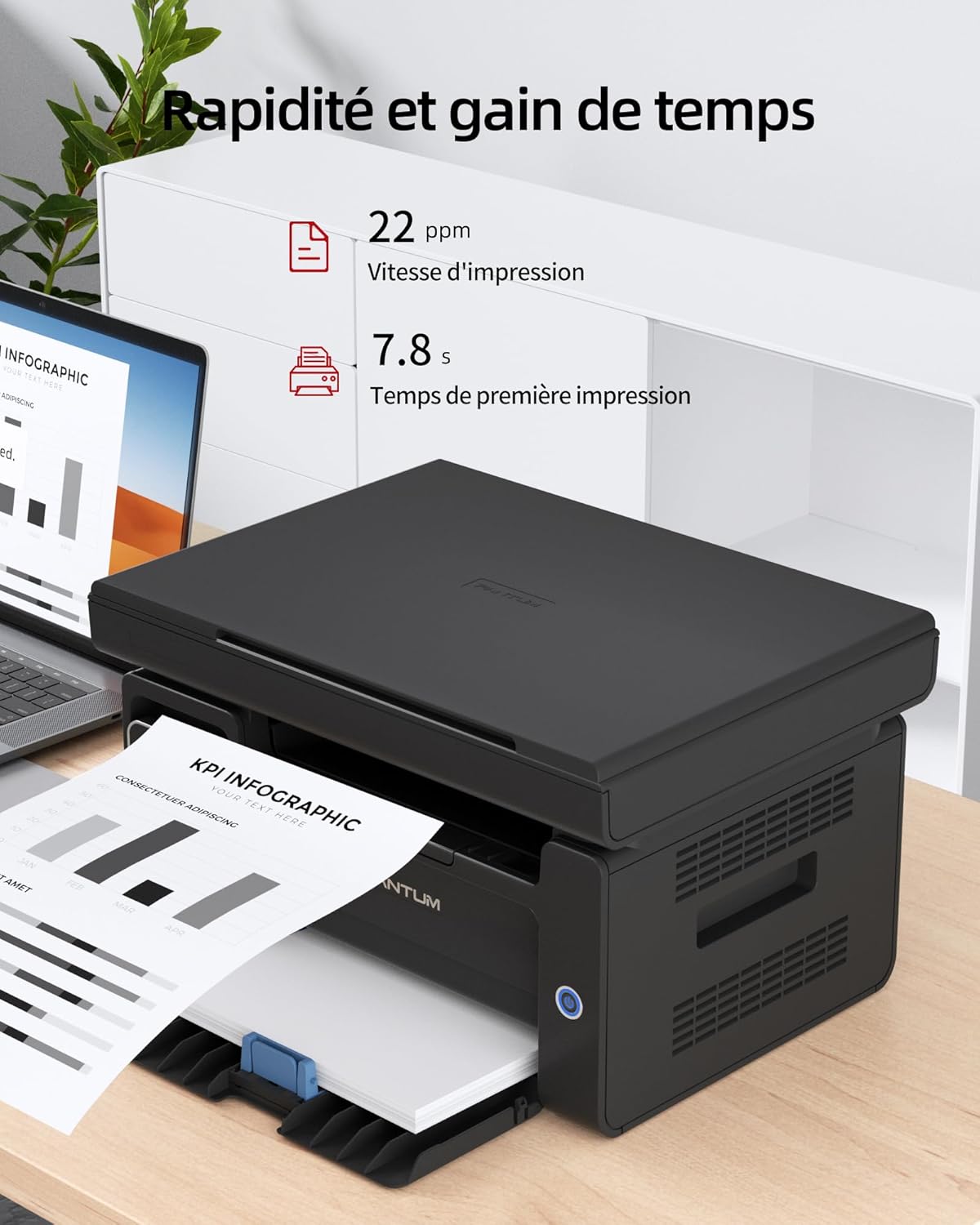
Image: Illustration highlighting the printer's speed, with 22 ppm print speed and 7.8 seconds first page out time.
3.2 Copia
Para hacer una copia:
- Place the document face-down on the scanner glass or face-up in the Automatic Document Feeder (ADF) if available.
- Use the control panel to select the number of copies and other settings (e.g., lighten/darken).
- Press the "Copy" button to start the process.

Image: A person placing a document on the scanner glass of the PANTUM M6500NW for copying or scanning.
3.3 Escaneo
Para escanear un documento:
- Coloque el documento boca abajo sobre el cristal del escáner.
- From your computer, open the scanning software (usually installed with the printer driver) or use the Pantum APP on your mobile device.
- Select scan settings such as resolution, color mode (monochrome), and destination.
- Initiate the scan. The scanned document will be saved to your specified location.
3.4 Manual Duplex Printing
The PANTUM M6500NW supports manual duplex (two-sided) printing. To use this feature:
- En la configuración de impresión, seleccione la opción de impresión dúplex manual.
- Imprima primero las páginas impares.
- When prompted, reload the printed pages into the paper tray according to the on-screen instructions to print the even-numbered pages on the reverse side.
4. Mantenimiento
4.1 Reemplazo del cartucho de tóner
When the toner is low or depleted, the printer will indicate this. Replace the toner cartridge with a genuine PANTUM PA-210 (1,600 pages) or compatible cartridge. Follow the installation steps outlined in Section 2.2.
Nota: Using non-original consumables may void your warranty and affect print quality.
4.2 Limpieza de la impresora
La limpieza regular ayuda a mantener la calidad de impresión y prolonga la vida útil de su impresora.
- Exterior: Limpie el exterior de la impresora con un paño suave que no suelte pelusa.
- Vidrio del escáner: Utilice un paño suave.ampLimpie el cristal del escáner con limpiacristales. Evite rociar el limpiador directamente sobre el cristal.
- Interior: Consulte las instrucciones de limpieza detalladas en el manual de usuario completo para conocer los componentes internos.
5. Solución de problemas
If you encounter issues with your PANTUM M6500NW printer, consider the following common solutions:
- La impresora no responde:
- Verifique las conexiones de alimentación y asegúrese de que la impresora esté encendida.
- Verifique las conexiones del cable USB o de red.
- For Wi-Fi, ensure the printer is connected to the correct network and your device is also connected.
- Reinicie la impresora y su computadora/dispositivo móvil.
- Atascos de papel:
- Abra todas las cubiertas y retire con cuidado cualquier papel atascado.
- Asegúrese de que el papel esté cargado correctamente y no demasiado lleno.
- Mala calidad de impresión:
- Verifique los niveles de tóner y reemplace el cartucho si está bajo.
- Asegúrese de utilizar papel apropiado para su trabajo de impresión.
- Clean the printer's internal components as per the full user manual.
- Problemas con el controlador:
- Reinstall the printer drivers from the official PANTUM websitio.
- Asegúrese de que su sistema operativo esté actualizado.
For more detailed troubleshooting, refer to the comprehensive user manual available on the PANTUM support websitio.
6. Especificaciones
| Característica | Especificación |
|---|---|
| Nombre del modelo | M6500NW |
| Tecnología de impresión | Láser |
| Funciones | Imprimir, copiar, escanear |
| Velocidad de impresión (monocromo) | Hasta 22 ppm |
| Resolución máxima de impresión | 1200 x 600 ppp |
| Conectividad | Ethernet, USB 2.0, Wi-Fi |
| Impresión dúplex | Manual |
| Tamaño máximo de medios | A4 |
| Capacidad de entrada de papel | 150 hojas |
| Tóner compatible | PA-210 (1,600 pages) |
| Dimensiones del producto (Pr. x An. x Al.) | 30.5 x 41.7 x 24.4 cm |
| Peso del artículo | 4.8 kilogramos |
| Sistemas operativos | Android, iOS (para aplicación móvil) |

Image: The PANTUM M6500NW printer showcasing its compact design and dimensions (24.4cm H x 30.5cm D x 41.7cm W).
7. Garantía y soporte
The PANTUM M6500NW Multifunction Laser Printer comes with a standard one-year warranty against manufacturing defects from the date of purchase. A manufacturer's warranty of 2 years is also mentioned in the specifications.
For customer service and technical support, please visit the official PANTUM website or contact their online customer service. Information regarding spare parts availability and software updates is not readily available in the provided product details.
Ask a question about this manual
Ask about setup, troubleshooting, compatibility, parts, safety, or missing instructions. Manuals+ will review the question and use this page’s manual context to help answer it.