
Introducción
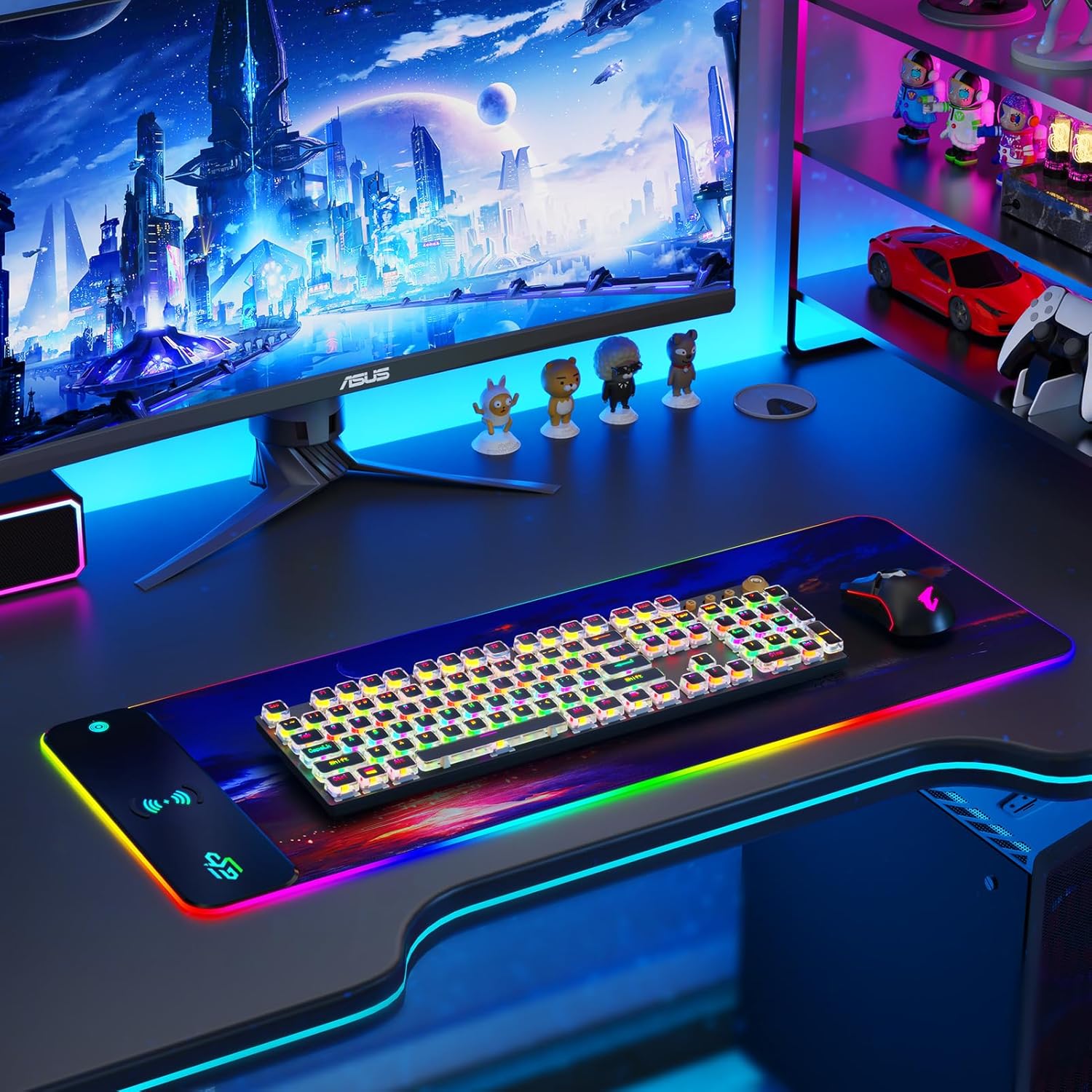
This manual provides essential information for the proper setup, operation, and maintenance of your GIM Wireless Charging RGB Gaming Mouse Pad 15W. Please read these instructions carefully before use to ensure optimal performance and safety.
Información de seguridad
- Do not expose the mouse pad to extreme temperatures or direct sunlight.
- Keep the mouse pad away from water and other liquids, despite its water-resistant surface.
- Avoid placing metal objects, magnets, or credit cards on the wireless charging area as this may interfere with charging or damage the device.
- Utilice únicamente el cable USB-C proporcionado para la alimentación.
Contenido del paquete
- GIM Wireless Charging RGB Gaming Mouse Pad 15W
- Cable de alimentación USB-C
Configuración
- Desenrolle la alfombrilla del ratón: Carefully unroll the GIM Wireless Charging RGB Gaming Mouse Pad onto a flat, clean desk surface. Allow some time for it to flatten completely.
- Conecte la electricidad: Insert the provided USB-C cable into the port on the mouse pad's control module. Connect the other end of the USB-C cable to a compatible USB power source (e.g., computer USB port, USB wall adapter).
- Nota sobre el adaptador de corriente: For optimal 10W/15W wireless fast charging, a 9V 2A power adapter (not included) is recommended.
Instrucciones de funcionamiento
Control de iluminación RGB
- Cambiar modos de iluminación: Lightly press the one-touch switch button on the control module to cycle through 10 different RGB lighting modes, including 7 static and 3 dynamic effects.
- Encender/Apagar: Press and hold the one-touch switch button for 3 seconds to turn the RGB lighting on or off.
- Función de memoria: The mouse pad remembers your last selected lighting mode when powered off and will resume it upon restart.


Carga inalámbrica
- Dispositivo de colocación: Position your Qi-enabled smartphone or other compatible device directly on the wireless charging area of the mouse pad. Ensure the device is centered for optimal charging.
- Indicadores de carga: The LED indicator on the control module will show the charging status:
- AZUL: Modo de espera
- ROJO: El dispositivo se está cargando
- VERDE: El dispositivo está completamente cargado
- ROJO PARPADEO: Charging error (e.g., foreign object detected, device not compatible, or improperly placed).
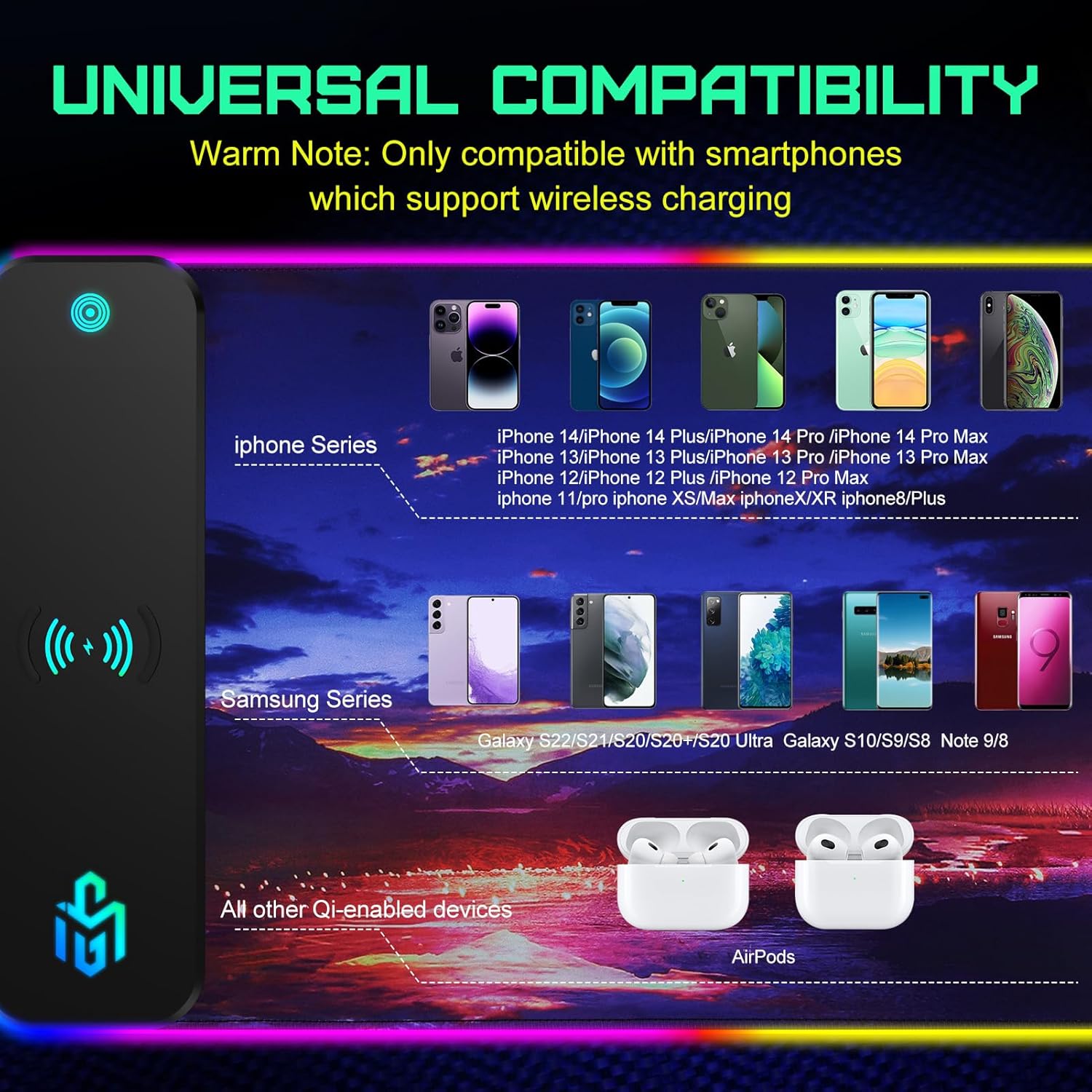
- Compatibilidad: Compatible with smartphones supporting wireless charging (e.g., iPhone 8/X/XR/XS/11/11 Pro/12/12 Pro/12 Pro Max/13/13 Pro/13 Pro Max, Samsung Galaxy 10/S9/S8 Plus, Galaxy Note 9/8, and all other Qi-enabled devices).
- Importante: Avoid placing metal cases, grips, stands, magnets, or credit cards between your device and the charging pad, as this will prevent charging.

Official product video demonstrating the wireless charging capabilities of the GIM RGB Mouse Pad.
Mantenimiento
- Limpieza: The mouse pad features a water-resistant surface. For spills, gently wipe with a damp cloth. For general cleaning, use a soft, dry cloth. Do not use harsh chemicals or abrasive cleaners.
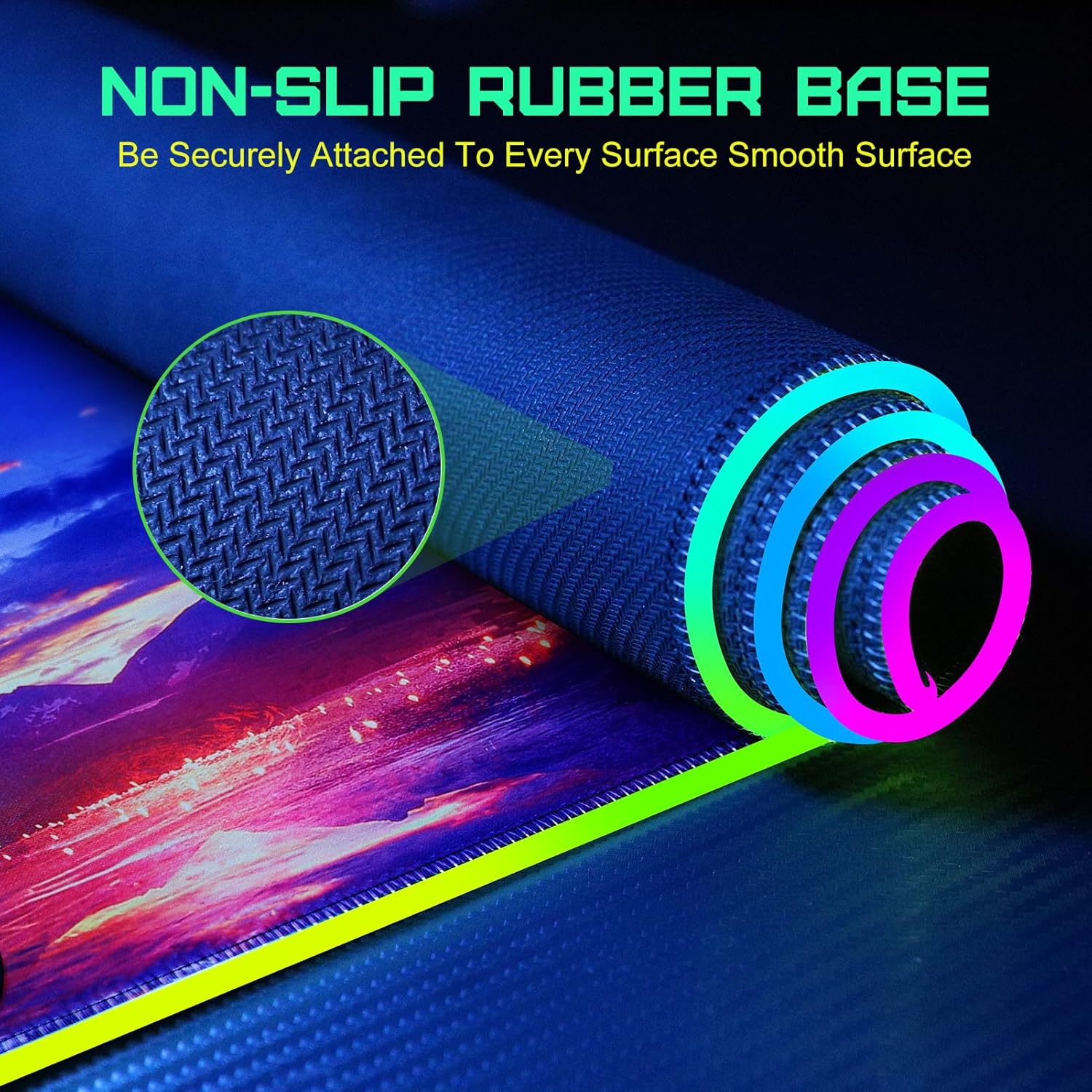
- Almacenamiento: When not in use, the mouse pad can be rolled up for easy storage.
Solución de problemas
| Problema | Posible causa | Solución |
|---|---|---|
| Device not charging / Red flashing indicator | Device improperly placed, incompatible device, foreign object, or thick case. | Ensure device is centered on the charging area. Remove any metal objects, magnets, or thick cases. Verify device is Qi-enabled. |
| Las luces RGB no funcionan | No power, or lights are turned off. | Check USB-C cable connection. Press and hold the one-touch switch for 3 seconds to turn lights on. Briefly press to cycle modes. |
| Mouse pad not lying flat | Recently unrolled. | Allow some time for the mouse pad to naturally flatten on a desk surface. |
Presupuesto
| Característica | Detalle |
|---|---|
| Marca | GIM |
| Modelo | Wireless Charging RGB Gaming Mouse Pad 15W |
| Dimensiones (LxAnxAl) | 31.5 x 11.81 x 0.16 inches (800x300x4MM) |
| Peso del artículo | 1.9 libras |
| Material | Goma |
| Salida de carga inalámbrica | 10W (up to 15W with compatible adapter) |
| Modos de iluminación RGB | 10 (7 static, 3 dynamic) |
| Características especiales | Non-slip base, Water-resistant surface, Memory function for RGB lights |
| Plataforma de hardware | PC |
Garantía y soporte
GIM products come with a Soporte técnico de 12 meses warranty. For any technical assistance or customer service inquiries, please contact GIM Electronic support. Our team is available for Servicio al cliente 24 horas, 7 días a la semana para ayudarle.
Para obtener más información, visite el GIM Store on Amazon.