
1. Producto terminadoview
The havit GK59 Gaming Microphone is designed for clear audio capture during gaming, streaming, and voice communication. It features a condenser microphone for high-quality sound and a versatile design for ease of use.

Figura 1.1: Frente view of the havit GK59 Gaming Microphone, showcasing its main body, stand, and control buttons.
Características principales:
- Fácil de usar: Funcionalidad sencilla plug-and-play.
- Good Performance: Delivers clear and consistent audio.
- Good Quality: Construcción duradera para un uso confiable.
- Diseño portátil: Compacto y fácil de transportar.
- Soporte ajustable: Allows for flexible positioning.
2. Instrucciones de configuración
2.1 Contenido del paquete
Por favor revise el paquete para ver los siguientes artículos:
- havit GK59 Gaming Microphone
- Cable de conexión USB
- Manual de usuario (este documento)
2.2 Conexión del micrófono
The GK59 microphone offers versatile connectivity options for various devices.
- Conexión USB: Connect the provided USB cable to the USB-C port on the back of the microphone and the other end to an available USB port on your computer or gaming console. The microphone is plug-and-play and should be automatically recognized by most operating systems.
- Conexión jack de 3.5 mm: For devices supporting a 3.5mm auxiliary input, connect a 3.5mm audio cable (not included) to the 3.5mm jack on the back of the microphone and to your device's audio input.
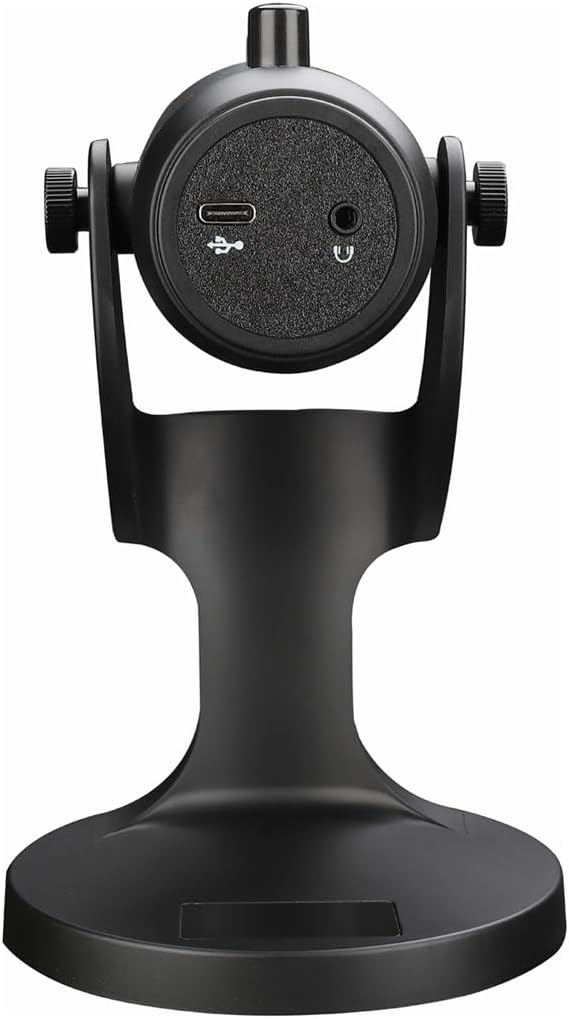
Figura 2.1: Posterior view of the havit GK59 Gaming Microphone, highlighting the USB-C port for data and power, and the 3.5mm headphone jack for monitoring.
After connecting, ensure the microphone is selected as the default input device in your system's sound settings or your gaming/streaming software.
3. Instrucciones de funcionamiento
3.1 Controles básicos
The havit GK59 features intuitive controls located on the front of the microphone body:
- Botón de silencio: Press to mute or unmute the microphone. An indicator light will typically show the mute status.
- MIC +/- Buttons: Adjust the microphone input sensitivity (gain). Press '+' to increase, '-' to decrease.
- Botones VOL +/-: Adjust the headphone output volume for monitoring. Press '+' to increase, '-' to decrease.
- ECHO +/- Buttons: Adjust the echo effect level. Press '+' to increase, '-' to decrease.
Figura 3.1: detallada view of the microphone's control panel, including the mute button, microphone gain, volume, and echo adjustment buttons.
3.2 Adjusting Microphone Position
The microphone is equipped with an adjustable stand, allowing you to optimize its position for best sound capture and comfort.
- Gently hold the microphone body and the base of the stand.
- Tilt the microphone forward or backward to achieve the desired angle. The stand's design helps reduce vibration and abnormal sounds during use.
- Position the microphone approximately 6-12 inches (15-30 cm) from your mouth for optimal voice clarity.

Figure 3.2: The havit GK59 microphone demonstrating its adjustable tilt feature on the stand, designed for anti-vibration.
4. Mantenimiento
4.1 Limpieza
To maintain the microphone's performance and appearance:
- Disconnect the microphone from its power source before cleaning.
- Utilice un paño suave y seco para limpiar las superficies exteriores.
- No utilice limpiadores líquidos, aerosoles o disolventes, ya que pueden dañar el acabado o los componentes internos.
4.2 Almacenamiento
When not in use, store the microphone in a cool, dry place away from direct sunlight and extreme temperatures. Protect it from dust and moisture.
5. Solución de problemas
If you encounter issues with your havit GK59 Gaming Microphone, please refer to the following table for common problems and solutions:
| Problema | Posible causa | Solución |
|---|---|---|
| No sound input from microphone | Micrófono no conectado correctamente Dispositivo de entrada incorrecto seleccionado Micrófono silenciado | Asegúrese de que el cable USB esté conectado de forma segura. Check system sound settings and select GK59 as input. Press the Mute button on the microphone to unmute. |
| Volumen bajo del micrófono | Microphone gain too low System input volume too low | Press the 'MIC +' button on the microphone. Adjust input volume in your system's sound settings. |
| Audio distorsionado o poco claro | Microphone gain too high Micrófono demasiado cerca de la boca Ruido ambiental | Press the 'MIC -' button on the microphone. Ajuste la posición del micrófono (de 6 a 12 pulgadas de la boca). Reduce el ruido de fondo en tu entorno. |
| No headphone monitoring sound | Auriculares no conectados Headphone volume too low | Ensure headphones are plugged into the 3.5mm jack. Press the 'VOL +' button on the microphone. |
6. Especificaciones técnicas
Below are the technical specifications for the havit GK59 Gaming Microphone:
| Característica | Especificación |
|---|---|
| Marca | tener |
| Número de modelo | GK59 |
| Tecnología de conectividad | USB, 3.5 mm Jack (Auxiliary) |
| Usos recomendados | Juego de azar |
| Patrón polar | Unidireccional |
| Factor de forma del micrófono | Handheld (with desktop stand) |
| Peso del artículo | 429 gramos |
| Impedancia | 250 ohmios |
| Relación señal a ruido | 18 dB |
| Ruido audible | 18 decibelios |
| Fuente de poder | Eléctrico con cable (vía USB) |
| Dispositivos compatibles | Consolas de juegos, PC |
| Dimensiones del artículo (LxWxH) | 5.59 x 4.92 x 9.06 pulgadas |
| Color | Negro |
7. Garantía y soporte
7.1 Información de garantía
The havit GK59 Gaming Microphone comes with a standard manufacturer's warranty. Please refer to the warranty card included in your product packaging or visit the official havit webSitio para conocer los términos y condiciones detallados de la garantía.
7.2 Atención al cliente
For technical assistance, troubleshooting not covered in this manual, or warranty claims, please contact havit customer support through their official channels. You can find more information and contact details on the Tienda havit en Amazon o su funcionario websitio.