
1. Producto terminadoview
The YEEHUNG 12.3-inch HD Car Radio Screen is designed to upgrade the infotainment system in compatible Mercedes-Benz vehicles. It integrates modern features such as CarPlay and Android Auto while retaining the original vehicle's functions.

Image 1.1: The 12.3-inch HD Car Radio Screen displaying the CarPlay interface.
Características principales:
- Pantalla táctil IPS HD de 12.3 pulgadas (resolución de 1920 x 720)
- Sistema operativo Linux
- Conectividad Bluetooth 5.0
- Supports Wired and Wireless CarPlay
- Supports Wired and Wireless Android Auto
- Funcionalidad Mirror Link
- Compatible with OEM and aftermarket CVBS/720P AHD cameras
- Reproducción de medios USB

Image 1.2: Visual representation of the screen's core features.
2. Configuración e instalación
2.1 Comprobación de compatibilidad
This unit is specifically designed for Mercedes-Benz C Class W204 models manufactured between 2012 and 2015, equipped with the NTG4.5/4.7 system. Before installation, verify your vehicle's year, model, and existing OEM system to ensure compatibility.

Image 2.1: Confirming vehicle year and model for compatibility.
2.2 Contenido del paquete
Verifique que todos los componentes estén presentes en el paquete:
- 1 x 12.3 inch HD Car Radio Screen
- 1 x Arnés de cableado ISO
- 1 x cable USB
- 1 x BC AMI Cable
- 1 x W204 Base
- 1 x Manual de instalación (este documento)

Imagen 2.2: Contenido del paquete del producto.
2.3 pasos de instalación
Professional installation is recommended. Refer to vehicle-specific guides for dashboard disassembly. The following points are critical during installation:
- Adaptación de cable de fibra óptica: Properly adapt the 2-pin fiber optic cable to the original ISO plug. This is crucial for sound transmission.
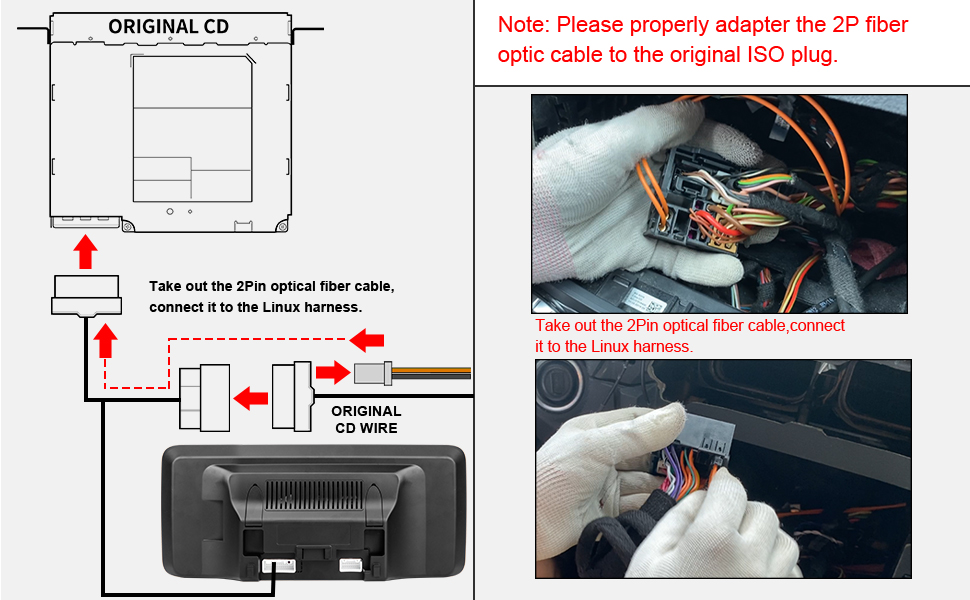
Image 2.3: Fiber optic cable connection diagram.
- Gestión del cableado: The new harness may create a tight fit. Tape wires together and carefully route them to ensure the original radio unit can be reinstalled without obstruction.
- AUX Audio Connection: If your NTG4.5 system does not have an AUX menu, it must be activated. You will need to connect the audio output from the new screen to your car's AUX jack using either the provided AMI cable or the Audio out on the ISO cable, depending on your car's interface type.

Image 2.4: Connecting 'Audio out' to AMI.

Image 2.5: Connecting 'Audio out' to AUX IN.
- Activación AUX: Navigate to the system settings to activate the AUX input if it's not already enabled.
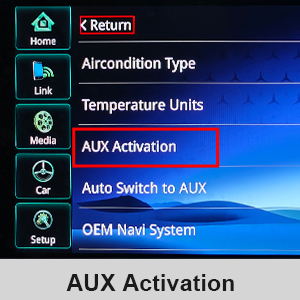
Image 2.6: AUX Activation menu in settings.
- Old Apple 30-pin Cable: If your car has an older 30-pin Apple cable in the glovebox or center console, unplug it from the OEM wiring harness. This cable can impede AUX sound through the new unit.
- USB Connection for Wired CarPlay/Android Auto: For wired CarPlay and Android Auto functionality, ensure you use the USB IN 1 port.
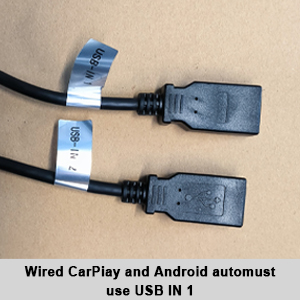
Image 2.7: USB IN 1 for wired CarPlay/Android Auto.
- OEM Resolution Setting: Adjust the OEM resolution setting within the unit's menu to match your vehicle's original display resolution for optimal clarity.

Image 2.8: Setting the OEM Resolution.
- Camera Type Setting: If installing a backup camera, configure the camera type (Original Camera or Aftermarket Camera) in the settings. The unit supports CVBS/720P AHD cameras.
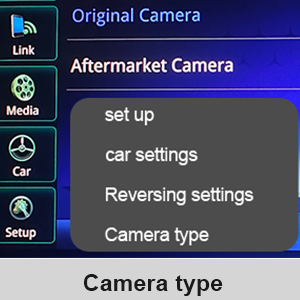
Image 2.9: Camera type selection in settings.

Imagen 2.10: Antes y después de la instalación view.
3. Instrucciones de funcionamiento
3.1 Cambio entre sistemas
The unit supports a dual system, allowing you to switch between the original OEM vehicle information display and the new CarPlay/Android Auto interface. This can typically be done via a dedicated button or a menu option on the screen.

Image 3.1: Switching between OEM and new system interfaces.
3.2 CarPlay y Android Auto
The screen supports both wired and wireless CarPlay and Android Auto. Connect your smartphone to access navigation, music, calls, and other compatible applications directly on the car's display. Control can be done via the touchscreen or the car's original knob.

Image 3.2: CarPlay and Android Auto in operation.
3.3 Llamadas y música por Bluetooth
The unit supports OEM Bluetooth calls and music playback. For optimal call quality, ensure your car has both factory Bluetooth and Bluetooth audio. After setup, you may need to switch the call mode on your phone to utilize the OEM Bluetooth sound when using CarPlay or Android Auto.

Image 3.3: OEM Bluetooth support for audio and calls.
3.4 Pantalla de la cámara de respaldo
The screen integrates with OEM and aftermarket backup cameras (up to 720P AHD format), displaying the camera feed and radar information when reversing.

Image 3.4: Backup camera display with radar information.
3.5 Manual AUX Switching
If you experience unstable sound when using the automatic AUX switching function, you can manually select the AUX input to achieve a more stable audio connection.
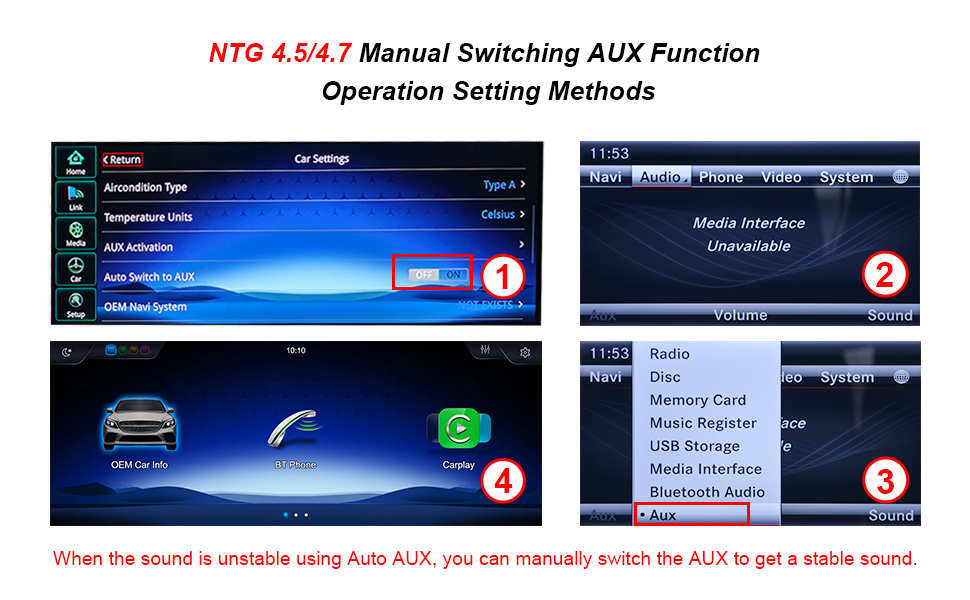
Image 3.5: Manual AUX function operation settings.
4. Mantenimiento
To ensure the longevity and optimal performance of your YEEHUNG car radio screen, follow these maintenance guidelines:
- Limpieza de pantalla: Use a soft, lint-free cloth specifically designed for electronics to clean the screen. Dampen the cloth lightly with water or a screen-safe cleaner if necessary. Avoid harsh chemicals, abrasive materials, or excessive moisture.
- Eliminación de polvo: Regularly wipe down the unit and surrounding areas to prevent dust buildup, which can affect performance and aesthetics.
- Actualizaciones de software: Busque actualizaciones de software disponibles del fabricante para asegurarse de tener las últimas funciones y correcciones de errores.
- Evite temperaturas extremas: Do not expose the unit to extreme heat or cold for extended periods, as this can damage internal components.
5. Solución de problemas
If you encounter issues with your YEEHUNG car radio screen, refer to the following common problems and solutions:
- No Sound or Unstable Audio:
- Ensure the AUX menu is activated in your NTG4.5 system settings.
- Verify the audio output cable is correctly connected to your car's AUX or AMI jack.
- If using Auto AUX, try manually switching to the AUX input.
- If an old 30-pin Apple cable is present in your car, ensure it is unplugged from the OEM wiring harness.
- La cámara de respaldo no se muestra:
- Check the camera type setting in the unit's menu to ensure it matches your installed camera (OEM or Aftermarket).
- Verifique que todas las conexiones de la cámara sean seguras.
- Ensure the camera format does not exceed 720P AHD, as higher resolutions are not supported.
- Unit is Slow or Takes Long to Start:
- This can sometimes occur. Ensure all background applications are closed if applicable.
- Si el problema persiste, comuníquese con el servicio de atención al cliente para obtener más ayuda.
- Screen Not Lighting Up / No Power:
- Double-check all power connections and the ISO wiring harness.
- Asegúrese de que el encendido del vehículo esté encendido.
- If the unit remains unresponsive, it may indicate a hardware issue. Contact customer support.
For issues not covered here, or if troubleshooting steps do not resolve the problem, please refer to the Support section for contact information.
6. Especificaciones
| Característica | Especificación |
|---|---|
| Número de modelo | FY-7L12 |
| Tamaño de la pantalla | 12.3 pulgadas |
| Resolución de pantalla | 1920x720 |
| Sistema operativo | Linux |
| Tecnología de conectividad | Bluetooth, USB, Wi-Fi |
| Versión de Bluetooth | 5.0 |
| Características especiales | Built-In Bluetooth, Touchscreen, CarPlay, Android Auto, Mirror Link |
| Dispositivos compatibles | Teléfono inteligente |
| Modo de salida de audio | Estéreo |
| Configuración de canales de sonido envolvente | 5.0 |
| Codificación de vídeo | H.264, H.265/HEVC |
| Número de canales | 5 |
| Peso del artículo | 6.23 libras |
| Dimensiones del producto | 12.83 x 0.98 x 5.67 pulgadas |
| Funciones no admitidas | Aftermarket cameras exceeding 720P AHD format, 4G network |
7. Información de garantía
YEEHUNG provides the following warranty coverage for this product:
- Within 1 Month of Purchase: Free returns are available according to Amazon's return policy. Contact Amazon Buyer Services before initiating a return.
- 1 to 12 Months After Purchase: Free warranty service is provided for non-human damage. The customer is responsible for the cost of shipping the product back and forth within the U.S.
- After 1 Year of Purchase: Repair service is available. In addition to paying for postage within the U.S., customers will be responsible for additional parts replacement and labor costs.
8. Soporte
For any questions, concerns, or technical assistance, please contact YEEHUNG customer support. To expedite assistance, clearly describe your issue and provide relevant details such as your vehicle model, year, and OEM system.
- Consultas de compatibilidad: If you are unsure about product fitment, send a photo of your car's dashboard and the model year to customer support for verification.
- Tiempo de respuesta: El servicio de atención al cliente tiene como objetivo responder dentro de las 24 horas.