
1. Introducción
Thank you for choosing the DELTACO Gaming PM80 Wireless Optical Gaming Mouse. This manual provides essential information for setting up, operating, and maintaining your new gaming mouse. Please read these instructions carefully before use to ensure optimal performance and longevity of your device.
2. Contenido del paquete
- DELTACO Gaming PM80 Wireless Optical Gaming Mouse
- Receptor inalámbrico USB
- Cable de carga USB
- Manual de usuario
3. Producto terminadoview
The DELTACO Gaming PM80 is a high-performance wireless optical gaming mouse designed for precision and comfort. It features 7 programmable buttons, adjustable DPI up to 4800, and customizable illumination. The mouse is rechargeable, ensuring uninterrupted gaming sessions.
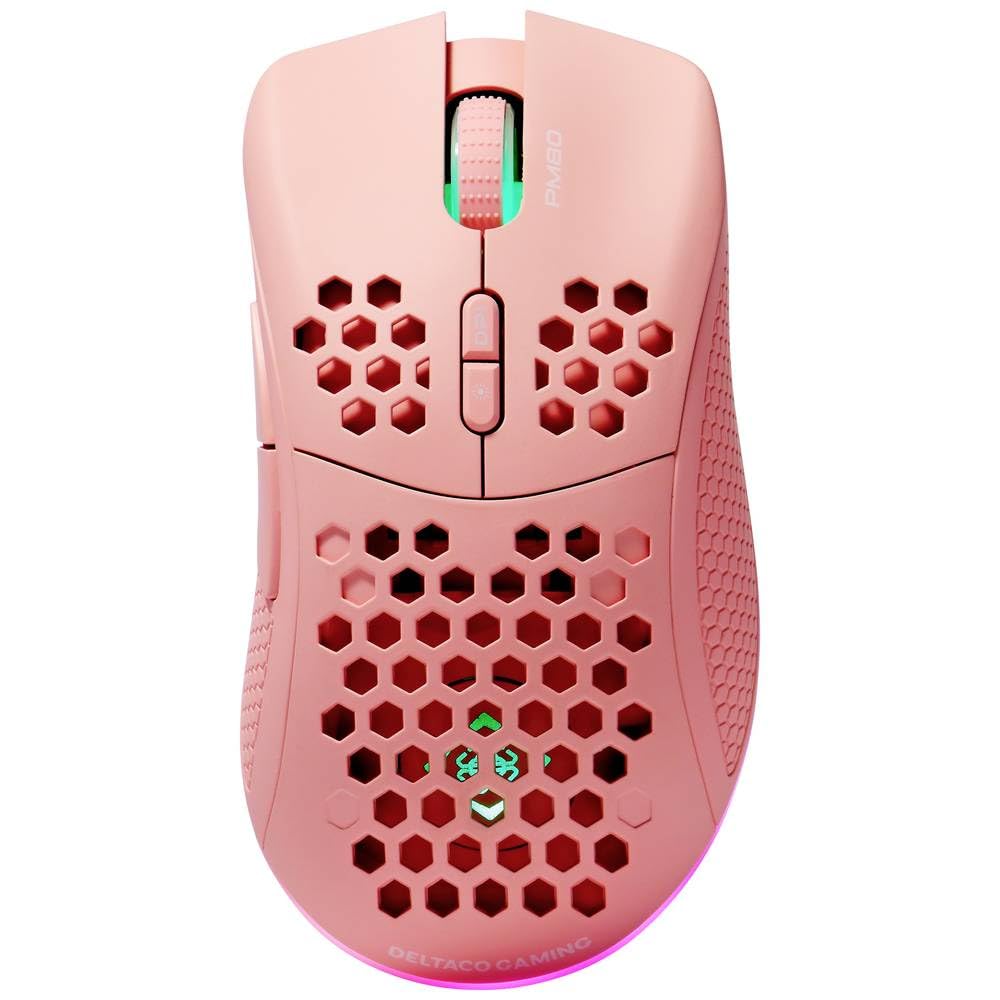
Image: DELTACO Gaming PM80 Wireless Optical Gaming Mouse. This image displays the mouse from a top-down perspective, highlighting its ergonomic design, the central scroll wheel, and the arrangement of its seven buttons.
Funciones de los botones:
- Botón de clic izquierdo: Función de clic principal estándar.
- Botón derecho del ratón: Función de clic secundario estándar.
- Rueda de desplazamiento: Se desplaza hacia arriba/abajo y actúa como un botón de clic central.
- Botón de ciclo de DPI: Changes the mouse's sensitivity (DPI).
- Botón de avance: Navega hacia adelante en web navegadores o file exploradores.
- Botón de retroceso: Navega hacia atrás en web navegadores o file exploradores.
- Illumination Mode Button: Cycles through different lighting effects or turns illumination on/off.
4. Configuración
4.1. Cargar el ratón
- Conecte el extremo pequeño del cable de carga USB al puerto de carga en la parte frontal del mouse.
- Connect the larger end of the USB charging cable to an available USB port on your computer or a USB wall adapter.
- The mouse's illumination will indicate charging status (e.g., breathing effect, specific color). A full charge typically takes 2-3 hours.
- Once fully charged, the illumination may change or turn off. Disconnect the charging cable.
4.2. Conexión del receptor inalámbrico USB
- Localice el receptor inalámbrico USB, generalmente guardado en un compartimento en la parte inferior del mouse.
- Retire el receptor de su ranura de almacenamiento.
- Conecte el receptor inalámbrico USB a un puerto USB disponible en su computadora.
- Su computadora debería detectar e instalar automáticamente los controladores necesarios. Esto puede tardar unos instantes.
4.3. Encendido / apagado
- Localice el interruptor de encendido en la parte inferior del mouse.
- Slide the switch to the 'ON' position to power on the mouse. The illumination will light up.
- To conserve battery life, slide the switch to the 'OFF' position when the mouse is not in use for extended periods.
5. Instrucciones de funcionamiento
5.1. Uso básico
Once connected and powered on, the mouse is ready for use. Move the mouse on a flat surface to control the cursor on your screen. Use the left and right click buttons for primary and secondary actions, and the scroll wheel for navigation.
5.2. Ajuste de DPI
The DPI (Dots Per Inch) setting determines the sensitivity of your mouse. The DELTACO Gaming PM80 offers multiple DPI levels up to 4800 DPI. To adjust the DPI:
- Presione el Botón de ciclo de DPI (typically located behind the scroll wheel).
- Each press will cycle through the available DPI settings. The mouse's illumination may change color or flash to indicate the current DPI level.
- Select the DPI setting that best suits your preference for gaming or general use.
5.3. Control de iluminación
The DELTACO Gaming PM80 features customizable illumination. To change the lighting effects:
- Presione el Illumination Mode Button (consulte el Producto anterior)view para la ubicación).
- Each press will cycle through different lighting modes, such as static colors, breathing effects, or off.
6. Mantenimiento
6.1. Limpieza
- Asegúrese de que el mouse esté apagado antes de limpiarlo.
- Utilice un paño suave, seco y sin pelusa para limpiar la superficie del mouse.
- Para suciedad difícil, ligeramente dampEnjuague el paño con agua o un limpiador suave no abrasivo. Evite la humedad excesiva.
- No utilice productos químicos agresivos, disolventes o materiales abrasivos, ya que pueden dañar el acabado del ratón.
- Utilice un hisopo de algodón o aire comprimido para limpiar alrededor de la rueda de desplazamiento y las grietas de los botones.
6.2. Almacenamiento
When not in use for extended periods, store the mouse in a cool, dry place away from direct sunlight and extreme temperatures. Ensure the power switch is in the 'OFF' position to preserve battery life.
7. Solución de problemas
- El ratón no responde:
- Asegúrese de que el mouse esté encendido.
- Check if the USB wireless receiver is securely plugged into a working USB port.
- Verify the mouse battery is charged. Connect the charging cable and try again.
- Intente conectar el receptor a un puerto USB diferente.
- Reinicie su computadora.
- Conexión intermitente o con retraso:
- Ensure the mouse is within close proximity to the USB receiver (ideally within 10 meters).
- Evite colocar el receptor cerca de otros dispositivos inalámbricos o fuentes de interferencia (por ejemplo, enrutadores Wi-Fi, teléfonos inalámbricos).
- Asegúrese de que el ratón esté completamente cargado.
- El movimiento del cursor es errático o impreciso:
- Limpie el sensor óptico en la parte inferior del mouse con un paño suave y seco.
- Asegúrese de usar el ratón sobre una superficie adecuada (por ejemplo, una alfombrilla). Evite superficies muy reflectantes o transparentes.
- Adjust the DPI setting to a lower sensitivity if the cursor is too fast.
- La iluminación no funciona:
- Asegúrese de que el mouse esté encendido.
- Press the Illumination Mode Button to cycle through modes, ensuring it's not set to 'off'.
- Check battery level; low battery might disable illumination.
8. Especificaciones
| Característica | Detalle |
|---|---|
| Marca | JUEGOS DELTACO |
| Número de modelo | GAM-120-P |
| Conectividad | Inalámbrico (receptor USB) |
| Tipo de sensor | Óptico |
| DPI | Hasta 4800 DPI (ajustable) |
| Número de botones | 7 |
| Orientación de la mano | Bien |
| Iluminación | Sí |
| Recargable | Sí |
| Pilas necesarias | No (Internal Rechargeable) |
9. Garantía y soporte
For warranty information and technical support, please refer to the warranty card included with your product or visit the official DELTACO Gaming webSitio. Conserve su comprobante de compra para cualquier reclamación de garantía.