
Introducción
Thank you for choosing the DELUX GM905 Ergonomic Wireless Keyboard. This manual provides detailed instructions for setting up, operating, and maintaining your keyboard to ensure optimal performance and comfort. Please read this manual thoroughly before using the product.

Características del producto
- Ergonomic Split and Curved Design: Engineered to promote a natural arm and wrist posture, reducing strain and discomfort during extended typing sessions.
- Conectividad multidispositivo: Supports 2.4G wireless (via USB receiver) and Bluetooth 5.0 (BT1 + BT2 channels), allowing connection to up to three devices simultaneously with easy switching.
- Integrated Padded Wrist Rest: Features a skin-friendly synthetic leather wrist rest to provide comfortable support for your palms and wrists.
- Full-Size Layout with Multimedia Keys: Includes a standard 112-key layout with a number pad, 12 FN function keys, and dedicated multimedia controls for enhanced productivity.
- Adjustable Front and Palm Supports: Equipped with four adjustable kickstands to customize the keyboard angle for both seated and standing postures.
- Amplia compatibilidad del sistema: Compatible with Microsoft Windows (7/8/10/11), Mac OS 10.12 or higher, and Android 4.3 or higher.


Contenido del paquete
Por favor, compruebe el contenido del paquete al desembalarlo:
- DELUX GM905 Ergonomic Wireless Keyboard
- Receptor USB 2.4G
- Cable USB
- Manual de usuario (este documento)
Configuración
1. Instale las baterías
The keyboard requires two AAA batteries (not included). Locate the battery compartment on the underside of the keyboard. Open the cover, insert two AAA batteries according to the polarity indicators, and close the cover.
2. Conéctese a su dispositivo
The DELUX GM905 keyboard offers three connection modes: 2.4G Wireless and two Bluetooth 5.0 channels (BT1, BT2).
2.1. Conexión inalámbrica 2.4G
- Locate the 2.4G USB receiver, usually stored in a compartment on the keyboard or included in the package.
- Conecte el receptor USB a un puerto USB disponible en su computadora.
- En el teclado, presione la tecla 2.4G key to switch to 2.4G wireless mode. The indicator light will illuminate.
- Your computer should automatically detect and install the keyboard.
2.2. Conexión Bluetooth (BT1 / BT2)
- En el teclado, mantenga presionada la tecla BT1 or BT2 Mantenga pulsada la tecla durante 3-5 segundos hasta que la luz indicadora correspondiente parpadee rápidamente. Esto indica el modo de emparejamiento.
- En su dispositivo (computadora, tableta, teléfono inteligente), vaya a la configuración de Bluetooth y habilite Bluetooth.
- Buscar new devices. You should see "DELUX GM905" or a similar name appear in the list.
- Select the keyboard to pair. The indicator light on the keyboard will stop flashing and remain solid once connected.
- Repeat these steps for the other Bluetooth channel (BT2 or BT1) to connect a second device.


3. Adjust Keyboard Angle
The keyboard features adjustable kickstands at the front and palm rest area. You can adjust these to find the most comfortable typing angle for your seated or standing posture. Experiment with different angles to reduce wrist and arm strain.

Instrucciones de funcionamiento
Cambiar entre dispositivos
Once multiple devices are paired, you can switch between them by simply pressing the corresponding connection key: 2.4G, BT1, o BT2. The keyboard will connect to the selected device almost instantly.
Using Function (FN) Keys
The keyboard features 12 FN function keys (F1-F12) with secondary multimedia functions. To activate the secondary function, hold down the Fn key (located near the left Ctrl key) and then press the desired F-key.
Common FN key combinations include:
- Fn+F1: Cortar
- Fn+F2: Copiar
- Fn+F3: Pasta
- Fn+F4: Buscar
- Fn+F5: Pista anterior
- Fn+F6: Reproducir/Pausa
- Fn+F7: Pista siguiente
- Fn+F8: Silenciar
- Fn+F9: Bajar volumen
- Fn+F10: Subir volumen
- Fn+F11: Pantalla de bloqueo
- Fn+F12: Calculadora

Controles multimedia dedicados
The central circular dial provides quick access to multimedia functions:
- Botón central: Reproducir/Pausa
- Botones izquierdo/derecho: Pista anterior / siguiente
- Botones arriba / abajo: Subir/Bajar volumen
- Top/Bottom Buttons (Sun icons): Brightness Up/Down (System dependent)

Mantenimiento
Limpieza del teclado
- Desconecte el teclado de su dispositivo antes de limpiarlo.
- Utilice un paño suave y sin pelusa ligeramente seco.ampLimpie con agua o una solución de limpieza suave la superficie del teclado.
- For stubborn dirt between keys, use compressed air or a soft brush.
- Evite utilizar productos químicos agresivos, limpiadores abrasivos o humedad excesiva, ya que pueden dañar el teclado.
- Clean the wrist rest with a damp Paño y jabón suave si es necesario, luego seque.
Reemplazo de batería
When the keyboard's performance degrades or the connection becomes unstable, it may be time to replace the batteries. Follow the "Install Batteries" steps in the Setup section to replace the two AAA batteries.
Solución de problemas
| Problema | Posible causa | Solución |
|---|---|---|
| Teclado no responde | Low batteries; Incorrect connection mode; USB receiver not plugged in (2.4G); Bluetooth not paired. | Replace batteries. Ensure the correct connection mode (2.4G, BT1, BT2) is selected. For 2.4G, ensure the USB receiver is securely plugged in. For Bluetooth, re-pair the keyboard. |
| Conexión intermitente o con retraso | Interference; Distance from device; Low batteries. | Move closer to your device. Remove potential sources of interference (other wireless devices). Replace batteries. |
| Keys not typing correctly or double typing | Software issue; Keyboard defect; Low batteries. | Restart your computer. Ensure keyboard drivers are up to date. Replace batteries. If the issue persists, contact customer support. |
| Las teclas multimedia no funcionan | System compatibility; Software conflict. | Ensure your operating system supports multimedia key functions. Check for any conflicting software or drivers. |
Presupuesto
- Marca: DELUX
- Modelo: GM905
- Conectividad: Conexión inalámbrica 2.4G, Bluetooth 5.0 (BT1, BT2)
- Dispositivos compatibles: PC, Laptop, Smart TV, Smartphone, Tablet
- Tipo de teclado: Ergonomic, Split, Wireless, Full-Size
- Número de llaves: 112
- Diseño de teclas: QWERTY
- Tipo de interruptor: Hacer clic
- Reposamuñecas: Integrated, Padded (Synthetic Leather)
- Ángulo ajustable: Yes (Front and Palm Kickstands)
- Fuente de energía: 2 pilas AAA
- Material: Plástico
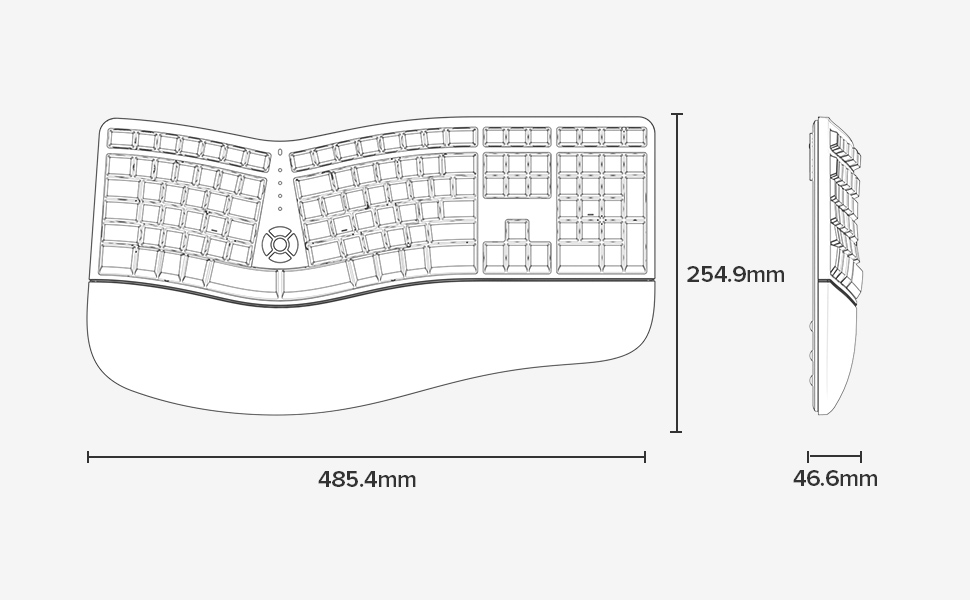
- Dimensiones (L x An x Al): 48.5 cm x 25.5 cm x 4.7 cm (19.1 x 10.0 x 1.85 pulgadas)
- Resistencia al agua: No resistente al agua
- Contenido de la caja: Keyboard, 2.4G USB Receiver, USB Cable


Información de garantía
Specific warranty details for the DELUX GM905 Ergonomic Wireless Keyboard are not provided in the available product data. Please refer to the product packaging or the manufacturer's official webSitio para conocer los términos y condiciones de la garantía.
Apoyo
For further assistance, technical support, or inquiries regarding your DELUX GM905 keyboard, please visit the official DELUX website or contact their customer service department. Contact information is typically found on the product packaging or the manufacturer's websitio.
You can also visit the DELUX store on Amazon for more information: DELUX Amazon Store