
1. Introducción
The Dynatron A42 1U Active Air Cooler is designed for high-performance AMD Ryzen Socket AM4 and AM5 processors. This compact, side-blower PWM fan provides efficient heat dissipation for CPUs up to 95 Watts in 1U server environments. The Dynatron A42 ensures optimal system performance by maintaining appropriate operating temperatures.
Características principales:
- Recommended for AMD Ryzen Processors, Socket AM4 and AM5.
- Supports CPU power up to 95 Watts heat dissipation.
- Features an 80x80x13mm PWM Fan and Copper Fin construction.
- Active Air Cooler suitable for 1U Server and Up.
- Overall dimensions: 110.0mm (L) x 85.0mm (W) x 27.3mm (H).
2. Contenido del paquete
Verifique que todos los componentes estén presentes en el paquete antes de continuar con la instalación:
- Montaje del disipador de calor
- PWM Fan (integrated)
- Cable de alimentación
- Mounting Connectors/Screws
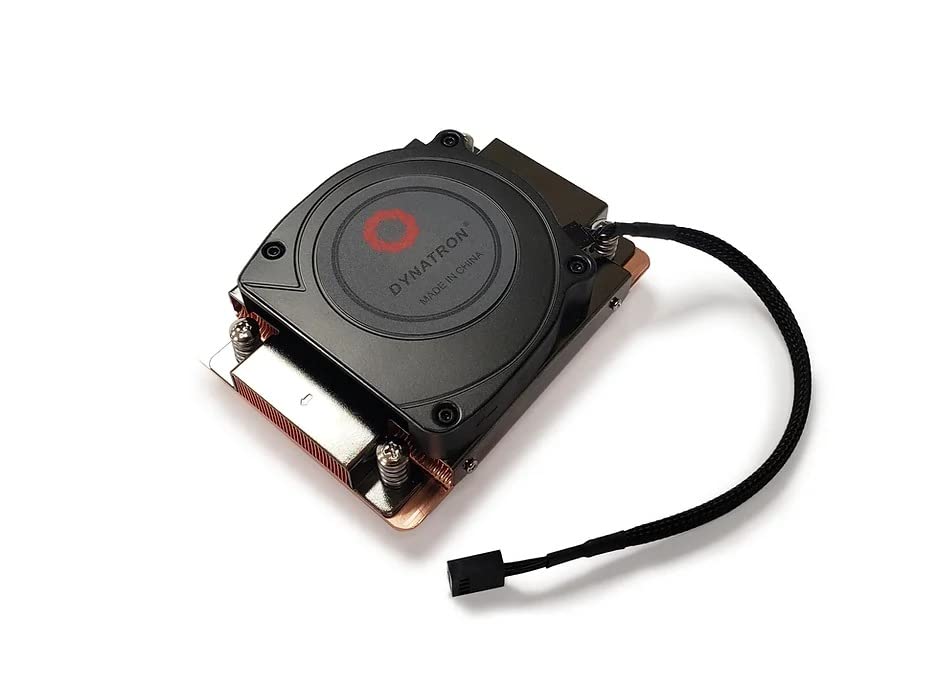
Imagen 2.1: Arriba view of the Dynatron A42 CPU Cooler, showing the integrated fan and Dynatron branding.
3. Configuración e instalación
Follow these steps carefully to install the Dynatron A42 CPU Cooler on your AMD AM4 or AM5 motherboard.
- Preparar la placa base: Ensure your motherboard is compatible with AMD AM4 or AM5 sockets. Remove any existing CPU cooler and clean the CPU surface thoroughly with isopropyl alcohol to remove old thermal paste.
- Aplicar pasta térmica: Apply a small, pea-sized amount of high-quality thermal paste to the center of the CPU's integrated heat spreader (IHS). Avoid applying excessive amounts, as this can lead to reduced cooling performance or unintended residue.
- Coloque el enfriador: Carefully align the Dynatron A42 cooler with the mounting holes on the motherboard around the CPU socket. The cooler's base should make even contact with the CPU's IHS.
- Asegure el enfriador: Use the provided mounting screws to secure the cooler to the motherboard. Tighten the screws in a diagonal pattern (e.g., top-left, bottom-right, top-right, bottom-left) gradually until the cooler is firmly seated. Do not overtighten.
- Conecte el cable del ventilador: Locate the 4-pin PWM fan header on your motherboard (typically labeled "CPU_FAN"). Connect the cooler's 4-pin fan cable to this header. Ensure the connector is fully seated.
- Comprobación final: Double-check all connections and ensure the cooler is securely mounted and does not wobble.

Imagen 3.1: Abajo view of the Dynatron A42 CPU Cooler, showing the copper base and pre-applied thermal paste (if applicable) or area for application.

Image 3.2: Dynatron A42 CPU Cooler with indicated dimensions for reference during installation.
4. Pautas de funcionamiento
Once installed, the Dynatron A42 operates automatically, controlled by your motherboard's PWM fan settings. For optimal performance and longevity:
- Configuración de BIOS/UEFI: Access your system's BIOS/UEFI to ensure the CPU fan control is set to PWM mode for dynamic fan speed adjustment based on CPU temperature.
- Monitoreo de temperatura: Regularly monitor your CPU temperatures using system monitoring software to ensure they remain within safe operating limits, especially under heavy load.
- Flujo de aire: Ensure adequate airflow within your server chassis. Proper case ventilation is crucial for the cooler's effectiveness.
5. Mantenimiento
El mantenimiento regular ayuda a garantizar la longevidad y el rendimiento óptimo de su enfriador de CPU.
- Eliminación de polvo: Periodically (every 3-6 months, depending on environment) use compressed air to clean dust from the fan blades and heatsink fins. Ensure the fan is not spinning during cleaning to prevent damage.
- Pasta térmica: If CPU temperatures rise significantly over time, consider reapplying thermal paste. This typically involves removing the cooler, cleaning both the CPU and cooler base, and applying fresh thermal paste.
- Inspección del ventilador: Check the fan for any signs of wear, unusual noise, or obstructions. Replace the fan if it becomes excessively noisy or stops functioning correctly.
6. Solución de problemas
If you encounter issues with your Dynatron A42 CPU Cooler, refer to the following common problems and solutions:
- Altas temperaturas de la CPU:
- Asegúrese de que el disipador esté montado de forma segura y haga contacto total con la CPU.
- Verify that thermal paste was applied correctly and not excessively.
- Verifique si hay acumulación de polvo en el disipador de calor y el ventilador.
- Confirm proper case airflow and ventilation.
- Ensure the fan is spinning and connected to the correct motherboard header.
- Fan Not Spinning or Making Noise:
- Check the 4-pin fan cable connection to the motherboard.
- Inspect for any obstructions preventing the fan blades from rotating.
- Verifique la configuración del ventilador en BIOS/UEFI.
- If the fan is making grinding or clicking noises, it may be faulty and require replacement.
- Dificultades de instalación:
- Refer to the installation steps in Section 3.
- Ensure you are using the correct mounting hardware for your socket type (AM4/AM5).
7. Especificaciones
| Característica | Especificación |
|---|---|
| Dimensiones del producto | 3.35" de largo x 1.07" de ancho x 4.33" de alto (110.0 x 85.0 x 27.3 mm) |
| Marca | Dinatrón |
| Tipo de conector de alimentación | 4-Pin PWM |
| Volumentage | 12 voltios |
| Quétage (TDP Support) | 95 vatios |
| Método de enfriamiento | Aire |
| Dispositivos compatibles | Desktop (AMD AM4, AM5 Sockets) |
| Nivel de ruido | 62 decibelios (máximo) |
| Material | Aleta de cobre |
| Velocidad máxima de rotación | 2500 RPM |
| Capacidad de flujo de aire | 26.25 pies cúbicos por minuto |
| Peso del artículo | 1 libra |
| Número de modelo | A42 (840556075493) |
8. Información de garantía
Dynatron products are manufactured to high-quality standards. Specific warranty terms and conditions may vary by region and retailer. Please refer to the warranty documentation included with your purchase or visit the official Dynatron webVisite el sitio web para obtener información detallada sobre la garantía y los procedimientos de registro. Conserve su comprobante de compra para reclamaciones de garantía.
9. Soporte
For technical assistance, product inquiries, or further support, please visit the official Dynatron website or contact their customer service department. Online resources, FAQs, and driver downloads may also be available on the manufacturer's websitio.
Oficial Websitio: www.dynatron.com (Consulte la información de contacto y los recursos de soporte más actualizados).