
1. Introducción
Welcome to the user manual for your Havit Gaming Mouse MS1032. This document provides essential information for setting up, operating, maintaining, and troubleshooting your device. Please read it carefully to ensure optimal performance and longevity of your mouse.
The Havit MS1032 is a gaming mouse featuring six adjustable DPI settings, a comfortable ergonomic design, and a non-slip surface. It is engineered for smooth and quiet operation, aiming to reduce fatigue during extended use.
2. Configuración
2.1 Contenido del paquete
- Havit Gaming Mouse MS1032
- Manual de usuario
2.2 Requisitos del sistema
- Operating System: Windows XP, Windows 7, Linux
- Puerto USB disponible
2.3 Conexión del ratón
- Unpack the Havit Gaming Mouse MS1032 from its packaging.
- Ubique un puerto USB disponible en su computadora.
- Inserte el conector USB del ratón en el puerto USB.
- Su sistema operativo debería detectar e instalar automáticamente los controladores necesarios. Este proceso puede tardar unos instantes.
- Once installation is complete, the mouse is ready for use.
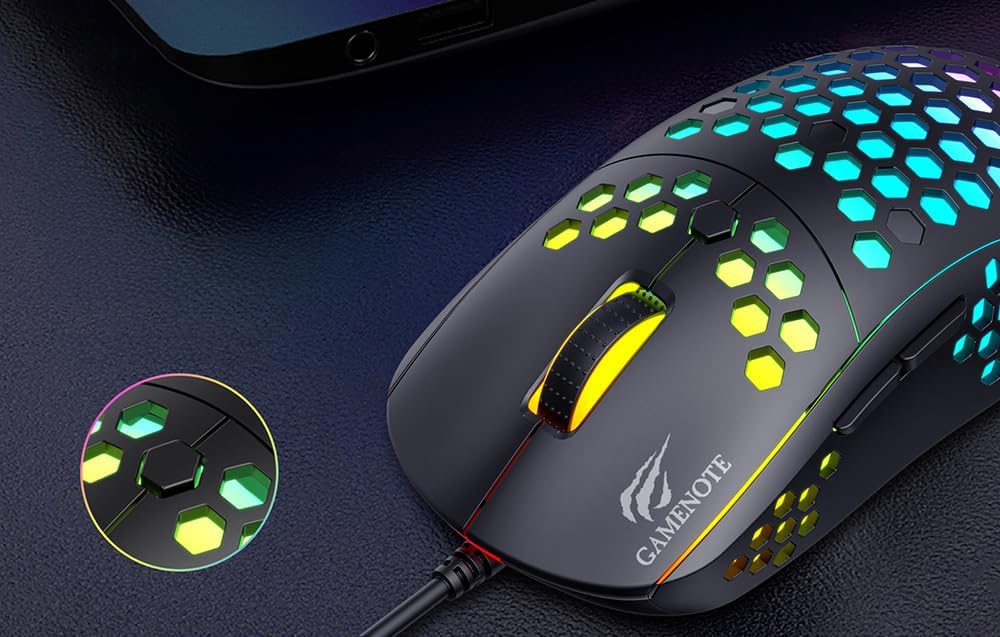
Figure 1: Havit MS1032 Gaming Mouse connected via USB.
3. Instrucciones de funcionamiento
3.1 Funciones básicas
- Click izquierdo: Primary action, selection, activation.
- Botón derecho del ratón: Opens context menus, performs secondary actions.
- Rueda de desplazamiento: Scrolls up/down documents or web páginas. También se puede presionar para la funcionalidad de clic central.
- Botones laterales: Generalmente se utiliza para la navegación hacia adelante o hacia atrás en web navegadores o funciones personalizadas en los juegos.
3.2 Ajuste de ppp
The Havit MS1032 features six adjustable DPI (Dots Per Inch) settings, allowing you to change the mouse sensitivity on the fly. This is useful for adapting to different tasks, such as precise aiming in games or fast navigation across multiple monitors.
To adjust the DPI, locate the DPI button, typically positioned behind the scroll wheel. Press this button to cycle through the available DPI settings. The LED lighting on the mouse may change to indicate the current DPI level, providing visual feedback for your selection.
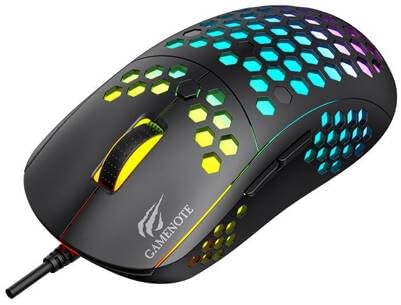
Figure 2: Location of the DPI button (behind the scroll wheel).
4. Mantenimiento
4.1 Limpieza
Para mantener un rendimiento y una apariencia óptimos, limpie el mouse periódicamente:
- Desconecte el mouse de su computadora antes de limpiarlo.
- Utilice un paño suave y sin pelusa ligeramente seco.ampLimpiar con agua o una solución de limpieza suave, no abrasiva.
- Gently wipe the surface of the mouse.
- For crevices and the optical sensor, use a cotton swab or compressed air to remove dust and debris.
- Avoid using harsh chemicals, abrasive cleaners, or excessive moisture, as these can damage the mouse's finish or internal components.
4.2 Almacenamiento
When not in use, store the mouse in a clean, dry environment away from direct sunlight and extreme temperatures to prevent damage.
4.3 Cuidados generales
- Evite dejar caer el ratón o someterlo a impactos fuertes.
- Do not attempt to disassemble the mouse, as this will void the warranty and may cause irreparable damage.
- Keep the mouse away from liquids to prevent electrical damage.
5. Solución de problemas
If you encounter issues with your Havit Gaming Mouse MS1032, please refer to the following common solutions:
5.1 El ratón no responde
- Comprobar la conexión USB: Asegúrate de que el cable USB esté conectado correctamente a un puerto USB que funcione en tu computadora. Prueba con otro puerto USB.
- Reiniciar la computadora: A veces, un simple reinicio de la computadora puede resolver los problemas de conectividad.
- Prueba en otra computadora: Si es posible, pruebe el mouse en otra computadora para determinar si el problema está en el mouse o en la configuración de su computadora.
5.2 El movimiento del cursor es errático o inestable
- Limpiar sensor: Asegúrese de que el sensor óptico en la parte inferior del mouse esté limpio y libre de polvo o residuos.
- Comprobar superficie: Use the mouse on a clean, non-reflective, and uniform surface (e.g., a mouse pad). Avoid glass or highly reflective surfaces.
- Ajustar DPI: If the cursor is too fast or too slow, adjust the DPI setting using the DPI button.
5.3 Botones que no funcionan
- Compruebe si hay obstrucciones: Asegúrese de que no haya residuos alojados debajo de los botones.
- Conflicto de software: Si tiene instalado un software de mouse personalizado, intente desinstalarlo temporalmente para ver si resuelve el problema.
5.4 Las luces LED no funcionan
- Verifica la conexión: Asegúrese de que el mouse esté conectado correctamente a la computadora.
- Ciclo de energía: Disconnect and reconnect the mouse to reset its power.
6. Especificaciones

Figure 3: Havit MS1032 Gaming Mouse design overview.
| Característica | Detalle |
|---|---|
| Modelo | MS1032 |
| Marca | Hábito |
| Dimensiones | 15 x 8 x 5.2 cm |
| Peso | 200 gramos |
| Configuración de DPI | 6 niveles ajustables |
| Sistemas operativos | Linux, Windows 7, Windows XP |
| Conectividad | USB con cable |
| Pilas necesarias | No |
7. Garantía y soporte
For detailed warranty information and technical support, please refer to the official Havit website or contact your local retailer where the product was purchased. It is recommended to keep your purchase receipt as proof of purchase for any warranty claims.
Fabricante: Hábito
Número de modelo: MS1032