Introducción
This manual provides instructions for the Matias Wired USB-C Keyboard for Mac with Numeric Keypad, Model FK316CS. It covers setup, operation, maintenance, troubleshooting, and product specifications to ensure optimal use of your keyboard.
Contenido del paquete
- Matias Wired USB-C Keyboard
Configuración
The Matias Wired USB-C Keyboard is designed for simple plug-and-play functionality with compatible Mac devices. No additional drivers or software installation is required.
- Locate an available USB-C port on your Mac computer (e.g., MacBook Pro, MacBook Air, iMac).
- Insert the USB-C connector of the keyboard into the USB-C port on your Mac.
- The keyboard should be recognized automatically by your operating system.
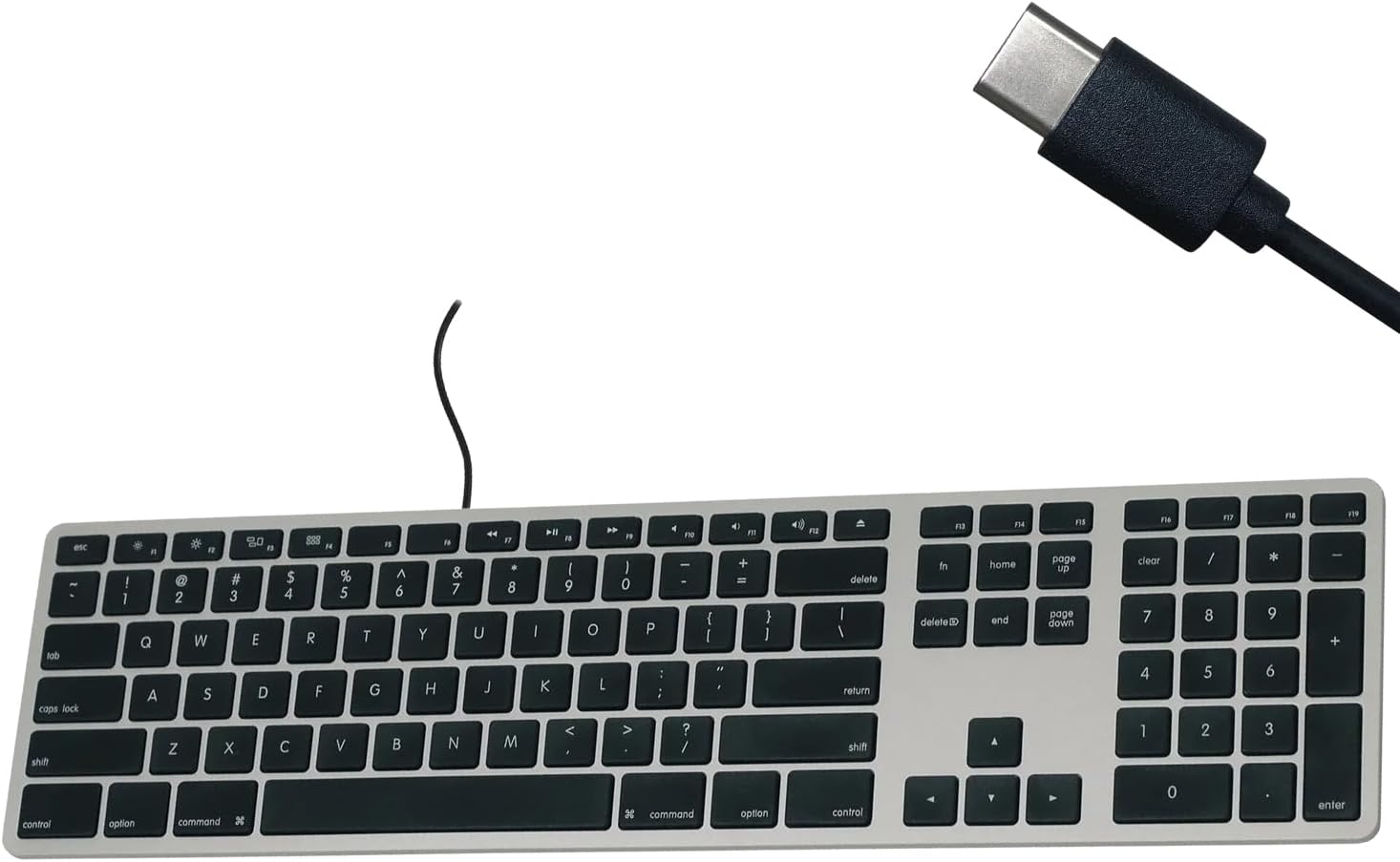
Figure 1: Matias USB-C Keyboard with its USB-C connector, ready for connection.

Figure 2: The keyboard connected to a Mac computer, demonstrating a typical setup.
Instrucciones de funcionamiento
Mecanografía básica
The keyboard features a standard QWERTY layout with a full numeric keypad. Simply begin typing after connecting the keyboard to your Mac.
Teclado numérico
The integrated numeric keypad allows for efficient data entry and calculations. Ensure the 'Num Lock' function is active if numbers are not registering (though typically not required on Mac keyboards for the numeric pad).
Teclas de función Mac
The top row of keys (F1-F12) provides dedicated Mac-specific functions. These keys allow for quick access to controls such as screen brightness, volume adjustment, media playback, and Mission Control.

Figura 3: Primer plano view of the Mac-specific function keys (F1-F12) on the keyboard.
Mantenimiento
To maintain the performance and appearance of your Matias keyboard, follow these guidelines:
- Limpieza: Utilice un paño suave y sin pelusa ligeramente seco.ampened with water or a mild, non-abrasive cleaner to wipe the surface of the keyboard. Avoid spraying liquids directly onto the keyboard.
- Eliminación de polvo: Utilice aire comprimido para eliminar el polvo y los residuos entre las teclas.
- Almacenamiento: Guarde el teclado en un entorno limpio y seco cuando no esté en uso.
Solución de problemas
If you encounter issues with your Matias Wired USB-C Keyboard, consider the following steps:
- El teclado no responde:
- Ensure the USB-C cable is securely connected to both the keyboard and your Mac.
- Try connecting the keyboard to a different USB-C port on your Mac.
- Reinicie su computadora Mac.
- Test the keyboard on another compatible Mac computer, if available, to determine if the issue is with the keyboard or the computer.
- Teclas que no funcionan correctamente:
- Verifique si hay obstrucciones físicas o residuos debajo de las teclas afectadas.
- Asegúrese de que el sistema operativo de su Mac esté actualizado.
Si estos pasos no resuelven el problema, consulte la sección de Soporte para obtener más ayuda.
Presupuesto
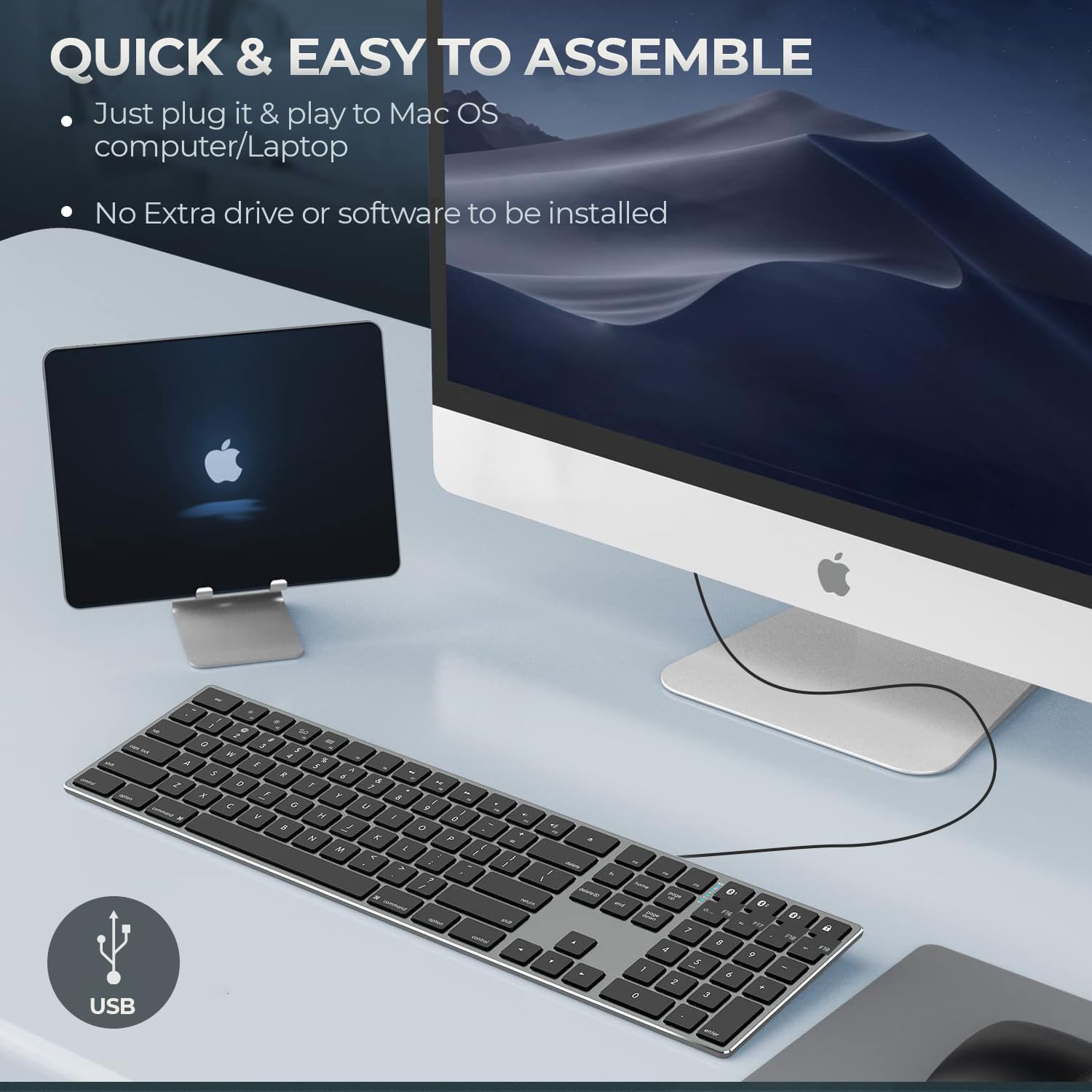
Figure 4: Key specifications of the Matias USB-C Keyboard.
| Característica | Detalle |
|---|---|
| Número de modelo | FK316CS |
| Tecnología de conectividad | USB-C (con cable) |
| Dispositivos compatibles | MacBook Pro, MacBook Air, iMac, Mac OS X v.10.6.8 and later |
| Dimensiones del producto | 17.35 x 4.58 x 0.75 pulgadas (44.07 x 11.63 x 1.91 cm) |
| Peso del artículo | 1.35 libras (612 gramos) |
| Longitud del cable | 5 pies (1.5 metros) |
| Material | Plastic keyframe |
| Color | Gris espacial |

Figure 5: Keyboard dimensions and ergonomic tilt angle.
Información de garantía
Matias products are covered by a manufacturer's warranty. For specific details regarding the warranty period and terms, please refer to the warranty card included with your product or visit the official Matias websitio.
Apoyo
For further assistance, technical support, or to inquire about replacement parts, please contact Matias customer service through their official websitio:
- Matias Official Websitio: www.matías.ca
Please have your product model number (FK316CS) and purchase information ready when contacting support.