
Introducción
The IPORT Connect PRO WallStation provides a contactless charging and magnetic mounting solution for your iPad. Designed for seamless integration into various environments, it ensures your iPad is always powered and accessible. This manual provides instructions for installation, operation, and maintenance of your WallStation.
Características
- Contactless Charging: Delivers wireless USB-C power to your iPad when docked, eliminating the need for cables.
- Acoplamiento magnético: Features a one-touch magnetic attachment for secure and easy iPad placement and removal.
- Rotación de 360°: Allows for flexible orientation of your iPad (portrait or landscape) to achieve the optimal viewángulo de ing.
- Diseño elegante: Profesional ultradelgadofile designed to blend discreetly into any modern interior.
- Connect PRO Case Compatibility: Specifically designed to work with the IPORT Connect PRO Case for a secure fit and continuous power.
Contenido del paquete
Verifique que todos los artículos estén presentes en el paquete:
- 1 x IPORT Connect PRO WallStation
Note: The IPORT Connect PRO Case for iPad is sold separately and is required for use with the WallStation.
Configuración e instalación
The IPORT Connect PRO WallStation is designed for installation into a standard 1G electrical box. Professional installation is recommended.
1. Prepare the Installation Location
Ensure the power to the electrical box is turned off at the circuit breaker before beginning installation. The WallStation requires a 12V DC power source, which can be supplied via a CAT5 cable or 2-conductor wire, or an optional PoE+ upgrade.

Imagen: Lateral view of the IPORT Connect PRO WallStation, highlighting its slim design.
2. Wiring the WallStation
Connect the power wires to the appropriate terminals on the back of the WallStation. Refer to the wiring diagram provided with your specific power supply or PoE+ module. Ensure all connections are secure.

Imagen: Trasera view of the WallStation, showing the internal components and screw holes for mounting.
3. Mounting the WallStation
Carefully align the WallStation with the 1G electrical box and secure it using the provided screws. Ensure the WallStation is flush with the wall surface.

Imagen: Parte posterior view of the WallStation, showing the mounting holes and product information label.
4. Encender y probar
Once the WallStation is securely mounted and wired, restore power at the circuit breaker. The WallStation is now ready for use.
Instrucciones de funcionamiento
1. Preparing Your iPad
Ensure your iPad is enclosed in an IPORT Connect PRO Case. The WallStation is designed to work exclusively with this case for proper magnetic docking and contactless charging.

Image: An iPad, housed in an IPORT Connect PRO Case, magnetically docked to the WallStation on a wall.
2. Docking the iPad
Gently bring the iPad (in its Connect PRO Case) close to the WallStation. The powerful magnets will align the iPad and securely attach it to the WallStation. The charging pins on the WallStation will engage with the case to initiate contactless charging.

Imagen: Frente view of the WallStation, displaying the central charging pins.
3. Ajuste de la orientación
The WallStation allows for 360-degree rotation of the docked iPad. Simply rotate the iPad to your desired portrait or landscape orientation without removing it from the WallStation.
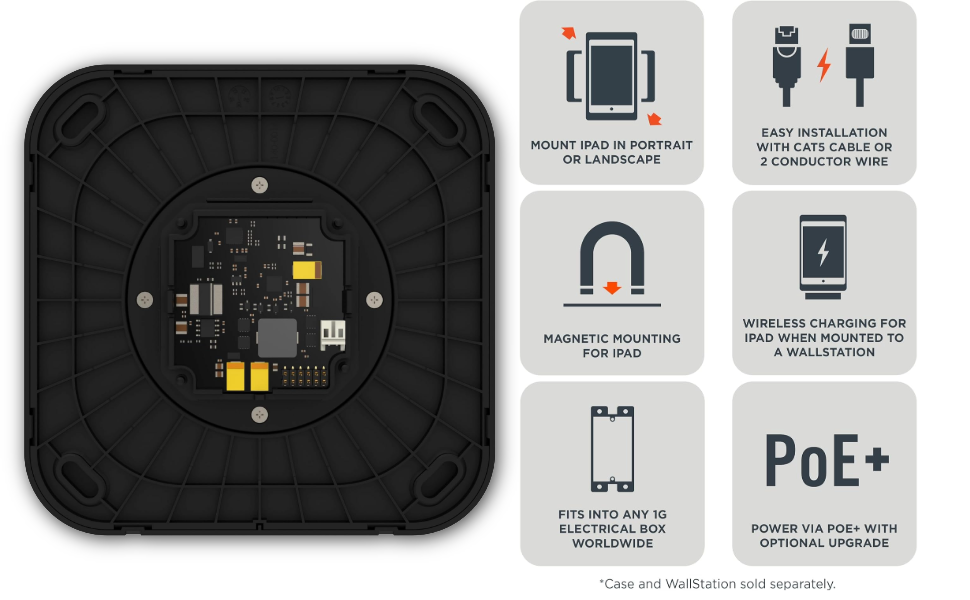
Image: Diagram detailing the WallStation's features, including its ability to mount an iPad in portrait or landscape orientation, contactless charging pins, power input options, and installation details.
4. Undocking the iPad
To remove the iPad, simply pull it away from the WallStation. The magnetic attachment allows for a quick and easy release.
Mantenimiento
- Limpieza: Use a soft, dry cloth to clean the surface of the WallStation. Avoid abrasive cleaners or solvents.
- Inspección: Periodically check the WallStation for any signs of damage or loose connections.
- Pines de carga: Ensure the charging pins on the WallStation and the corresponding contacts on the Connect PRO Case are free from dust and debris.
Solución de problemas
| Problema | Posible causa | Solución |
|---|---|---|
| iPad not charging. |
|
|
| iPad not docking securely. |
|
|
| iPad rotation is stiff. | Polvo o residuos en el mecanismo de rotación. | Gently clean around the rotating mechanism with a soft, dry cloth. |
Presupuesto
| Número de modelo | 72350 |
| Marca | iPort |
| Dimensiones del producto | 3.98 x 7.32 x 7.8 pulgadas |
| Peso del artículo | 1.61 libras |
| Color | Negro |
| Tipo de conector | USB (for power input) |
| Dispositivos compatibles | Tablets (specifically iPad models with IPORT Connect PRO Case) |
| Modelos de iPad compatibles | iPad Mini 6th Gen, iPad Air, iPad Pro (when used with Connect PRO Case) |
| Vol de entradatage | 12 voltios |
| Ampanhelo | 3 Amps |
| Característica especial | Magnetic, Contactless Charging, 360° Rotation |
Garantía y soporte
For warranty information and technical support, please refer to the official iPort website or contact iPort customer service directly. Keep your purchase receipt for warranty claims.
Fabricante: IPORTAR
Websitio: www.iportproducts.com


