
1. Introducción
This manual provides detailed instructions for the operation and maintenance of your Jectse X7 NFC Card Reader and RFID Duplicator. Please read this guide thoroughly before using the device to ensure proper functionality and to understand its full capabilities. This device is designed for reading, writing, and duplicating various IC and ID cards across multiple frequencies.
2. Producto terminadoview
The Jectse X7 is a portable, handheld NFC and RFID card duplicator featuring a full-color screen and a numeric keypad for easy interaction. It supports a wide range of frequencies and offers functions like smart cloning, advanced operations, frequency detection, and system settings.

Image 2.1: Jectse X7 NFC Card Reader with included UID buckles, UID cards, USB Type-C cable, and USB adapter.
2.1 Componentes del dispositivo

Image 2.2: Key components of the Jectse X7 device.
- Pantalla de visualización: Full-color screen with protective lens, scratch and pressure resistant.
- Botón de encendido: Recessed design to prevent accidental pressing.
- Function Buttons (READ/WRITE): Used for reading and writing card data.
- Botones numéricos (0-9): For inputting card numbers or other data.
- Switching Button (*): Used for navigating menus or changing modes.
- Confirm Button (#): Se utiliza para confirmar selecciones o acciones.
3. Características
- Full Frequency Support: Supports ID and IC full frequency bands including 13.56MHz, 125KHz, 175KHz, 250KHz, 300KHz, 375KHz, and 500KHz.
- Batería incorporada: Batería de litio integrada de 400 mAh para uso portátil.
- Conectividad tipo C: Supports Type-C for communication and power supply.
- NFC Simulation: Independent NFC simulation function allows devices with NFC capabilities to simulate encrypted IC cards with a single button.
- Conexión de la aplicación: Connects to a computer or compatible phone (Android and HarmonyOS) for quick upgrades and advanced functions.
- Funciones principales: Efficient decryption, editing, analysis, card packet management, and one-key encryption.

Image 3.1: Visual representation of the Jectse X7's core features.
4. Contenido del paquete
El paquete estándar incluye:
- 1 x Jectse X7 NFC Card Reader and RFID Duplicator
- 5 x UID Buckles
- 5 x UID Cards
- 1 x cable USB tipo C
- 1 x adaptador USB
5. Configuración
5.1 Carga inicial
Before first use, ensure the device is fully charged. Connect the provided USB Type-C cable to the device and a compatible USB power source (e.g., computer USB port, wall adapter). The charging indicator on the device will show its status.
5.2 Encendido / Apagado
- Para encender: Press and hold the recessed Power Button (⏻) hasta que la pantalla se ilumine.
- Para apagar: Mantenga presionado el botón de encendido (⏻) until the device shuts down.
5.3 Connecting to a Computer or Phone
The device can be connected to a computer or a compatible Android/HarmonyOS phone for software upgrades and advanced functions. Use the provided USB Type-C cable.

Image 5.1: Device connected to a computer for upgrades or data management.

Image 5.2: Device connected to a mobile phone for app-based functions. Note: Only supports Android and HarmonyOS.
6. Instrucciones de funcionamiento
The Jectse X7 offers several modes of operation accessible via its main menu. Navigate using the number keys and the switching/confirm buttons.

Image 6.1: Main menu options on the Jectse X7 display.
6.1 Basic Read and Write (Smart Clone)
This mode allows for one-key reading and writing, automatically recognizing the card model and frequency.
- Desde el menú principal, seleccione "Smart Clone".
- Place the source card (the card you want to copy) on the device's reading area.
- Presione el LEER button. The device will scan and display the card information.
- Remove the source card and place a blank UID card or buckle on the reading area.
- Presione el ESCRIBIR button to transfer the copied data to the new card.
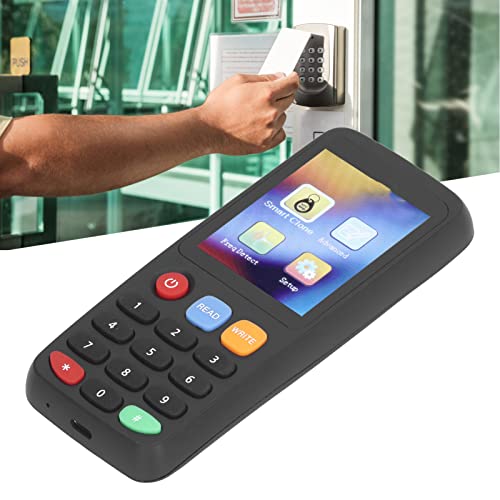
Image 6.2: Reading a card with the Jectse X7.
6.2 Frequency Detection (Freq Detect)
This function helps identify the frequency band of an unknown card.
- Desde el menú principal, seleccione "Freq Detect".
- Place the card on the reading area.
- The device will automatically detect and display the card's frequency.
6.3 Operaciones avanzadas
The "Advanced" menu provides options for formatting, reading, and writing GDM cards and certain special card types. Refer to the on-screen prompts for specific steps within this mode.
6.4 NFC Simulation
The Jectse X7 features an independent NFC simulation function, allowing it to emulate encrypted IC cards for use with NFC-enabled devices.
- Ensure the IC card data is successfully read and stored on the device.
- Navigate to the NFC Simulation option (if available in the menu or via a dedicated button).
- Activate the simulation. The device will then act as the original IC card when presented to an NFC reader.

Image 6.3: Using the NFC simulation feature.
6.5 App Connection and Upgrade
Connect the device to a computer or a compatible mobile phone (Android/HarmonyOS) using the Type-C cable to access the companion application. This app allows for quick upgrades, advanced decoding, and data management.

Image 6.4: App decoding interface on a connected smartphone.
7. Configuración del sistema (Configuración)
The "Setup" menu allows you to customize various device parameters.
- Brillo de la pantalla: Adjust the display's illumination level.
- Hora de apagado: Configurar la duración del apagado automático.
- Keystore Clearing: Erase stored card data.
- Idioma: Seleccione el idioma de operación.
- Información del sistema: View Detalles del dispositivo y versión de firmware.
8. Mantenimiento
- Mantenga el dispositivo limpio y libre de polvo y humedad. Utilice un paño suave y seco para limpiarlo.
- Evite dejar caer el dispositivo o exponerlo a temperaturas extremas.
- Guarde el dispositivo en un lugar fresco y seco cuando no esté en uso.
- Regularly check for software updates via the app connection to ensure optimal performance and compatibility.
9. Solución de problemas
If you encounter issues with your Jectse X7, consider the following:
- El dispositivo no enciende: Asegúrese de que la batería esté cargada. Conéctela a una fuente de alimentación y vuelva a intentarlo.
- Unable to read card:
- Ensure the card is placed correctly on the reading area.
- Verify the card type is supported by the device (ID or IC).
- Try using the "Freq Detect" function to confirm the card's frequency.
- Some encrypted cards may require advanced decryption methods via the app.
- Unable to write card:
- Ensure you are using a compatible writable card (e.g., UID card for IC, T5577 for ID).
- Verify the source card was read successfully.
- Check if the target card is damaged or already contains data that prevents overwriting.
- Problemas de conexión de la aplicación:
- Asegúrese de que el cable USB esté bien conectado.
- Confirm your phone's operating system is Android or HarmonyOS.
- Check for the latest version of the companion app.
10. Especificaciones
| Nombre del modelo | Jectseew0uki26ga-12 |
| Marca | Inyección |
| Frecuencias admitidas | 13.56MHz, 125KHz, 175KHz, 250KHz, 300KHz, 375KHz, 500KHz |
| Tipo de medio | IDCard, IC Card |
| Tecnología de conectividad | USB tipo C |
| Batería | Batería de litio de 400 mAh (integrada) |
| Compatible Devices (App) | Android, HarmonyOS |
| Dimensiones del paquete | 7.36 x 6.18 x 2.2 pulgadas |
| Peso del artículo | 7.41 onzas |
11. Notas importantes
The Jectse X7 is designed to read and write ID and IC cards. It is crucial to verify the type of card you intend to use before attempting any operations, as not all card types are universally compatible or writable.

Image 11.1: Reminder regarding card type compatibility.
12. Garantía y soporte
For warranty information, technical support, or further assistance, please refer to the contact details provided with your purchase or visit the official Jectse websitio. Guarde su recibo de compra para reclamos de garantía.