
1. Introducción
Bienvenidos al Negroview Tab 16 user manual. This guide provides essential information for setting up, operating, maintaining, and troubleshooting your new Blackview Tab 16 Android tablet. Please read this manual carefully to ensure optimal performance and longevity of your device.

Imagen: El Negroview Tab 16 tablet, showcasing su elegante diseño.
2. ¿Qué hay en la caja?
Verifique que todos los elementos estén presentes en su Blackview Tab 16 package:
- Negroview Tab 16 Tablet (x1)
- Manual de usuario (x1)
- Adaptador de corriente (x1)
- Cable USB (x1)
- Lápiz óptico (x1)
- TPU Protective Case (x1)
3. Producto terminadoview
3.1 Diseño físico
El negroview Tab 16 features a slim and lightweight design, making it highly portable for daily use.

Imagen: El Negroview Tab 16, demonstrating its ultra-thin 7.95mm profile y peso ligero de 533g.
3.2 Pantalla
Experience immersive visuals on the 11-inch 2K Full View IPS display, offering vibrant colors and wide viewángulos de ing.

Image: Visual representation of the 11-inch 2K Full View display, emphasizing its large screen for an enhanced viewExperiencia de aprendizaje.
Audio 3.3
The tablet is equipped with Quad-box Smart-K stereo speakers, providing rich and clear audio for all your multimedia needs.

Imagen: El Negroview Tab 16 showcasing its Quad-box Smart-K speakers, designed for an immersive audio experience.
3.4 Rendimiento
Powered by an Octa-core Unisoc T616 processor, the Tab 16 ensures smooth operation and efficient multitasking.

Image: A visual representation of the Unisoc T616 Octa-core processor, highlighting its speed and efficiency.
3.5 Cámara
Capture moments with the 13MP AI rear camera and 8MP AI front camera. The integrated Google Smart Lens offers advanced scanning, detection, and translation features.

Imagen: El Negroview Tab 16's camera system, featuring a 13MP AI camera and Google Smart Lens capabilities.
3.6 Batería
The 7680mAh battery provides extended usage, supported by 18W fast charging for quick power-ups.

Image: Illustration of the Blackview Tab 16's 7680mAh battery and 18W fast charging capability.
4. Configuración
4.1 Carga del dispositivo
Antes del primer uso, cargue completamente su Blackview Tab 16 using the provided power adapter and USB cable. Connect the USB cable to the tablet's Type-C port and the adapter to a power outlet. The charging indicator will show the charging status.
4.2 Encendido / Apagado
- Para encender: Mantenga presionado el botón de encendido hasta que aparezca el color negro.view El logotipo aparece en la pantalla.
- Para apagar: Mantenga pulsado el botón de encendido hasta que aparezca un menú. Seleccione "Apagar" y confirme.
- Para reiniciar: Mantenga pulsado el botón de encendido hasta que aparezca un menú. Seleccione "Reiniciar" y confirme.
4.3 Configuración inicial
Al encenderlo por primera vez, siga las instrucciones en pantalla para configurar su tableta:
- Seleccione su idioma preferido
- Conectarse a una red Wi-Fi.
- Inicia sesión con tu cuenta de Google o crea una nueva.
- Configurar el bloqueo de pantalla (PIN, patrón, contraseña o reconocimiento facial).
- Review y aceptar términos y condiciones.
4.4 Instalación de la tarjeta SIM y SD
El negroview Tab 16 supports Dual SIM and an SD card for expanded storage up to 1TB.
- Localice la bandeja de la tarjeta SIM/SD en el costado de la tableta.
- Utilice la herramienta de expulsión de SIM proporcionada para abrir la bandeja.
- Carefully place your Nano-SIM cards and/or microSD card into the designated slots. Ensure correct orientation.
- Empuje suavemente la bandeja hacia la tableta hasta que encaje en su lugar.
5. Instrucciones de funcionamiento
5.1 Navegación básica
El negroview Tab 16 uses a touchscreen interface. Common gestures include:
- Grifo: Seleccione un elemento o abra una aplicación.
- Golpe fuerte: Desplazarse por las páginas o el contenido.
- Pellizco: Acercar o alejar las imágenes y web páginas.
- Pulsación larga: Acceder a los menús contextuales o mover iconos.
5.2 Conectividad
- Wifi: Vaya a Configuración > Red e Internet > Wi-Fi para conectarse a las redes disponibles.
- Datos móviles (4G/LTE): Ensure your SIM card is installed and mobile data is enabled in Settings > Network & internet > Mobile network.
- Bluetooth: Empareje con dispositivos Bluetooth (auriculares, altavoces) a través de Configuración > Dispositivos conectados > Bluetooth.
5.3 Uso de la cámara
Open the Camera app to take photos or record videos. Utilize the Google Smart Lens feature for advanced functions:
- Escanear: Digitize documents or QR codes.
- Detectar: Identify objects, plants, or animals.
- Traducir: Traducir texto en tiempo real.
5.4 Multimedia y entretenimiento
Enjoy movies, music, and games on your Tab 16. The 11-inch 2K display and Quad-box speakers provide an engaging experience. The tablet supports Widevine L1 for high-definition streaming.
5.5 Productividad
El negroview Tab 16 is suitable for office work and online learning. It supports external accessories like keyboards and mice for a PC-like experience.
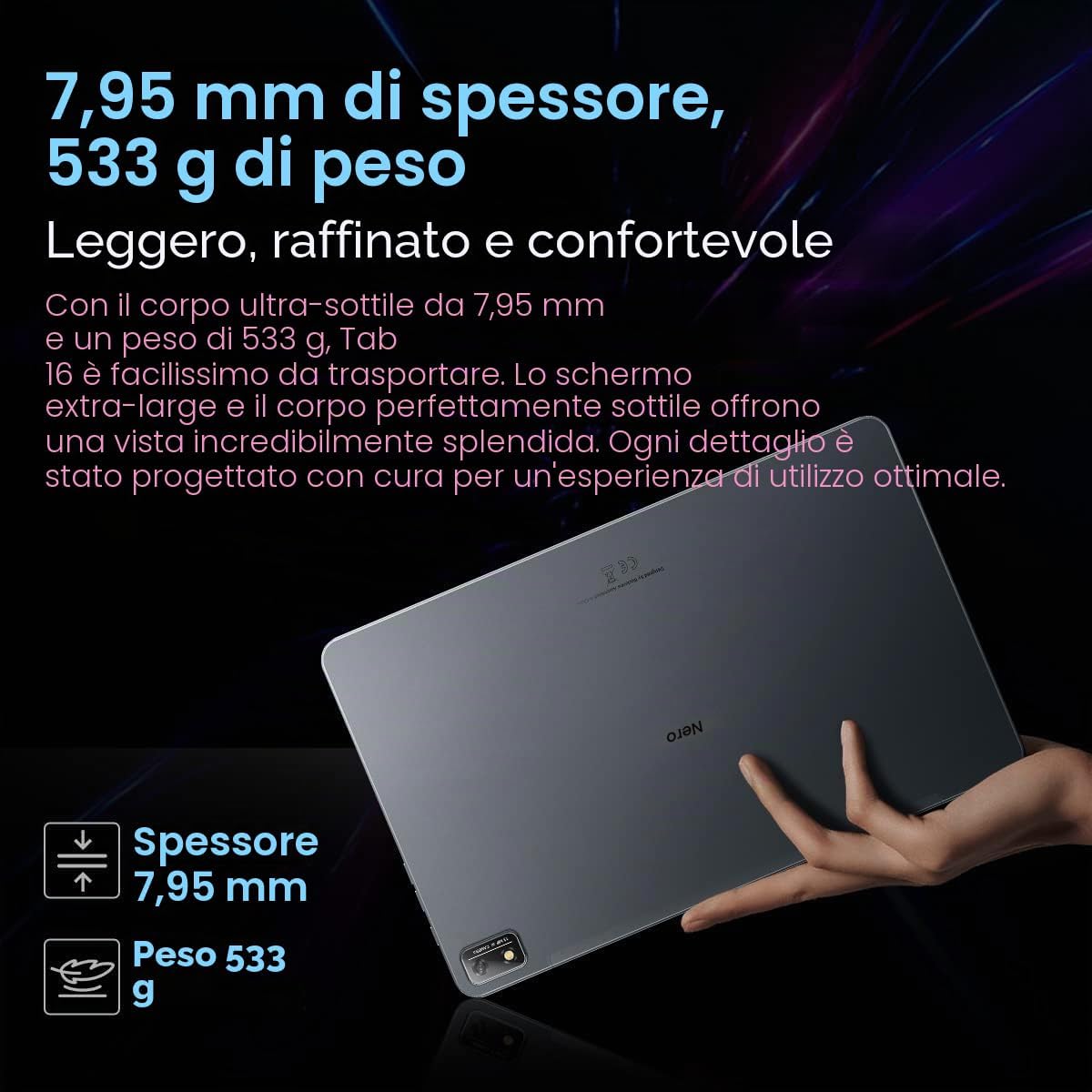
Imagen: El Negroview Tab 16 paired with a keyboard and mouse, demonstrating its capability for a PC-like productivity experience.
5.6 Modos de lectura
To reduce eye strain, the Tab 16 offers three eye protection modes, including a TÜV Rheinland Low Blue Light certified mode and a Dark Mode with 3 levels of darkness. Access these settings in the display options.
6. Mantenimiento
6.1 Limpieza del dispositivo
Utilice un paño suave y sin pelusa para limpiar la pantalla y el cuerpo de la tableta. Evite usar productos químicos agresivos o materiales abrasivos que puedan dañar la superficie.
6.2 Cuidado de la batería
Para prolongar la vida útil de la batería:
- Evite temperaturas extremas.
- No deje que la batería se descargue por completo con regularidad.
- Utilice el cargador y cable originales.
6.3 Actualizaciones de software
Revisa regularmente las actualizaciones del sistema para asegurarte de que tu tableta cuente con las últimas funciones y parches de seguridad. Ve a Ajustes > Sistema > Actualización del sistema.
6.4 Gestión del almacenamiento
Manage your 256GB internal storage and any installed microSD card by regularly deleting unnecessary files and uninstalling unused applications. Go to Settings > Storage.
7. Solución de problemas
Si tiene problemas con su Blackview Tab 16, refer to the following common solutions:
| Problema | Posible solución |
|---|---|
| El dispositivo no enciende | Asegúrese de que la batería esté cargada. Mantenga presionado el botón de encendido durante al menos 10 a 15 segundos. |
| La tableta no carga | Check the charging cable and adapter for damage. Try a different power outlet. Ensure the charging port is clean. |
| Problemas de conexión wifi | Restart the tablet and your Wi-Fi router. Forget the network and reconnect. Ensure you are within range. |
| Las aplicaciones se bloquean o se congelan | Close and reopen the app. Clear the app's cache (Settings > Apps > [App Name] > Storage & cache). Restart the tablet. |
| Rendimiento lento | Cierra las aplicaciones en segundo plano. Borra la caché. Libera espacio de almacenamiento. Reinicia la tableta. |
If problems persist, consider performing a factory reset (Settings > System > Reset options > Erase all data), but back up your data first as this will delete all personal information.
8. Especificaciones
Especificaciones técnicas clave del Blackview Tab 16:
- Nombre del modelo: Pestaña 16
- Sistema operativo: Androide 12
- Procesador: Unisoc T616 de ocho núcleos (2 GHz)
- RAM: 8 GB
- Almacenamiento interno: 256 GB
- Almacenamiento expandible: microSD hasta 1 TB
- Mostrar: 11-inch IPS 2K (2000 x 1200), 60 Hz, 16:10 aspect ratio
- Cámara trasera: 13 MP
- Cámara frontal: 8 MP
- Batería: 7680 mAh (26 hours average duration)
- Cargando: Carga rápida de 18 W
- Conectividad: Wi-Fi, Bluetooth, 4G/LTE (Dual SIM), GPS
- Puertos: USB tipo C
- Dimensiones: 26 de largo x 16.5 de ancho x 0.8 de alto cm
- Peso: 533 gramos
- Características especiales: Google Smart Lens, Widevine L1 1080P Support, 3 Reading Modes
9. Garantía y soporte
Tu negroview Tab 16 is covered by a manufacturer's warranty. Please refer to the warranty card included in your package for specific terms and conditions. For technical support or service inquiries, please visit the official Blackview webSitio web o contacte con el departamento de atención al cliente. Conserve su recibo de compra como comprobante para reclamaciones de garantía.
Para más información, puede visitar la Negroview Tienda en Amazon.


