
PCsensor MK321U
Manual del usuario del mini teclado de 3 teclas PCsensor
Model: MK321U (2.4G Wireless Version)
Introducción
Thank you for choosing the PCsensor 3-Key Mini Keypad. This compact and versatile mechanical keyboard is designed for enhanced productivity and gaming, offering customizable hotkey functions, 2.4G wireless connectivity, and vibrant RGB LED lighting. This manual will guide you through the setup, operation, and maintenance of your new keypad to ensure optimal performance.
Producto terminadoview
The PCsensor 3-Key Mini Keypad is a highly portable and programmable device. It features three mechanical keys, a durable ABS construction, and a long-lasting rechargeable battery. The keypad supports both 2.4G wireless and wired (USB Type-C) connections.

This image shows the compact design of the 3-key mini keypad, highlighting its three mechanical keys with vibrant RGB backlighting. The side features an ON/OFF switch, a USB Type-C port, and a 'connect' button for pairing.
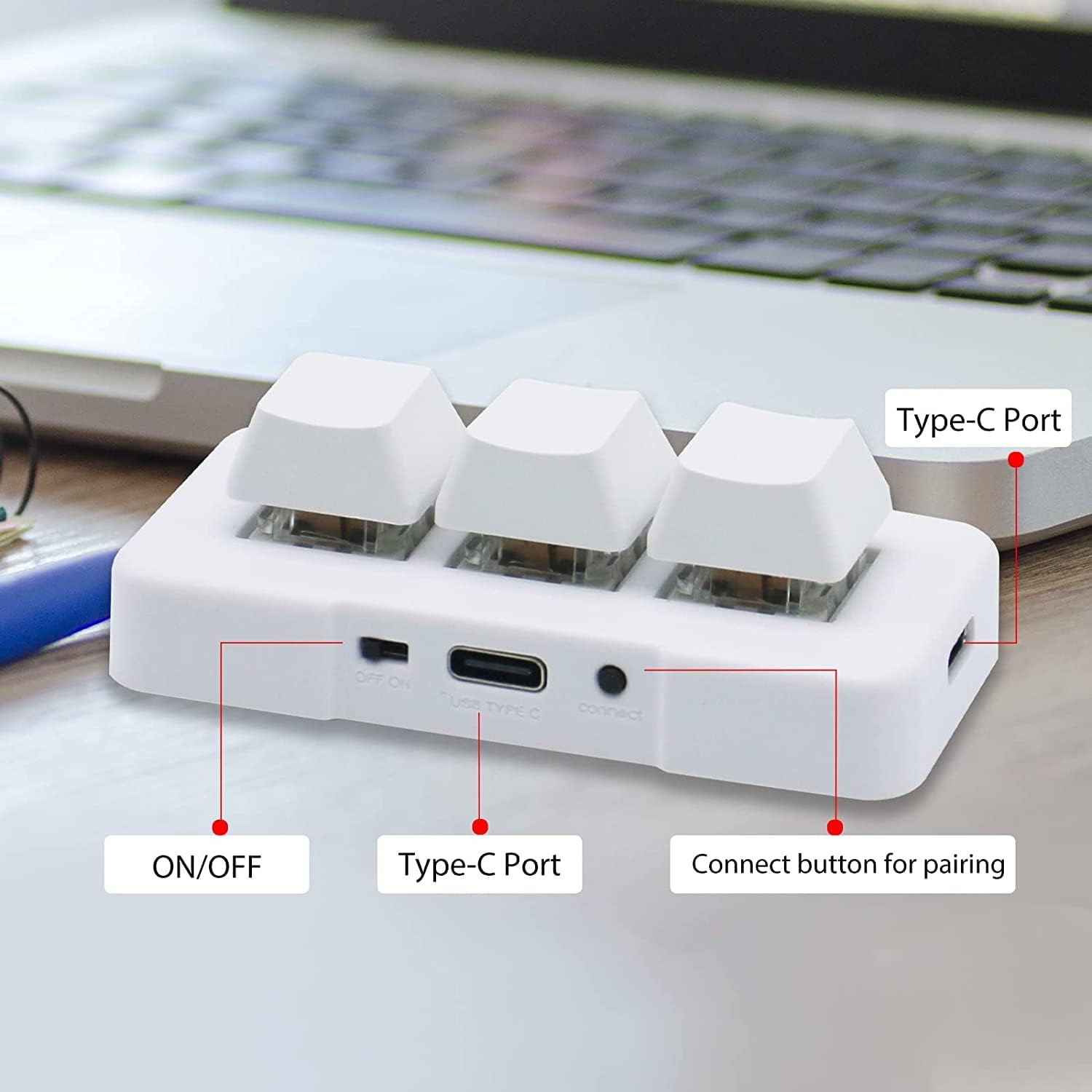
Un detallado view of the keypad's connectivity options, including the ON/OFF switch, the USB Type-C port for charging and wired connection, and the dedicated 'connect' button for wireless pairing.

This diagram illustrates the compact dimensions of the keypad, making it suitable for various setups. It also shows the included USB cable for connection and charging.
Presupuesto
| Característica | Descripción |
|---|---|
| Marca | Sensor de PC |
| Modelo | MK321U (2.4G Wireless) |
| Tecnología de conectividad | 2.4G Wireless (Wi-Fi), USB Type-C (Wired) |
| Número de llaves | 3 |
| Tipo de clave | Mecánico |
| Contraluz | RGB |
| Características especiales | Backlit, Rechargeable, Customizable Display Keys |
| Dispositivos compatibles | Portátil, PC, tableta, teléfono inteligente |
| Usos recomendados | Office, Gaming (OSU), Customized Hotkeys |
| Duración de la batería | Up to 3 months on a 2-hour full charge |
Guía de configuración
Carga del teclado
Before first use, fully charge the keypad using the provided USB Type-C cable. Connect the cable to the keypad's Type-C port and the other end to a USB power source (e.g., computer USB port, wall adapter). The LED indicator will show charging status. A full charge typically takes 2 hours and can provide up to 3 months of use. The LED light will flash every 3 seconds when the battery is low.
Conexión inalámbrica 2.4G
- Asegúrese de que el teclado esté cargado.
- Locate the ON/OFF switch on the side of the keypad and slide it to the 'ON' position.
- Inserte el receptor USB 2.4G en un puerto USB disponible en su computadora o dispositivo.
- Press the 'connect' button on the side of the keypad. The keypad should automatically pair with the receiver. A green light on the keypad indicates a successful 2.4G wireless connection.

This image demonstrates the 2.4G wireless connection, showing the keypad paired with its receiver. A green light indicates successful wireless mode activation.
Initial Configuration (Windows Recommended)
While the keypad is compatible with multiple operating systems, it is recommended to perform the initial key programming and customization on a Windows system. Once configured, the settings are saved to the keypad's internal memory and can be used freely on other compatible devices, including Linux, Mac OS, Android, and iOS.
Instrucciones de funcionamiento
Key Programming and Customization
The primary feature of this keypad is its programmability. Each of the three keys can be assigned to perform various functions, including:
- Teclas de acceso rápido/Teclas de acceso directo: Assign complex key combinations (e.g., Ctrl+C, Alt+F4).
- Control Multimedia: Play/pause, volume up/down, next/previous track.
- Gaming Macros: Execute a sequence of actions with a single press (e.g., for OSU! or other games).
- Función de cadena: Input frequently used text strings.
- Funciones del ratón: Simulate mouse clicks or movements.
- Specialized Applications: Such as image collection for medical equipment.
Refer to the PCsensor official website or included software (if applicable) for detailed instructions on how to download and use the programming software to customize your keys.

This visual guide highlights the versatility of the keypad, showing its use for custom keyboard shortcuts, multimedia control, gaming macros, text input, mouse functions, and specialized applications like medical imaging.
Compatibilidad del sistema
The PCsensor 3-Key Mini Keypad is broadly compatible with a range of operating systems:
- Ventanas
- macOS
- Androide
- Linux
- iOS (after initial configuration on Windows/Mac)

This image confirms the broad compatibility of the keypad across various operating systems, including Windows, macOS, Android, and Linux. Configuration is recommended on Windows or Mac for full functionality.
Mantenimiento
- Limpieza: Utilice un paño suave y seco para limpiar el teclado. Para la suciedad difícil, utilice un paño ligeramente seco.amp Se puede usar un paño con jabón suave, asegurándose de que no entre líquido en el dispositivo. No utilice productos químicos agresivos ni limpiadores abrasivos.
- Almacenamiento: Guarde el teclado en un lugar fresco y seco, alejado de la luz solar directa y de temperaturas extremas.
- Cuidado de la batería: To prolong battery life, avoid fully discharging the keypad frequently. Charge it regularly, especially if it will be stored for an extended period.
Solución de problemas
- Keypad not connecting wirelessly:
- Ensure the keypad is turned ON and fully charged.
- Verify the 2.4G USB receiver is securely plugged into a working USB port.
- Press the 'connect' button on the keypad to re-initiate pairing.
- Pruebe un puerto USB diferente en su dispositivo.
- Keys not responding or performing incorrect actions:
- Ensure the keypad is properly connected (wired or wireless).
- Check your key programming settings using the customization software. Re-program if necessary.
- Reinicie su computadora/dispositivo.
- LED light flashing every 3 seconds:
- This indicates low battery. Connect the keypad to a power source using the USB Type-C cable to charge it.
- Keypad not recognized by programming software:
- Ensure the keypad is connected via USB Type-C cable to your Windows or Mac computer. The software typically requires a wired connection for programming.
- Download the latest version of the programming software from the official PCsensor websitio.
Garantía y soporte
PCsensor products are built for durability and performance. For warranty information, technical support, or further assistance, please refer to the warranty card included with your product or visit the official PCsensor website. You may also contact customer support through the platform where you purchased the product.
Ask a question about this manual
Ask about setup, troubleshooting, compatibility, parts, safety, or missing instructions. Manuals+ will review the question and use this page’s manual context to help answer it.