
1. Introducción
The AUSDOM Airkey84 is a compact 75% mechanical keyboard designed for versatility and comfort. It features an 84-key layout, retaining essential arrow and function keys while saving desktop space. This keyboard offers triple connectivity modes: USB-C wired, Bluetooth 3.0/5.0, and 2.4GHz wireless, allowing connection to up to four devices. Equipped with low-profile brown switches, it provides a tactile typing experience suitable for both office work and gaming. The keyboard also includes 14 white LED backlight modes and is compatible with both Mac OS and Windows operating systems.
2. ¿Qué hay en la caja?
- 1 x bajo profesionalfile Teclado mecánico
- 1 x cable USB
- Receptor 1 x USB
- 1 x Manual de usuario
- 3 x Extra Keycaps for Windows
3. Configuración
3.1 Modos de conectividad
The AUSDOM Airkey84 supports three connection methods: Bluetooth, 2.4GHz wireless, and USB-C wired. It can connect to up to four devices simultaneously and switch between them.

Image: The keyboard supports 2.4G, Bluetooth, and Wired connections, enabling multi-device pairing.
3.1.1 Bluetooth Connection Mode
- Turn the power button on the keyboard to ON.
- Mantenga pulsado el Fn + BT1 keycaps for 3-5 seconds. The keyboard will enter pairing mode, and the keys' backlight indicator will flash rapidly.
- On your device (e.g., computer, tablet, smartphone), turn on its Bluetooth function. Buscar and select "AUSDOM Airkey84" to pair.
- Repeat steps 2 and 3 for BT2 and BT3 to connect up to three Bluetooth devices.
3.1.2 2.4GHz USB Connection Mode
- Turn the power button on the keyboard to ON.
- Presione el Fn + 4 key once to switch to 2.4GHz USB connection mode.
- Plug the USB receiver into your device's USB port. The keyboard should connect automatically.
3.1.3 Modo cableado USB-C
- Turn the power button on the keyboard to APAGADO.
- Conecte el teclado a su dispositivo con el cable USB-C incluido. El teclado cambiará automáticamente al modo cableado.

Image: The keyboard connected via USB-C cable, also showing its rechargeable capability.
3.2 Compatibilidad
The keyboard is compatible with both Mac OS and Windows operating systems. Three extra keycaps are provided for Windows users to customize their layout.
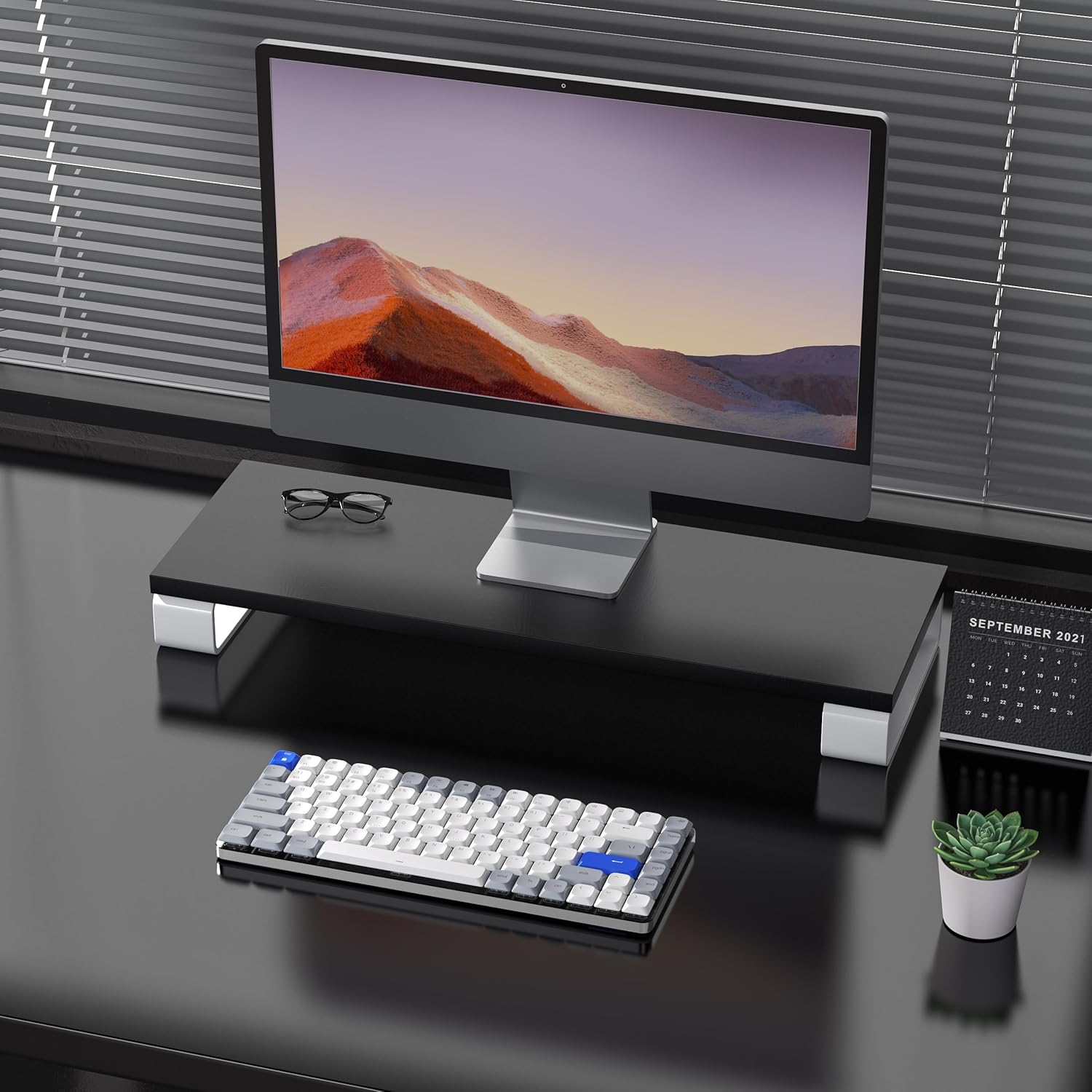
Image: The keyboard is compatible with both Mac and Windows systems, and includes extra keycaps for Windows users.
4. Instrucciones de funcionamiento
Control de retroiluminación 4.1
The keyboard features 14 different white LED backlight modes. To cycle through these modes, press the dedicated lightbulb button located in the top right corner of the keyboard. The keycaps are laser-engraved to ensure clear visibility of characters with the backlight on.

Image: The keyboard displaying its white backlight with 14 different lighting options.
4.2 soportes ajustables
The keyboard is equipped with two adjustable stands on the back. These stands allow you to set the keyboard at a comfortable typing angle (e.g., 3 or 6 degrees) to reduce wrist strain during extended use.

Image: The keyboard's ultra-slim aluminum frame and ergonomic design with adjustable feet.
4.3 Bajo-Profile Interruptores marrones
El teclado utiliza perfil bajo.file brown switches, which offer a tactile bump without a loud click. This design provides a comfortable and responsive typing experience, ideal for both fast typing and gaming.

Image: A close-up of the low-profile brown switches, highlighting their design for comfortable and effortless typing.
5. Mantenimiento
5.1 Limpieza
- To clean the keyboard, power it off and disconnect any cables.
- Utilice un paño suave y sin pelusa ligeramente seco.ampLimpie con agua o una solución de limpieza suave las teclas y la superficie.
- Para eliminar el polvo y los residuos entre las teclas, utilice aire comprimido.
- Evite utilizar productos químicos agresivos o materiales abrasivos, ya que pueden dañar el acabado del teclado o las leyendas de las teclas.
5.2 Cuidado de la batería
- The keyboard has a built-in 2000 mAh rechargeable battery.
- Cargue el teclado utilizando el cable USB-C proporcionado.
- Para prolongar la vida útil de la batería, evite descargarla por completo con frecuencia.
- Si va a guardar el teclado durante un período prolongado, cárguelo aproximadamente al 50 % antes de guardarlo.
6. Solución de problemas
6.1 Problemas de conexión
- El teclado no se conecta mediante Bluetooth: Ensure the keyboard is in Bluetooth pairing mode (flashing backlight). Check your device's Bluetooth settings and ensure it's discoverable. Try forgetting the device and re-pairing.
- La conexión inalámbrica de 2.4 GHz no funciona: Ensure the USB receiver is securely plugged into a working USB port. Confirm the keyboard is switched to 2.4GHz mode (Fn + 4). Try a different USB port.
- Wired connection issues: Ensure the USB-C cable is fully inserted into both the keyboard and the device. Try a different USB-C cable or port. Ensure the keyboard's power switch is in the OFF position for wired mode.
6.2 La luz de fondo no funciona
- Asegúrese de que la batería del teclado tenga suficiente carga.
- Press the backlight control button (lightbulb icon) to cycle through modes or turn the backlight on/off.
6.3 Las teclas no responden
- Check the connection mode and ensure it's properly established.
- Recargue el teclado si la batería está baja.
- Try connecting the keyboard via USB-C wired mode to rule out wireless interference or battery issues.
- If specific keys are not responding, gently remove the keycap and check for any obstructions or debris around the switch.
7. Especificaciones
| Característica | Detalle |
|---|---|
| Número de modelo | Airkey84 |
| Dimensiones del producto | 12.13 x 183070.97 x 0.94 pulgadas |
| Peso del artículo | 1.03 libras |
| Fabricante | AUSDOM |
| Baterías | Se requiere 1 batería de polímero de litio (incluida) |
| Dispositivos compatibles | Portátil, PC, teléfono inteligente, tableta |
| Tecnología de conectividad | Bluetooth, conexión inalámbrica de 2.4 GHz, cable USB-C |
| Descripción del teclado | Mecánico, bajo profesionalfile, 75% Layout |
| Característica especial | Backlit, Low-Profile Key, Rechargeable |
| Retroiluminación del teclado | LED blanco, un solo color, 14 modos |
| Material | Acrylonitrile Butadiene Styrene, Aluminum, Silicone |
8. Garantía y soporte
For warranty information, technical support, or any product-related inquiries, please contact AUSDOM customer service through the official AUSDOM store or the platform where the product was purchased. Please refer to your purchase documentation for specific warranty terms and conditions.
You can visit the official AUSDOM store for more information: AUSDOM Store