
1. Introducción
This manual provides essential information for setting up, operating, maintaining, and troubleshooting your Beelink SER5 5500U Mini PC. Please read it carefully before using the product to ensure optimal performance and longevity.
The Beelink SER5 5500U is a compact and powerful Mini PC featuring an AMD Ryzen 5 5500U processor, designed for various applications from office work to multimedia entertainment and light gaming. It supports dual 4K display output and offers robust connectivity options.
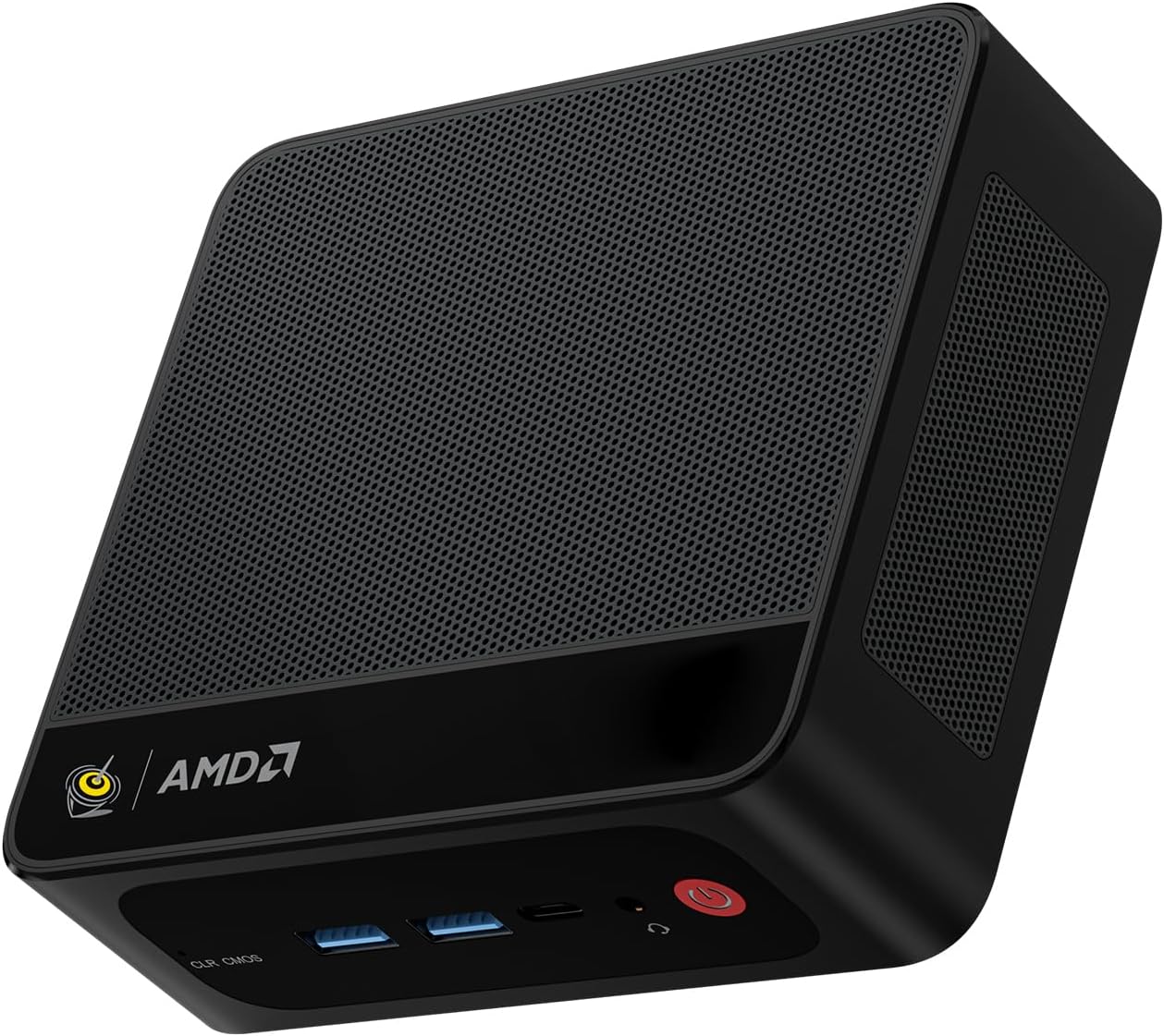
Figura 1: Mini PC Beelink SER5 5500U
2. Contenido del paquete
Verifique que todos los artículos estén presentes en el paquete:
- Beelink SER5 5500U Mini PC (x1)
- HDMI Cable (100cm) (x1)
- Adaptador de corriente (19 V/3.42 A) (x1)
- Wall-Mounted Bracket (x1)
- Manual de usuario (este documento)
3. Instrucciones de configuración
3.1 Conexión de periféricos
- Conectar pantalla: Use the provided HDMI cable to connect your monitor to the HDMI port on the Mini PC. Alternatively, use a DisplayPort cable for DP connection.
- Conectar el teclado y el ratón: Conecte el teclado y el mouse USB a los puertos USB disponibles.
- Conecte la electricidad: Conecte el adaptador de corriente al puerto de entrada de CC de la mini PC y luego enchufe el adaptador a una toma de corriente.
- Conexión de red (opcional): Para una conexión por cable, conecte un cable Ethernet al puerto LAN 2.5G. Para una conexión inalámbrica, asegúrese de que su red WiFi esté disponible.

Figura 2: Puertos delantero y trasero
3.2 Arranque inicial
Press the power button on the front of the Mini PC. The system will boot up, and you will see the Windows 11 Pro setup screen. Follow the on-screen instructions to complete the initial Windows setup.
4. Instrucciones de funcionamiento
4.1 Encendido/apagado y reinicio
- Encendido: Presione el botón de encendido.
- Apagado: Haga clic en el botón Inicio en Windows y seleccione Inicio/Apagado > Apagar. También puede mantener presionado el botón de encendido durante 5 segundos para forzar el apagado (no se recomienda para uso habitual).
- Reanudar: Haga clic en el botón Inicio en Windows, luego seleccione Energía > Reiniciar.
4.2 Configuración de pantalla dual
The Beelink SER5 5500U supports dual 4K display output via its HDMI and DisplayPort interfaces. Connect two monitors to these ports. Windows will automatically detect the displays. You can configure display settings (extend, duplicate, etc.) via Windows Display Settings.

Figure 3: Dual Display Configuration
4.3 Conectividad inalámbrica
- Wifi 6: The Mini PC supports Wi-Fi 6 (802.11ax) for high-speed wireless internet. Connect via Windows network settings.
- Bluetooth 5.2: Pair Bluetooth devices such as keyboards, mice, or headphones through Windows Bluetooth settings.
4.4 Expansión del almacenamiento
The Mini PC includes a 500GB M.2 PCIe NVME 2280 SSD. For additional storage, a 2.5-inch HDD/SSD (not included) can be installed in the dedicated slot. Refer to the internal hardware guide for installation steps.
5. Mantenimiento
5.1 Limpieza
Regularly clean the exterior of the Mini PC with a soft, dry cloth. Use compressed air to gently clear dust from the ventilation openings to maintain optimal airflow and cooling performance. Do not use liquid cleaners directly on the device.
5.2 Actualizaciones de software
Keep your Windows operating system and device drivers updated. Windows Update will handle most OS updates. For graphics drivers (AMD Radeon Graphics), visit the AMD official webSitio para las últimas versiones.
5.3 Sistema de enfriamiento
The Beelink SER5 5500U features a high-speed cooling fan. Ensure the Mini PC is placed in a well-ventilated area and that the air vents are not obstructed to prevent overheating.

Figura 4: Ventilador de enfriamiento interno
6. Solución de problemas
6.1 Sin energía
- Asegúrese de que el adaptador de corriente esté conectado de forma segura tanto a la mini PC como a una toma de corriente que funcione.
- Compruebe si la toma de corriente funciona enchufando otro dispositivo.
- Pruebe con un adaptador de corriente diferente si está disponible y es compatible.
6.2 Sin visualización
- Verify that the HDMI or DisplayPort cable is securely connected to both the Mini PC and the monitor.
- Asegúrese de que el monitor esté encendido y configurado en la fuente de entrada correcta (HDMI/DP).
- Pruebe con un monitor o cable diferente si es posible.
- If the issue persists, try resetting the CMOS by pressing the CLR CMOS button (refer to Figure 2 for location).
6.3 Problemas de conectividad de red
- Cableado (LAN): Check the Ethernet cable connection and your router/modem.
- Wireless (Wi-Fi/Bluetooth): Ensure Wi-Fi and Bluetooth are enabled in Windows settings. Restart your router/modem.
- Actualice los controladores de red si es necesario.
6.4 Ralentización del sistema
- Cierre las aplicaciones innecesarias que se ejecutan en segundo plano.
- Busque e instale cualquier actualización de Windows pendiente.
- Ensure the cooling vents are clear of obstructions.
- Ejecute una limpieza y desfragmentación del disco (para HDD, no es necesario para SSD).
7. Especificaciones

Figura 5: Especificación del productoview
| Característica | Detalle |
|---|---|
| Marca | Enlace de abeja |
| Modelo | SER5 5500U |
| Sistema operativo | Windows 11 Pro |
| UPC | AMD Ryzen 5 5500U (6 Cores/12 Threads, 2.1GHz Base, up to 4.0GHz Boost) |
| Gráficos | Gráficos AMD Radeon (7 núcleos, 1800 MHz) |
| RAM | 16 GB DDR4 (doble canal, ampliable hasta 64 GB) |
| Almacenamiento | 500GB M.2 PCIe NVME 2280 SSD (expandable with 2.5-inch HDD/SSD) |
| Salida de vídeo | 1 HDMI (4K a 60 Hz), 1 DisplayPort (4K a 60 Hz) |
| Puertos USB | 3x USB 3.2 Gen2, 1x USB 2.0, 1x Type-C (Data) |
| Red | Wi-Fi 6 (802.11ax), Bluetooth 5.2, 2.5G LAN (RJ45) |
| Audio | Conector de audio (HP y micrófono) |
| Dimensiones | 12.6 x 11.3 x 4.2 cm |
| Enfriamiento | Refrigeración por aire |
| Adaptador de corriente | 19 V/3.42 A |
8. Garantía y soporte
8.1 Información de garantía
Your Beelink SER5 5500U Mini PC comes with a Garantía del fabricante de 3 añosConserve su comprobante de compra para reclamaciones de garantía.
8.2 Product Key Retrieval
If you received your product without a physical product key, you can contact Beelink support to obtain it. Please provide the SN code located on the bottom of your product when contacting support.
8.3 Atención al cliente
For technical assistance, warranty claims, or any other inquiries, please contact Beelink customer support through the official Beelink store or website. Support is typically available within 24 hours for messages.


