
1. Introducción
This manual provides detailed instructions for the setup, operation, and maintenance of your KOORUI MG27K1Q 27-inch QHD 240Hz VA Mini LED Gaming Monitor. Please read this manual thoroughly before using the product to ensure proper functionality and to prevent damage.
2. Contenido del paquete
Verify that all items listed below are included in your product package. If any items are missing or damaged, please contact KOORUI customer support.
- KOORUI MG27K1Q 27-inch Gaming Monitor
- Monitor Stand (Base and Support)
- Adaptador de corriente
- Cable DisplayPort (DP)
3. Configuración
3.1 Montaje del soporte
- Retire con cuidado los componentes del monitor y del soporte del embalaje.
- Attach the stand support to the monitor panel. Ensure it clicks securely into place or is fastened with screws if provided.
- Connect the stand base to the stand support. Tighten any screws to secure the assembly.
- Coloque el monitor ensamblado sobre una superficie plana y estable.
3.2 Conexión a dispositivos
The monitor offers multiple connectivity options for various devices. Ensure the monitor is powered off before making any connections.
- DisplayPort (DP 1.4): Connect the included DisplayPort cable from your computer's graphics card to the DisplayPort input on the monitor for optimal performance, including 240Hz refresh rate and Adaptive Sync.
- HDMI (HDMI 2.0): Connect an HDMI cable from your device (PC, gaming console) to one of the two HDMI 2.0 inputs on the monitor.
- Salida de audio: Utilice el conector de audio de 3.5 mm para conectar altavoces o auriculares externos.
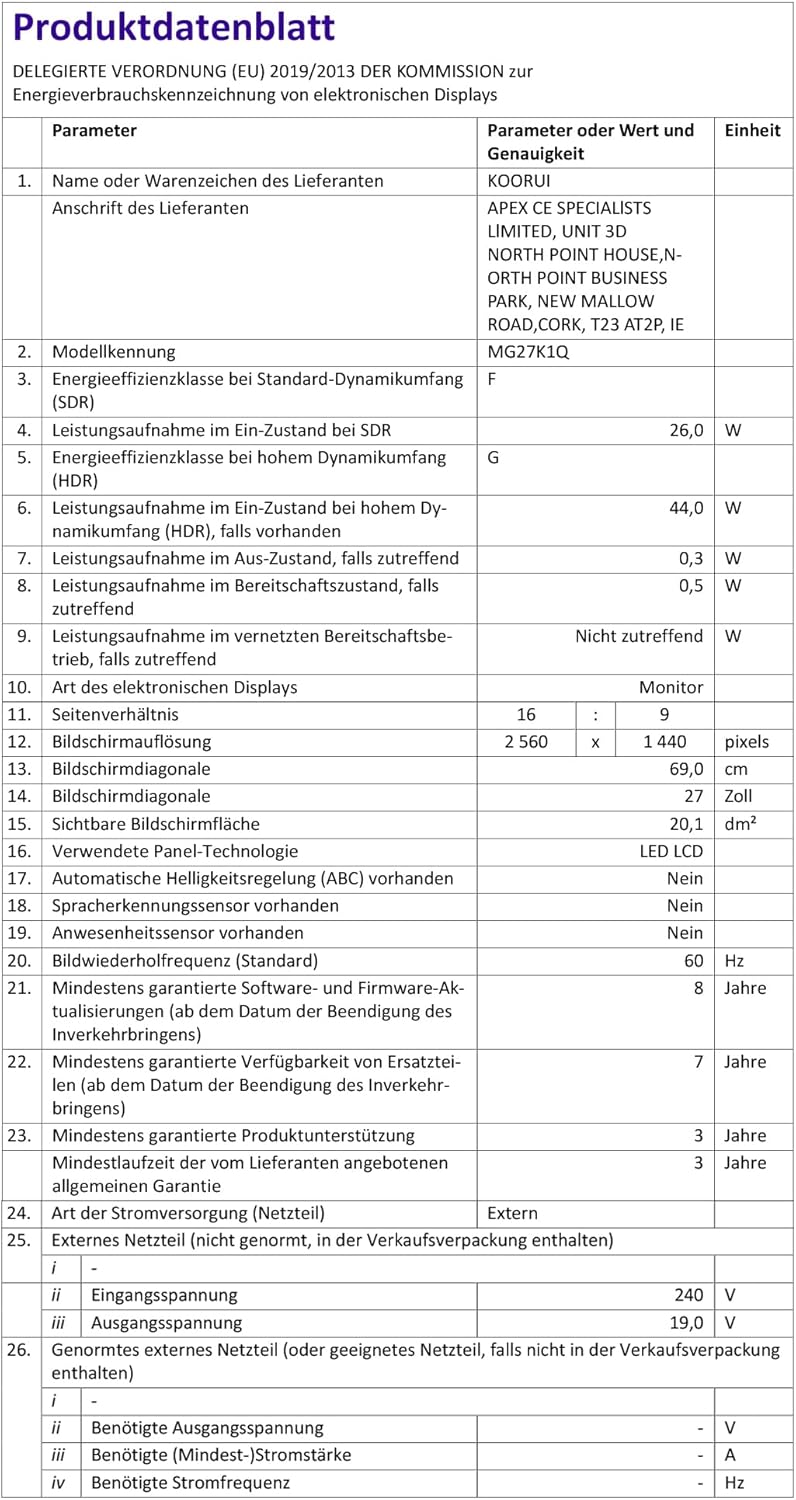
Imagen: Trasera view of the monitor illustrating the available connection ports (DisplayPort 1.4, 2x HDMI 2.0, Audio Out) and VESA mount points. Examples of compatible devices like PS5, Xbox, Laptop, and Nintendo Switch are shown.
3.3 Conexión de alimentación
- Conecte el adaptador de corriente a la entrada de alimentación del monitor.
- Conecte el adaptador de corriente a una toma de pared.
4. Funcionamiento del monitor
4.1 Funcionamiento básico
- Encendido/apagado: Presione el botón de encendido, generalmente ubicado en la parte posterior o inferior derecha del monitor, para encenderlo o apagarlo.
- Selección de entrada: Use the On-Screen Display (OSD) menu to select the desired input source (DP, HDMI 1, HDMI 2).
4.2 Funciones de visualización
The KOORUI MG27K1Q monitor is equipped with advanced display technologies for an enhanced visual experience.
- Resolución QHD (2560x1440): Proporciona imágenes nítidas y detalladas.
- VA Mini LED Panel: Offers deep blacks, high contrast, and vibrant colors.
- HDR1000: High Dynamic Range support for brighter whites and darker blacks, enhancing visual depth and realism.

Image: Visual comparison demonstrating the enhanced contrast and detail provided by HDR 1000 technology compared to a standard display.
4.3 Rendimiento en juegos
Designed for gaming, this monitor delivers smooth and responsive gameplay.
- Frecuencia de actualización de 240 Hz: Ensures ultra-smooth motion and reduced input lag.
- Tiempo de respuesta de 1 ms: Minimiza el desenfoque de movimiento y las imágenes fantasma para ofrecer una acción clara y de ritmo rápido.
- Adaptive Sync (G-SYNC Compatible): Sincroniza la frecuencia de actualización del monitor con la frecuencia de cuadros de la GPU para eliminar el desgarro y el tartamudeo de la pantalla.
- Exclusive Game Display Modes: Features like Crosshair, Timer, and FPS Counter can be enabled via the OSD for an advantage en los juegos.

Image: The monitor displaying a high-speed racing game, emphasizing its 240Hz refresh rate and 1ms response time for a fluid gaming experience.
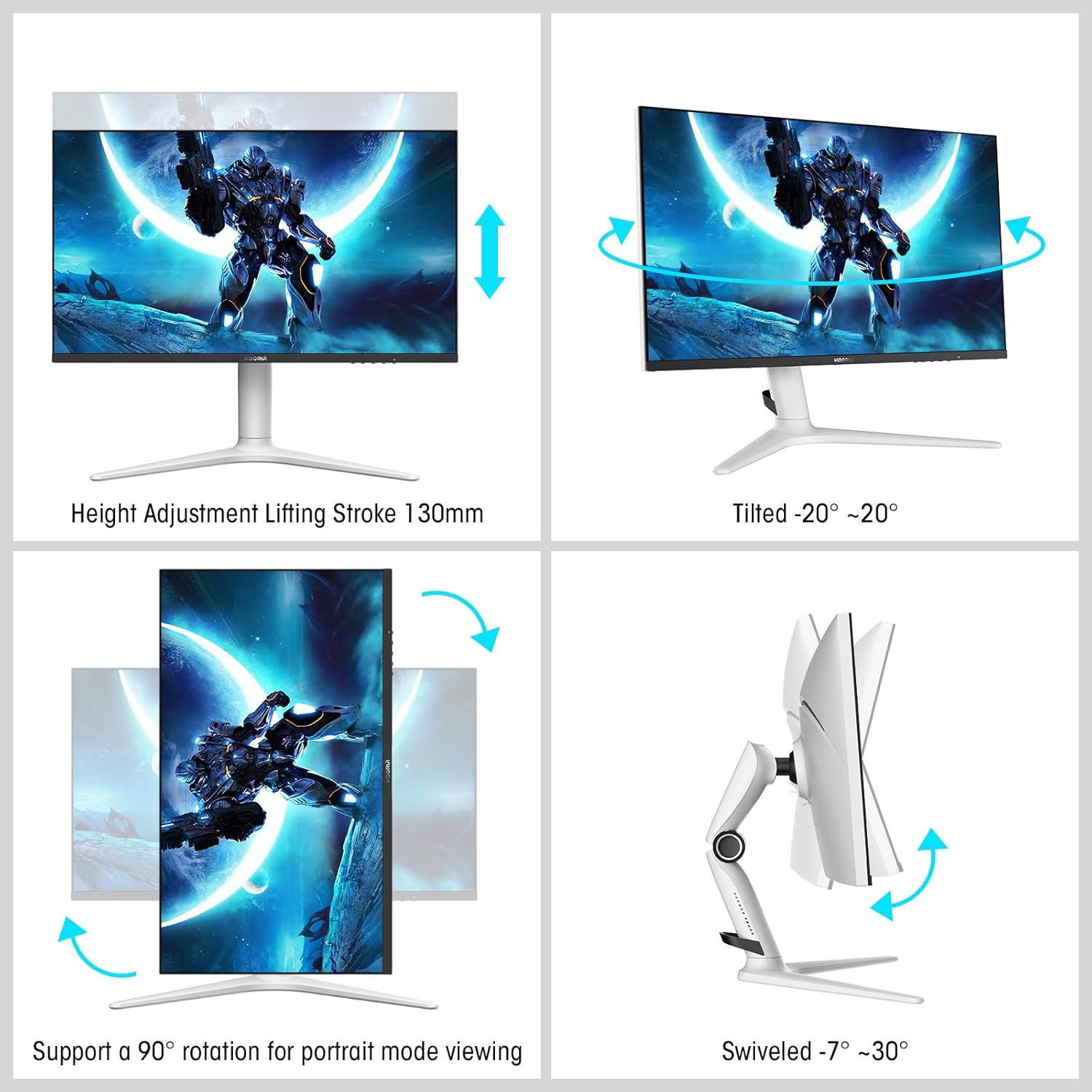
Image: A gaming scenario on the monitor, illustrating the 'Exclusive Game Display Mode' features such as Crosshair, Timer, FPS Counter, and RTS Counter, alongside Adaptive Sync functionality.
4.4 Características para el cuidado de los ojos
The monitor includes features to reduce eye strain during prolonged use.
- Filtro de luz azul: Reduces harmful blue light emissions. This can be adjusted or enabled/disabled through the OSD menu.
5. Ajustes
El soporte del monitor permite varios ajustes ergonómicos para optimizar su viewing comodidad.
- Ajuste de altura: Adjust the monitor height up to 130mm.
- Inclinación: Tilt the screen from -7° (downward) to 30° (upward).
- Girar: Rotate the monitor horizontally from -20° to 20°.
- Pivote: Gire la pantalla 90° para el modo vertical viewEn.
- Montaje VESA: Compatible with VESA 75x75mm mounting solutions for alternative setups.

Image: Diagrams demonstrating the monitor's ergonomic adjustments, including height, tilt, swivel, and pivot for portrait mode.
6. Especificaciones
| Característica | Especificación |
|---|---|
| Número de modelo | MG27K1Q |
| Tamaño de pantalla | 27 pulgadas |
| Tipo de panel | VA Mini-LED |
| Resolución | QHD (2560 x 1440) |
| Relación de aspecto | 16:9 |
| Frecuencia de actualización | 240 Hz |
| Tiempo de respuesta | 1 ms |
| Relación de contraste (estática) | 3000:1 |
| Relación de contraste (dinámica) | 20,000,000:1 |
| Brillo | 275 nits |
| Viewángulo de ing | 178 grados |
| Compatibilidad con HDR | HDR1000 |
| Sincronización adaptativa | Compatible with NVIDIA G-SYNC |
| Conectividad | 2x HDMI 2.0, 1x DisplayPort 1.4, Salida de audio |
| Montaje VESA | 75x75 mm |
| Consumo de energía | 90 vatios |
| Dimensiones (D x W x H) | 32 x 61.3 x 52.3 cm |
| Peso | 9.34 kilogramos |
| Características especiales | Blue Light Filter, Gaming Modes (Crosshair, Timer, FPS Counter) |
7. Solución de problemas
Si tiene problemas con su monitor, consulte los siguientes pasos de solución de problemas comunes:
- Sin energía: Asegúrese de que el adaptador de corriente esté bien conectado tanto al monitor como a una toma de corriente que funcione. Compruebe que el indicador de encendido del monitor esté encendido.
- Sin señal: Verify that the video cable (DP or HDMI) is correctly connected to both the monitor and your computer/device. Ensure the correct input source is selected in the monitor's OSD menu. Try a different video cable or port.
- Imagen parpadeante/distorsionada: Check the video cable connections. Ensure your graphics card drivers are up to date. Try reducing the refresh rate in your display settings to see if the issue persists.
- La sincronización adaptativa no funciona: Ensure Adaptive Sync (G-SYNC Compatible) is enabled in both the monitor's OSD settings and your graphics card control panel. Use a DisplayPort cable for optimal performance.
- Píxeles muertos: While rare, a small number of dead pixels may be considered within manufacturing tolerances. Refer to the warranty policy for specific details regarding pixel defects.
8. Garantía y soporte
KOORUI provides comprehensive support for your product.
- Garantía: This monitor comes with a 3-year warranty from the date of purchase.
- Servicio de reemplazo: A 1-year replacement service is offered for qualifying issues.
- Atención al cliente: If you encounter any damages, malfunctions, or find missing accessories, please do not hesitate to contact KOORUI customer support for assistance.