
1. Introducción
This manual provides instructions for the installation, configuration, and operation of your TP-Link EC220-G5 AC1200 Wireless Dual Band Gigabit Router. Please read this manual carefully before using the device to ensure proper functionality and safety.
The EC220-G5 is designed to provide high-speed dual-band Wi-Fi connectivity, supporting both 2.4 GHz and 5 GHz frequencies for optimal performance across various devices.
2. Contenido del paquete
Verifique que su paquete contenga los siguientes elementos:
- TP-Link EC220-G5 AC1200 Wireless Dual Band Gigabit Router
- Adaptador de corriente
- Cable Ethernet
- Guía de instalación rápida
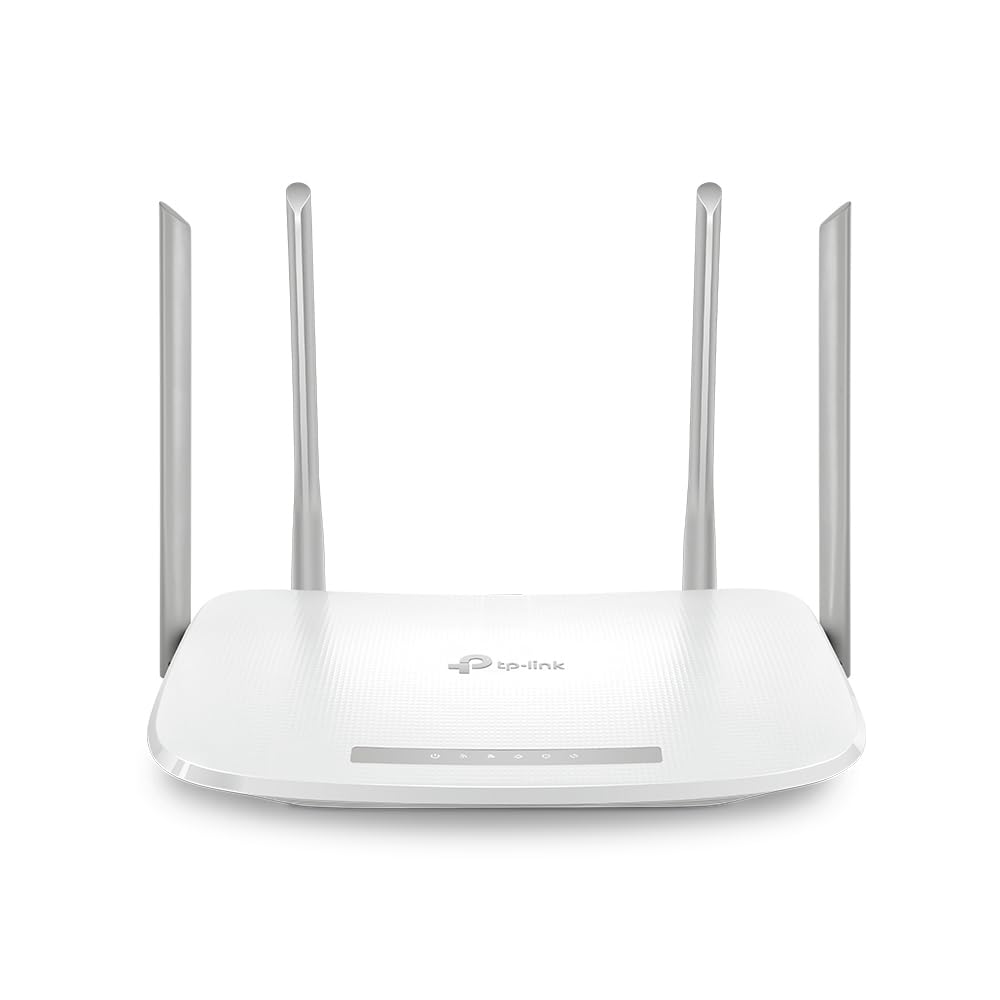
Figura 1: Frente view of the TP-Link EC220-G5 router, showing its four external antennas and LED indicators.
3. Hardware terminadoview
3.1 Panel frontal
The front panel features LED indicators for power, internet status, Wi-Fi activity, and LAN port status.
3.2 Panel trasero
The rear panel includes various ports and buttons for connectivity and control.
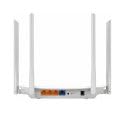
Figura 2: Posterior view of the TP-Link EC220-G5 router, displaying the WAN port, LAN ports, power input, and reset button.
- Puerto WAN: Se conecta a la red de su módem o proveedor de servicios de Internet (ISP).
- Puertos LAN (1-4): Conéctese a dispositivos con cable, como computadoras, consolas de juegos o televisores inteligentes.
- Puerto de alimentación: Se conecta al adaptador de corriente proporcionado.
- Botón de reinicio: Se utiliza para restaurar el enrutador a la configuración predeterminada de fábrica.
- Botón WPS/Wi-Fi: Press to enable/disable Wi-Fi or initiate WPS (Wi-Fi Protected Setup).
4. Configuración
4.1 Conexión de hardware
- Apagado: Desconecte la alimentación de su módem y enrutador (si corresponde).
- Conectar el módem: Conecte su módem al puerto WAN del enrutador mediante un cable Ethernet.
- Conecte la electricidad: Conecte el adaptador de corriente al puerto de alimentación del enrutador y enchúfelo a una toma de corriente eléctrica.
- Encendido: Power on your modem first, then power on the router. Wait for the LED indicators to stabilize.
- Conectar dispositivos: Connect your computer or other devices to the router via an Ethernet cable to a LAN port, or wirelessly using the default Wi-Fi network name (SSID) and password found on the router's label.
4.2 Configuración inicial
- Enrutador de acceso: Abrir una web navegador en un dispositivo conectado e ingrese la dirección de acceso predeterminada (por ejemplo,
http://tplinkwifi.netor192.168.0.1). - Acceso: Introduzca el nombre de usuario y la contraseña predeterminados (normalmente
adminpara ambos, o como se especifica en la etiqueta del enrutador). - Ejecutar configuración rápida: Siga las instrucciones en pantalla del asistente de configuración rápida para configurar su conexión a Internet y la configuración inalámbrica.
- Cambiar credenciales predeterminadas: For security, change the default login password for the router's management interface.
5. Operación del enrutador
5.1 Configuración inalámbrica
To modify your Wi-Fi network name (SSID) or password:
- Inicie sesión en el enrutador web Interfaz de gestión.
- Navegar a Inalámbrico > Configuración inalámbrica.
- Change the SSID and password for both 2.4 GHz and 5 GHz bands.
- Guarde sus cambios.
5.2 Red de invitados
The router supports a guest network feature, allowing visitors to access the internet without sharing your main network resources. This enhances security.
- Inicie sesión en el enrutador web Interfaz de gestión.
- Ir a Red de invitados.
- Enable the guest network and configure its settings (e.g., password, access duration).
5.3 Controles parentales
Administre el acceso a Internet para dispositivos o usuarios específicos en su red.
- Acceso Controles parentales en el web interfaz.
- Configure time limits or website restrictions for designated devices.
5.4 Calidad de Servicio (QoS)
Priorice el tráfico de red para aplicaciones o dispositivos específicos para garantizar un rendimiento fluido en tareas críticas como juegos o transmisión de video.
- Navegar a Calidad de servicio configuraciones en el web interfaz.
- Enable QoS and configure bandwidth priorities as needed.
6. Mantenimiento
6.1 Actualización de firmware
Regularly update your router's firmware to ensure optimal performance, security, and access to new features.
- Visita el soporte oficial de TP-Link website for the EC220-G5 model.
- Descargue el último firmware file.
- Inicie sesión en el enrutador web Interfaz de gestión.
- Ir a Herramientas del sistema > Actualización de firmware.
- Cargue el firmware descargado file y siga las instrucciones. Do not power off the router during the upgrade process.
6.2 Configuración de copia de seguridad y restauración
It is recommended to back up your router's configuration settings before performing major changes or firmware updates.
- En el web interfaz, navegue hasta Herramientas del sistema > Copia de seguridad y restauración.
- Hacer clic Respaldo to save your current configuration.
- To restore, upload a previously saved configuration file.
6.3 Restablecimiento de fábrica
If the router is not functioning correctly or you forget the login password, you can perform a factory reset.
- Método 1 (Software): Iniciar sesión en el web interfaz, vaya a Herramientas del sistema > Valores predeterminados de fábricay haga clic Restaurar.
- Method 2 (Hardware): With the router powered on, press and hold the Reset button on the rear panel for approximately 5-10 seconds until the system LED blinks rapidly. Release the button and wait for the router to restart.
7. Solución de problemas
7.1 Sin acceso a Internet
- Verifique todas las conexiones de cable entre el módem, el enrutador y sus dispositivos.
- Verify that the WAN LED on the router is lit. If not, check the connection to your modem.
- Reinicie su módem y enrutador.
- Comuníquese con su proveedor de servicios de Internet (ISP) para confirmar el estado del servicio.
7.2 Unable to Access Router's Web Página de administración
- Asegúrese de que su dispositivo esté conectado correctamente al enrutador (con cable o inalámbrico).
- Verifique la dirección IP del enrutador (la predeterminada suele ser
192.168.0.1or192.168.1.1) and ensure your device is on the same subnet. - Borre la memoria caché de su navegador o pruebe con un navegador diferente.
- Si olvidó la contraseña de inicio de sesión, realice un restablecimiento de fábrica (consulte la Sección 6.3).
7.3 Velocidad inalámbrica lenta
- Ensure your devices are connected to the 5 GHz band if supported, as it offers higher speeds and less interference.
- Reduce la distancia entre tus dispositivos y el enrutador.
- Minimize obstacles (walls, large metal objects) between the router and devices.
- Check for interference from other wireless devices (cordless phones, microwaves).
- Update your router's firmware and your device's wireless adapter drivers.
8. Especificaciones
| Característica | Detalle |
|---|---|
| Modelo | EC220-G5 |
| Estándar inalámbrico | IEEE 802.11ac/n/a 5 GHz, IEEE 802.11n/b/g 2.4 GHz |
| Velocidad de Wi-Fi | AC1200 (300 Mbps en 2.4 GHz, 867 Mbps en 5 GHz) |
| Antenas | 4 Antenas externas |
| Puertos Ethernet | 1 puerto WAN Gigabit, 4 puertos LAN Gigabit |
| Dimensiones (L x An x Al) | 28.8 x 6 x 31 cm |
| Sistema operativo | RouterOS (TP-Link Custom) |
| Entrada de potencia | 12 V |
| Características especiales | QoS, Parental Controls, Guest Network |
9. Garantía y soporte
9.1 Información de garantía
TP-Link provides a limited warranty for this product. Please refer to the warranty card included in your package or visit the official TP-Link webSitio para conocer los términos y condiciones de garantía detallados específicos de su región.
9.2 Soporte técnico
For technical assistance, firmware updates, or additional product information, please visit the TP-Link support websitio o póngase en contacto con su servicio de atención al cliente:
- Websitio: www.tp-link.com/in/support/
- Contacto: Refer to the contact information available on the official support page for your region.