
RAZEAK RK-X44
RAZEAK Compact 60% Mechanical Keyboard
Instruction Manual - Model: RK-X44
1. Introducción
Gracias por la compraasing the RAZEAK Compact 60% Mechanical Keyboard. This 61-key gaming keyboard is designed for efficiency and portability, featuring durable mechanical blue switches, vibrant colorful backlighting, and a wired USB-C connection. This manual provides detailed instructions for setup, operation, maintenance, and troubleshooting to ensure optimal performance and longevity of your device.

Image: The RAZEAK Compact 60% Mechanical Keyboard, highlighting its compact design, vibrant backlighting, and the included blue mechanical switch.
2. Información de seguridad
- No exponga el teclado a líquidos, humedad o temperaturas extremas.
- Avoid disassembling the keyboard. Unauthorized repairs may void the warranty and cause damage.
- Mantenga el teclado alejado de campos magnéticos fuertes.
- Utilice únicamente el cable USB proporcionado o un reemplazo compatible.
- Manipule el teclado con cuidado para evitar daños físicos.
3. Contenido del paquete
Por favor revise el paquete para ver los siguientes artículos:
- RAZEAK Compact 60% Mechanical Keyboard (RK-X44)
- Cable USB-C a USB-A
4. Configuración
Follow these steps to set up your RAZEAK Compact 60% Mechanical Keyboard:
- Unpack the keyboard and the USB-C cable from the packaging.
- Conecte el extremo USB-C del cable al puerto del teclado.
- Connect the USB-A end of the cable to an available USB port on your computer (PC, Laptop, Mac) or compatible gaming console (PS4, XBOX).
- The keyboard is plug-and-play and should be automatically recognized by your operating system (Windows 10, macOS, etc.) without requiring additional drivers.
- The backlight will illuminate upon successful connection.

Image: The RAZEAK keyboard connected via its USB-C cable to a computer, demonstrating a typical setup.
5. Instrucciones de funcionamiento
5.1 Funcionamiento básico
The RAZEAK RK-X44 keyboard features a standard QWERTY layout with 61 keys. Simply type as you would on any standard keyboard. The blue mechanical switches provide a tactile and audible click feedback for each keystroke.
5.2 Combinaciones de teclas y funciones
Due to its compact 60% layout, many functions are accessed via key combinations using the Fn (Function) key or Cambio llave.
- Fn + [Tecla]:Presione el Fn key simultaneously with another key to activate the function indicated on the lower side of that keycap. This includes F1-F12 functions, multimedia controls, and other special commands.
- Shift + [Key]:Presione el Cambio key simultaneously with another key to activate the sub-function indicated on the right side of that keycap.
- Fn + ↓: This combination is used to lock or unlock the arrow key functionality.
5.3 Modos de retroiluminación
The keyboard features 19 colorful backlight modes. Specific key combinations (often involving the Fn key and other designated keys) are used to cycle through these modes, adjust brightness, or change lighting speed. Refer to the keycap legends for specific backlight control functions.
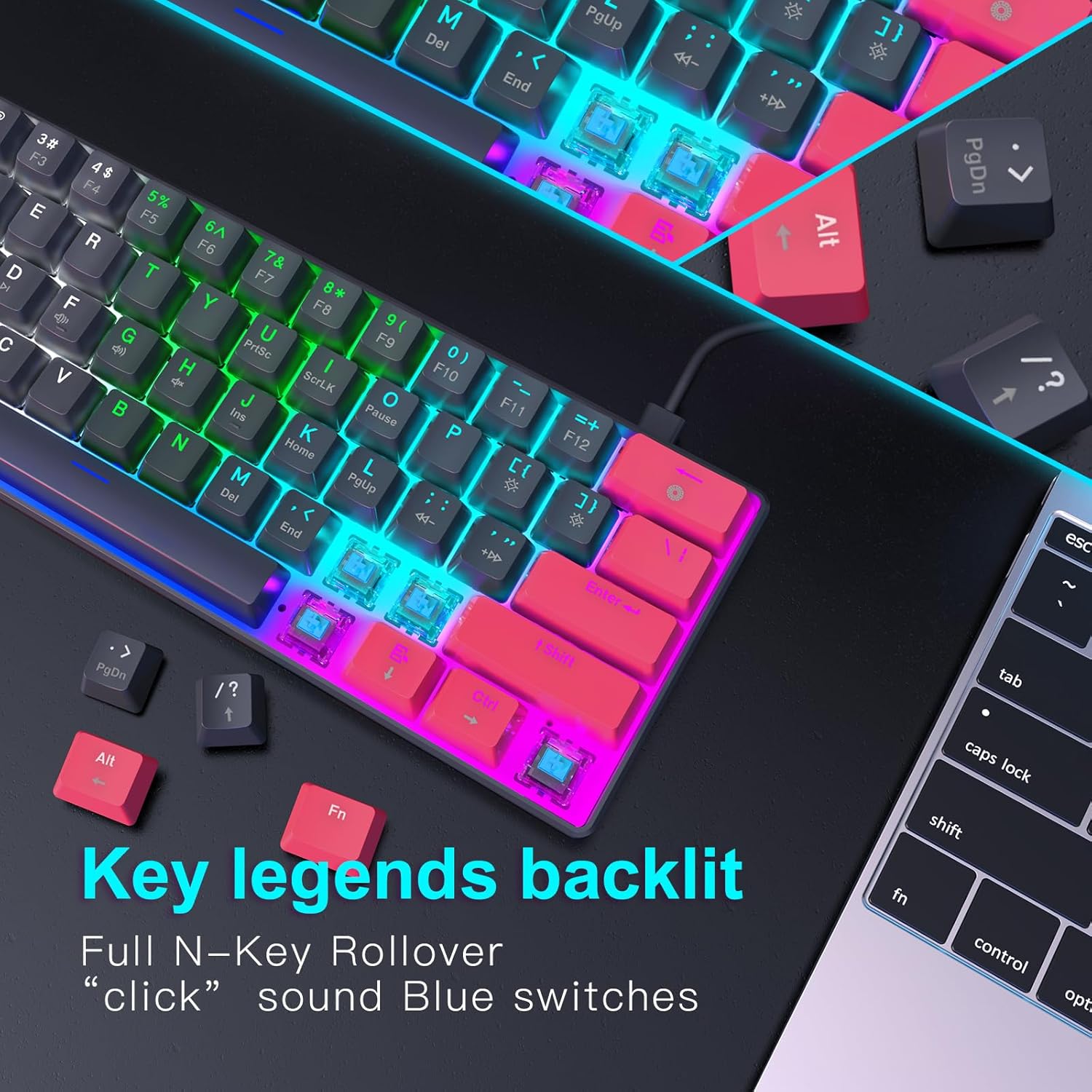
Imagen: Un detalle view of the keyboard's backlit key legends and the visible blue mechanical switches, illustrating the illumination.
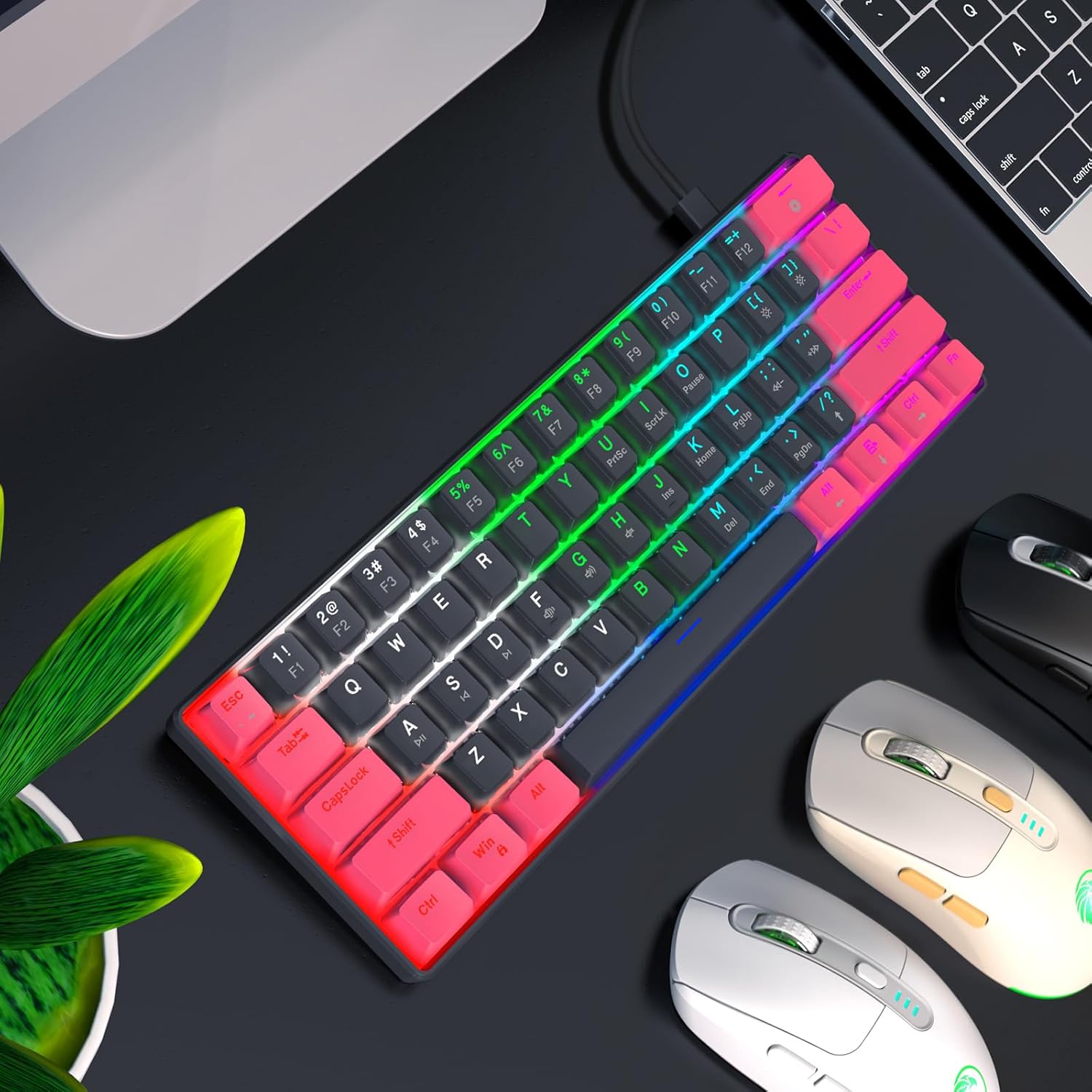
Image: The RAZEAK keyboard displaying its colorful backlight modes in a typical desktop environment.
5.4 Diseño ergonómico
The keyboard is designed with ergonomic high and low keys, featuring curved keycaps and smooth lines for a comfortable typing experience. This design aims to reduce strain during extended use.
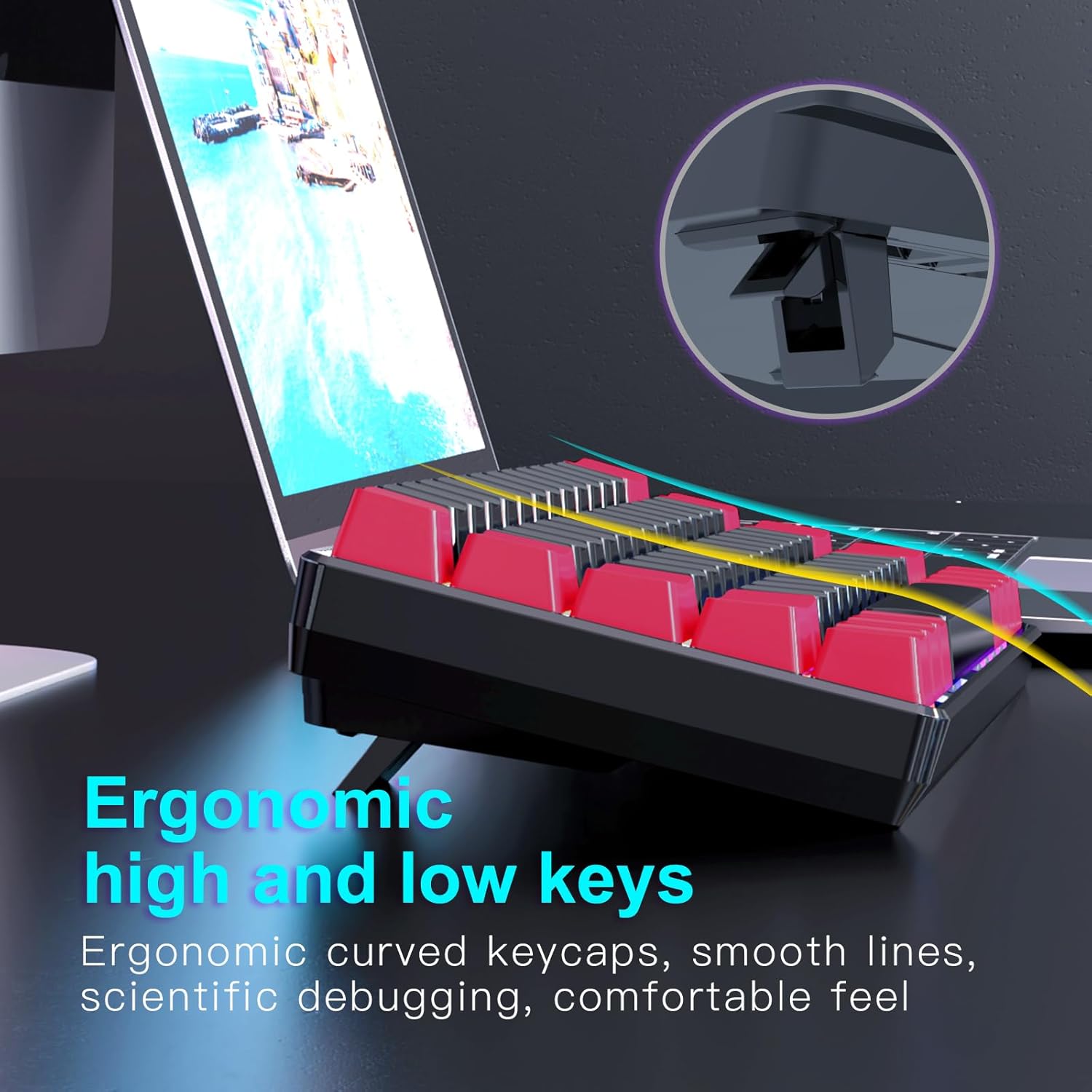
Imagen: Un lado view of the keyboard illustrating its ergonomic keycap profile and the adjustable feet for varied typing angles.
6. Mantenimiento
Un mantenimiento adecuado garantiza la longevidad de su teclado:
- Limpieza: Use a soft, dry cloth to wipe the surface of the keyboard. For deeper cleaning, use compressed air to remove dust and debris from between the keycaps. Do not use harsh chemicals or abrasive materials.
- Almacenamiento: When not in use, store the keyboard in a clean, dry environment away from direct sunlight and extreme temperatures. The detachable USB-C cable allows for easy storage and portability.
7. Solución de problemas
If you encounter issues with your RAZEAK keyboard, try the following solutions:
- El teclado no responde:
- Asegúrese de que el cable USB-C esté conectado de forma segura tanto al teclado como a la computadora.
- Intente conectar el teclado a un puerto USB diferente en su computadora.
- Reinicie su computadora.
- Pruebe el teclado en otra computadora para descartar problemas específicos del sistema.
- La luz de fondo no funciona o es incorrecta:
- Check if the backlight is turned off using the designated key combination (refer to keycap legends).
- Cycle through different backlight modes to see if any mode works.
- Asegúrese de que el teclado reciba suficiente energía del puerto USB.
- Claves que no se registran:
- Asegúrese de que el teclado esté limpio y libre de residuos que puedan obstruir la pulsación de teclas.
- For specific keys, check if any software remapping or gaming profiles are interfering.
8. Especificaciones
Below are the technical specifications for the RAZEAK Compact 60% Mechanical Keyboard (RK-X44):
| Característica | Especificación |
|---|---|
| Marca | RAZEAK |
| Nombre del modelo | RK-X44 |
| Número de modelo | X44-RDBK-B_B1 |
| Disposición del teclado | 60% Compacto (61 Teclas) |
| Tipo de interruptor | Mechanical Blue Switches (20 million clicks) |
| Conectividad | USB-C con cable |
| Iluminar desde el fondo | Colorful Backlit (19 modes) |
| Teclas | Dual color legend translucent keycaps |
| Anti-efecto fantasma | Rollover completo de N-Key |
| Dispositivos compatibles | Windows PC, Laptop, Mac, PS4, XBOX |
| Dimensiones del producto | 29.2 x 10.2 x 4 cm |
| Peso del artículo | 616.89 gramos |

Image: A diagram illustrating the compact dimensions of the RAZEAK keyboard.
9. Garantía y soporte
Para obtener información sobre la garantía o asistencia técnica, contacte directamente con el vendedor o el fabricante a través de su plataforma de compra. Conserve su comprobante de compra para cualquier reclamación de garantía.
Ask a question about this manual
Ask about setup, troubleshooting, compatibility, parts, safety, or missing instructions. Manuals+ will review the question and use this page’s manual context to help answer it.