
1. Introducción
This manual provides detailed instructions for the FUNLAB Grily Hall Effect Wireless Controller. Please read this manual thoroughly before use to ensure proper operation and to maximize your gaming experience. This controller is designed for use with Nintendo Switch, Switch OLED, and Switch Lite consoles, as well as PC, Steam Deck, iOS, and Android devices.

This image displays the pink FUNLAB Grily Hall Effect Wireless Controller from a top-down perspective, showcasing its cat paw pattern design and button layout.
2. Características del producto
- Pantalla oculta hasta que se ilumina: Unique design where patterns illuminate when the LED is active, remaining subtle when off.
- LED de respiración policromada: Features 7 LED colors with 4 lighting modes: breathing, quick flash, vibration lighting, and always-on.
- Joysticks de efecto Hall: Provides precise and sensitive control, reducing mechanical wear and preventing stick drift.
- Detección de movimiento y función turbo: Equipped with precise motion control and a turbo function for continuous input.
- Batería de larga duración: Built-in 3.7V/950mAH Lithium battery offers up to 12.5 hours of gameplay with lights off.
- Programmable Back Paddle Buttons: Two customizable back buttons for enhanced control and personalized gameplay.
- Diseño ergonómico: Shaped for comfortable handling during extended gaming sessions.
- Función de vibración: Proporciona una respuesta háptica inmersiva durante el juego.
- Amplia compatibilidad: Supports Nintendo Switch (2/OLED/Lite), Windows PC, Steam Deck, iOS, and Android devices.
2.1 Detailed Feature Overview

This image illustrates the controller's unique hidden-til-lit display, where the cat paw patterns glow when the internal LEDs are active, creating a distinct visual effect.

The image highlights the controller's 7-color breathing LED feature, demonstrating various lighting modes such as always-on, breathing, quick flash, and vibrating.

This diagram illustrates the Hall Effect joystick technology, emphasizing its precision and resistance to stick drift compared to traditional joysticks.

The image displays the controller's battery specifications, indicating a 12-hour playing time and a 950mAh battery capacity.
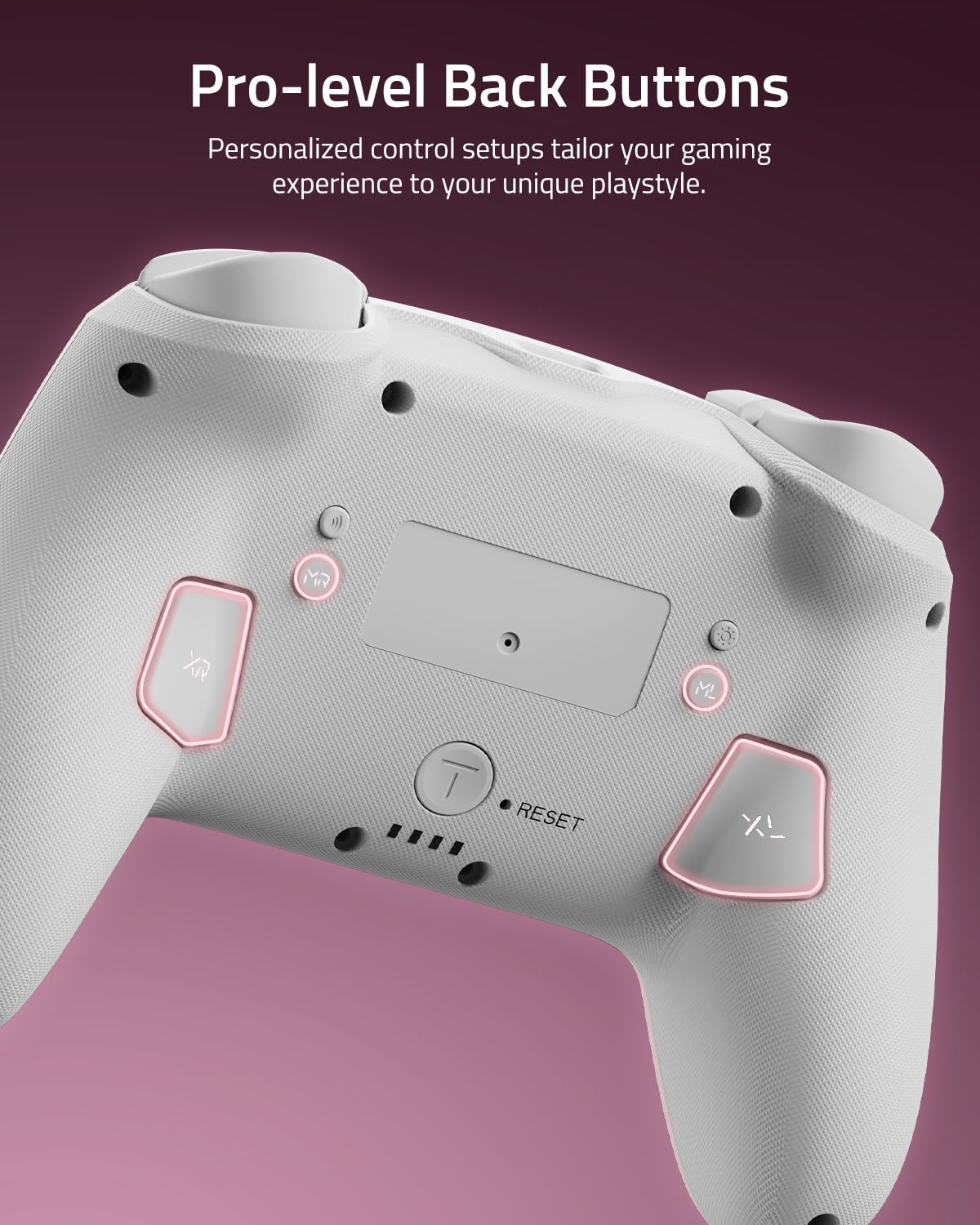
Este primer plano view shows the two programmable back paddle buttons (XL and XR) located on the underside of the controller, designed for custom assignments.
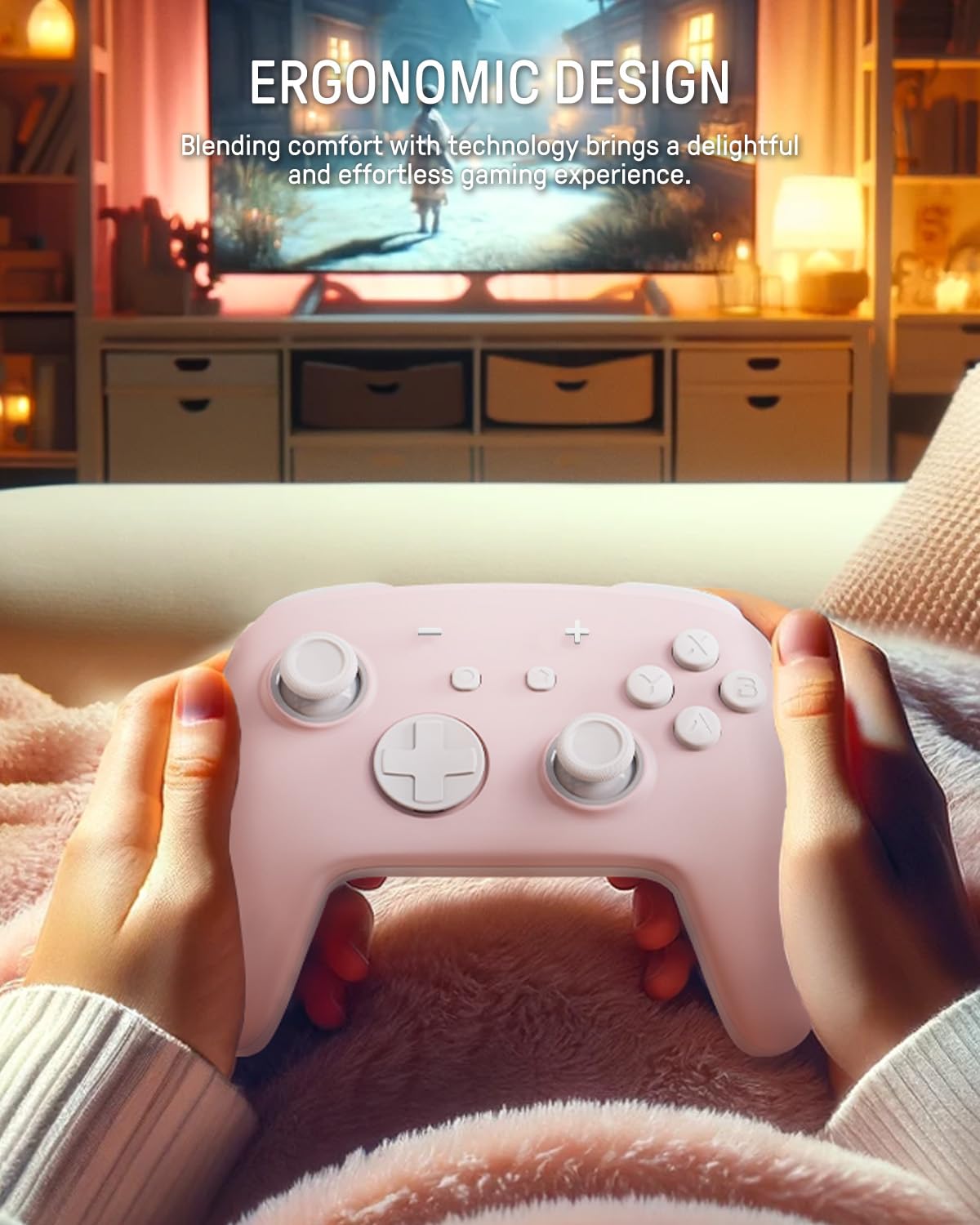
The image depicts a person holding the controller, highlighting its ergonomic shape designed for comfortable and extended gameplay.
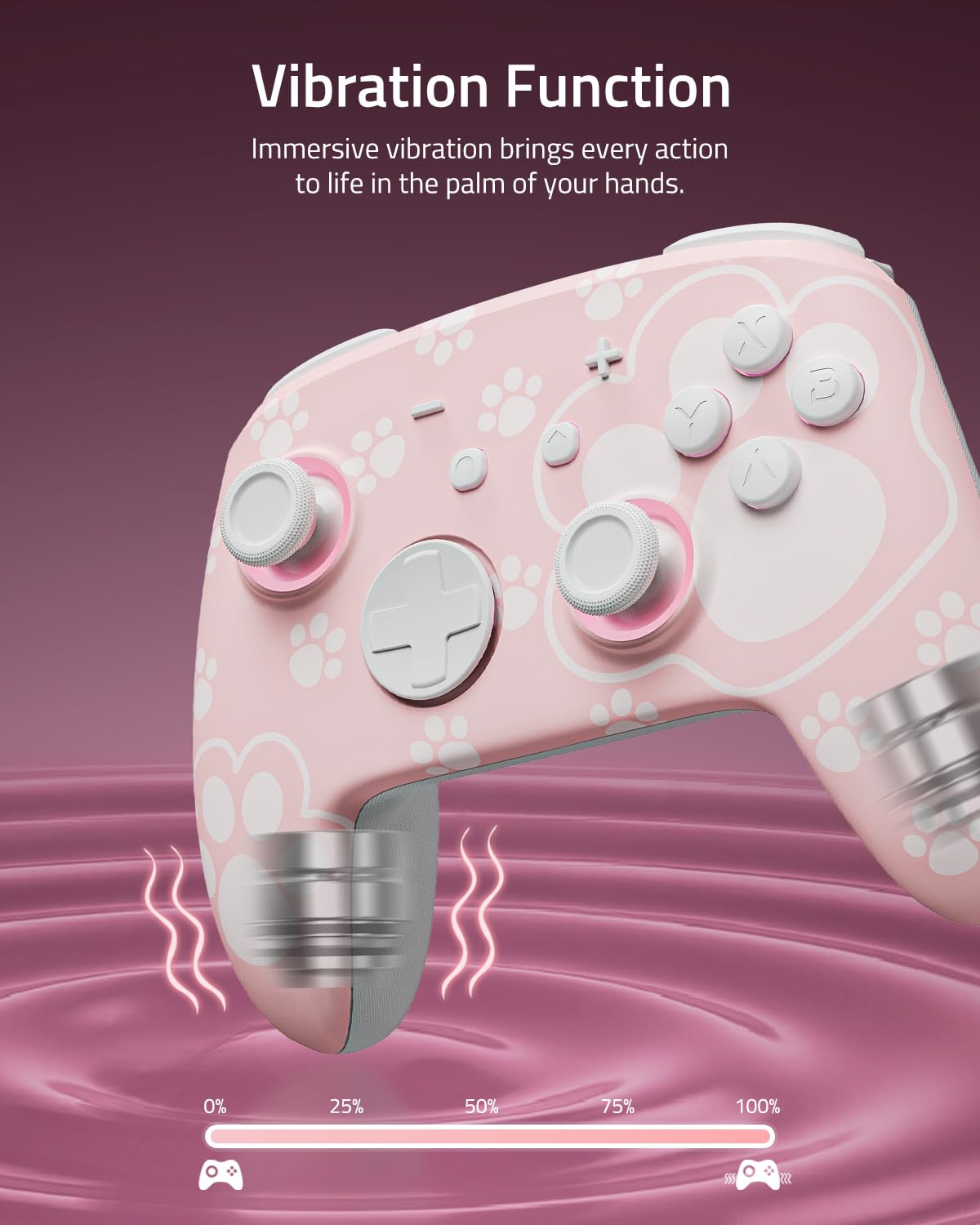
This image visually represents the controller's vibration function, with intensity levels shown to indicate immersive haptic feedback.

The image demonstrates the controller's broad compatibility with multiple platforms, including Nintendo Switch systems, Windows PCs, Steam Deck, iOS, and Android devices.
3. Configuración y conexión
3.1 Carga del controlador
Before first use, fully charge the controller. Connect the included USB-C cable to the controller's charging port and the other end to a USB power source (e.g., Nintendo Switch dock, PC, or USB wall adapter). The LED indicators will show charging status and turn off or change color when fully charged.
3.2 Emparejamiento con Nintendo Switch
- En el menú HOME, selecciona Controladores > Cambiar agarre/orden.
- En el controlador, mantenga presionado el botón Botón de emparejamiento (usually a small button on the top or back) for a few seconds until the indicator lights begin to flash rapidly.
- Once paired, the player indicator LED(s) on the controller will remain lit.
3.3 Emparejamiento con PC (Windows)
- Asegúrese de que su PC tenga Bluetooth habilitado.
- Ir a Ajustes > Dispositivos > Bluetooth y otros dispositivos > Agregar Bluetooth u otro dispositivo.
- Seleccionar Bluetooth.
- En el controlador, mantenga presionado el botón Botón de emparejamiento until the indicator lights flash rapidly.
- Select the controller from the list of available devices on your PC.
3.4 Emparejamiento con dispositivos iOS
- En su dispositivo iOS, vaya a Ajustes > Bluetooth y activa el Bluetooth.
- En el controlador, mantenga presionado el botón Botón de emparejamiento until the indicator lights flash rapidly.
- Select the controller from the list of available devices on your iOS device.
3.5 Emparejamiento con dispositivos Android
- En su dispositivo Android, vaya a Ajustes > Dispositivos conectados > Bluetooth y activa el Bluetooth.
- En el controlador, mantenga presionado el botón Botón de emparejamiento until the indicator lights flash rapidly.
- Select the controller from the list of available devices on your Android device.
4. Operación
4.1 Basic Button Layout
The controller features standard gamepad buttons including A/B/X/Y, D-pad, Left/Right Joysticks, L/R, ZL/ZR, Home, Capture, Plus (+), Minus (-), and two programmable back paddle buttons (XL, XR).
4.2 Adjusting LED Lighting Modes
Presione el Botón de luz (refer to controller diagram for location) to cycle through the 7 LED colors. To change lighting modes (breathing, quick flash, vibration lighting, always-on), consult the specific instructions provided with your controller or the manufacturer's website for the exact button combination.
4.3 Uso de la función Turbo
The Turbo function allows for rapid, continuous input of a button press. To activate Turbo for a button:
- Mantenga pulsado el Botón turbo.
- While holding Turbo, press the desired action button (e.g., A, B, X, Y, L, R, ZL, ZR).
- Release both buttons. The selected action button will now continuously input when held.
To deactivate Turbo for a button, repeat the process. To clear all Turbo settings, press and hold the Turbo button for 5 seconds.
4.4 Programming Back Paddle Buttons (XL, XR)
The XL and XR back paddle buttons can be assigned to replicate other button inputs or perform macro sequences. Refer to the specific programming instructions that came with your controller, as the method may vary. Typically, this involves a combination of holding a programming button (often labeled 'M' or 'MR') and pressing the desired input button(s).
4.5 Motion Control Functionality
The controller supports motion control for compatible games. Ensure the controller is paired correctly with your device. Calibration may be required within the game or system settings if motion controls are not responding accurately.
5. Mantenimiento y cuidado
5.1 Limpieza
- Utilice un paño suave y seco para limpiar la superficie del controlador.
- Para suciedad difícil, ligeramente dampLimpie el paño con agua o un limpiador suave no abrasivo.
- Avoid using harsh chemicals, solvents, or abrasive materials, as these can damage the controller's finish.
- No permita que entren líquidos en las aberturas del controlador.
5.2 Almacenamiento
- Guarde el controlador en un lugar fresco y seco, alejado de la luz solar directa y de temperaturas extremas.
- If storing for an extended period, ensure the controller is fully charged before storage and recharge it periodically (e.g., every 3-6 months) to maintain battery health.
- Keep the controller away from dust and moisture.
6. Solución de problemas
6.1 Problemas de conexión
- El controlador no se conecta: Ensure the controller is charged. Try re-pairing the controller by following the setup instructions for your specific device.
- Conexión intermitente: Move closer to the console/device. Ensure there are no strong interference sources (e.g., Wi-Fi routers, other Bluetooth devices) nearby.
- Controlador no reconocido: Restart your console/device and the controller, then attempt pairing again.
6.2 El controlador no responde
- No input: Check battery level. If the battery is low, charge the controller.
- Botones que no responden: Perform a soft reset by pressing the small reset button (if available, often located in a pinhole on the back) with a thin object like a paperclip.
6.3 LEDs Not Working
- Asegúrese de que el controlador esté encendido.
- Presione el Botón de luz to cycle through colors and modes.
- If still unresponsive, try resetting the controller.
6.4 La batería no se carga
- Verifique que el cable USB-C esté conectado de forma segura tanto al controlador como a la fuente de alimentación.
- Pruebe con un cable USB-C o un adaptador de corriente diferente.
- Asegúrese de que la fuente de alimentación esté activa y proporcione suficiente energía.
6.5 Deriva del stick
While Hall Effect joysticks are designed to prevent stick drift, if you experience any unintended input from the joysticks, try the following:
- Recalibrate the joysticks through your console's or device's system settings.
- Ensure the controller's firmware is up to date (check the FUNLAB websitio para actualizaciones).
7. Especificaciones
| Característica | Detalle |
|---|---|
| Modelo | Grily Hall Effect Controller |
| Dimensiones | 5.91 x 2.36 x 4.33 pulgadas |
| Peso | 8.8 onzas |
| Batería | 1 Lithium Ion battery (included), 3.7V/950mAH |
| Duración de la batería | Hasta 12.5 horas (luces apagadas) |
| Conectividad | Inalámbrico (Bluetooth) |
| Compatibilidad | Nintendo Switch (2/OLED/Lite), Windows PC, Steam Deck, iOS, Android |
| Características especiales | Hall Effect Joysticks, Polychrome LED, Turbo Function, Programmable Back Buttons, Motion Control |
8. Información de soporte
For further assistance, product registration, or warranty information, please visit the official FUNLAB website or contact customer support through the retailer where the product was purchased.
Fabricante: FUNLAB
Fecha de primera disponibilidad: 4 de noviembre de 2023