
Zenwire A10
Zenwire A10 Mini Portable Projector User Manual
Modelo: A10
1. Introducción
Gracias por la compraasing the Zenwire A10 Mini Portable Projector. This device is designed to provide a versatile and convenient projection experience, allowing you to display content from various sources, including smartphones, tablets, and computers. Please read this manual carefully before using the projector to ensure proper operation and to maximize its lifespan.
2. Instrucciones de seguridad importantes
- No mire directamente a la lente del proyector cuando la lamp Está encendido.
- Asegúrese de que haya una ventilación adecuada alrededor del proyector para evitar el sobrecalentamiento. No bloquee las aberturas de ventilación.
- Utilice únicamente el adaptador de corriente suministrado con el proyector.
- Mantenga el proyector alejado del agua, la humedad y materiales inflamables.
- No intente desmontar ni reparar el proyector usted mismo. Contacte con personal de servicio técnico cualificado para obtener ayuda.
- Coloque el proyector sobre una superficie estable y nivelada.
- Desenchufe el proyector durante tormentas eléctricas o cuando no lo utilice durante períodos prolongados.
3. Contenido del paquete
Por favor, revise el contenido del paquete al abrirlo. Si falta algún artículo o está dañado, contacte con su vendedor.
- Zenwire A10 Mini Portable Projector
- Mando a distancia
- Adaptador de corriente
- Manual de usuario
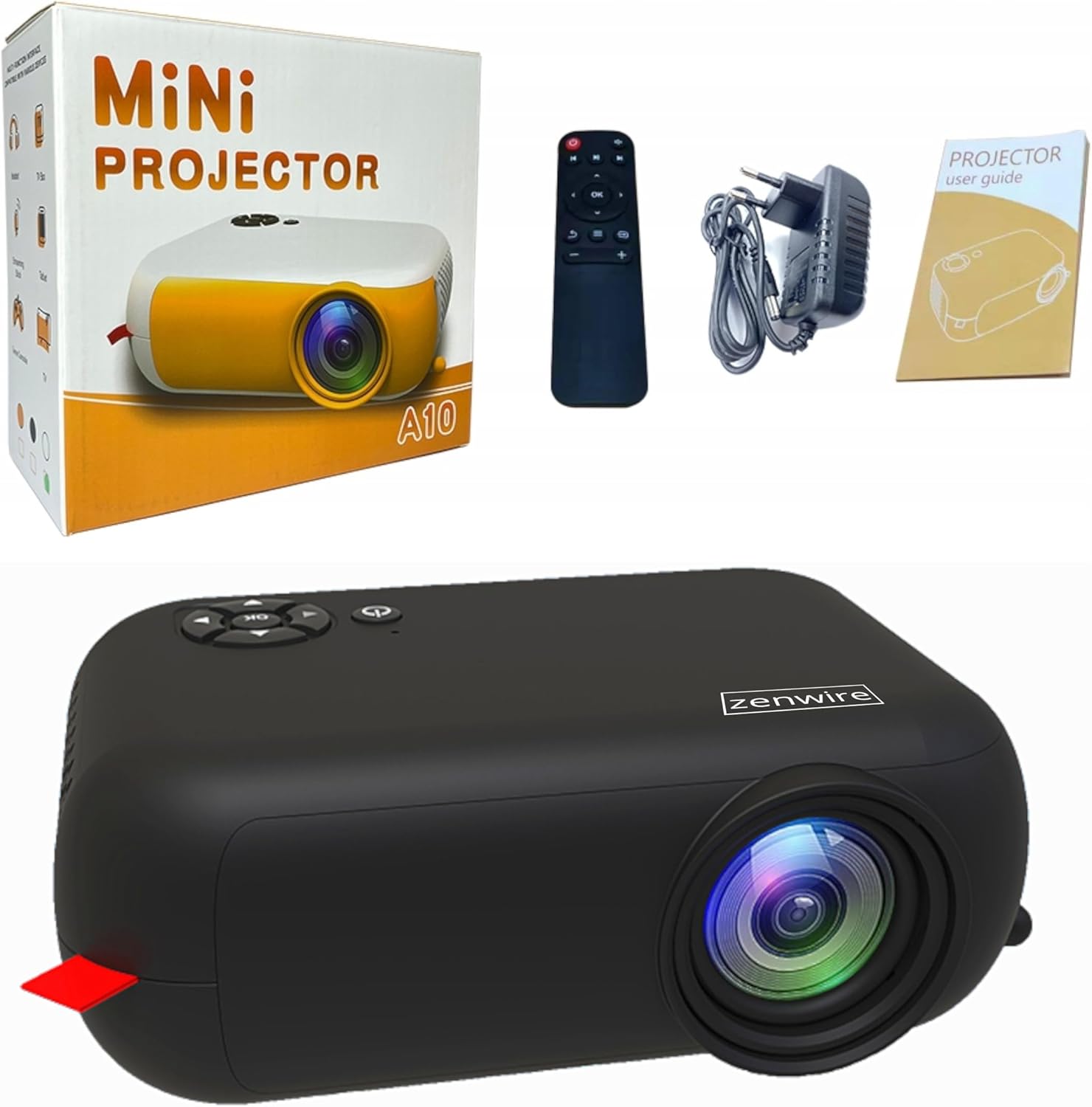
Image: Contents of the Zenwire A10 Mini Projector package, including the projector, remote control, power adapter, and user manual.
4. Producto terminadoview
4.1 Projector Dimensions and Design
The Zenwire A10 is designed for portability, featuring a compact and lightweight form factor. Its dimensions are approximately 14cm x 10cm x 5.5cm, making it easy to carry and set up in various locations.

Image: The Zenwire A10 Mini Projector held in a hand, illustrating its compact size and portability.
4.2 Puertos y controles
The projector features a range of input and output ports for versatile connectivity, along with intuitive controls.

Image: Rear panel of the Zenwire A10 Mini Projector, showing the 5V-IN DC power input, IR receiver, USB port, 3.5mm audio jack, HDMI port, and SD card slot.
- 5V-IN DC: Entrada de alimentación para el proyector.
- IR: Receptor de infrarrojos para el mando a distancia.
- USB: Conecte dispositivos de almacenamiento USB para reproducción multimedia.
- Toma de auriculares (3.5 mm): Conecte altavoces externos o auriculares.
- HDMI: Connect devices such as laptops, gaming consoles, or streaming sticks.
- DAKOTA DEL SUR: Inserte tarjetas Micro SD para reproducir medios.
- Rueda de enfoque: Adjust image sharpness (located on the side).
- Panel de control: Buttons on top for navigation and selection.
5. Configuración
5.1 Conexión de alimentación
- Conecte el adaptador de corriente suministrado a la 5V-IN DC puerto del proyector.
- Conecte el adaptador de corriente a una toma de pared.
- Presione el botón de encendido del proyector o del control remoto para encenderlo.
5.2 Placement and Focus Adjustment
- Place the projector on a stable surface or mount it according to your preference. Ensure the projector lens is facing the projection surface (wall or screen).
- Adjust the distance between the projector and the screen to achieve your desired image size. The projector supports screen sizes up to 100 inches.
- Rotate the focus wheel (typically located near the lens) until the projected image appears clear and sharp.

Image: Diagram illustrating the Zenwire A10 Mini Projector's capability to project various screen sizes, from 13 inches up to 100 inches, depending on the projection distance.
6. Funcionamiento del proyector
6.1 Wireless Connection (Miracast & Airplay)
The Zenwire A10 supports wireless screen mirroring via 2.4/5GHz WiFi, compatible with Android (Miracast) and iOS (Airplay) devices.
- Asegúrese de que su proyector y dispositivo móvil estén conectados a la misma red Wi-Fi.
- On the projector's main menu, select the 'Screen Mirroring' or 'Wireless Display' option.
- Para Android: On your Android phone/tablet, enable 'Wireless Display', 'Screen Mirroring', 'Smart View', or similar function (names may vary by device). Select the projector from the list of available devices.
- Para iOS: On your iPhone/iPad, open Control Center and tap 'Screen Mirroring'. Select the projector from the list of available devices.
- The content from your mobile device should now be mirrored on the projector screen.
6.2 Conexiones por cable
El proyector ofrece múltiples opciones de entrada por cable para varios dispositivos.

Image: The Zenwire A10 Mini Projector connected to various devices such as smartphones, tablets, laptops, desktop computers, gaming consoles, and media players, highlighting its versatile connectivity.
- HDMI: Connect a laptop, PC, gaming console (e.g., Xbox, PlayStation), or streaming device (e.g., Amazon Fire TV Stick, Google Chromecast) using an HDMI cable. Select the HDMI input source on the projector.
- USB: Insert a USB flash drive or external hard drive into the USB port. The projector's media player will allow you to browse and play supported video, audio, and image files.
- Micro SD: Insert a Micro SD card into the SD card slot. Similar to USB, you can access media files through the projector's interface.
- Salida de audio (conector de 3.5 mm): Connect external speakers or headphones to enhance the audio experience.
6.3 Navegación por menús
Use the remote control or the buttons on the projector to navigate through the on-screen menu. Select input sources, adjust picture settings (brightness, contrast, color), sound settings, and other system preferences.
7. Mantenimiento
- Limpieza de lentes: Utilice un paño suave y sin pelusa, especialmente diseñado para lentes ópticas, para limpiar suavemente la lente del proyector. Evite usar limpiadores abrasivos o aplicar demasiada fuerza.
- Eliminación de polvo: Regularly clean the projector's exterior with a soft, dry cloth. Use a small brush or compressed air to clear dust from the ventilation openings to ensure proper airflow.
- Almacenamiento: Cuando no lo utilice, guarde el proyector en un lugar fresco y seco, alejado de la luz solar directa y de temperaturas extremas. Utilice el embalaje original o una funda protectora para evitar la acumulación de polvo y daños.
8. Solución de problemas
If you encounter issues with your Zenwire A10 projector, refer to the following common problems and solutions:
| Problema | Posible causa | Solución |
|---|---|---|
| No hay imagen en la pantalla | Alimentación no conectada; Fuente de entrada incorrecta; Dispositivo no conectado correctamente. | Check power cable; Select correct input source (HDMI, USB, etc.); Reconnect source device. |
| La imagen es borrosa | Enfoque no ajustado; Proyector demasiado cerca/lejos de la pantalla. | Adjust the focus wheel; Adjust projection distance. |
| Sin sonido | Volumen demasiado bajo; Silenciado; Dispositivo de audio externo no conectado/seleccionado. | Increase volume; Unmute; Check external speaker connection or select internal speaker. |
| Problemas de conexión inalámbrica | Not on same Wi-Fi network; Device not compatible; Interference. | Ensure both devices are on the same Wi-Fi; Verify device compatibility; Try moving closer to Wi-Fi router. |
9. Especificaciones
| Característica | Detalle |
|---|---|
| Marca | Zenwire |
| Número de modelo | A10 |
| Tipo de producto | Compact and Portable Projector |
| Resolución nativa | 480 x 360p |
| Resolución máxima de pantalla | 1920 x 1080 (Full HD) |
| Brillo | 1800lm / 60 ANSI |
| Relación de contraste | 2000:1 |
| Tipo de pantalla | CONDUJO |
| Tecnología de conectividad | Wi-Fi (2.4/5GHz), HDMI, USB, Micro SD, 3.5mm Audio Jack |
| Funciones inalámbricas | Miracast, Airplay |
| Dispositivos compatibles | Smartphones (Android, iOS), Tablets, Laptops, PCs, Gaming Consoles |
| Usos recomendados | Cine en casa |
| Dimensiones (aprox.) | 14 cm x 10 cm x 5.5 cm |
10. Garantía y soporte
The Zenwire A10 Mini Portable Projector comes with a standard manufacturer's warranty. For specific warranty terms and conditions, please refer to the documentation provided at the time of purchase or contact your retailer. For technical support or service inquiries, please reach out to Zenwire customer service through their official websitio o la información de contacto proporcionada con su producto.
Ask a question about this manual
Ask about setup, troubleshooting, compatibility, parts, safety, or missing instructions. Manuals+ will review the question and use this page’s manual context to help answer it.