
Speedlink SL-630021-RRBK
Speedlink LIBERA Rechargeable Wireless Silent Mouse
Manual de instrucciones
1. Producto terminadoview
The Speedlink LIBERA is a versatile rechargeable wireless mouse designed for comfort and efficiency. It offers dual connectivity options, allowing you to connect via Bluetooth or a 2.4 GHz USB-A nano receiver. Key features include silent main buttons, a thumb scroll wheel for horizontal scrolling, and adjustable DPI settings for precise control.

Image: The Speedlink LIBERA mouse shown with its accompanying USB receiver, highlighting its sleek design and connectivity components.
2. ¿Qué hay en la caja?
Al abrir el paquete, asegúrese de que estén presentes todos los siguientes elementos:
- Speedlink LIBERA Mouse
- Receptor USB
- Cable de carga USB-C a USB-A
- Manual de usuario (este documento)
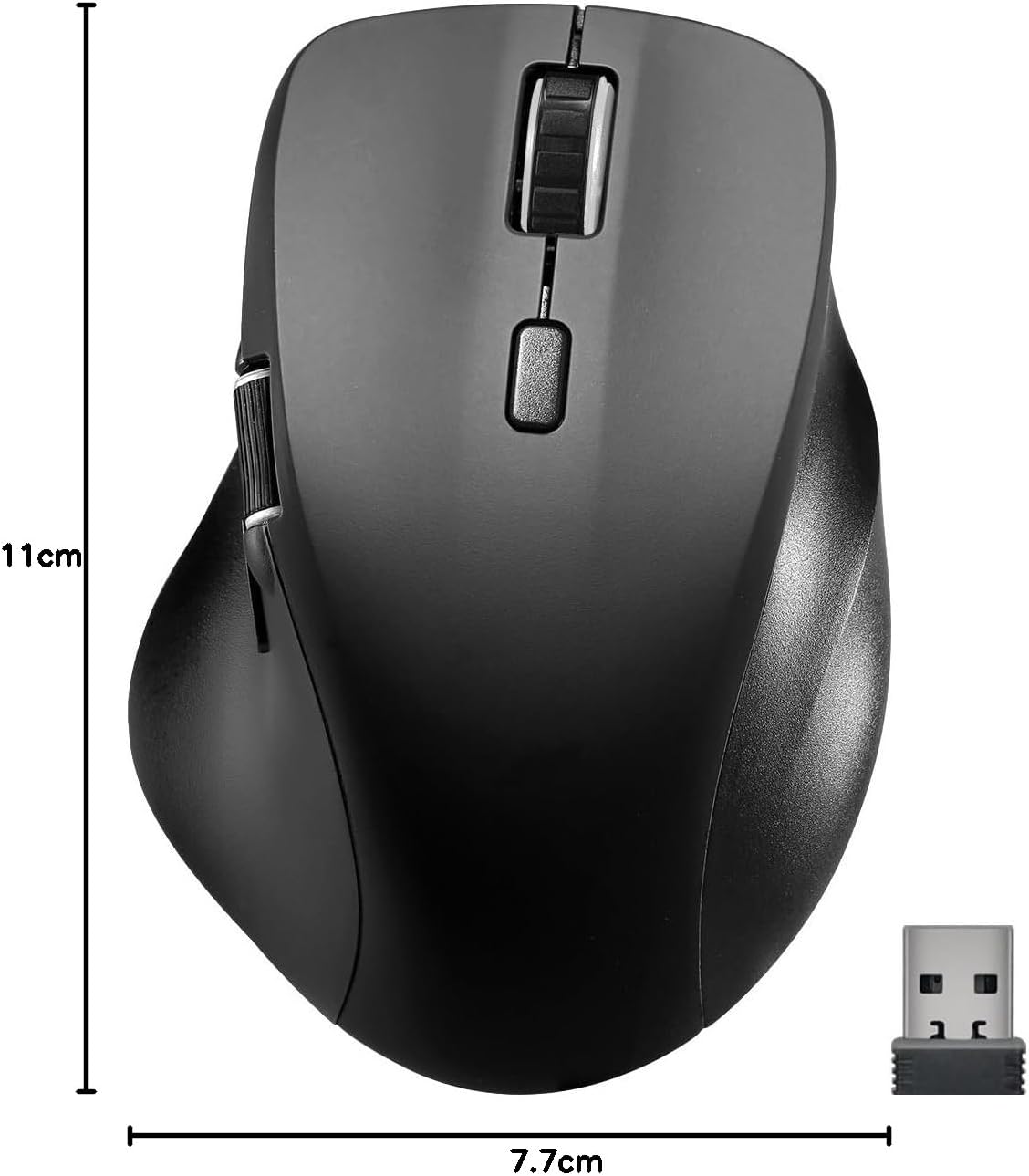
Image: The retail packaging for the Speedlink LIBERA mouse, indicating the contents and key features.
3. Configuración
3.1. Cargar el ratón
Before first use, it is recommended to fully charge the mouse. The mouse can be charged while in use.
- Locate the USB-C port on the front of the mouse.
- Connect the included USB-C to USB-A charging cable to the mouse.
- Plug the USB-A end of the cable into a powered USB port (e.g., computer, USB wall adapter).
- The charging indicator light will illuminate. It will turn off or change color when fully charged.

Image: The USB-C to USB-A charging cable included with the mouse, used for recharging the internal battery.
3.2. Conexión del ratón
The Speedlink LIBERA mouse offers two connection methods: 2.4 GHz USB receiver and Bluetooth.
3.2.1. 2.4 GHz USB Connection
- Locate the USB-A nano receiver, typically stored in a compartment on the underside of the mouse.
- Conecte el receptor USB a un puerto USB-A disponible en su computadora.
- Encienda el mouse utilizando el interruptor de encendido/apagado ubicado en la parte inferior.
- El mouse debería conectarse automáticamente a su computadora.
3.2.2. Conexión Bluetooth
The mouse supports up to two Bluetooth profiles.
- Asegúrese de que el mouse esté encendido.
- Press the Bluetooth pairing button (refer to the diagram in Section 4.1 for location) to enter pairing mode. The indicator light will flash.
- En su computadora, navegue hasta la configuración de Bluetooth.
- Buscar new devices and select "Speedlink LIBERA" from the list.
- Siga las instrucciones en pantalla para completar el proceso de emparejamiento.
- To switch between Bluetooth profiles or to the 2.4 GHz connection, press the mode switch button on the underside of the mouse.

Image: The Speedlink LIBERA mouse positioned next to its compact USB receiver, illustrating the 2.4 GHz wireless connection method.
4. Instrucciones de funcionamiento
4.1. Funciones de los botones
The Speedlink LIBERA mouse features multiple buttons for enhanced control:
- Botón de clic izquierdo: Standard primary click function. (Silent)
- Botón derecho del ratón: Standard secondary click function. (Silent)
- Rueda de desplazamiento: Vertical scrolling. Can also be pressed for middle-click functionality.
- Botón de cambio de DPI: Cycles through DPI settings (1000/1600/2400/3200 DPI).
- Thumb Scroll Wheel: Located on the side, allows for horizontal scrolling of documents and web páginas.
- Botones de avance/retroceso: Located near the thumb scroll wheel, typically used for navigation in web navegadores o file exploradores.

Image: A hand demonstrating the ergonomic grip and use of the Speedlink LIBERA mouse, highlighting the placement of the thumb scroll wheel and side buttons.
4.2. Ajuste de DPI
The mouse's optical sensor resolution can be adjusted to suit your preference and task. Press the DPI switch button (located behind the main scroll wheel) to cycle through the available DPI settings: 1000, 1600, 2400, and 3200 DPI. Each press will change the sensitivity, allowing for faster or slower cursor movement.
4.3. Administración de energía
The mouse features an On/Off switch on its underside to conserve battery life when not in use. It also incorporates a smart power-saving mode that activates after a period of inactivity, further extending battery life. To wake the mouse, simply move it or click any button.
5. Mantenimiento
To ensure the longevity and optimal performance of your Speedlink LIBERA mouse, follow these simple maintenance guidelines:
- Limpieza: Utilice un paño suave, seco y sin pelusa para limpiar la superficie del ratón. Para la suciedad difícil, limpie ligeramenteampEnjuague el paño con agua. Evite usar productos químicos agresivos, disolventes o limpiadores abrasivos.
- Cuidado del sensor: Keep the optical sensor on the underside of the mouse clean and free from dust or debris. A small brush or compressed air can be used carefully.
- Cuidado de la batería: While the mouse has a rechargeable battery, avoid completely draining it frequently. Recharge it when the low battery indicator appears. Store the mouse in a cool, dry place if not used for extended periods.
- Almacenamiento: When transporting or storing the mouse, ensure it is protected from impacts and extreme temperatures.
6. Solución de problemas
If you encounter issues with your Speedlink LIBERA mouse, please refer to the following common problems and solutions:
| Problema | Posible causa | Solución |
|---|---|---|
| El ratón no responde | Mouse is off, low battery, connection issue. | Ensure mouse is on. Charge the mouse. Re-establish 2.4 GHz or Bluetooth connection. Try a different USB port. |
| El movimiento del cursor es errático o lento | Sensor óptico sucio, superficie inadecuada, configuración de DPI baja. | Clean the optical sensor. Use on a clean, non-reflective mouse pad. Increase DPI setting. |
| La conexión Bluetooth falla | Mouse not in pairing mode, interference, incorrect pairing steps. | Ensure mouse is in Bluetooth pairing mode. Turn off other Bluetooth devices. Remove previous pairings from computer and re-pair. |
| Problema de carga | Cable defectuoso, problema con la fuente de alimentación. | Try a different USB port or power adapter. Ensure the charging cable is securely connected. |
| Buttons not clicking or unresponsive | Software issue, physical obstruction. | Restart your computer. Ensure no debris is lodged under the buttons. |
7. Especificaciones técnicas
| Característica | Especificación |
|---|---|
| Número de modelo | SL-630021-RRBK |
| Conectividad | Bluetooth, 2.4 GHz Radio Frequency (USB Receiver) |
| Tecnología de detección de movimiento | Óptico |
| Resolución DPI | 1000 / 1600 / 2400 / 3200 dpi (adjustable) |
| Botones | 5 buttons + DPI switch + dual scroll wheels (vertical and horizontal) |
| Tipo de batería | Batería de iones de litio de 500 mAh (recargable) |
| Puerto de carga | USB-C |
| Dimensiones (L x An x Al) | 110 x 77 x 45 mm |
| Peso | 93 gramos |
| Compatibilidad del sistema operativo | Windows 7, Windows 8, Windows 8.1, Windows 10, Windows 11 |
8. Información de garantía y soporte
Speedlink products are manufactured with care and undergo strict quality controls. This product is covered by a manufacturer's warranty. For detailed warranty terms and conditions, please refer to the warranty card included with your purchase or visit the official Speedlink websitio.
For technical support, troubleshooting assistance beyond this manual, or warranty claims, please contact Speedlink customer service through their official website or the contact information provided in your product packaging. Please have your product model number (SL-630021-RRBK) and proof of purchase ready when contacting support.
Ask a question about this manual
Ask about setup, troubleshooting, compatibility, parts, safety, or missing instructions. Manuals+ will review the question and use this page’s manual context to help answer it.