
Introducción
Thank you for choosing the arVin D8 Pro Wireless Gamepad Controller. This manual provides detailed instructions for setting up, operating, and maintaining your controller to ensure an optimal gaming experience across various platforms including iOS, Android, PC, and Xbox consoles. Please read this manual thoroughly before use.
Configuración
1. Carga del controlador
Before first use, fully charge the controller using the provided USB-C cable. Connect the cable to the controller's charging port and a compatible USB power source. The indicator lights will show charging status.
2. Encendido y apagado
To power on, press and hold the 'HOME' button for 2 seconds until the indicator lights flash. To power off, press and hold the 'HOME' button for 5 seconds until the lights turn off.
3. Montaje del dispositivo
The arVin D8 Pro features a stretched design that supports tablets and phones from 128-289mm in length and up to 13mm thick. This allows for use with various devices, including iPad Pro (M4) 13 inch, without needing to remove most phone cases.

Image: The arVin D8 Pro controller demonstrating its compatibility with various devices, including a Nintendo Switch, an iPhone, and an iPad, highlighting its adjustable length from 128-289mm.
4. Bluetooth Connection (iOS/iPad)
Follow these steps to connect your controller to an iOS device or iPad:
- Asegúrese de que el controlador esté apagado.
- Hold down the 'RB' key, then press the 'HOME' key for 2 seconds. The indicator lights will flash quickly.
- On your iOS/iPad device, go to Ajustes > Bluetooth.
- Buscar and select 'Xbox Wireless Controller' from the available devices.
- Once connected, the indicator light on the controller will remain solid.
Video: Instructions for connecting the arVin D8 Pro controller to an iPad or iPhone via Bluetooth, demonstrating the button presses and device pairing process.
5. Bluetooth Connection (Android Phone/Tablet)
There are two modes for Android connection:
Mode 1: Standard Android Connection
- Asegúrese de que el controlador esté apagado.
- Hold down the 'RB' key, then press the 'HOME' key for 2 seconds. The indicator lights will flash quickly.
- En su dispositivo Android, vaya a Ajustes > Bluetooth.
- Buscar and select 'Xbox Wireless Controller' from the available devices.
- Once connected, the indicator light on the controller will remain solid.
Mode 2: Direct Play Android Connection (for specific games)
- Asegúrese de que el controlador esté apagado.
- Hold down the 'X' key, then press the 'HOME' key for 2 seconds. The indicator lights will flash quickly.
- En su dispositivo Android, vaya a Ajustes > Bluetooth.
- Buscar and select 'BSP-D8Pro' from the available devices.
- Once connected, the indicator light on the controller will remain solid.
Video: A guide on how to connect the arVin D8 Pro controller to an Android phone or tablet, detailing the pairing process for different connection modes.
6. Conexión Bluetooth (PC)
To connect your controller to a PC via Bluetooth:
- Asegúrese de que el controlador esté apagado.
- Hold down the 'RB' key, then press the 'HOME' key for 2 seconds. The indicator lights will flash quickly.
- On your PC, enable Bluetooth and go to Ajustes > Dispositivos > Bluetooth y otros dispositivos.
- Seleccione ‘Agregar Bluetooth u otro dispositivo’ y elija ‘Bluetooth’.
- Buscar and select 'Xbox Wireless Controller'.
- Once connected, the indicator light on the controller will remain solid.
- For Steam games, ensure 'Xbox Configuration Support' is enabled in Steam's controller settings.
Video: Demonstrates how to connect the arVin D8 Pro controller to a PC via Bluetooth and set it up for Steam streaming, including enabling Xbox Configuration Support.
Operar el controlador
1. Características principales
- Joysticks y disparadores de efecto Hall: Designed for precise control with accuracy up to 0.1mm, minimizing drift and dead zones.
- Macro Programming (M1/M2): Two programmable buttons (M1/M2) support single or multiple programming modes to customize your gameplay.
- Función turbo: Three adjustable turbo speeds (8, 15, 25 shoots/s) can be set for A/B/X/Y/LT/LB/RT/RB/cross keys.
- Luces RGB ajustables: Customize the controller's lighting with various modes (Breathing, Fixed 7 colors, Off) by pressing the 'Programming key + L3 key'.
- Three Joystick Modes: Switch between FPS Mode, Normal Mode, and Racing Mode for optimized control in different game genres.
- ABXY Key-value Interchange: Allows swapping the functions of the ABXY buttons.
- Axis Calibration Function: For maintaining joystick accuracy.
- Controller Sleep/Wake Up/Off Function: For power management.
- Función de vibración dual: Provides haptic feedback (Note: Not supported on iOS and Android devices).
- 6-Axis Gyroscope Function: Enhances motion control (Note: Not supported on iOS and Android devices).

Imagen: Una sobreview of the arVin D8 Pro controller's key features, including six-axis gyro, dual vibration, macro buttons, and turbo function.

Imagen: Detallada view of the Hall Effect Joysticks and Triggers, emphasizing their precision and durability.
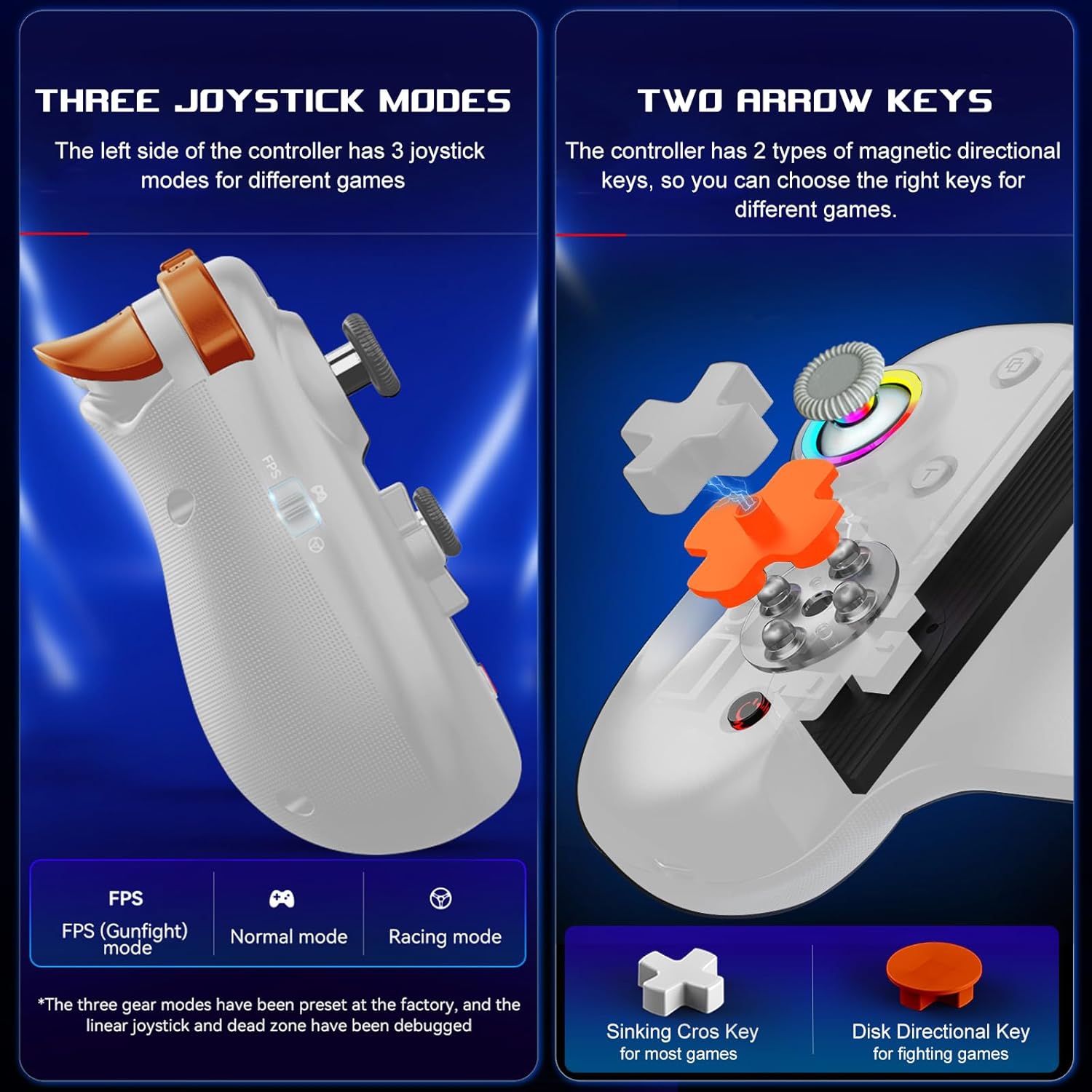
Image: Illustration of the three distinct joystick modes and the interchangeable magnetic arrow keys for varied gameplay.
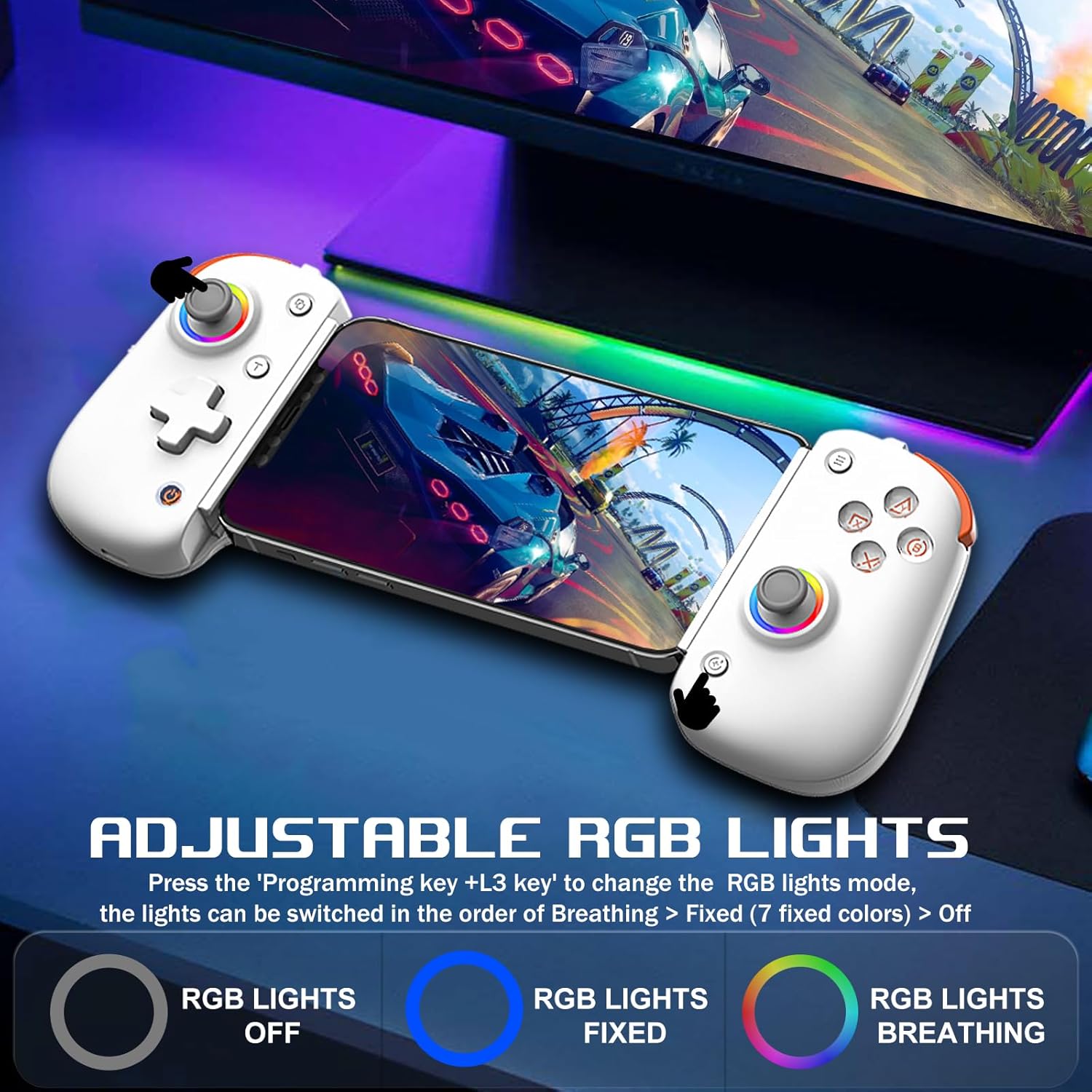
Image: Demonstrates the adjustable RGB lighting features of the controller, including different light modes.
Compatibilidad
The arVin D8 Pro Wireless Gamepad Controller offers broad compatibility:
- Sistemas operativos: iOS 13.0+, Android 6.0+, Windows 7/8/10/11.
- Dispositivos: iPad/iPad mini/Air/Pro/iPhone/Macbook, Android phones/tablets (Galaxy Tab, Lenovo Tab, HUAWEI MatePad, Yoga Tab), PC/Laptop/Desktop, Nintendo Switch/Switch Lite/Switch OLED, PS3/PS4.
- Note on PS5: Compatible with PS5 for playing PS4 games only; does not support PS5 games.
- Exclusiones: Not compatible with Apple TV, iPod, Fire TV/TV Box.
1. Cloud Gaming Support
The controller is compatible with most cloud gaming services and platforms:
- Pase de juego de Xbox
- Nvidia GeForce ahora
- Amazon Luna
- Google Stadia
- Vía pluvial
- Apple Arcade and MFi games
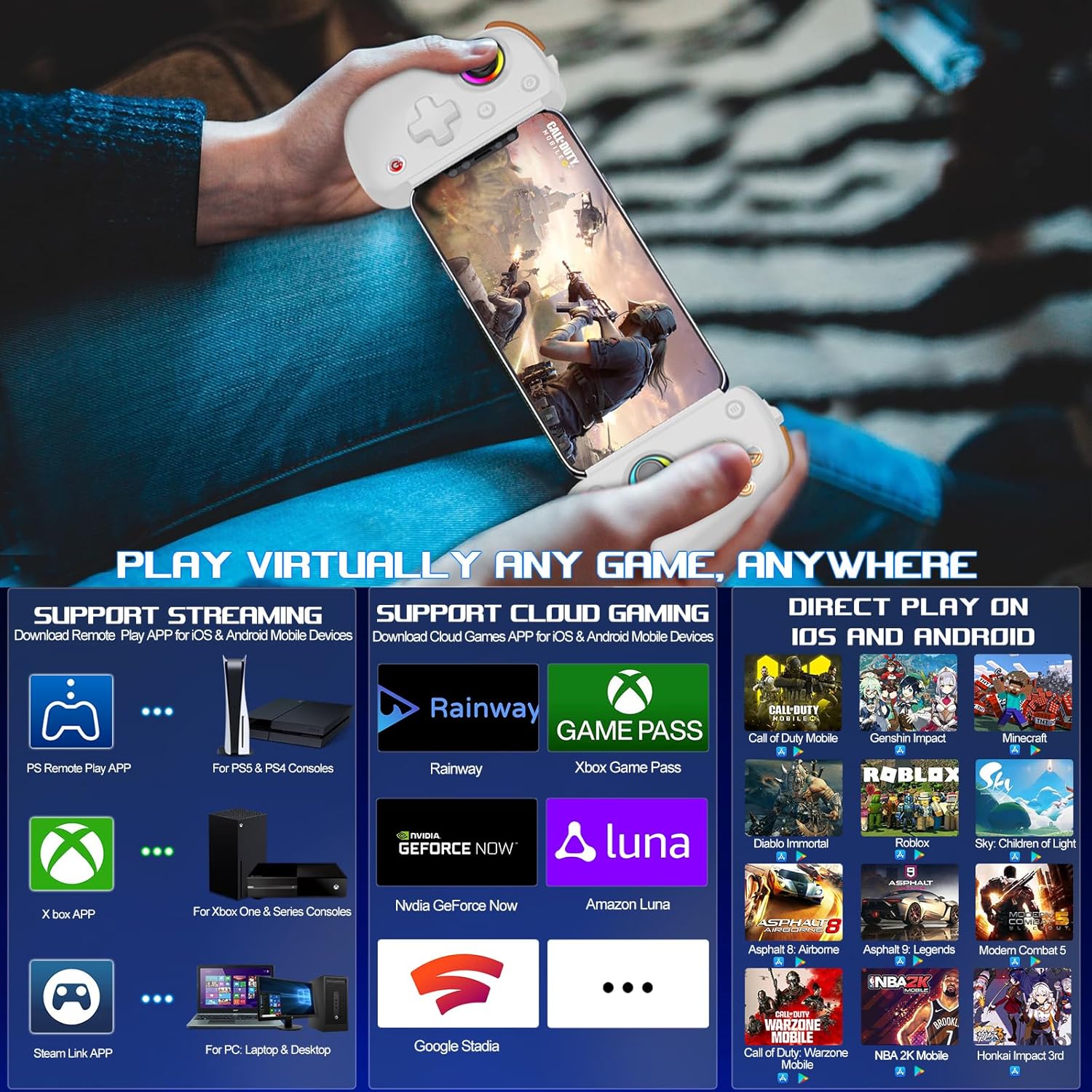
Image: Visual representation of the controller's support for popular cloud gaming platforms and direct play mobile titles.
2. Remote Play Support
Stream console games to your mobile device or tablet:
- PS Remote Play App: For PS5 and PS4 consoles.
- Xbox App: For Xbox One, Xbox Series S, and Xbox Series X consoles.
- Steam Link App: For PC/Laptop/Desktop.
Video: A demonstration of connecting the arVin D8 Pro controller for Xbox Remote Play, showing the setup process and gameplay.
3. Direct Play Games
The controller supports direct play for many popular mobile games, including:
- Call of Duty Mobile (CODM)
- Call of Duty: Warzone Mobile
- Impacto de Genshin
- Sky: Children of Light
- Minecraft
- Diablo Inmortal
- Combat Modern 5
- Asphalt 9: Leyendas
- Asphalt 8: Airborne
- And many more controller-supported titles.
Mantenimiento
To ensure the longevity and optimal performance of your arVin D8 Pro controller, follow these maintenance guidelines:
- Limpieza: Use a soft, dry cloth to wipe the controller. Avoid using harsh chemicals, solvents, or abrasive cleaners.
- Almacenamiento: Guarde el controlador en un lugar fresco y seco, alejado de la luz solar directa y de temperaturas extremas.
- Cuidado de la batería: No exponga la batería a altas temperaturas ni intente desmontarla. Cargue el mando regularmente, incluso si no lo usa, para mantener la batería en buen estado.
- Manejo: Evite dejar caer el controlador o someterlo a impactos fuertes.
Solución de problemas
If you encounter issues with your arVin D8 Pro controller, please refer to the following common solutions:
- El controlador no se enciende: Ensure the controller is fully charged. Connect it to a power source and try again.
- No se puede conectar a través de Bluetooth:
- Ensure the controller is in the correct pairing mode for your device (e.g., 'RB' + 'HOME' for iOS/PC, 'X' + 'HOME' for Android Mode 2).
- Asegúrese de que Bluetooth esté habilitado en su dispositivo.
- Olvide el dispositivo de la configuración de Bluetooth de su dispositivo e intente emparejarlo nuevamente.
- Reinicie tanto el controlador como su dispositivo.
- Los botones/joysticks no responden:
- Asegúrese de que el controlador esté conectado correctamente.
- Try calibrating the joysticks (refer to the full manual for specific calibration steps if needed).
- Test the controller with a different game or application to determine if the issue is game-specific.
- Retrasos o desconexiones:
- Ensure your device is within range of the controller.
- Minimiza la interferencia de otros dispositivos inalámbricos.
- For streaming, ensure a stable and strong Wi-Fi connection for both your device and the host PC/console.
- Vibration/Gyro Not Working on iOS/Android: These functions are not supported on iOS and Android devices due to system limitations.
Presupuesto
| Característica | Detalle |
|---|---|
| Modelo | D8 profesional |
| Conectividad | Inalámbrico (Bluetooth) |
| Sistema operativo compatible | iOS 13.0+, Android 6.0+, Windows 7/8/10/11 |
| Longitud del dispositivo compatible | 128-289 mm |
| Supported Device Thickness | Hasta 13 mm |
| Capacidad de la batería | 600 mAh |
| Playtime (Full Charge) | Hasta 15 horas |
| Tipo de joystick | Joystick con detección de efecto Hall |
| Tipo de disparador | Disparador lineal Hall |
| Botones de macro | M1/M2 (Programmable) |
| Velocidades turbo | 8, 15, 25 shoots/s |
| Características especiales | RGB Light, Dual Vibration (not iOS/Android), 6-Axis Gyroscope (not iOS/Android), ABXY Key-value Interchange, Axis Calibration |
| Peso del artículo | 12.8 onzas |
| Dimensiones del paquete | 10.43 x 5.12 x 2.44 pulgadas |
Garantía y soporte
arVin products are designed and manufactured to the highest quality standards. This product is covered by a limited warranty from the date of purchase. Please retain your proof of purchase for warranty claims.
For technical support, troubleshooting assistance, or warranty inquiries, please contact arVin customer service through the retailer's platform or visit the official arVin websitio para información de contacto.