
1. Introducción
Thank you for choosing the Maxfree P1S 12-inch FHD Portable Monitor. This manual provides essential information for setting up, operating, and maintaining your new portable display. Designed for versatility and portability, the P1S monitor enhances your productivity and entertainment experience across various devices.
The Maxfree P1S features a 12-inch FHD IPS panel, offering a clear and vibrant visual experience with wide viewing angles. Its lightweight and slim design, coupled with a smart cover, makes it an ideal companion for travel, remote work, or expanding your desktop workspace. Enjoy seamless connectivity with USB-C and Mini HDMI ports, supporting a wide range of devices including laptops, smartphones, gaming consoles, and more.

Image: Maxfree P1S Portable Monitor demonstrating multiple applications, such as extending a laptop display, connecting to a smartphone, and enhancing a gaming setup.
2. Contenido del paquete
Por favor verifique que todos los artículos estén presentes en su paquete:
- Maxfree P1S 12-inch Portable Monitor
- Smart Protective Cover
- Cable USB-C a USB-C (con todas las funciones)
- Cable Mini HDMI a HDMI
- Cable de alimentación USB-A a USB-C
- Manual de usuario (este documento)
3. Producto terminadoview
Familiarize yourself with the ports and buttons on your Maxfree P1S portable monitor:

Imagen: Detallada view of the Maxfree P1S monitor's side, highlighting two USB-C ports, one Mini HDMI port, and control buttons (Menu -, Menu +, Power).
- Puertos USB-C (x2): For power and video signal transmission. One port is typically full-featured (power, video, data), while the other might be for power only or specific functions. Refer to your device's compatibility.
- Mini puerto HDMI: For video signal input from devices supporting HDMI output.
- Menu - Button: Navigates down in the OSD menu or decreases values.
- Menu + Button: Navigates up in the OSD menu or increases values.
- Botón de encendido: Turns the monitor on/off and confirms selections in the OSD menu.
4. Configuración y conectividad
The Maxfree P1S monitor offers flexible connectivity options. Ensure your device has the necessary ports for optimal performance.
4.1 Connecting via USB-C (Full-featured)
If your laptop, smartphone, or tablet has a full-featured USB-C port (which supports DisplayPort Alternate Mode and power delivery), you can connect the monitor with a single USB-C to USB-C cable for both power and video signal.
- Connect one end of the USB-C to USB-C cable to your device's full-featured USB-C port.
- Connect the other end to one of the USB-C ports on the Maxfree P1S monitor.
- El monitor debería detectar automáticamente la señal y encenderse.

Image: A Maxfree P1S monitor connected to a laptop using a single USB-C cable, demonstrating a streamlined setup.
4.2 Connecting via Mini HDMI and USB-A (for power)
If your device does not have a full-featured USB-C port, or if you prefer to use HDMI, you will need two cables: one for video and one for power.
- Conecte un extremo del cable Mini HDMI a HDMI al puerto Mini HDMI del monitor.
- Conecte el otro extremo del cable HDMI al puerto HDMI de su dispositivo.
- Connect the USB-C end of the USB-A to USB-C power cable to a USB-C port on the monitor.
- Connect the USB-A end of the power cable to a USB-A port on your device or a compatible power adapter (5V/2A or higher, not included).
- The monitor should power on and display the signal.

Image: A Maxfree P1S monitor connected to a laptop using separate HDMI and USB-A cables for video and power, respectively.
4.3 Connecting to Gaming Consoles (Xbox, PlayStation, Switch)
The Maxfree P1S is compatible with various gaming consoles. Use the Mini HDMI to HDMI cable for video and the USB-A to USB-C power cable for power.
- Connect the Mini HDMI to HDMI cable from the monitor to your gaming console.
- Connect the USB-A to USB-C power cable from the monitor to a USB port on your console or a power adapter.
- Ensure the console is powered on and configured to output video via HDMI.

Image: The Maxfree P1S monitor set up for gaming, showcasing compatibility with Xbox, PlayStation, and Nintendo Switch consoles.
4.4 Conexión a teléfonos inteligentes
For smartphones with full-featured USB-C ports, a single USB-C to USB-C cable can provide both power and video. For other phones, an adapter (not included) may be required.
- Connect your smartphone to the monitor using a full-featured USB-C to USB-C cable.
- The phone's display should mirror or extend to the monitor.
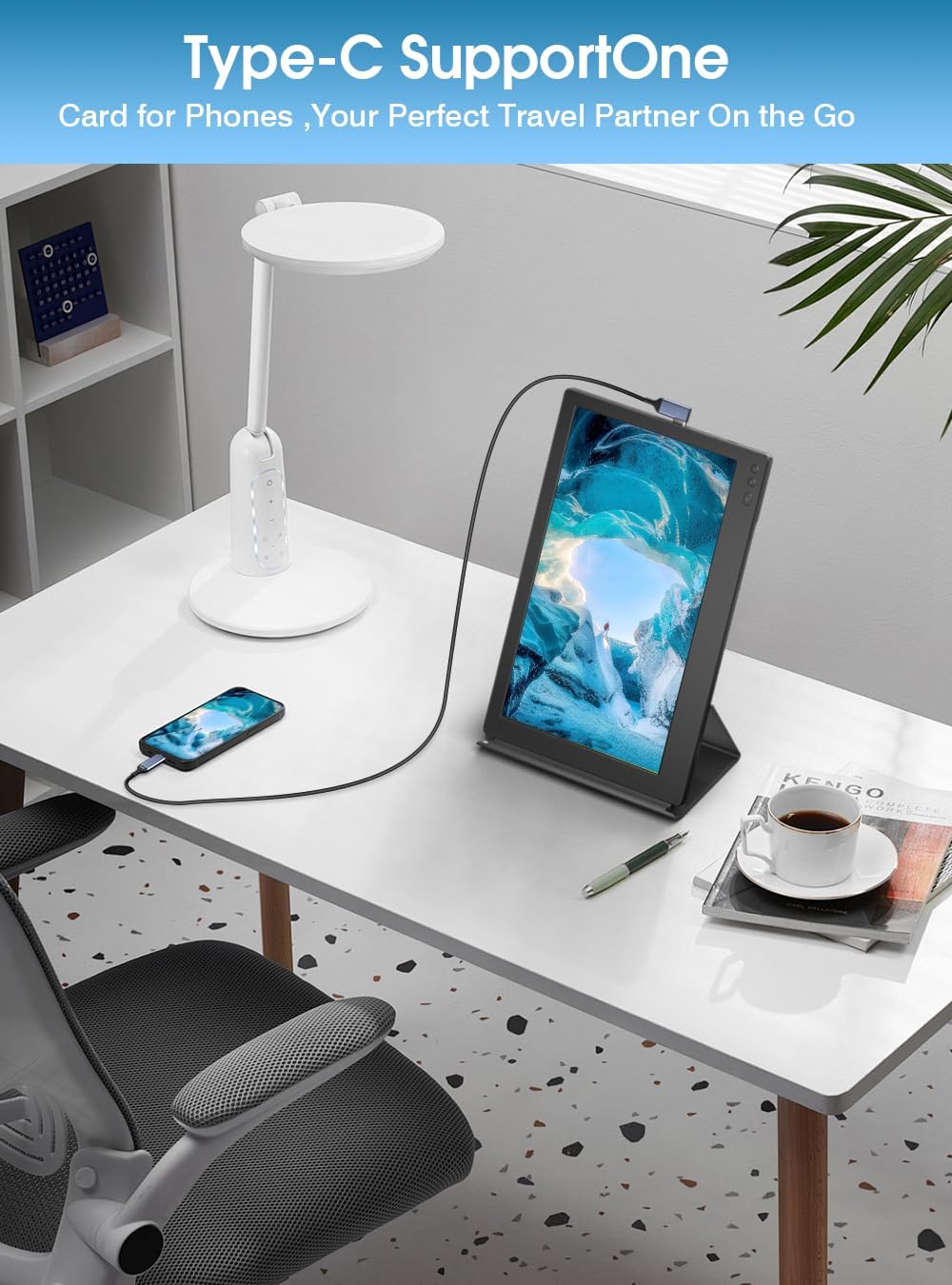
Image: A Maxfree P1S monitor connected to a smartphone via a USB-C cable, demonstrating its use as an extended display for mobile devices.
5. Instrucciones de funcionamiento
5.1 Encendido y apagado
- Para encender: Presione el botón de encendido.
- Para apagar: mantenga presionado el botón de encendido durante 3 segundos.
5.2 Modos de visualización (Windows/macOS)
Once connected, you can configure the display mode on your operating system:
- Modo extendido: Allows you to have separate applications open on each screen, increasing tu espacio de trabajo.
- Modo espejo: Duplicates your primary screen's content onto the portable monitor, ideal for presentations or sharing content.
- Modo retrato: The smart cover allows the monitor to be used in portrait orientation, which can be configured in your device's display settings.

Image: The Maxfree P1S monitor used in a business setting for screen sharing, displaying charts and data alongside a laptop.

Image: The Maxfree P1S monitor positioned vertically next to a laptop, demonstrating its flexible orientation capabilities.
5.3 Menú de visualización en pantalla (OSD)
Use the Menu -, Menu +, and Power buttons to navigate and adjust settings in the OSD menu.
- To enter OSD: Press the Power button briefly when the monitor is on.
- Navegación: Use Menu - and Menu + to move through options.
- Selección/Confirmación: Press the Power button to select an option or confirm a setting.
- Exit OSD: Navigate to the 'Exit' option or wait for the menu to time out.
Las configuraciones comunes del OSD incluyen:
- Brillo/Contraste: Ajustar los niveles de luminancia y contraste de la pantalla.
- Configuración de color: Modificar la temperatura del color, el tono y la saturación.
- Fuente de entrada: Seleccione manualmente entre las entradas USB-C y Mini HDMI.
- Filtro de luz azul: Activate the blue light protection technology to reduce eye strain during prolonged use.
- Relación de aspecto: Adjust the display aspect ratio (e.g., 16:9).
6. Mantenimiento
6.1 Limpieza del monitor
- Siempre apague el monitor y desconecte todos los cables antes de limpiarlo.
- Utilice un paño suave y sin pelusa ligeramenteampLimpiar con agua o un limpiador de pantalla no abrasivo.
- No rocíe líquido directamente sobre la pantalla o el marco.
- Evite utilizar alcohol, amoníaco o limpiadores abrasivos, ya que pueden dañar la superficie de la pantalla.
6.2 Almacenamiento y manejo
- When not in use, keep the monitor protected by its smart cover.
- Conservar en un lugar fresco y seco, alejado de la luz solar directa y de temperaturas extremas.
- Evite colocar objetos pesados sobre el monitor.
- Manipular con cuidado para evitar caídas o impactos.
7. Solución de problemas
If you encounter issues with your Maxfree P1S monitor, please refer to the following common solutions:
- Sin señal:
- Asegúrese de que todos los cables estén conectados de forma segura tanto al monitor como al dispositivo.
- Verify that your device's output settings are configured correctly (e.g., extended or duplicate display).
- Si usa USB-C, confirme que el puerto USB-C de su dispositivo admita salida de video (modo alternativo DisplayPort).
- Intente seleccionar la fuente de entrada manualmente a través del menú OSD.
- Sin energía:
- Ensure the power cable is connected and receiving power from a sufficient source (laptop USB port or power adapter).
- If using a single USB-C cable, ensure your device can provide enough power. Some devices may require an external power source for the monitor.
- Try a different USB-C port or power adapter.
- La pantalla parpadea o la imagen es inestable:
- Compruebe que las conexiones de los cables no estén flojas ni dañadas.
- Asegúrese de que los controladores gráficos de su dispositivo estén actualizados.
- Reduce the display resolution or refresh rate on your device if necessary.
- Incorrect Color or Brightness:
- Ajuste la configuración de brillo, contraste y color a través del menú OSD.
- Reset display settings to factory defaults in the OSD menu.
For further assistance, please contact Maxfree customer support.
8. Especificaciones
| Característica | Especificación |
|---|---|
| Número de modelo | P1S |
| Tamaño de pantalla | 12 pulgadas |
| Resolución de pantalla | 1366 x 768 (Full HD) |
| Tipo de panel | IPS |
| Frecuencia de actualización | 60 Hz |
| Tiempo de respuesta | 1 milisegundo |
| Brillo | 300 nit |
| Relación de contraste | 1000:1 |
| Viewángulo de ing | 178 grados |
| Relación de aspecto | 16:9 |
| Superficie de la pantalla | Lustroso |
| Conectividad | 2x USB Tipo-C, 1x Mini HDMI |
| Características especiales | Blue Light Protection, Height Adjustment (via smart cover) |
| Dimensiones (L x An x Al) | 29.3 x 18.3 x 1.3 cm (aprox.) |
| Peso | 0.6 kg (1.3 libras) |
9. Garantía y soporte
The Maxfree P1S Portable Monitor comes with a garantía de un año desde la fecha de compra. Además, ofrecemos un Política de devolución sin complicaciones de 30 días.
Should you encounter any issues related to connectivity, compatibility, or product quality, our dedicated customer support team is available to provide prompt and efficient technical assistance.
For warranty claims, technical support, or general inquiries, please contact Maxfree customer service through the platform where you purchased the product or visit our official websitio para información de contacto.