
Introducción
This manual provides detailed instructions for the setup, operation, and maintenance of your Rapoo M300G Silent Wireless Mouse. Please read this guide thoroughly to ensure proper use and to maximize the performance of your device. The Rapoo M300G offers versatile connectivity options, silent clicking, and adjustable DPI settings for an optimized user experience.
Contenido del paquete
Verifique que todos los artículos estén presentes en el paquete:
- Rapoo M300G Wireless Mouse x 1
- Batería AA x 1
- USB Receiver x 1 (typically stored inside the mouse)
- Manual del producto x 1
Producto terminadoview
Familiarize yourself with the components of your Rapoo M300G mouse:

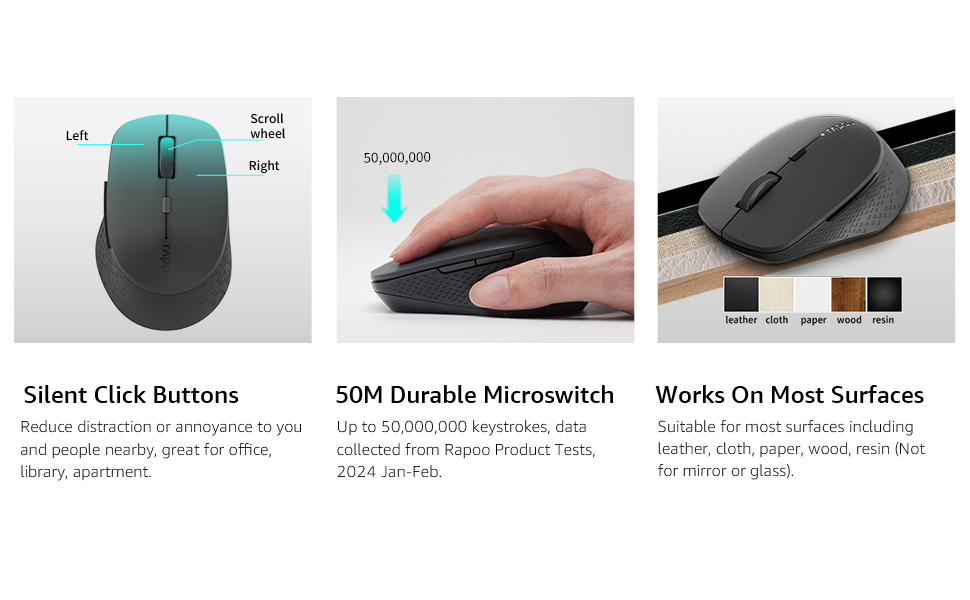
- Botón izquierdo: Función de clic estándar.
- Botón derecho: Función estándar de clic derecho.
- Rueda de desplazamiento: Para desplazarse por los documentos y web páginas. También se puede presionar para la funcionalidad de clic central.
- Botón de cambio de DPI: Ajusta la sensibilidad del mouse (DPI).
- Botón de avance: Navega hacia adelante en web navegadores o file exploradores.
- Botón de retroceso: Navega hacia atrás en web navegadores o file exploradores.
- Multi-function Button Switch (Underside): Used to switch between 2.4GHz and Bluetooth modes, and for Bluetooth pairing.
Configuración
1. Instalación de la batería
The Rapoo M300G mouse requires one AA battery (included).
- Localice la tapa del compartimiento de la batería en la parte inferior del mouse.
- Deslice la tapa para abrirla.
- Insert the AA battery, ensuring the positive (+) and negative (-) terminals align correctly with the markings inside the compartment.
- Cierre bien la tapa del compartimento de la batería.

2. Conexión inalámbrica de 2.4 GHz
To connect via the 2.4GHz USB receiver:
- Remove the USB receiver from its storage slot inside the mouse's battery compartment.
- Conecte el receptor USB a un puerto USB disponible en su computadora.
- Encienda el mouse usando el interruptor de encendido ubicado en la parte inferior.
- Set the multi-function button switch on the underside of the mouse to the 2.4G mode (indicated by a small icon).
- Su computadora debería detectar e instalar automáticamente los controladores necesarios. El ratón está listo para usar.
3. Conexión Bluetooth
The Rapoo M300G supports Bluetooth 5.0 and 4.0. To connect via Bluetooth:
- Encienda el mouse usando el interruptor de encendido ubicado en la parte inferior.
- Set the multi-function button switch on the underside of the mouse to the Bluetooth mode (indicated by a Bluetooth icon).
- Press and hold the multi-function button switch for 3-5 seconds until the indicator light on the mouse starts blinking, indicating it is in pairing mode.
- En su computadora o dispositivo, abra la configuración de Bluetooth y busque nuevos dispositivos.
- Select "Rapoo M300G" from the list of available devices to pair.
- Once paired, the indicator light on the mouse will stop blinking and remain solid for a few seconds, then turn off. The mouse is now connected.

Operación
1. Ajuste de DPI
The Rapoo M300G features 5 adjustable DPI levels: 800, 1000, 1200, 1600, and 2400. To change the DPI:
- Presione el Botón de cambio de DPI located behind the scroll wheel.
- Each press cycles through the available DPI settings. The mouse cursor speed will change accordingly.

2. Conmutación entre múltiples dispositivos
The M300G supports connection to two devices simultaneously (one via 2.4GHz, one via Bluetooth). To switch between connected devices:
- Presione brevemente el Multi-function Button Switch on the underside of the mouse.
- The mouse will switch between the 2.4GHz connection and the Bluetooth connection.

3. Compatibilidad de superficies
The advanced optical tracking technology allows the Rapoo M300G to operate effectively on various surfaces without a mouse pad, including leather, cloth, paper, wood, and resin. Performance may vary on glass or mirrored surfaces.

Mantenimiento
- Limpieza: Utilice un paño suave y seco para limpiar el ratón. Evite utilizar productos químicos agresivos o materiales abrasivos.
- Reemplazo de batería: Replace the AA battery when the mouse performance degrades or the indicator light signals low power.
- Almacenamiento: When not in use for extended periods, turn off the mouse to conserve battery life. Store the USB receiver in its dedicated slot to prevent loss.

Solución de problemas
| Problema | Posible causa | Solución |
|---|---|---|
| El ratón no responde | Low battery; Mouse turned off; Incorrect connection mode; USB receiver not connected (2.4GHz); Bluetooth not paired (Bluetooth). | Replace battery; Turn on mouse; Switch to correct mode (2.4G or BT); Plug in USB receiver; Re-pair Bluetooth. |
| El movimiento del cursor es errático. | Sensor óptico sucio; Superficie inadecuada; Batería baja. | Clean optical sensor; Use on a suitable surface or mouse pad; Replace battery. |
| No se puede cambiar entre dispositivos | Incorrect button press; Device not properly paired. | Ensure a brief press of the multi-function button; Verify both devices are correctly paired/connected. |
| Los botones laterales no funcionan (Mac OS) | Limited Mac OS compatibility for side buttons. | This is a known limitation. Side buttons may not function on Mac OS. |
Presupuesto
- Modelo: M300G
- Conectividad: Bluetooth 5.0, Bluetooth 4.0, conexión inalámbrica de 2.4 GHz
- Configuración de DPI: 800, 1000, 1200, 1600, 2400 (ajustable)
- Botones: 6 (Izquierda, Derecha, Rueda de desplazamiento, Cambio de DPI, Adelante, Atrás)
- Fuerza: 1 pila AA
- Duración de la batería: Hasta 12 meses (en condiciones normales)
- Dimensiones: 4.09 x 2.57 x 0.04 pulgadas (103.91 x 65.43 x 37.29 mm)
- Peso: 2.46 onzas (70 g aprox.)
- Compatibilidad: Windows, Mac OS, Linux, iOS, Android, Chrome OS
Garantía y soporte
Su mouse inalámbrico silencioso Rapoo M300G viene con un Garantía de un año a partir de la fecha de compra. Además, un Política de devolución y reembolso o reemplazo de 30 días is offered. For technical support or warranty claims, please refer to the contact information provided on the Rapoo official websitio o los canales de soporte de su minorista.