
1. Introducción
Thank you for choosing the Trueque Wireless Keyboard and Mouse Combo. This product is designed to provide a comfortable, efficient, and quiet computing experience with its 2.4GHz wireless technology, full-size layout, and ergonomic design. This manual will guide you through the setup, operation, maintenance, and troubleshooting of your new device.
2. Configuración
2.1 Desembalaje y contenido
Carefully remove all components from the packaging. Ensure you have the wireless keyboard, wireless mouse, and the USB receiver. The USB receiver is typically stored within the mouse's battery compartment for safe keeping.
2.2 Instalación de la batería
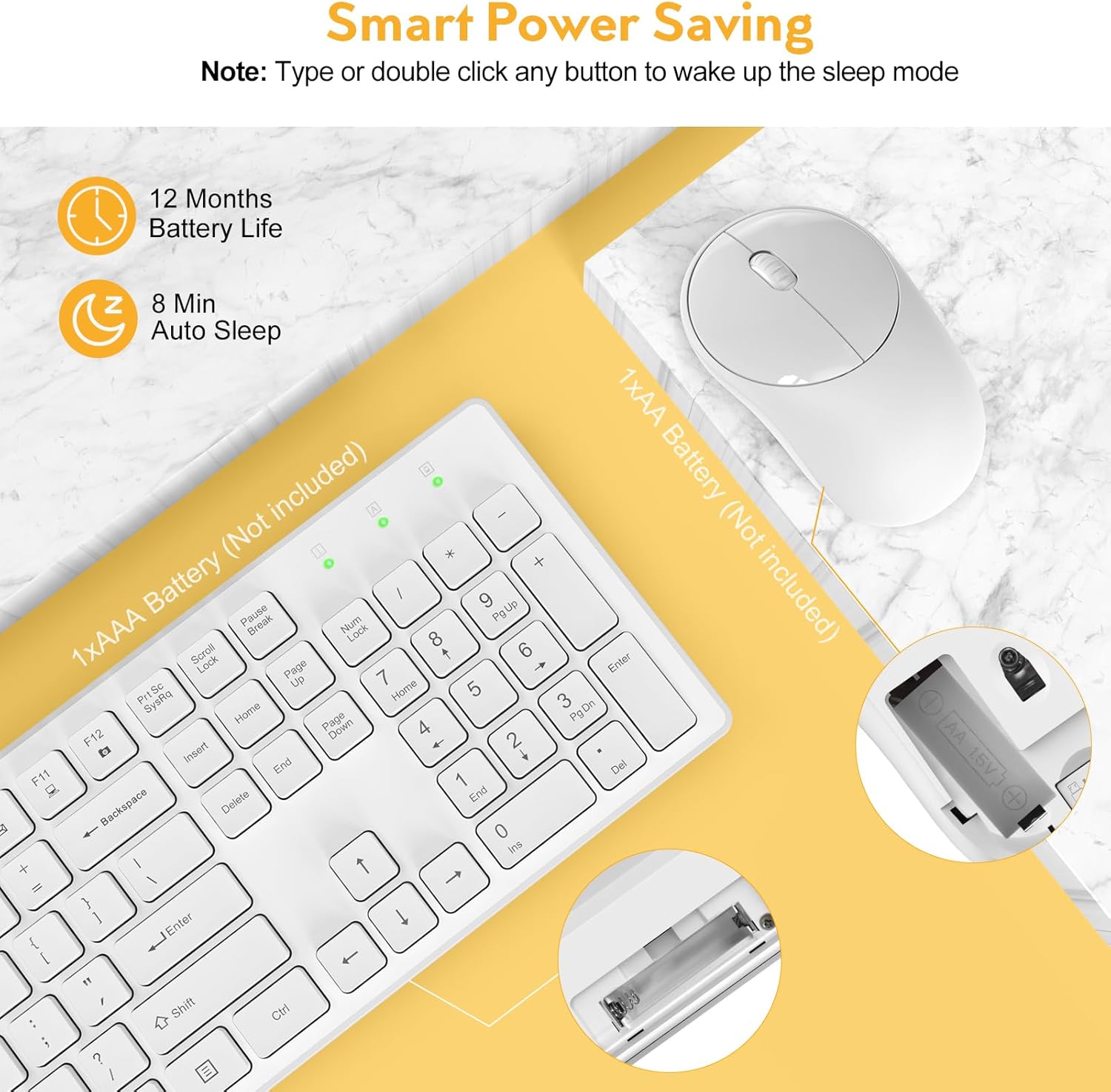
The keyboard requires one (1) AAA battery and the mouse requires one (1) AA battery (batteries are not included). Follow the steps below to install the batteries:
- Localice el compartimento de la batería en la parte inferior del teclado y el mouse.
- Abra la tapa del compartimiento de la batería.
- Inserte las pilas, asegurándose de que tengan la polaridad correcta (+/-).
- Cierre bien la tapa del compartimento de la batería.
2.3 Conexión a su dispositivo
The Trueque Wireless Keyboard and Mouse Combo uses 2.4GHz wireless technology for a stable and lag-free connection. Both devices connect via a single USB receiver.
- Recupere el receptor USB del compartimiento de la batería del mouse.
- Conecte el receptor USB a un puerto USB disponible en su computadora, computadora portátil o dispositivo compatible.
- El teclado y el ratón deberían conectarse automáticamente en unos segundos. Normalmente no se requieren controladores adicionales.


3. Instrucciones de funcionamiento
3.1 Uso básico
Once connected, the keyboard and mouse function like standard peripherals. The keyboard features a full 104-key U.S. QWERTY layout for familiar typing. The mouse provides precise cursor control.
3.2 teclas de acceso rápido multimedia
The keyboard includes 12 multimedia hotkeys for quick access to common functions. These keys are activated by pressing the Fn key in combination with the corresponding F-key (F1-F12). Please note that multimedia keys may not be fully supported on Mac OS.
- Fn+F1: Reproductor multimedia
- Fn+F2: Bajar volumen
- Fn+F3: Subir volumen
- Fn+F4: Silenciar
- Fn+F5: Pista anterior
- Fn+F6: Pista siguiente
- Fn+F7: Reproducir/Pausa
- Fn+F8: Detener
- Fn+F9: Página principal
- Fn+F10: Correo electrónico
- Fn+F11: Mi computadora
- Fn+F12: Favoritos

3.3 Ergonomics and Typing Experience
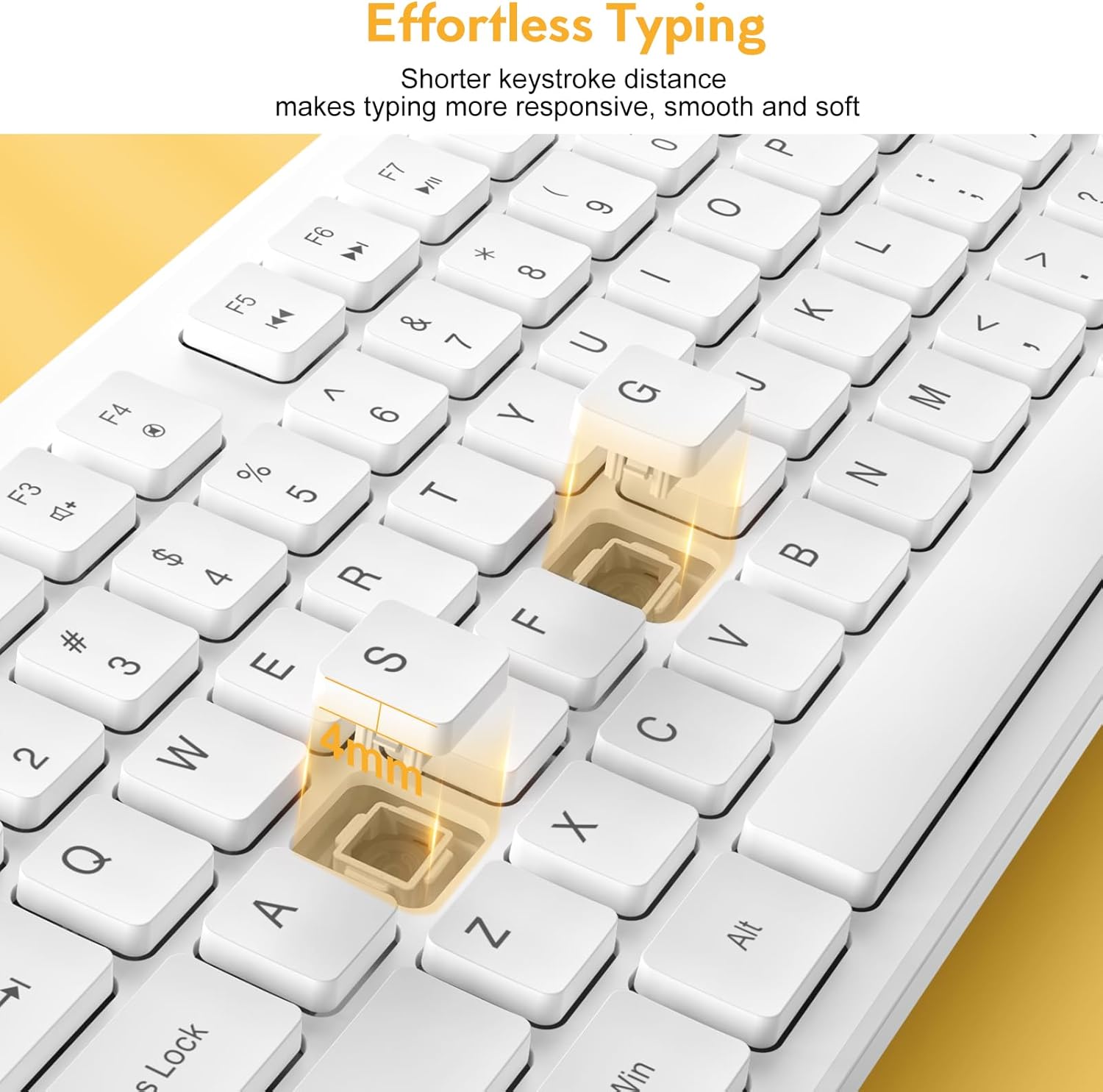
The keyboard features an ergonomic tilt angle to promote a more natural typing position, reducing wrist strain. The keys have a shorter keystroke distance, providing a responsive, smooth, and soft typing feel.

The mouse operates with 100% quiet clicks, ensuring no disruptive sounds. The keyboard is designed to be over 90% quieter than similar keyboards, allowing for a more peaceful working environment.

3.4 Luces indicadoras
The keyboard features indicator lights for Num Lock, Caps Lock, and Power status, located above the numeric keypad.

4. Mantenimiento
4.1 Limpieza
To maintain the appearance and functionality of your keyboard and mouse, regularly wipe them with a soft, dry cloth. For stubborn dirt, a slightly damp Se puede usar un paño, asegurándose de que no entre líquido en el dispositivo. Evite productos químicos agresivos o limpiadores abrasivos.
4.2 Funciones de ahorro de energía
The combo is designed with smart power-saving features to extend battery life:
- El teclado entrará en modo de suspensión después de 8 minutos de inactividad.
- El mouse entrará en modo de suspensión después de 1 minuto de inactividad.
To wake the devices, simply press any key on the keyboard or click/move the mouse. The standby time for both devices can be up to 365 days.

4.3 Diseño resistente a derrames
The keyboard features a spill-resistant design, which helps protect against accidental liquid spills. The keycap letters are also designed to be non-fading, ensuring long-term legibility.

5. Solución de problemas
If you encounter issues with your Trueque Wireless Keyboard and Mouse Combo, please refer to the following common troubleshooting steps:
- No Connection or Lag:
- Asegúrese de que las baterías estén correctamente instaladas y tengan suficiente carga. Reemplácelas si es necesario.
- Re-plug the USB receiver into a different USB port on your device.
- Try the combo with another computer or laptop to determine if the issue is with the peripherals or the host device.
- Ensure the USB receiver is not too far from the keyboard and mouse (within 33ft/10m).
- El ratón no responde:
- Check if the mouse is in sleep mode. Click any button or move the mouse to wake it up.
- Verify battery status.
- El teclado no responde:
- Comprueba si el teclado está en modo de suspensión. Pulsa cualquier tecla para reactivarlo.
- Verify battery status.
- USB Receiver Location:
- The single USB receiver for both devices is stored inside the mouse's battery compartment. Open the mouse's battery cover to find it.
If issues persist after following these steps, please contact Trueque customer support for further assistance.
6. Especificaciones
| Dimensiones del producto | 16.9 x 4.89 x 2.6 pulgadas |
| Peso del artículo | 1.5 libras |
| Tecnología de conectividad | 2.4 GHz inalámbrico (receptor USB) |
| Dispositivos compatibles | Laptop, Gaming Console, Personal Computer (Windows, Linux, Chrome OS, Mac OS) |
| Características especiales | Quiet Clicks, Independent Hotkeys, Smart Power-Saving, 104-Keys Full Size, Low Profile and Compact Design |

7. Garantía y soporte
Trueque is committed to providing excellent customer service and product support. Your Wireless Keyboard and Mouse Combo comes with comprehensive support:
- Soporte postventa: 2 años
- Vida útil del producto: 18 meses
- Servicio al cliente: 7 días a la semana, 24 horas al día
For any product-related issues, questions, or warranty claims, it is recommended to contact Trueque customer support directly. This ensures faster resolution and dedicated assistance.

