
1. Introducción
Thank you for choosing the Mecer 23.8 Inch Full HD LED Monitor. This manual provides essential information for setting up, operating, and maintaining your monitor. Please read it thoroughly before use to ensure proper functionality and longevity of your device.
This monitor features a 23.8-inch Full HD (1920 x 1080) display, offering crisp and clear visuals. It incorporates TFT LED panel technology for energy efficiency and vibrant colors, with a 16:9 aspect ratio suitable for widescreen viewing. Connectivity options include VGA and HDMI, making it compatible with various devices. Built-in speakers provide basic audio, and wide 178° viewing angles ensure comfortable use. With a 2ms response time, it is suitable for general computing and multimedia consumption.
2. Información de seguridad
- Fuente de energía: Utilice únicamente el adaptador de corriente incluido con el monitor. Asegúrese de que la toma de corriente esté correctamente conectada a tierra.
- Ventilación: No bloquee las aberturas de ventilación. Deje suficiente espacio alrededor del monitor para una ventilación adecuada y evitar el sobrecalentamiento.
- Colocación: Place the monitor on a stable, flat surface. Avoid placing it in direct sunlight, near heat sources, or in environments with excessive dust or humidity.
- Limpieza: Disconnect the power cord before cleaning. Use a soft, dry cloth for the screen and a slightly damp cloth for the casing. Evite utilizar limpiadores abrasivos o disolventes.
- Exposición a líquidos: Keep liquids away from the monitor. If liquid enters the monitor, disconnect power immediately and contact qualified service personnel.
- Desmontaje: No intente desmontar ni reparar el monitor usted mismo. Deje todas las reparaciones a personal técnico cualificado.
3. Contenido del paquete
Verifique el contenido del paquete para asegurarse de que todos los artículos estén presentes:
- Mecer 23.8 Inch LED Monitor
- Soporte para monitor (base y mástil)
- Adaptador de corriente y cable
- Cable HDMI
- Cable VGA
- Manual de usuario (este documento)
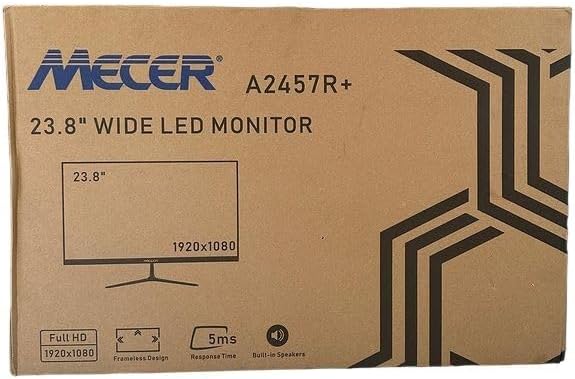
Imagen 3.1: The monitor packaging box, indicating the model A2457R+ and key features like 23.8" display, Full HD 1920x1080 resolution, frameless design, 5ms response time, and built-in speakers.
4. Configuración
4.1. Montaje del soporte del monitor
- Retire con cuidado los componentes del monitor y del soporte del embalaje.
- Fije el cuello del soporte al panel del monitor alineando las pestañas y presionando firmemente hasta que encaje en su lugar.
- Attach the stand base to the stand neck, securing it with the provided screw (usually hand-tightened).
- Coloque el monitor ensamblado sobre una superficie plana y estable.

Imagen 4.1: Frente view of the Mecer 23.8 Inch LED Monitor with its stand assembled, ready for connection.
4.2. Conexión a una computadora
El monitor admite conexiones HDMI y VGA. Elija el cable adecuado para su ordenador.
- Conexión HDMI: Connect one end of the HDMI cable to the HDMI port on your computer's graphics card and the other end to the HDMI port on the monitor. HDMI transmits both video and audio signals.
- Conexión VGA: Connect one end of the VGA cable to the VGA port on your computer's graphics card and the other end to the VGA port on the monitor. VGA transmits only video signals.

Imagen 4.2: Trasero view of the Mecer 23.8 Inch LED Monitor, showing the input ports including HDMI and VGA, as well as the power input.
4.3. Conexión de alimentación
- Connect the power adapter cable to the DC IN port on the back of the monitor.
- Conecte el adaptador de corriente a una toma de pared.
5. Instrucciones de funcionamiento
5.1. Encendido / apagado
Press the power button, typically located on the bottom right side or rear of the monitor, to turn the monitor on or off. The power indicator light will illuminate when the monitor is on.
5.2. Selección de fuente de entrada
If you have multiple devices connected, you may need to manually select the input source. Use the monitor's control buttons (usually located near the power button) to navigate to the input selection menu and choose between HDMI or VGA.
5.3. Menú de visualización en pantalla (OSD)
The OSD menu allows you to adjust various display settings. Use the monitor's control buttons to:
- Accede al menú OSD.
- Navigate through menu options (e.g., Brightness, Contrast, Color Settings, Input Source).
- Ajustar valores o seleccionar opciones.
- Salir del menú OSD.
Los ajustes ajustables más comunes incluyen:
- Brillo/Contraste: Ajusta la luminancia general y la diferencia entre las áreas claras y oscuras.
- Configuración de color: Adjust color temperature, RGB values, or select preset color modes.
- Relación de aspecto: Change between 16:9, 4:3, or other available options.
- Audio: Ajuste el volumen de los altavoces incorporados.
5.4. Altavoces incorporados
The monitor includes built-in speakers for basic audio output. If using an HDMI connection, audio will be transmitted automatically. For VGA connections, ensure your computer's audio output is configured correctly. Adjust the volume through the OSD menu or your computer's operating system.
6. Mantenimiento
6.1. Limpieza del monitor
- Desenchufe siempre el monitor de la toma de corriente antes de limpiarlo.
- Pantalla: Limpie suavemente la pantalla con un paño suave que no deje pelusa. Para manchas difíciles, limpie ligeramenteampen the cloth with water or a specialized screen cleaner (ensure it's alcohol-free and ammonia-free) and wipe carefully. Do not spray liquid directly onto the screen.
- Casing: Utilice un paño suave y seco para limpiar el monitor.asing. Si es necesario, un poco damp Se puede utilizar un paño y luego un paño seco.
6.2. Almacenamiento
Si va a guardar el monitor durante un período prolongado, desconecte todos los cables, empaquételo en su embalaje original (si está disponible) y guárdelo en un lugar fresco y seco, alejado de la luz solar directa y de temperaturas extremas.
7. Solución de problemas
Si tiene problemas con su monitor, consulte los siguientes problemas y soluciones comunes:
- Sin energía:
- Asegúrese de que el cable de alimentación esté conectado de forma segura al monitor y a la toma de pared.
- Verifique que la toma de corriente funcione enchufando otro dispositivo.
- Compruebe si el adaptador de corriente funciona correctamente.
- Sin señal:
- Asegúrese de que el cable de video (HDMI o VGA) esté conectado de forma segura tanto al monitor como a la computadora.
- Verify that the correct input source is selected on the monitor (via the OSD menu).
- Check if your computer is powered on and outputting a video signal.
- Pruebe con un cable de vídeo diferente si está disponible.
- La imagen está borrosa o distorsionada:
- Ensure the monitor's resolution is set to its native resolution (1920 x 1080) in your computer's display settings.
- Adjust the monitor's OSD settings for brightness, contrast, and sharpness.
- For VGA connections, use the 'Auto Adjust' function in the OSD menu if available.
- No hay audio en los altavoces incorporados:
- Asegúrese de que el volumen del monitor no esté silenciado o configurado demasiado bajo en el menú OSD.
- Verifique la configuración de salida de audio de su computadora para asegurarse de que el monitor esté seleccionado como dispositivo de reproducción.
- If using VGA, ensure your computer's audio is routed to an external speaker system, as VGA does not carry audio.
8. Especificaciones
| Característica | Especificación |
|---|---|
| Marca | Mecer |
| Número de modelo | A2457R+ |
| Tamaño de la pantalla | 23.8 pulgadas |
| Resolución | 1920 x 1080 píxeles (Full HD) |
| Tipo de pantalla | LED (TFT LED Panel) |
| Relación de aspecto | 16:9 |
| Tiempo de respuesta | 2 milisegundos |
| Frecuencia de actualización | 75 Hz |
| Viewángulos de ing | 178° horizontales / 178° verticales |
| Conectividad | 1xHDMI, 1xVGA |
| Altavoces incorporados | Sí |
| Color | Negro |
| Dimensiones del producto (Pr. x An. x Al.) | 560D x 42W x 410H millimetres |
| Características especiales | High performance intelligent multi-frequency scanning, Micro Computer digital technology control, no radiation, no glare, Comply with VESA DPMS international power saving regulation, Support DDC 1/2B and Windows PNP Plug and Play |
9. Garantía y soporte
This Mecer monitor comes with a Garantía limitada de 1 años A partir de la fecha de compra. Conserve el comprobante de compra para reclamaciones de garantía.
For technical support, service, or warranty inquiries, please contact your retailer or the authorized Mecer service center in your region. Do not attempt to repair the product yourself, as this may void your warranty.