
1. Introducción
Gracias por la compraasing the FightBox B3-PC All Button Leverless Arcade Fight Stick Game Controller. This manual provides essential information for setting up, operating, and maintaining your new controller. Please read this manual thoroughly before use to ensure optimal performance and longevity of your device.
2. Producto terminadoview
The FightBox B3-PC is a high-performance all-button leverless arcade fight stick designed for precision and speed in fighting games. It features a compact, ultra-thin design for portability and is compatible with PC, PlayStation 3, and Nintendo Switch platforms.
Características principales:
- All-button leverless layout with an additional button.
- Portable and ultra-thin design for easy transport.
- Equipped with Cherry MX Black key switches, supporting hot-swapping.
- Professional arcade fighting board for extreme speed and minimized delay.
- Supports SOCD (Simultaneous Opposing Cardinal Directions) cleaning, adhering to tournament standards.

Figura 2.1: Angulado view of the FightBox B3-PC controller, showcasing su diseño compacto y disposición de botones.

Figura 2.2: Lado view of the FightBox B3-PC controller, highlighting its ultra-thin profile.

Figura 2.3: De arriba hacia abajo view of the FightBox B3-PC controller, showing the full button arrangement.
3. Instrucciones de configuración
The FightBox B3-PC controller is designed for plug-and-play functionality across supported platforms.
Connecting to your Device:
- Locate the USB Type-B port on the back of the FightBox B3-PC controller.
- Connect one end of the provided USB cable to the controller's USB Type-B port.
- Connect the other end of the USB cable to an available USB port on your PC, PlayStation 3 console, or Nintendo Switch dock.
- El sistema debería reconocer automáticamente el controlador. En PC, los controladores pueden instalarse automáticamente.
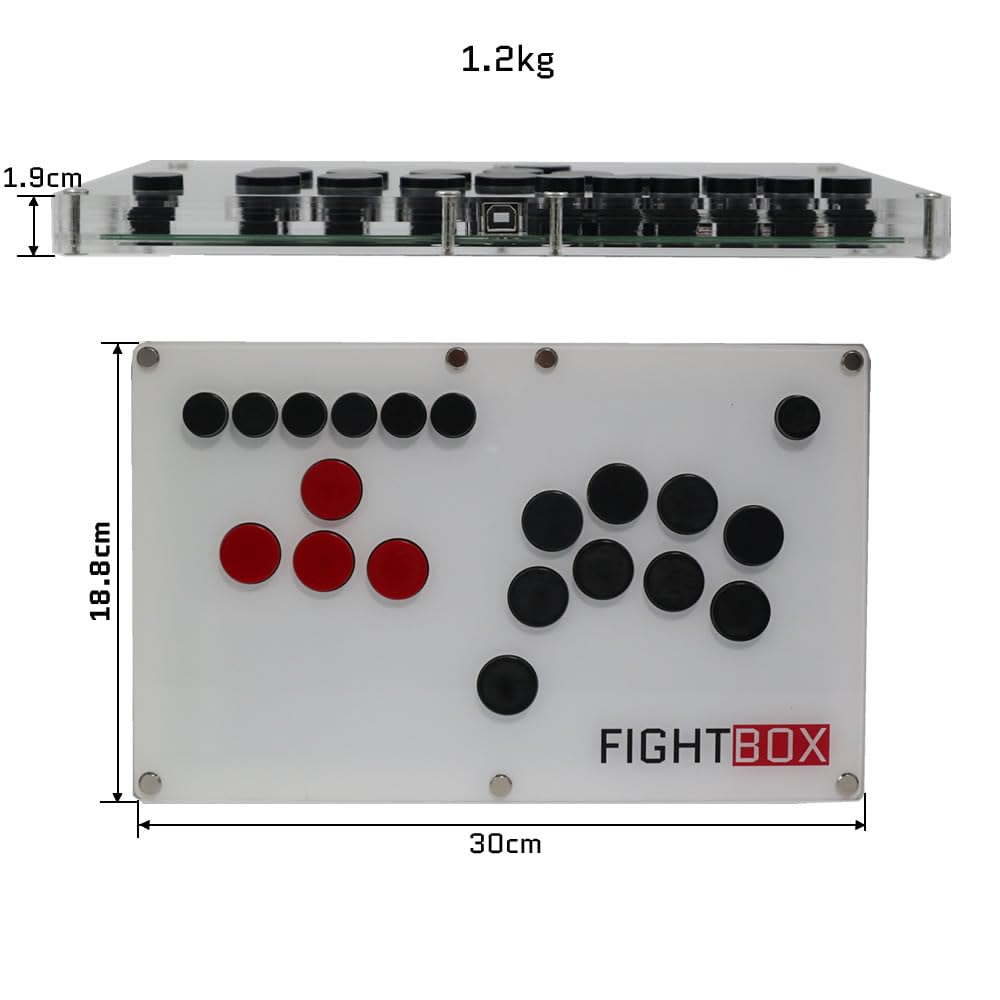
Figure 3.1: The USB Type-B port on the FightBox B3-PC controller for connecting to your gaming system.
4. Instrucciones de funcionamiento
The FightBox B3-PC features a standard arcade button layout with additional function buttons for enhanced control.
Funciones de los botones:
- Botones direccionales: The four red buttons on the left serve as directional inputs (Up, Down, Left, Right).
- Botones de acción: The black buttons on the right correspond to standard action inputs (X, Y, R1, B, R2, A, L1, L2).
- Botón de inicio: Used to switch between PC360 mode (default) and other modes.
- Botón MODE: Used to switch between the cross keys (D-pad) and the left/right stick inputs.
- Botones R3/L3: Additional function buttons.
- Botones INICIO/SELECCIONAR: Botones de control del juego estándar.
- Botón TURBO: Activa la función turbo para pulsaciones rápidas de botones.

Figure 4.1: Layout of the FightBox B3-PC buttons with their corresponding PC version labels and functions.
Modos SOCD:
The FightBox B3-PC supports three SOCD (Simultaneous Opposing Cardinal Directions) modes, which are crucial for competitive fighting games to prevent conflicting directional inputs. These modes comply with tournament standards.
- Up Priority SOCD Mode (Default): If Up and Down are pressed simultaneously, Up input is prioritized. If Left and Right are pressed, Neutral is output.
- Neutral (CAPCOM) SOCD Mode: If opposing directions (e.g., Up+Down, Left+Right) are pressed simultaneously, a Neutral input is output.
- Last Win SOCD Mode: The last directional input pressed takes priority. For example, if Left is held and then Right is pressed, Right will be the active input.

Figure 4.2: Detailed explanation of SOCD modes and their behavior.
Demostración del producto:
Video 4.1: An official product video demonstrating the FightBox B3-PC All Button Leverless Arcade Game Controller in use, highlighting its features and responsiveness.
5. Mantenimiento
Proper care will extend the life and performance of your FightBox B3-PC controller.
Limpieza:
- Limpie la superficie del controlador con un paño suave y seco.
- Para suciedad difícil, utilice un limpiador ligeramenteamp Paño con jabón suave y séquelo inmediatamente.
- Avoid using harsh chemicals, abrasive cleaners, or excessive moisture, as these can damage the acrylic and internal components.
Key Switch Care:
The FightBox B3-PC uses Cherry MX Black key switches, which are hot-swappable. This allows for easy replacement or customization without soldering.
- If a switch becomes unresponsive, it can be carefully removed and replaced. Refer to specialized guides for hot-swapping mechanical keyboard switches if you are unfamiliar with the process.
- Ensure the controller is disconnected from power before attempting any switch replacement.

Figure 5.1: A Cherry MX Black key switch, used in the FightBox B3-PC controller.
6. Solución de problemas
If you encounter issues with your FightBox B3-PC, refer to the following common solutions:
Controlador no reconocido:
- Comprobar la conexión USB: Asegúrate de que el cable USB esté bien conectado tanto al mando como al dispositivo. Prueba con otro puerto USB.
- Reiniciar el dispositivo: Sometimes, a simple restart of your PC or console can resolve connection issues.
- Try Another Cable: If available, test with a different USB Type-A to Type-B cable to rule out a faulty cable.
- Compatibilidad de plataformas: Ensure your device is running a compatible operating system (Windows for PC, or the correct firmware for PS3/Switch).
Botones que no responden:
- Probar todos los botones: Use a controller testing utility on PC to verify individual button inputs.
- Comprobar la configuración del juego: Ensure the game's control settings are correctly configured for an arcade stick or gamepad.
- Inspect Key Switches: If a specific button is unresponsive, the key switch might be faulty. Consider hot-swapping it as described in the Maintenance section.
Incorrect Directional Input (SOCD):
- Verify SOCD Mode: Ensure the controller is set to your desired SOCD mode. Refer to the Operating Instructions for details on SOCD modes.
7. Especificaciones
| Característica | Detalle |
|---|---|
| Nombre del modelo | B3-PC |
| Marca | FightBox |
| Dispositivos compatibles | Android, Nintendo Switch, PC, Windows, PlayStation 3 |
| Tecnología de conectividad | USB 2.0 (Corded Electric) |
| Tipo de controlador | USB |
| Cantidad de botones | 19 |
| Interruptores de llave | Cherry MX Black (Hot-swappable) |
| Dimensiones del artículo (largo x ancho x alto) | 11.81 x 7.4 x 0.75 pulgadas (30 x 18.8 x 1.9 cm) |
| Peso del artículo | 1.75 Kilograms (1.2 kg as per image) |
| Color | Blanco |
| Código Postal | 766683159496 |
Figure 7.1: Physical dimensions and weight of the FightBox B3-PC controller.
8. Garantía y soporte
FightBox products are manufactured with quality and reliability in mind. For specific warranty information, please refer to the documentation included with your purchase or visit the official FightBox websitio.
Atención al cliente:
If you require technical assistance or have questions regarding your FightBox B3-PC controller, please contact our customer support team through the vendor's contact information provided at the point of purchase or on the official FightBox websitio.