
1. Introducción
The Yesido TV12 Gaming TV Box is a versatile device designed to transform your television into a smart entertainment hub. It combines 4K media streaming capabilities with extensive gaming emulation, offering a comprehensive entertainment experience. This manual provides essential information for setting up, operating, maintaining, and troubleshooting your device.
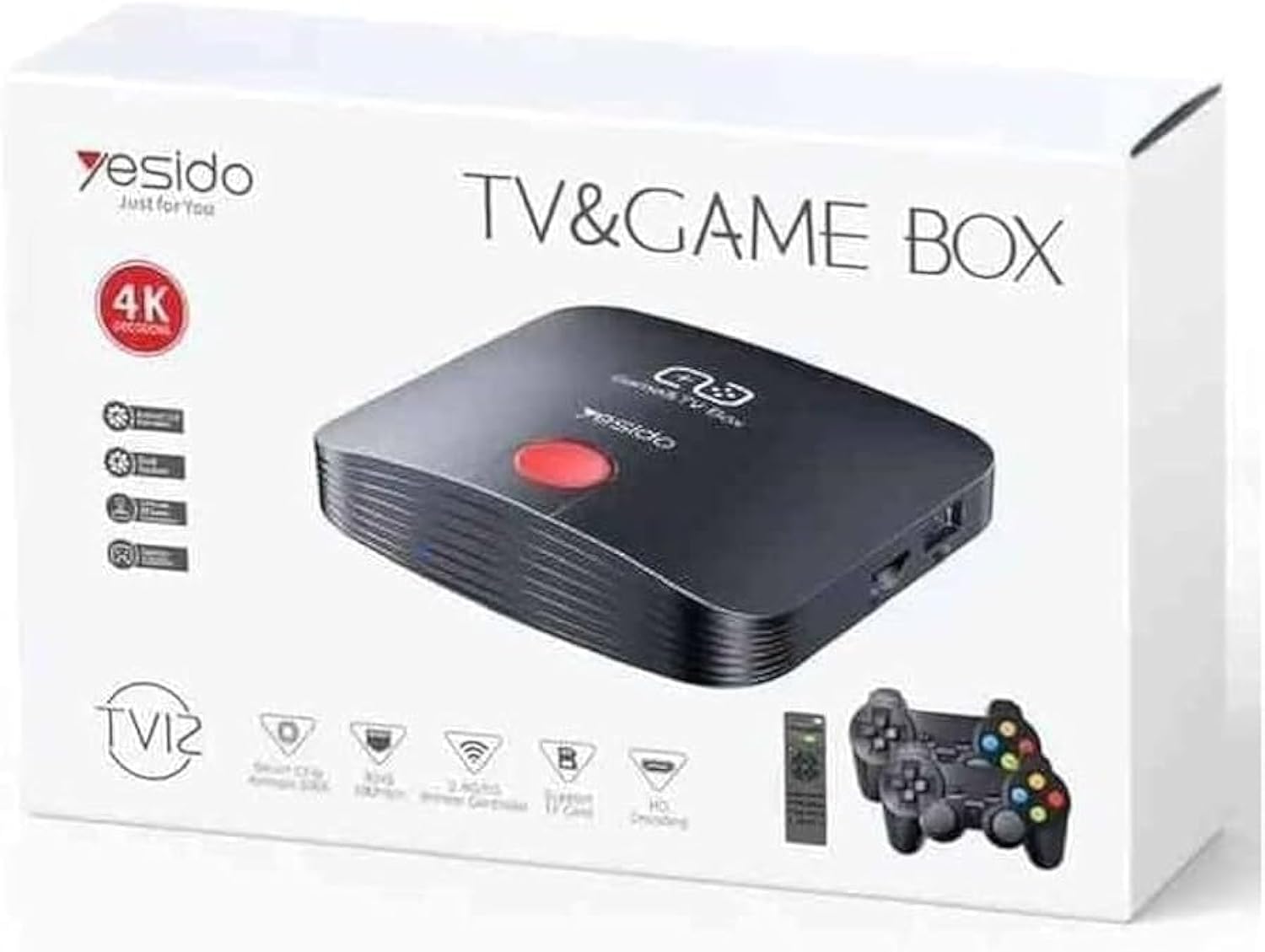
Image 1.1: The Yesido TV12 Gaming TV Box and included game controllers.
2. Producto terminadoview
The Yesido TV12 is a high-tech smart TV box that supports high-definition 4K resolution, allowing you to enjoy movies and TV shows with stunning clarity. It features an Amlogic S905 smart chip and runs on an Android 12.0 dual system. The device is equipped with 2GB RAM and 16GB internal storage, facilitating multitasking and storage of your favorite media and games. A powerful Mali-G31 MP2 GPU ensures smooth performance for demanding games.
Características principales:
- 4K HD Resolution Support (1080P to 4K)
- Android 12.0 Dual System
- Amlogic S905 Smart Chip
- GPU Mali-G31 MP2
- 2GB RAM and 16GB Storage
- Supports over 10,000 game emulations (14 types)
- Integrated 2.4G/5G Wi-Fi and 100Mbps RJ45 Ethernet
- Compatible with popular streaming services (Netflix, Hulu, Amazon Prime Video, Disney+)
- Voice-controlled remote for easy navigation
- Compatible with two game controllers
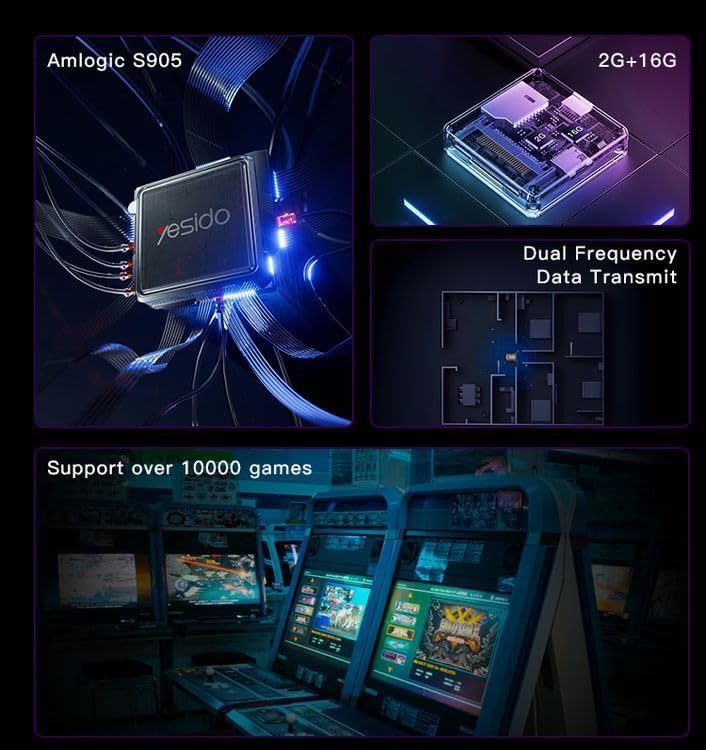
Image 2.1: Internal architecture highlighting the Amlogic S905 chip, memory, and data transmission capabilities.
3. Guía de configuración
3.1 Desempaquetado y componentes
Retire con cuidado todos los artículos del embalaje. Asegúrese de que estén presentes los siguientes componentes:
- Yesido TV12 Gaming TV Box
- Adaptador de corriente
- Cable HDMI
- Mando a distancia
- Game Controllers (quantity may vary)
- Manual de usuario (este documento)
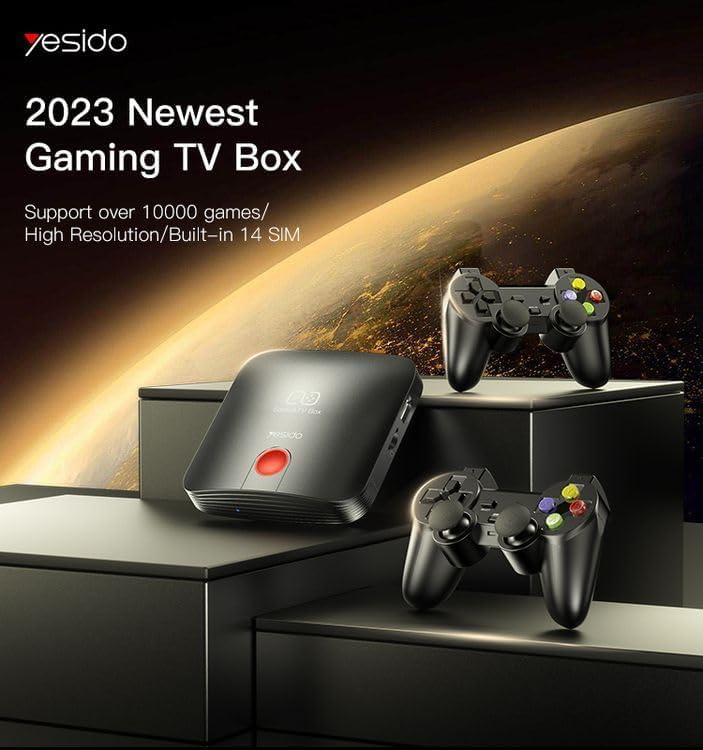
Image 3.1: The TV Box and game controllers, ready for setup.
3.2 Conexión a su televisor
- Connect one end of the HDMI cable to the HDMI port on the Yesido TV12.
- Conecte el otro extremo del cable HDMI a un puerto de entrada HDMI disponible en su televisor. Anote el número de entrada HDMI (p. ej., HDMI 1, HDMI 2).
3.3 Encendido
- Conecte el adaptador de corriente al puerto DC IN del TV Box.
- Conecte el adaptador de corriente a una toma de pared.
- Encienda su televisor y seleccione la entrada HDMI correspondiente usando el control remoto de su televisor.
- The TV Box will automatically power on and display the boot-up screen.
3.4 Conexión de red
For internet access, you can connect via Wi-Fi or Ethernet.
- Wifi: Navigate to Settings > Network > Wi-Fi. Select your network from the list, enter the password, and connect.
- Ethernet: Connect an Ethernet cable from your router to the RJ45 port on the TV Box. The connection should be established automatically.
3.5 Remote Control and Gamepad Pairing
The included remote control is typically pre-paired. If not, or if pairing gamepads:
- Ensure batteries are inserted correctly into the remote/gamepad.
- For Bluetooth gamepads, go to Settings > Connected Devices > Pair new device and follow the on-screen instructions.
4. Instrucciones de funcionamiento
4.1 Navegación por la interfaz
Use the remote control to navigate the Android 12.0 interface. The directional buttons move the cursor, the OK button selects, and the Back button returns to the previous screen. The Home button returns to the main launcher screen.
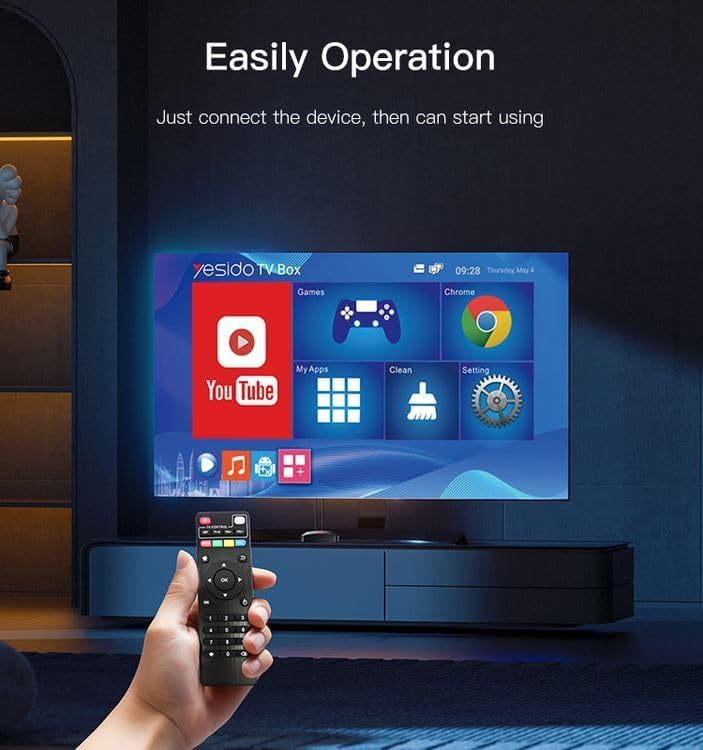
Image 4.1: Navigating the Yesido TV Box interface with the remote control.
4.2 Transmisión de medios
The TV Box supports various streaming applications. Pre-installed apps like YouTube are available, and you can download more from the app store (e.g., Netflix, Hulu, Amazon Prime Video, Disney+).
- Select the desired streaming app from the home screen or 'My Apps' section.
- Inicie sesión con las credenciales de su cuenta.
- Explora y selecciona contenido para ver.
4.3 Juegos
The Yesido TV12 is designed for gaming, supporting over 10,000 game emulations. Connect your game controllers as described in Section 3.5.
- Access the 'Games' or 'Emulator' section from the home screen.
- Select your desired game or emulator.
- Use the connected game controllers for an immersive gaming experience.

Image 4.2: The wireless gamepads compatible with the TV Box.
4.4 Control de voz
If your remote control supports voice input, press the voice button and speak your commands or search queries. This allows for hands-free content search and device control.
5. Mantenimiento
5.1 Limpieza del dispositivo
To maintain optimal performance and appearance, regularly clean the TV Box:
- Desenchufe el dispositivo de la toma de corriente antes de limpiarlo.
- Utilice un paño suave y seco para limpiar las superficies exteriores.
- Do not use liquid cleaners, aerosols, or abrasive materials, as they may damage the device.
5.2 Actualizaciones de software
Keep your device's software updated to ensure the best performance and access to new features:
- Connect the TV Box to the internet.
- Navigate to Settings > About > System Update.
- Siga las instrucciones en pantalla para buscar e instalar las actualizaciones disponibles.
5.3 Gestión del almacenamiento
With 16GB of internal storage, managing your space is important:
- Vaya a Configuración > Almacenamiento para view Uso de almacenamiento.
- Uninstall unused applications or delete unnecessary files para liberar espacio.
- The device supports TF cards for expandable storage.
6. Solución de problemas
6.1 Sin energía
- Asegúrese de que el adaptador de corriente esté conectado de forma segura al TV Box y a una toma de corriente que funcione.
- Pruebe con una toma de corriente diferente.
6.2 No Signal / No Display
- Verifique que el cable HDMI esté conectado de forma segura tanto al TV Box como al televisor.
- Asegúrese de que su televisor esté configurado en la fuente de entrada HDMI correcta.
- Pruebe con un cable HDMI o puerto HDMI diferente en su televisor.
6.3 Problemas de conexión de red
- Wifi: Check if your Wi-Fi router is working correctly. Re-enter the Wi-Fi password in Settings > Network.
- Ethernet: Ensure the Ethernet cable is properly connected to both the TV Box and the router.
- Reinicie el enrutador y la TV Box.
6.4 El control remoto no responde
- Revise y reemplace las baterías del control remoto.
- Asegúrese de que no haya obstrucciones entre el control remoto y el TV Box.
- Re-pair the remote control if necessary (refer to Section 3.5).
6.5 Game Performance Issues
- Close any background applications to free up RAM.
- Asegúrese de que haya suficiente espacio de almacenamiento disponible.
- For online games, check your internet connection stability.
7. Especificaciones
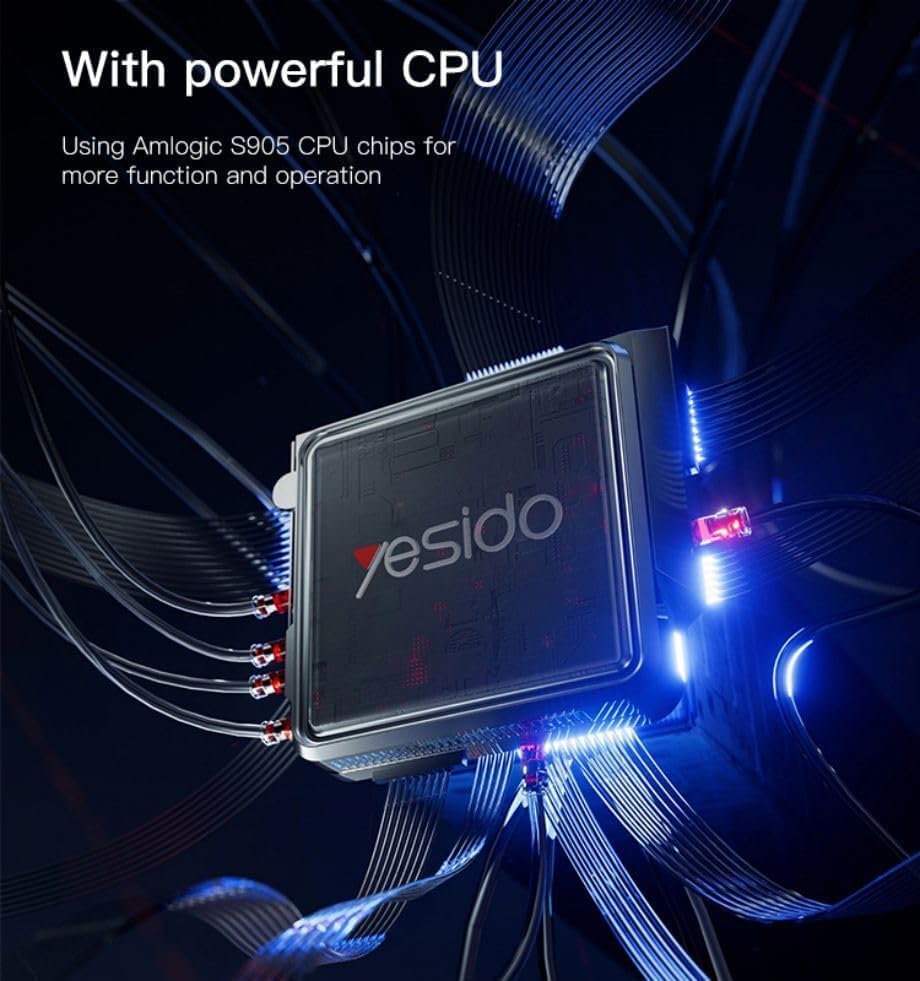
Image 7.1: The powerful Amlogic S905 CPU at the core of the TV Box.
| Característica | Descripción |
|---|---|
| Nombre de marca | Sí |
| Nombre del modelo | TV12 |
| Sistema operativo | Android 12.0 Dual System |
| UPC | Amlogic S905 |
| GPU | Mali-G31 MP2 |
| RAM instalada | 2 GB |
| Capacidad de almacenamiento de memoria | 16 GB |
| Resolución de salida de video | 1080P to 4K |
| Tecnología de conectividad | HDMI, Wi-Fi (2.4G/5G), RJ45 (100Mbps) |
| Tipo de conector | HDMI |
| Servicios de Internet compatibles | Netflix, Hulu, Amazon Prime Video, Disney+ |
| Dispositivos compatibles | Televisión |
| Componentes incluidos | TV Box, Controllers |
| Color | Negro |
| Peso del artículo | 1200 gramos |
| Dimensiones del producto (L x An x Al) | 20 x 5 x 10 cm |
8. Garantía y soporte
8.1 Información de garantía
The Yesido TV12 Gaming TV Box comes with a standard manufacturer's warranty. Please refer to the warranty card included in your product packaging for specific terms, conditions, and duration. Keep your proof of purchase for warranty claims.
8.2 Atención al cliente
If you encounter any issues not covered in this manual or require further assistance, please contact Yesido customer support. Contact details can typically be found on the product packaging, the official Yesido websitio o la página de soporte de su minorista.