
MACALLY BTZKEY
MACALLY BTZKEY Bluetooth Full-size Keyboard User Manual
Model: BTZKEY
1. Introducción
This manual provides detailed instructions for the MACALLY BTZKEY Bluetooth Full-size Keyboard, designed for seamless integration with Apple devices. It features a Japanese layout, a numeric keypad, and multi-pairing capabilities for up to three devices. Please read this manual thoroughly before using the product to ensure proper operation and longevity.

Figure 1: MACALLY BTZKEY Bluetooth Full-size Keyboard
2. Contenido del paquete
Verifique el contenido del paquete para asegurarse de que todos los artículos estén presentes:
- MACALLY BTZKEY Bluetooth Full-size Keyboard
- Cable de carga USB-C
- Manual de usuario
3. Configuración
3.1 Carga del teclado
The keyboard comes with a built-in 780mAh rechargeable battery. Before initial use, it is recommended to fully charge the keyboard.
- Connect the included USB-C cable to the charging port on the keyboard.
- Connect the other end of the USB-C cable to a USB power adapter (not included) or a powered USB port on your computer.
- La luz indicadora de carga se iluminará durante la carga y se apagará cuando esté completamente cargada.
Nota: The USB-C cable provided is for charging only and does not support data transfer.

Figure 2: Charging the MACALLY BTZKEY Keyboard
3.2 Emparejamiento con dispositivos
The MACALLY BTZKEY keyboard supports pairing with up to three Bluetooth-enabled devices (MacBook, iMac, iPhone, iPad). You can easily switch between these devices.
- Asegúrese de que el teclado esté cargado y encendido.
- Enable Bluetooth on your device (Mac, iPad, iPhone).
- On the keyboard, press and hold one of the dedicated device keys (B1, B2, or B3) for 3-5 seconds until the corresponding indicator light above the key flashes rapidly. This indicates the keyboard is in pairing mode.
- On your device, go to Bluetooth settings and select "BTZKEY" from the list of available devices.
- Una vez conectado, la luz indicadora dejará de parpadear y permanecerá fija durante unos segundos, para luego apagarse.
- To switch between paired devices, simply press the corresponding device key (B1, B2, or B3). The keyboard will automatically connect to the last paired device on that channel.
Consejo para la solución de problemas: If pairing fails, it is recommended to delete all existing pairing records for the keyboard on your device and attempt to reconnect.

Figure 3: Multi-Sync Bluetooth Functionality
4. Instrucciones de funcionamiento
4.1 Mac-Specific Layout and Shortcut Keys
This keyboard is designed with a 111-key macOS-specific layout, providing a familiar and efficient typing experience for Apple users. It includes 14 dedicated shortcut keys for quick access to common Mac functions.
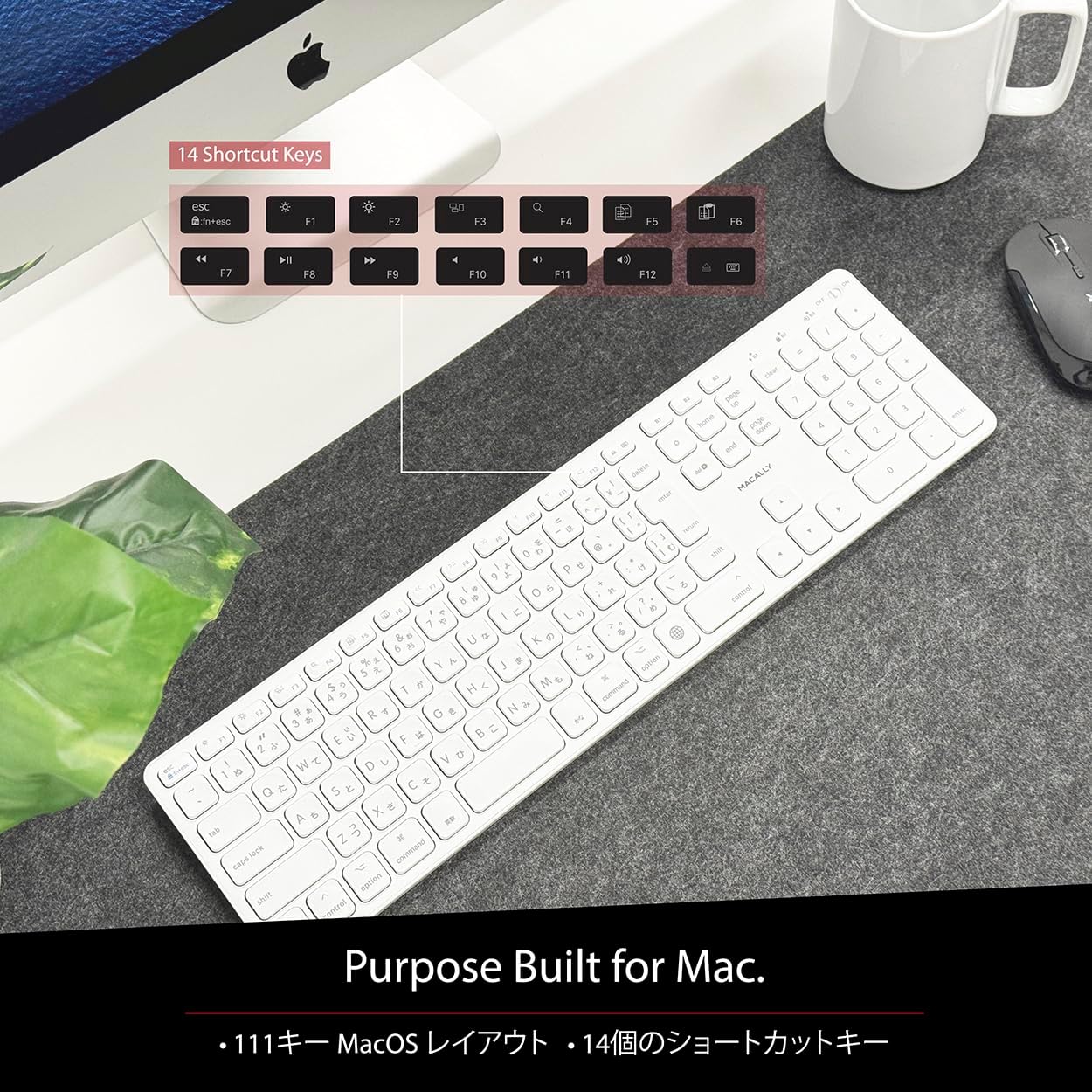
Figure 4: Mac-Specific Layout and Shortcut Keys
4.2 Scissor-Switch Keycaps
The keyboard utilizes quiet scissor-switch keys, offering a smooth, tactile, and quiet typing experience. This design ensures comfortable and efficient typing, whether for extended periods or quick tasks.
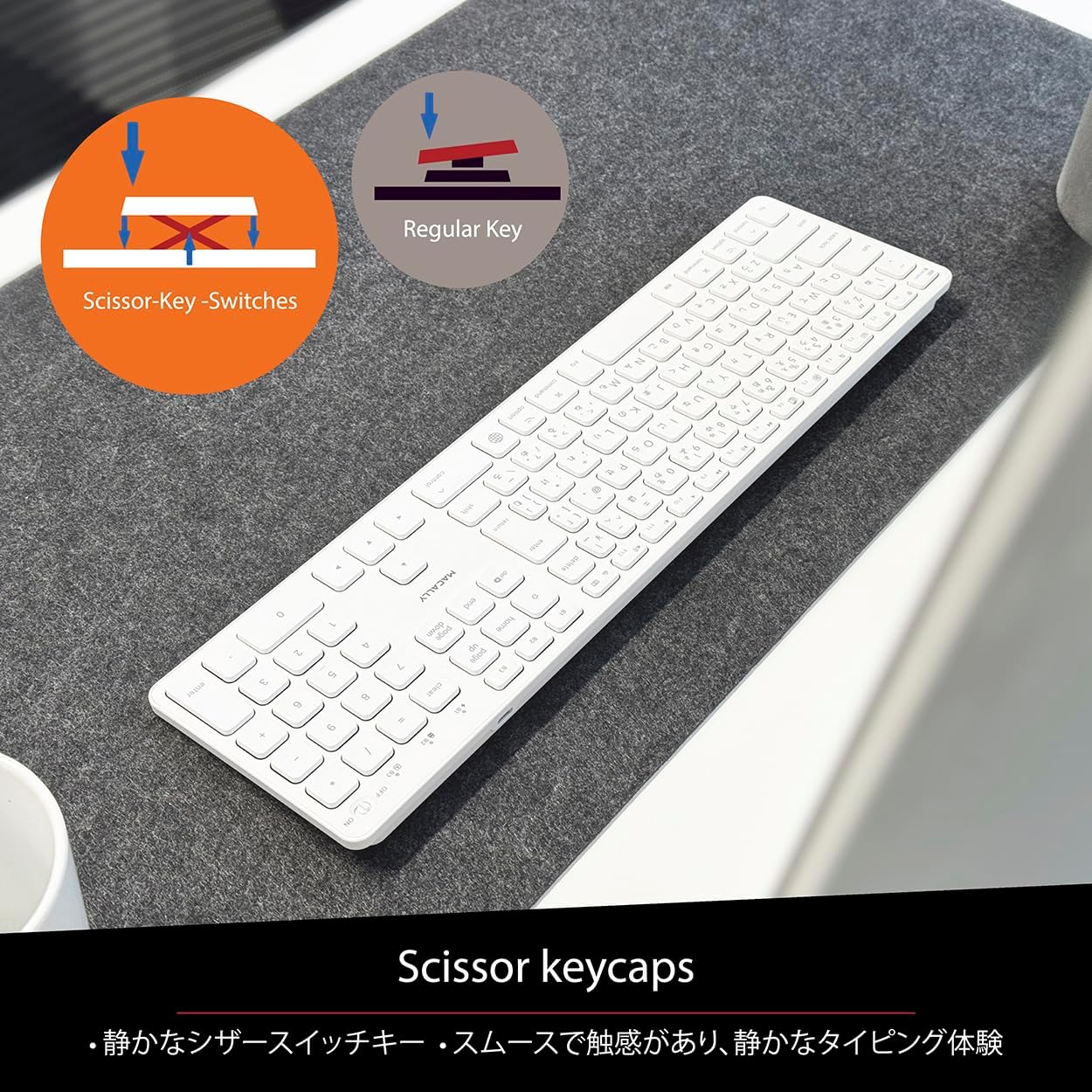
Figure 5: Scissor-Key-Switches Mechanism
4.3 Ergonomía y diseño
The keyboard features an integrated kickstand for comfortable typing angles, reducing strain during use. Its slim profile, approximately 0.8 inches (2cm) thick, ensures portability and ergonomic use, complementing any workspace.
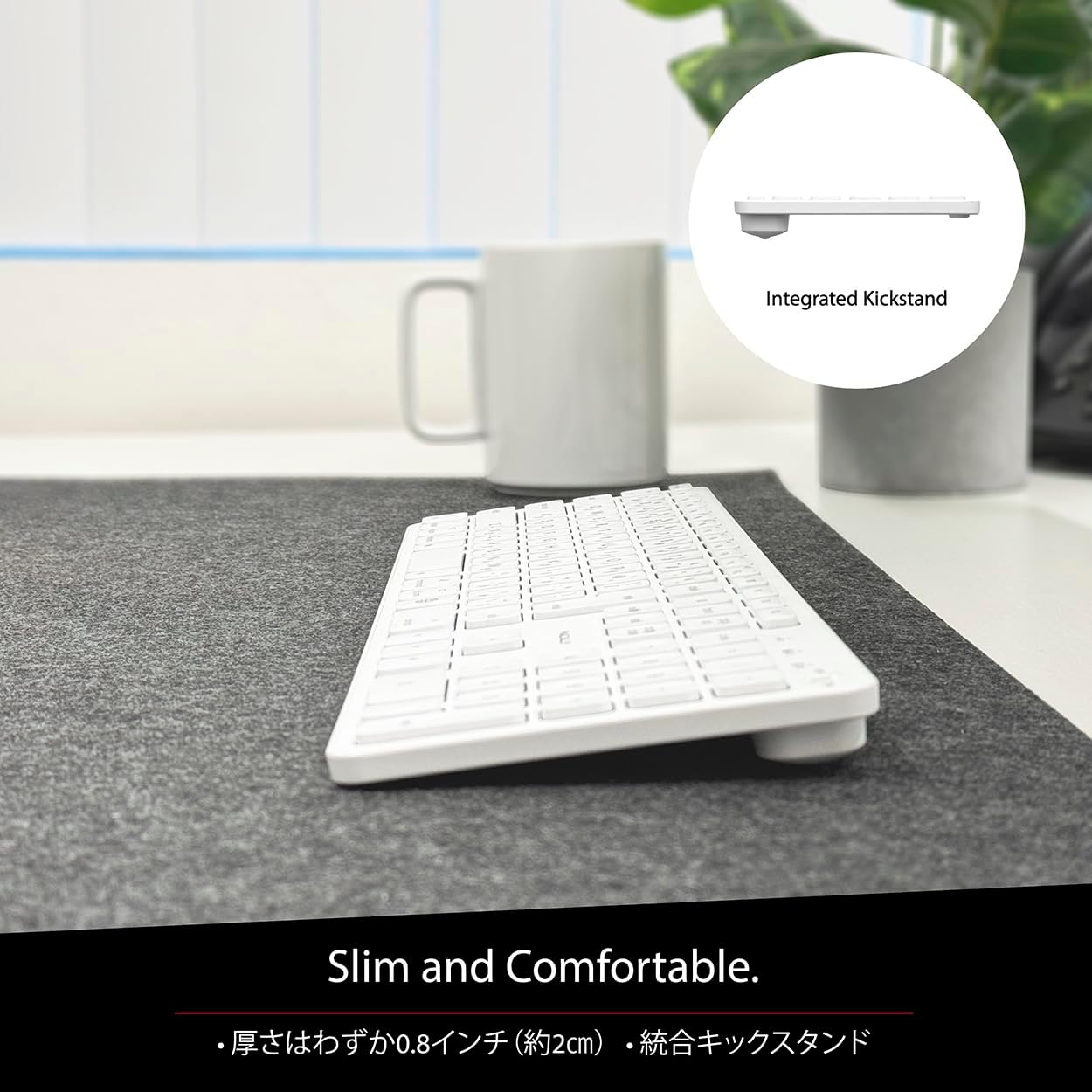
Figure 6: Slim Design with Integrated Kickstand
5. Mantenimiento
Para garantizar la longevidad y el rendimiento óptimo de su teclado, siga estas pautas de mantenimiento:
- Limpieza: Utilice un paño suave y sin pelusa ligeramente seco.ampLimpie la superficie del teclado con agua o una solución de limpieza suave. Evite productos químicos agresivos o materiales abrasivos.
- Eliminación de polvo: Utilice aire comprimido para eliminar el polvo y los residuos entre las teclas.
- Cuidado de la batería: Avoid exposing the keyboard to extreme temperatures. Charge the keyboard regularly, even if not in frequent use, to maintain battery health.
- Almacenamiento: Cuando no utilice el teclado durante períodos prolongados, guárdelo en un lugar fresco y seco, alejado de la luz solar directa.
6. Solución de problemas
If you encounter issues with your MACALLY BTZKEY keyboard, please refer to the following common problems and solutions:
| Problema | Posible causa | Solución |
|---|---|---|
| El teclado no se conecta ni se empareja | Bluetooth off, low battery, pairing conflict | Ensure Bluetooth is enabled on device. Charge keyboard. Delete existing pairing records on device and re-pair. |
| Keys unresponsive or repeating characters | Low battery, software glitch, interference | Charge keyboard. Restart device. Re-pair keyboard. Minimize interference from other wireless devices. |
| No se puede cambiar entre dispositivos | Device not properly paired to channel | Ensure each device is paired to a unique channel (B1, B2, B3). Re-pair if necessary. |
| Duración corta de la batería | Frequent use, aging battery | Ensure full charge before use. Reduce backlight usage if applicable (not on this model). Battery life may decrease over time. |
Si el problema persiste después de probar estas soluciones, comuníquese con el servicio de atención al cliente.
7. Especificaciones
| Característica | Descripción |
|---|---|
| Marca | macally |
| Fabricante | MACALMENTE |
| Serie | BTZKEY |
| Dimensiones del producto (L x An x Al) | 42 x 14 x 2 cm |
| Número de modelo del producto | BTZKEY |
| Color | Blanco |
| Pilas incluidas | Sí |
| Paquete de batería de litio | Baterías contenidas en el equipo |
| Peso de la batería de litio | 2 gramos |
| Peso del artículo | 610 gramos |
| Dispositivos compatibles | Laptop (MacBook Pro/Air, iMac, Mac Mini, Mac Pro, iPad, iPhone) |
| Tecnología de conectividad | Bluetooth |
| Descripción del teclado | Teclado de oficina |
| Usos recomendados del producto | Negocio |
| Característica especial | Recargable |
| Número de llaves | 111 |
| Componentes incluidos | Cable USB |
8. Garantía y soporte
For detailed warranty information, technical support, and customer service, please refer to the official MACALLY website or contact their support channels directly. It is recommended to keep your purchase receipt as proof of purchase for any warranty claims.
9. Vídeos oficiales del producto
Official product videos, if available and relevant, would be embedded here to provide visual guidance on setup, features, or troubleshooting. Please note that video content is subject to availability and may require an internet connection to view.
(No official seller videos were available in the provided product data to embed at this time.)
Ask a question about this manual
Ask about setup, troubleshooting, compatibility, parts, safety, or missing instructions. Manuals+ will review the question and use this page’s manual context to help answer it.