
1. Introducción
This manual provides essential information for setting up, operating, and maintaining your HP Series 5 27-inch FHD Monitor. Please read these instructions carefully before using your monitor to ensure optimal performance and safety.
The HP Series 5 27-inch FHD Monitor is designed for comfortable viewing with features like Eye Safe certification, 99% sRGB color accuracy, IPS technology for wide viewing angles, a 100 Hz refresh rate, and an anti-glare screen. Its micro-edge design offers an immersive visual experience.
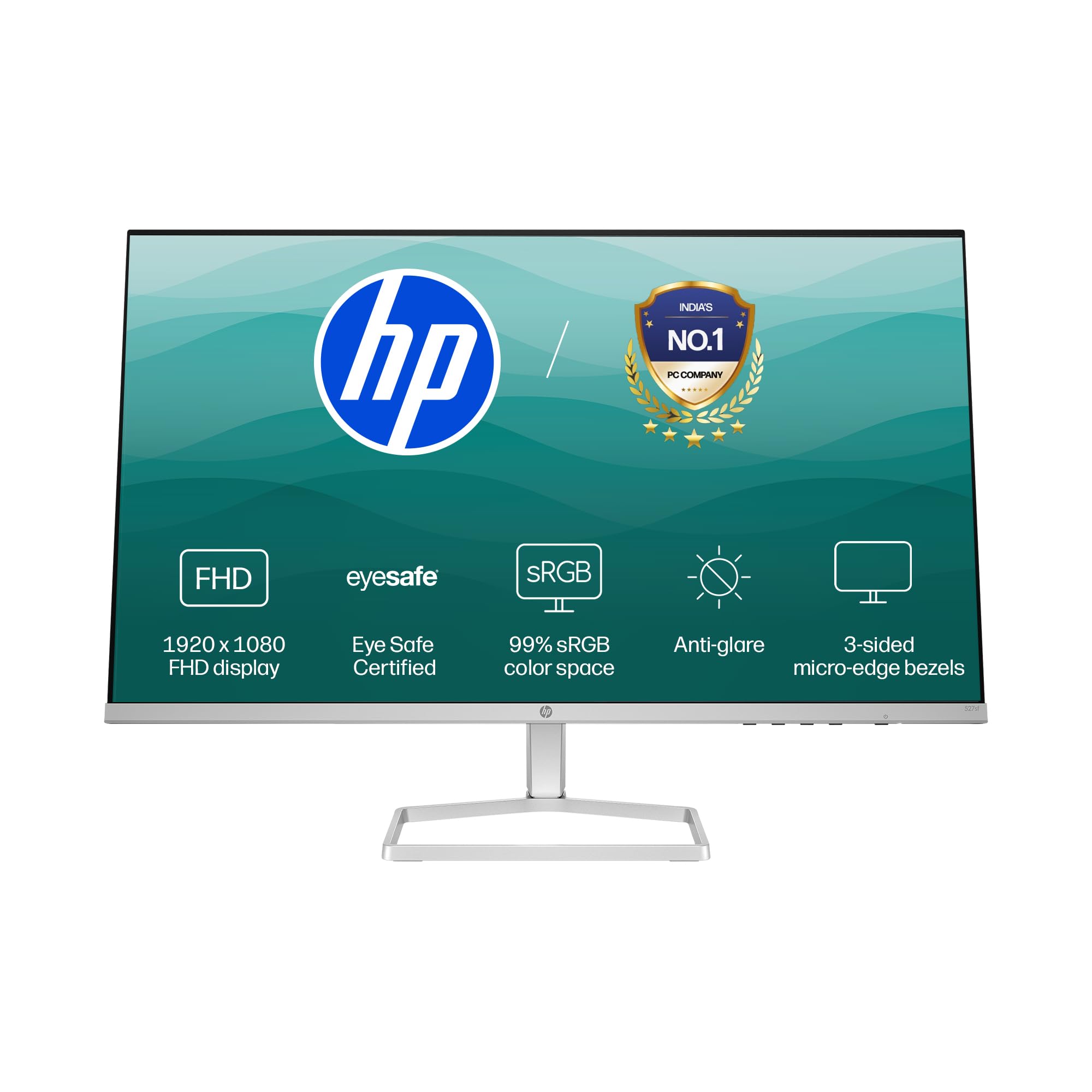
Image: HP Series 5 27-inch FHD Monitor, showcasing its sleek design on a desk.
2. ¿Qué hay en la caja?
Verifique que todos los componentes estén presentes en el embalaje:
- HP Series 5 27-inch FHD Monitor
- Soporte para monitor (base y mástil)
- Cable HDMI
- Adaptador de corriente
- Cable de alimentación de CA
- Documentación (Guía de configuración rápida, Tarjeta de garantía)

Image: Illustration of the monitor and its included accessories: monitor, HDMI cable, power adapter, and AC power cord.
3. Instrucciones de configuración
3.1 Montaje del soporte del monitor
- Retire con cuidado los componentes del monitor y del soporte del embalaje.
- Coloque el soporte en el panel del monitor. Asegúrese de que encaje firmemente en su lugar.
- Fije la base del soporte al cuello del soporte. Apriete los tornillos, si los hay, que suelen estar en la parte inferior de la base.
- Coloque el monitor ensamblado sobre una superficie plana y estable.
3.2 Conexión del monitor
The monitor supports both HDMI and VGA connections.
- Conexión de energía: Connect the power adapter to the monitor's power input port, then plug the AC power cord into the adapter and a wall outlet.
- Conexión de vídeo:
- For HDMI: Connect one end of the HDMI cable to an HDMI port on your computer and the other end to one of the two HDMI 1.4 ports on the monitor.
- For VGA: Connect one end of the VGA cable to the VGA port on your computer and the other end to the VGA port on the monitor.
- Asegúrese de que todos los cables estén conectados de forma segura.

Imagen: Trasera view of the HP Series 5 monitor, highlighting the VGA port and two HDMI 1.4 ports for device connectivity.
4. Funcionamiento del monitor
4.1 Encendido y apagado
Presione el botón de encendido, generalmente ubicado en el bisel inferior derecho o en la parte posterior del monitor, para encenderlo o apagarlo. El indicador de encendido se iluminará cuando el monitor esté encendido.
4.2 Navegación del menú de visualización en pantalla (OSD)
Use the physical buttons on the monitor (typically on the bottom right or rear) to access and navigate the On-Screen Display (OSD) menu. This menu allows you to adjust various display settings.
- Selección de entrada: Use the OSD or a dedicated input button to switch between connected devices (e.g., HDMI 1, HDMI 2, VGA). The monitor may also auto-detect active inputs.
- Brillo/Contraste: Ajuste estas configuraciones para adaptarlas a sus necesidades. viewing environment. The monitor offers 300 nits brightness for clear visuals.
- Configuración de color: Fine-tune color temperature, gamma, and other color parameters. The monitor provides 99% sRGB color accuracy for vivid and realistic colors.
- Modos de imagen: Select from preset picture modes optimized for different content types (e.g., Standard, Gaming, Movie).

Image: The HP Series 5 monitor showcasing its bright display, emphasizing 300 nits brightness for clear visuals.

Image: The HP Series 5 monitor displaying rich and realistic colors, highlighting its 99% sRGB color accuracy.
4.3 Características de comodidad para los ojos
The monitor is equipped with HP Eye Ease and Eyesafe certification, which limits blue light emissions to reduce eye strain without compromising color accuracy. This feature is always-on and does not require OSD adjustments.

Image: The HP Series 5 monitor displaying a dynamic scene, demonstrating its low blue light feature for comfortable extended viewEn.
4.4 IPS Technology and Refresh Rate
IPS (In-Plane Switching) technology ensures consistent image accuracy and vivid colors across wide 178-degree horizontal and vertical viewing angles. The 100 Hz refresh rate provides smooth scrolling and fluid motion, enhancing your viewExperiencia de aprendizaje.

Image: The HP Series 5 monitor displaying a colorful jungle scene, highlighting the vivid colors and crystal-clear viewing from all angles due to IPS technology.
5. Mantenimiento
5.1 Limpieza del monitor
- Siempre apague el monitor y desenchufe el cable de alimentación antes de limpiarlo.
- Utilice un paño suave y sin pelusa ligeramenteampLimpiar con agua o un limpiador de pantalla no abrasivo.
- Limpie suavemente la pantalla y las superficies exteriores. Evite ejercer demasiada presión.
- Do not use alcohol, ammonia-based cleaners, or abrasive materials, as these can damage the anti-glare coating and plastic surfaces.
5.2 Cuidados generales
- Evite colocar objetos pesados sobre el monitor o sus cables.
- Mantenga el monitor alejado de la luz solar directa, fuentes de calor y humedad excesiva.
- Asegúrese de que haya una ventilación adecuada alrededor del monitor para evitar el sobrecalentamiento.
- Utilize the integrated cable containment features to manage wires and reduce clutter.

Imagen: Trasera view of the HP Series 5 monitor, illustrating its design for less clutter around the workspace with integrated cable management.
6. Solución de problemas
Si tiene problemas con su monitor, consulte las siguientes soluciones comunes:
- Sin energía: Asegúrese de que el cable de alimentación esté bien conectado al monitor y a una toma de corriente que funcione. Compruebe la conexión del adaptador de corriente.
- Sin imagen/señal: Verify that the video cable (HDMI or VGA) is correctly connected to both the monitor and your computer. Ensure the correct input source is selected via the OSD menu. Try restarting your computer.
- Imagen parpadeante o distorsionada: Revise el cable de video para detectar daños o conexiones sueltas. Asegúrese de que la resolución de pantalla y la frecuencia de actualización de su computadora sean compatibles con las especificaciones del monitor.
- Display Anomalies (e.g., light bleeding): While minor variations can occur, if you notice significant or distracting light bleeding, especially from the edges, ensure the monitor is properly seated on its stand and that no external pressure is being applied to the screen. If the issue persists, contact HP support.
- Botones que no responden: Unplug the monitor's power cord, wait 15 seconds, then plug it back in and try again.
7. Especificaciones
| Característica | Especificación |
|---|---|
| Marca | HP |
| Número de modelo | 94F45AA |
| Tamaño de pantalla | 27 pulgadas (68.6 cm) |
| Resolución | FHD 1080p (1920 x 1080) |
| Relación de aspecto | 16:9 |
| Descripción de la superficie de la pantalla | Antideslumbrante |
| Relación de contraste | 1500:1 |
| Frecuencia de actualización | 100 Hz |
| Tipo de pantalla | LCD (Panel IPS) |
| Viewángulo de ing | 178 grados (horizontal/vertical) |
| Brillo de la imagen | 300 nits |
| Tiempo de respuesta | 5 milisegundos |
| Conectividad | 2 HDMI 1.4, 1 VGA |
| Sincronización adaptativa | Sincronización libre |
| Características del producto | Flicker-Free, HP Eye Ease with Eyesafe certification |
| Dimensiones del artículo (Pr. x An. x Al.) | 18.8D x 60.8W x 43.7H Centímetros |
| Peso del artículo | 3.2 kilogramos |
| Código Postal | 197498944876 |
8. Información de garantía
This HP Series 5 27-inch FHD Monitor comes with a 3 año de garantía in situ. Please retain your proof of purchase for warranty claims. For detailed terms and conditions, refer to the warranty card included in your product packaging or visit the official HP support websitio.
9. Soporte
For further assistance, technical support, or service inquiries, please contact HP Customer Support. You can find contact information on the official HP websitio o en la documentación proporcionada con su monitor.
For ergonomic setup guidance, refer to the HP Display Center software, which can help you customize your comfort settings.
Fabricante: HP, HP India Sales Pvt. Ltd.
Información de contacto del importador: HP India Sales Private Limited, No. 24, Kothari Arena, Hosur Main Road, Adugodi, Bangalore, Karnataka, India, 560030
10. Información medioambiental
The HP Series 5 monitor is designed with sustainability in mind:
- Designed from recycled materials and ocean-bound plastics.
- EPEAT® registered.
- Certificado ENERGY STAR®.

Image: The HP Series 5 monitor displayed with environmental elements, emphasizing its construction from recycled materials and ocean-bound plastics, EPEAT registration, and ENERGY STAR certification.