
Introducción
This manual provides detailed instructions for setting up and operating your YNF Smart Plug. Please read this manual carefully before use to ensure proper functionality and safety. The YNF Smart Plug allows you to control your home appliances remotely, via voice commands, and through scheduled timers.

Image: The YNF Smart Plug, a compact white device designed for smart home integration.
Información de seguridad
- No desmonte ni modifique el dispositivo.
- Mantener alejado del agua y ambientes con alta humedad.
- Do not exceed the maximum load rating of the smart plug. Refer to specifications.
- Asegúrese de que el enchufe esté completamente insertado en el tomacorriente de pared.
- Sólo para uso en interiores.
Contenido del paquete
- 1 x YNF Smart Plug
- 1 x Manual de usuario (este documento)
Configuración
1. Descarga la aplicación Smart Life
Buscar "Smart Life" in the Apple App Store or Google Play Store and download the application. Alternatively, scan the QR code provided in the product packaging (if available) to download.
2. Register and Log In
Open the Smart Life App. If you are a new user, register for an account. If you already have an account, log in.
3. Agregar dispositivo
- Plug the YNF Smart Plug into a wall outlet.
- Open the Smart Life App and tap the "+" icon in the top right corner to add a device.
- Seleccione “Toma eléctrica” o “Enchufe inteligente” de la lista de dispositivos.
- Confirme que la luz indicadora del enchufe inteligente parpadee rápidamente. De lo contrario, mantenga presionado el botón de encendido del enchufe durante 5 a 10 segundos hasta que parpadee rápidamente.
- Enter your 2.4GHz Wi-Fi network password. The YNF Smart Plug supports 2.4GHz Wi-Fi and Bluetooth for stable connection.
- Wait for the app to connect to the device. Once connected, you can rename the smart plug.

Image: A comparison chart highlighting YNF Smart Plug's superior connectivity (Wi-Fi & Bluetooth), faster response time, higher stability, and broader compatibility (Alexa, Google, SmartThings) compared to other smart plugs.
Instrucciones de funcionamiento
Control remoto mediante la aplicación Smart Life
Once the smart plug is successfully added to the Smart Life App, you can control connected appliances from anywhere with an internet connection.
- Abra la aplicación Smart Life.
- Tap on the smart plug's name to access its control interface.
- Pulse el botón de encendido dentro de la aplicación para encender o apagar el dispositivo conectado.

Image: A user demonstrating remote control of a smart plug via the Smart Life app on a smartphone, showing a bedroom light being controlled.
Control por voz (Alexa y Google Home)
The YNF Smart Plug is compatible with Amazon Alexa and Google Home for hands-free voice control.
- Link Smart Life to Voice Assistant:
- Abra la aplicación Alexa o Google Home.
- Vaya a “Habilidades y juegos” (Alexa) o “Funciona con Google” (Google Home).
- Buscar "Vida inteligente" y habilitar la habilidad/servicio.
- Vincula tu cuenta Smart Life usando tus credenciales.
- Descubre dispositivos.
- Comandos de voz:
- "Alexa, enciende [nombre del dispositivo]".
- "Ok Google, apaga [nombre del dispositivo]".
- "Alexa, set [device name] to 50%." (If applicable for dimmable devices connected to the plug)
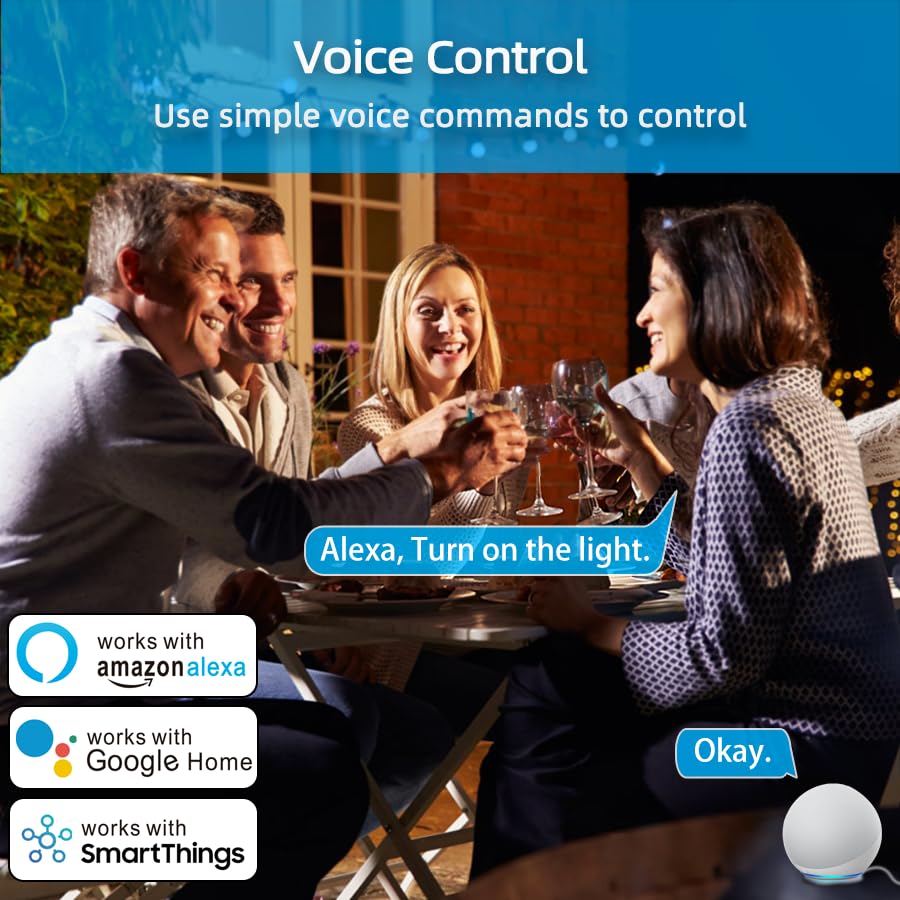
Image: An illustration of voice control in action, with people at a dinner table and a voice command "Alexa, Turn on the light." being processed, indicating compatibility with Amazon Alexa, Google Home, and SmartThings.
Timer Function and Schedules
Set schedules and timers to automate your appliances.
- In the Smart Life App, select your smart plug.
- Tap on "Timer" or "Schedule" to create new automation rules.
- You can set specific times for the plug to turn on or off daily, weekly, or on custom days.

Image: A visual representation of setting a schedule, with a sunrise icon at 7:00 AM and a sunset icon at 6:00 PM, demonstrating how to automate device operation based on time.
Modo meteorológico
Utilize the Weather Mode feature to automate actions based on local weather conditions.
- In the Smart Life App, navigate to the smart plug's settings or automation section.
- Look for "Weather Mode" or "Scene" creation.
- Configure rules, for example, "If weather is Rainy, turn on the light."

Image: A diagram illustrating the "Weather Mode" feature, where actions like "Turn on the light" are scheduled based on daily weather forecasts (e.g., Cloudy, Rainy, Snowy, Hazy).
Group Control and Device Sharing
Manage multiple smart plugs simultaneously and share control with family members.
- Control de grupo: In the Smart Life App, select multiple smart plugs and create a group to control them all with a single command.
- Compartir dispositivo: Share access to your smart plugs with other Smart Life account users in your household.
Mantenimiento
- Mantenga el enchufe inteligente limpio y seco.
- Wipe with a soft, dry cloth. Do not use liquid cleaners.
- Ensure the firmware of the smart plug and the Smart Life App are updated to the latest versions for optimal performance and security.
Solución de problemas
| Problema | Posible solución |
|---|---|
| El enchufe inteligente no se conecta al Wi-Fi. |
|
| El control de voz no funciona. |
|
| El enchufe no responde. |
|
Presupuesto
| Característica | Detalle |
|---|---|
| Marca | YNF |
| Modelo | B0D6ZDR4KD |
| Color | Blanco |
| Material | Acrilonitrilo butadieno estireno (ABS) |
| Tipo de conector | Enchufe eléctrico |
| Numero de alambres | 3 |
| Tipo de enchufe | Tipo B |
| Conectividad inalámbrica | Wi-Fi de 2.4 GHz, Bluetooth |
| Compatibilidad | Amazon Alexa, Google Home, SmartThings, Smart Life App |
| Certificaciones | ETL, UL, cUL |
Garantía y soporte
For warranty information and technical support, please refer to the contact details provided on the product packaging or visit the official YNF websitio. Guarde su recibo de compra para reclamos de garantía.
Para obtener más ayuda, también puedes contactar al vendedor a través de la plataforma donde compraste el producto.