
ponycam BC605
Manual de instrucciones de la cámara corporal Ponycam BC605
Model: BC605-128G
1. Introducción
This manual provides detailed instructions for the operation and maintenance of your Ponycam BC605 Body Worn Camera. Please read this manual thoroughly before using the device to ensure proper function and to maximize its capabilities.

Imagen 1: Anverso y reverso view of the Ponycam BC605 Body Worn Camera, showing the lens, screen, and controls.
2. ¿Qué hay en la caja?
Verifique que todos los artículos enumerados a continuación estén incluidos en su paquete:
- Ponycam BC605 Body Worn Camera
- Guía rápida del usuario
- Montaje magnético
- Acortar
- Adaptador de corriente
- Cable de datos USB

Image 2: All components included in the Ponycam BC605 package: the body camera, USB data cable, power adapter, quick user guide, clip, and magnetic mount.
3. Diagrama del producto
Familiarize yourself with the various parts and controls of your BC605 Body Worn Camera:

Image 3: Detailed product diagram showing the camera's buttons and ports, including PTT (not supported in this version), IR, Audio record, Power on/off, USB/SIM card, SOS (not supported in this version), Menu/OK, Up, Down, Return/Playback, Snap, and Record buttons.
4. Configuración inicial
Before first use, it is recommended to set the correct time and time zone for accurate recording timestamps. This can be done easily by scanning a QR code.
- Acceder a la configuración avanzada: Press the menu button on the camera. Navigate to "Advanced Setup" and press the menu button again. A QR code will appear on the camera screen.
- Escanear código QR: Use your smartphone's camera or a QR code scanner app to scan the QR code displayed on the camera's screen.
- Configurar ajustes: This will direct you to a websitiobmc.netbodycamera.com) where you can enter the default password (888888) to edit settings such as time zone, time, WiFi information, and APN settings.
- Update Camera: After updating the settings on the website, a new QR code will be generated. Press the return button on the camera and select "QR Scanner". Scan the new QR code with the camera to apply the changes.
Video 1: A step-by-step guide on how to configure the camera's time, time zone, and other advanced settings using a QR code scan via a smartphone.
5. Instrucciones de funcionamiento
5.1 Operaciones básicas
- Encendido/apagado: Hold the Power button to turn the device on or off.
- Grabar vídeo: Press the Record button to start or stop video recording. The default resolution is 1080p, with support up to 1440p.
- Tomar foto: Press the Snap button to take a photo while recording. The camera supports 58MP photo capabilities.
- Reproducción: Presione el botón Reproducir para volverview vídeos y fotografías grabados.
- Navegación por el menú: Use the Menu/OK, Up, and Down buttons to navigate through camera settings.

Image 4: Visual guide for quick operations: Power on/off, Record, Photo, Menu, Playback, and USB data transfer.
5.2 Características principales
- Batería de larga duración: Equipped with a 3600mAh battery, providing up to 17 hours of continuous recording. Fully charges in approximately 3 hours.
- Visión nocturna: Features infrared capability for clear footage en condiciones de poca luz u oscuridad.
- Grabación en bucle: Sobrescribe automáticamente el foo más antiguotage with new recordings when memory capacity is reached.
- Cifrado de datos: Protects recordings with encryption technology to ensure data security and tamper-proof evidence.
- Durabilidad: IP67 waterproof design and 2-meter drop resistance for use in various environments.

Image 5: Illustration highlighting the camera's 17-hour continuous recording time and 3600mAh high-capacity battery.
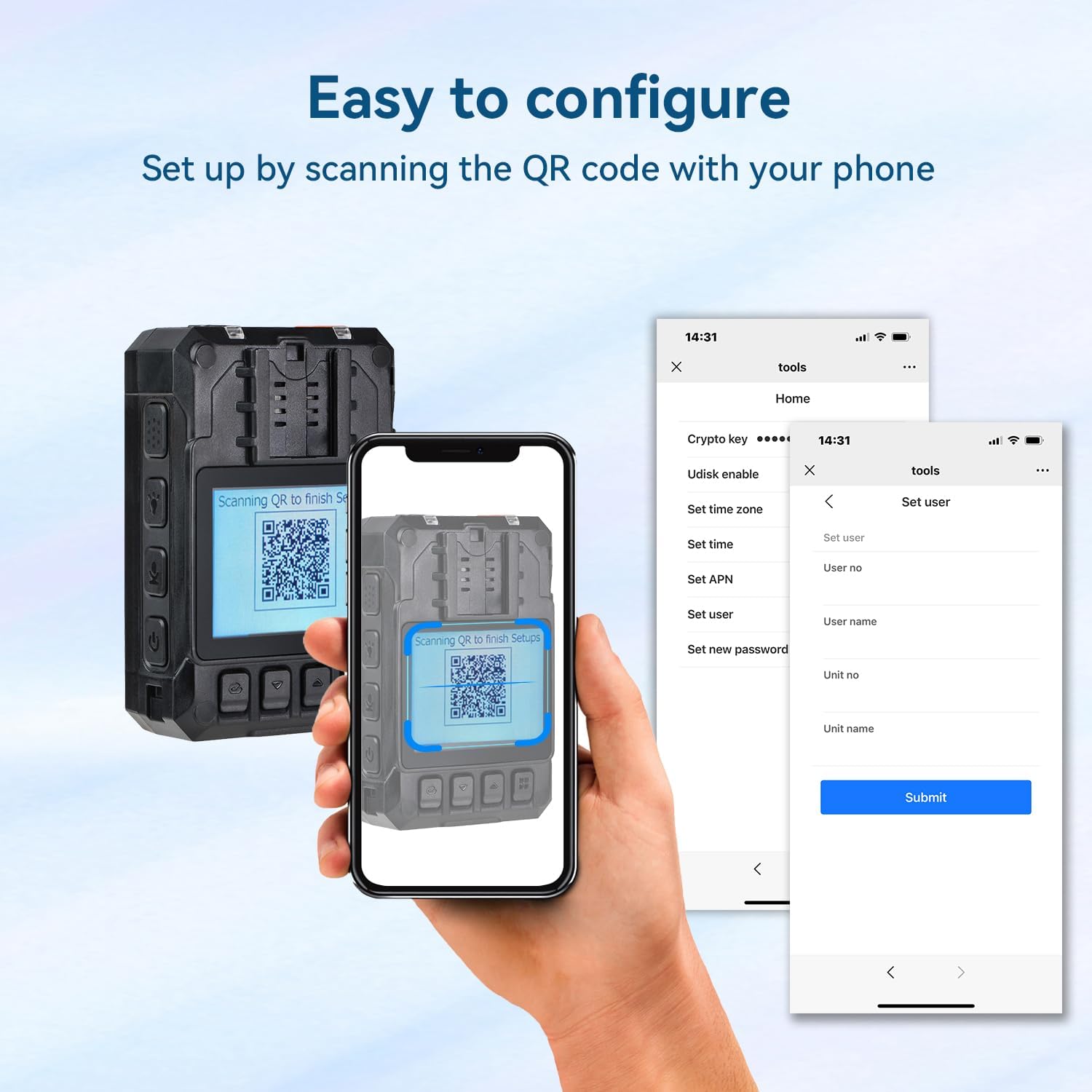
Image 6: Demonstrates the manual/auto night vision feature, showing clear footage with night vision on versus off in dark conditions.
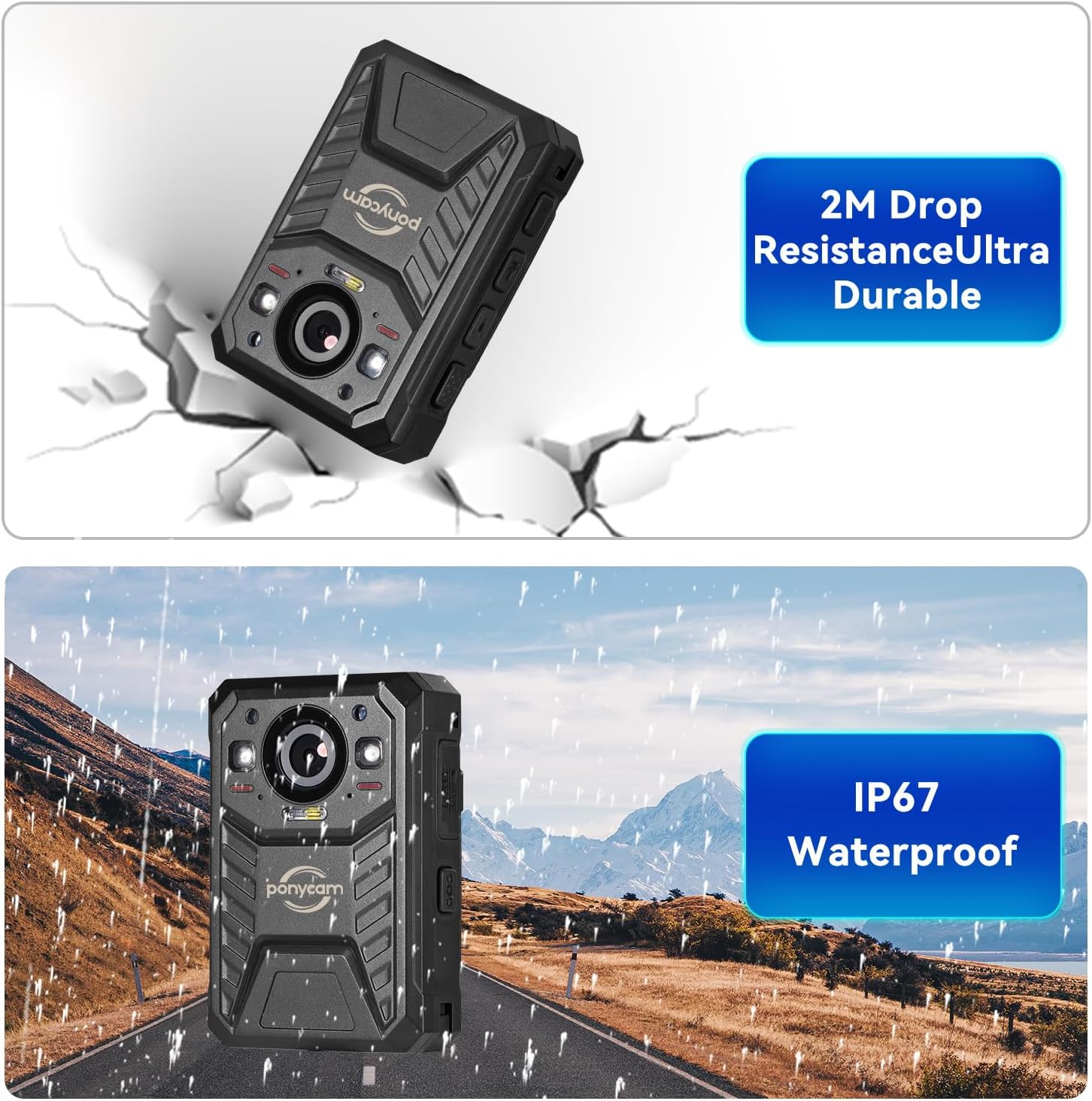
Image 7: Visual representation of the camera's durability, highlighting its 2-meter drop resistance and IP67 waterproof rating.
6. Multiple Wearing Methods
The BC605 camera offers versatile wearing options to suit different needs:
- Montaje magnético: For quick and secure attachment to magnetic surfaces or clothing.
- Short Clip: A 360° rotatable clip for attaching to pockets, belts, or other gear.

Image 8: Demonstrates the magnetic mount and the 360-degree rotatable short clip for flexible attachment options.
7. Especificaciones
| Característica | Detalle |
|---|---|
| Marca | cámara de pony |
| Número de modelo | BC605 |
| Peso del artículo | 14.9 onzas |
| Dimensiones del producto | 3.3 x 2.2 x 1.2 pulgadas |
| Baterías | 1 batería de iones de litio (incluida) |
| Resolución de captura de video | 1440p (default 1080p) |
| Tecnología de fotosensor | Otro |
| Tipo de memoria flash | Micro SD (Built-in 128GB) |
| Formato de captura de video | MP4 |
| Formato de audio compatible | MP3, AAC |
| Tamaño de pantalla | 2 pulgadas |
| Tecnología de conectividad | USB |
| Color | NEGRO |
| Característica especial | Compact, Night Vision, Waterproof (IP67), Drop Resistant (2M) |
8. Cuidado y mantenimiento
- Limpieza: Utilice un paño suave y seco para limpiar el cuerpo y el objetivo de la cámara. Evite limpiadores abrasivos o disolventes.
- Almacenamiento: Guarde la cámara en un lugar fresco y seco, alejado de la luz solar directa y de temperaturas extremas.
- Batería: Para una vida útil óptima de la batería, cargue la cámara periódicamente y evite descargarla por completo durante períodos prolongados.
- Gestión de datos: Transferir regularmente alimentos importantestage to a computer or external storage device and delete unnecessary files from the camera's memory to ensure sufficient recording space.
9. Solución de problemas
If you encounter issues with your Ponycam BC605, please refer to the following common solutions:
- La cámara no enciende: Ensure the battery is charged. Connect the camera to the power adapter and try again.
- Problemas de grabación: Check if the memory is full. If so, transfer files and delete them from the camera. Ensure the camera is not in a paused or standby mode.
- Hora/fecha incorrecta: Follow the "Initial Setup and Configuration" section to reset the time and time zone via QR code.
- No puedo acceder files: Ensure the USB data cable is securely connected to both the camera and your computer. Try a different USB port or cable.
- La cámara no responde: Perform a soft reset by holding down the power button for an extended period (e.g., 10-15 seconds) until the device restarts.
10. Garantía y soporte
Ponycam offers the following support for your product:
- 30-day trial period (free return or exchange).
- Lifetime limited warranty for quality-related product issues after the return period.
- Soporte técnico de por vida.
For any questions or support needs, please contact our support team:
- Correo electrónico: amazon@szest.com
- Teléfono: +86 755 26503848