
Introducción
This manual provides essential instructions for setting up, operating, maintaining, and troubleshooting your OPPO Reno 12 F 5G CPH2637 smartphone. Please read this guide thoroughly to ensure proper use and to maximize the device's capabilities.
1. Configuración
1.1 Desembalaje e inspección inicial
Retire con cuidado todos los artículos del embalaje. Compruebe que estén presentes los siguientes componentes:
- Teléfono inteligente OPPO Reno 12 F 5G CPH2637
- Cable USB tipo C
- Adaptador de corriente
- Herramienta de expulsión de SIM
- Guía de inicio rápido (este documento)
Inspeccione el dispositivo para detectar cualquier daño físico antes de continuar.
1.2 Inserción de tarjetas SIM
The OPPO Reno 12 F 5G CPH2637 supports Dual SIM functionality.
- Localice la bandeja de la tarjeta SIM en el costado del dispositivo.
- Inserte la herramienta de extracción de SIM en el pequeño orificio al lado de la bandeja y presione suavemente hasta que la bandeja salga.
- Coloque las tarjetas Nano-SIM en las ranuras designadas en la bandeja, asegurándose de que los contactos dorados miren hacia abajo.
- Empuje con cuidado la bandeja dentro del dispositivo hasta que quede al ras con el costado.
1.3 Carga del dispositivo
Antes del primer uso, se recomienda cargar completamente el dispositivo.
- Conecte el cable USB tipo C al puerto de carga en la parte inferior del teléfono.
- Conecte el otro extremo del cable al adaptador de corriente.
- Conecte el adaptador de corriente a una toma de pared.
- El indicador de carga aparecerá en la pantalla.
1.4 Encendido y configuración inicial
To power on the device, press and hold the Power button located on the side until the OPPO logo appears. Follow the on-screen instructions to complete the initial setup, including language selection, Wi-Fi connection, Google account setup, and security settings.
2. Instrucciones de funcionamiento
2.1 Navegación básica
The OPPO Reno 12 F 5G CPH2637 features a touchscreen interface. Use gestures such as tapping, swiping, pinching, and spreading to interact with the device. The navigation bar at the bottom of the screen typically includes Back, Home, and Recent Apps buttons.
2.2 Realizar llamadas y enviar mensajes
Para realizar una llamada, abra el Teléfono aplicación, ingresa el número y toca el ícono de llamada. Para enviar un mensaje, abre la aplicación. Mensajes aplicación, toque el ícono de mensaje nuevo, ingrese el destinatario y su mensaje, luego toque enviar.
2.3 Conexión a redes
Your device supports both Wi-Fi and 5G cellular networks.
- Wifi: Ir a Configuración > Wi-Fi, active el Wi-Fi, seleccione la red deseada e ingrese la contraseña si es necesario.
- Datos celulares 5G: Ensure your SIM card has an active 5G plan. Go to Settings > Mobile Network > Data usage to manage your cellular data.
2.4 Uso de la cámara
Abrir el Cámara app from your home screen or app drawer. Tap the shutter button to take a photo. Swipe left or right to switch between different camera modes such as Photo, Video, Portrait, and Night. Tap on the screen to focus on a specific area.
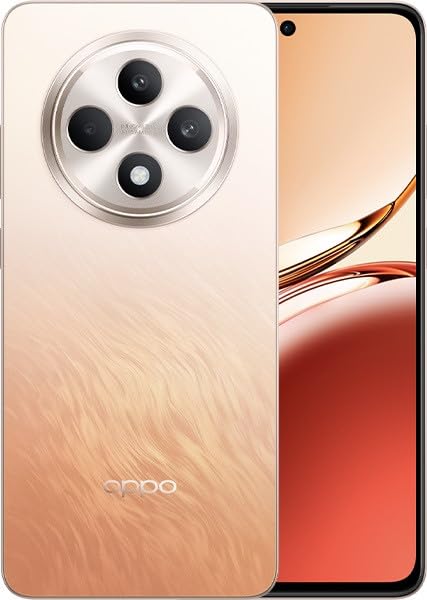
Image: OPPO Reno 12 F 5G CPH2637 smartphone in Amber Orange. This image displays the front and back of the device, highlighting its design and camera module.
2.5 Funciones de seguridad
The device offers various security options to protect your data:
- Desbloqueo de huella digital: Registre sus huellas dactilares en Settings > Password & Biometrics > Fingerprint.
- Desbloqueo facial: Configurar el reconocimiento facial en Settings > Password & Biometrics > Face.
- Bloqueo de pantalla: Choose a PIN, pattern, or password for screen lock in Settings > Password & Biometrics > Lock screen password.
3. Mantenimiento
3.1 Limpieza del dispositivo
Use a soft, lint-free cloth to clean the screen and body of your phone. Avoid using harsh chemicals, abrasive materials, or aerosol sprays, as these can damage the device's finish and coatings. For stubborn smudges, slightly dampen el paño con agua.
3.2 Actualizaciones de software
Verifique e instale periódicamente las actualizaciones de software para garantizar un rendimiento óptimo, seguridad y acceso a nuevas funciones. Ir a Ajustes > Acerca del dispositivo > Actualizado para comprobar si hay actualizaciones disponibles.
3.3 Cuidado de la batería
To prolong battery life, avoid exposing the device to extreme temperatures. It is recommended to keep the battery charge between 20% and 80% for daily use. Avoid leaving the phone plugged in for extended periods after it is fully charged.
3.4 Gestión del almacenamiento
Repita periódicamenteview y eliminar lo innecesario files, apps, and media to free up storage space. You can check storage usage in Configuración > Acerca del dispositivo > Almacenamiento.
4. Solución de problemas
4.1 El dispositivo no se enciende
If your device does not turn on, ensure it is sufficiently charged. Connect it to the charger for at least 15 minutes, then try pressing and holding the Power button again for 10-15 seconds.
4.2 Problemas de conectividad de red
If you experience issues with cellular data or Wi-Fi:
- Activa y desactiva el modo avión.
- Reinicie el dispositivo.
- For cellular issues, ensure your SIM card is properly inserted and your plan is active.
- For Wi-Fi issues, restart your router and ensure you are within range.
4.3 Las aplicaciones se bloquean o se congelan
If an app is not responding, try force-closing it from the Recent Apps screen. If the issue persists, clear the app's cache and data in Configuración > Aplicaciones > [Nombre de la aplicación] > Uso de almacenamientoComo último recurso, desinstale y vuelva a instalar la aplicación.
4.4 Restablecimiento de fábrica
Un restablecimiento de fábrica borrará todos los datos de su dispositivo y lo restaurará a su configuración original de fábrica. Haga una copia de seguridad de todos los datos importantes antes de realizar un restablecimiento de fábrica. Ir a Ajustes > Ajustes del sistema > Copia de seguridad y restablecimiento > Restablecer teléfono > Borrar todos los datos.
5. Especificaciones
| Característica | Especificación |
|---|---|
| Marca | OPPO |
| Nombre del modelo | Reno 12 F 5G |
| Número de modelo | CPH2637 |
| Capacidad de almacenamiento de memoria | 256 GB |
| Tamaño de la memoria RAM instalada | 12 GB |
| Tecnología celular | 5G |
| Tecnología de conectividad | 5G |
| Número de ranuras para tarjetas SIM | Doble SIM |
| Color | Amber Orange |
| Entrada de interfaz humana | Pantalla táctil |
| Factor de forma | Pizarra |
6. Garantía y soporte
Your OPPO Reno 12 F 5G CPH2637 is covered by a limited warranty. Please refer to the warranty card included in your product packaging for specific terms and conditions, including warranty period and coverage details. For technical support, service inquiries, or further assistance, please visit the official OPPO support websitio o comuníquese con su línea directa de atención al cliente en su región.