
1. Introducción
This manual provides detailed instructions for the installation, operation, and maintenance of your Alxum H505 Wireless Apple CarPlay & Android Auto Portable Car Stereo. This device is designed to integrate smartphone functionalities like navigation, music, and communication into your vehicle's driving experience through its 9-inch HD touchscreen. It supports wireless Apple CarPlay and Android Auto, includes a backup camera, Mirror Link capabilities, and voice control for enhanced convenience and safety.

2. Contenido del paquete
Verifique que todos los artículos enumerados a continuación estén incluidos en su paquete:
- 1 x Alxum Portable Car Stereo (H505)
- 1 cámara trasera AHD
- 1 x Manual de usuario
- 1 x 1.5M 3.5mm Audio Transmission Cable (AUX cable)
- 1 x 3M Type-C Power Cord (for cigarette lighter adapter)
- 1 x Chassis Rotation Bracket
- 1 x Suction Cup Stand

3. Configuración e instalación
3.1 Instalación de la unidad principal
The Alxum H505 offers flexible installation options to suit various vehicle interiors and user preferences. Choose the most suitable mounting method for your dashboard or windshield.
- Dashboard Mounting Bracket: Secure the unit directly onto your dashboard using the provided bracket.
- Soporte de montaje con succión para parabrisas: Attach the unit to your windshield using the suction cup stand for an elevated view.
- Ajuste telescópico: Utilize the adjustable arm for optimal positioning and viewángulos de ing.
- Soporte de pegatina adhesiva: For a more permanent dashboard installation, use the adhesive sticker bracket.
Ensure the chosen location does not obstruct your view of the road or interfere with airbag deployment. Connect the Type-C power cord to the unit and plug the other end into your vehicle's 12V cigarette lighter socket.

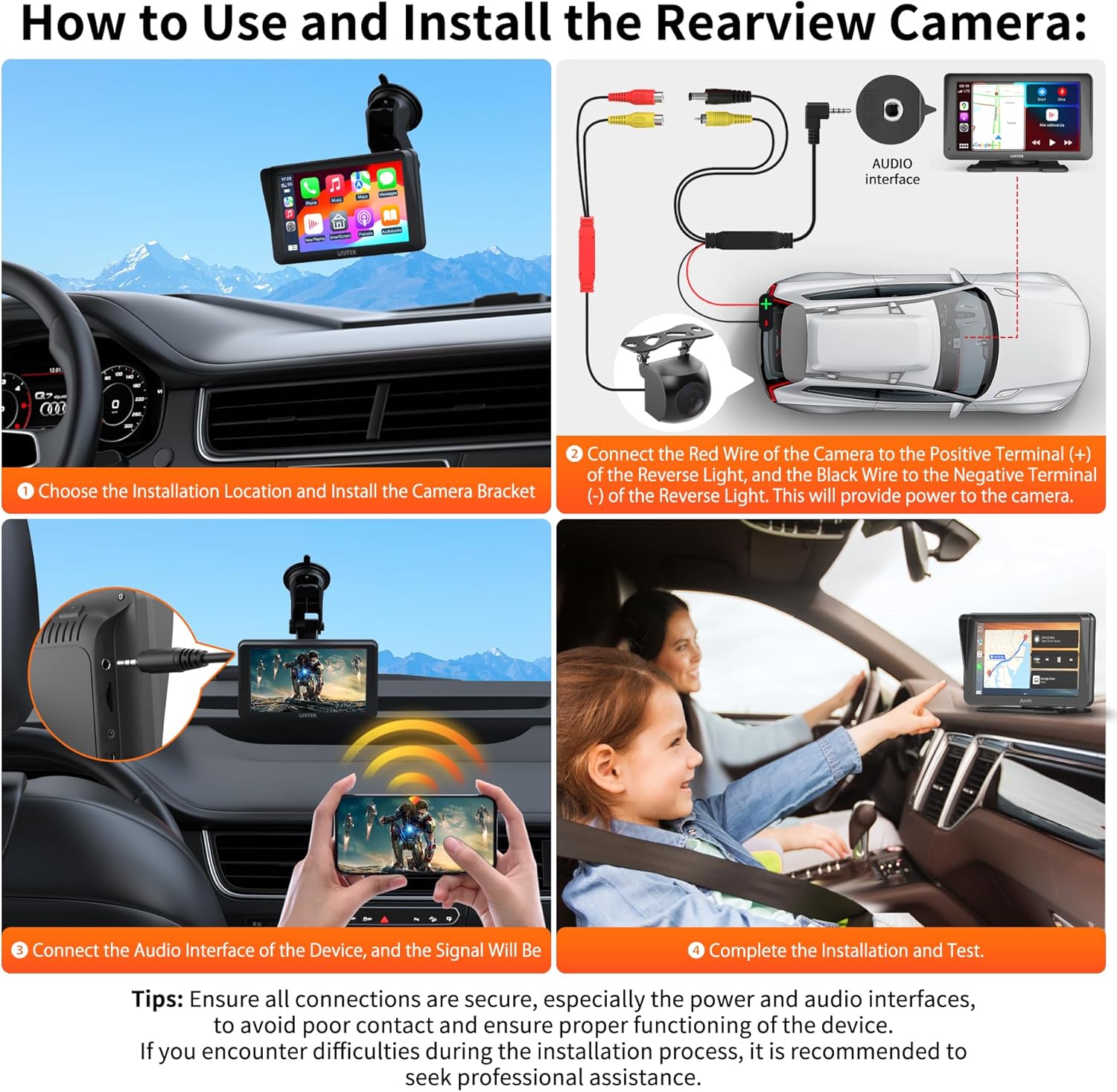
3.2 Traseroview Instalación de cámara
La parte trasera AHD incluidaview camera enhances parking safety. Follow these steps for proper installation:
- Elija la ubicación de instalación: Select a suitable position at the rear of your vehicle for the camera and install its bracket securely.
- Conecte la electricidad: Connect the red wire of the camera to the positive terminal (+) of your vehicle's reverse light. Connect the black wire to the negative terminal (-) of the reverse light. This ensures the camera powers on automatically when shifting into reverse.
- Conectar señal de vídeo: Connect the camera's video cable to the video input interface on the Alxum H505 device.
- Instalación de prueba: After all connections are made, shift your vehicle into reverse to test if the camera feed appears on the screen.
Consejos importantes: Ensure all connections are secure, especially the power and audio interfaces, to avoid poor contact and ensure proper functioning. If you encounter difficulties during the installation process, it is recommended to seek professional assistance.
4. Instrucciones de funcionamiento
4.1 Apple CarPlay y Android Auto inalámbricos
The Alxum H505 allows for seamless wireless integration with your smartphone. Connect your Android phone or iPhone via Bluetooth or WiFi to access your phone's features directly on the car stereo screen.
- Conexión: Enable Bluetooth and WiFi on your smartphone. On the H505 unit, navigate to the CarPlay or Android Auto interface and follow the on-screen prompts to pair with your device.
- Características: Once connected, you can access navigation apps (e.g., Apple Maps, Google Maps, Waze), music streaming services (e.g., Spotify, Apple Music, YouTube Music), messaging, and make calls.
- Compatibilidad: Supports iOS 8.0 and Android 10 or later versions.

4.2 Control de voz
Utilize voice commands for a hands-free and safer driving experience. The unit supports Siri for Apple devices and Google Assistant for Android devices.
- Activación: Activate your phone's smart assistant (Siri or Google Assistant) through the car stereo.
- Comandos: Use voice commands to send messages, get directions, play music, and make calls without taking your hands off the steering wheel.

4.3 Función de enlace de espejo
The Mirror Link feature allows you to mirror your smartphone's screen directly onto the Alxum H505 display. This is useful for viewing content not natively supported by CarPlay or Android Auto, such as certain video apps.
- Conexión: Connect your smartphone to the H505 via Mirror Link (Airplay for iOS, Android Cast for Android).
- Uso: Enjoy precise, real-time GPS navigation or access apps like YouTube, TikTok, and other video content for in-car entertainment.

5. Mantenimiento
To ensure the longevity and optimal performance of your Alxum H505 unit, follow these maintenance guidelines:
- Limpieza: Utilice un paño suave y seco para limpiar la pantalla y el exterior. Para manchas difíciles, limpie ligeramenteampEnjuague el paño con agua o un limpiador de pantallas. Evite materiales abrasivos o productos químicos agresivos.
- Temperatura: Avoid exposing the unit to extreme temperatures, both hot and cold, for extended periods. Direct sunlight can cause overheating, especially when the vehicle is parked.
- Conexiones: Revise periódicamente todas las conexiones de cables para asegurarse de que estén seguras y libres de daños.
- Actualizaciones de software: Verifique el fabricante webSitio para obtener actualizaciones de firmware disponibles para mejorar el rendimiento y agregar nuevas funciones.
6. Solución de problemas
Si tiene problemas con su Alxum H505, consulte los siguientes problemas y soluciones comunes:
- La unidad no se enciende:
- Ensure the 12V power cord is securely plugged into both the unit and the vehicle's cigarette lighter socket.
- Check the vehicle's fuse for the cigarette lighter socket. - Wireless CarPlay/Android Auto Disconnects Frequently:
- Ensure your smartphone's Bluetooth and WiFi are enabled and stable.
- Move your phone closer to the unit to improve signal strength.
- Restart both the H505 unit and your smartphone.
- Check for any obstructions that might interfere with the wireless signal. - Poor Sound Quality / No Audio:
- If using AUX, ensure the 3.5mm audio cable is fully inserted into both the H505 and your car's AUX input.
- Check the volume levels on both the H505 and your car stereo.
- If using FM transmitter, ensure the frequency is clear and not interfering with other radio stations. - Backup Camera Not Displaying / Black Screen:
- Verify all camera connections are secure, especially the power wires to the reverse light.
- Ensure the video cable is properly connected to the H505's video input.
- Test the camera in different lighting conditions (day/night) as it supports both modes. - Unit Overheats and Shuts Down:
- This can occur in direct sunlight or high ambient temperatures. Try to position the unit out of direct sunlight or use a sunshade when parked.
- Ensure there is adequate ventilation around the unit. - La pantalla táctil no responde:
- Reinicie la unidad.
- Asegúrese de que la pantalla esté limpia y libre de residuos o humedad.
7. Especificaciones
| Característica | Especificación |
|---|---|
| Número de modelo | H505 (SK6901) |
| Tamaño de pantalla | 9 pulgadas |
| Tipo de pantalla | Pantalla LCD LED |
| Resolución de pantalla | 1280x720 |
| Tecnología de conectividad | Bluetooth, Composite Video, Auxiliary |
| Dispositivos compatibles | Teléfono móvil (iOS 8.0+, Android 10+) |
| Color | Negro |
| Fabricante | Shenzhen Shengke Technology Co,Ltd |
| Dimensiones del paquete | 25.81 x 16.51 x 11.1 cm |
| Peso del artículo | 1.18 kilogramos |
8. Garantía y soporte
The Alxum H505 Wireless Apple CarPlay & Android Auto Portable Car Stereo comes with a 2 año de garantía Desde la fecha de compra. Esta garantía cubre defectos de fabricación y asegura el correcto funcionamiento del producto en condiciones normales de uso.
For technical support, warranty claims, or any questions regarding your product, please contact Alxum customer service. Refer to the contact information provided on the product packaging or the official Alxum webSitio para los canales de soporte más actualizados.