
1. Introducción
This manual provides comprehensive instructions for the Zenwire W2503 Wireless 1D/2D/QR Barcode Scanner. Please read this manual carefully before using the device to ensure proper operation and to maximize its lifespan.
2. Contenido del paquete
Verifique que el paquete contenga todos los artículos. Si falta algún artículo o está dañado, contacte con atención al cliente.
- Zenwire W2503 Wireless Barcode Scanner
- Base de carga
- Cable USB
- Manual de usuario (este documento)
3. Producto terminadoview
The Zenwire W2503 barcode scanner system consists of the scanner unit and a charging dock.
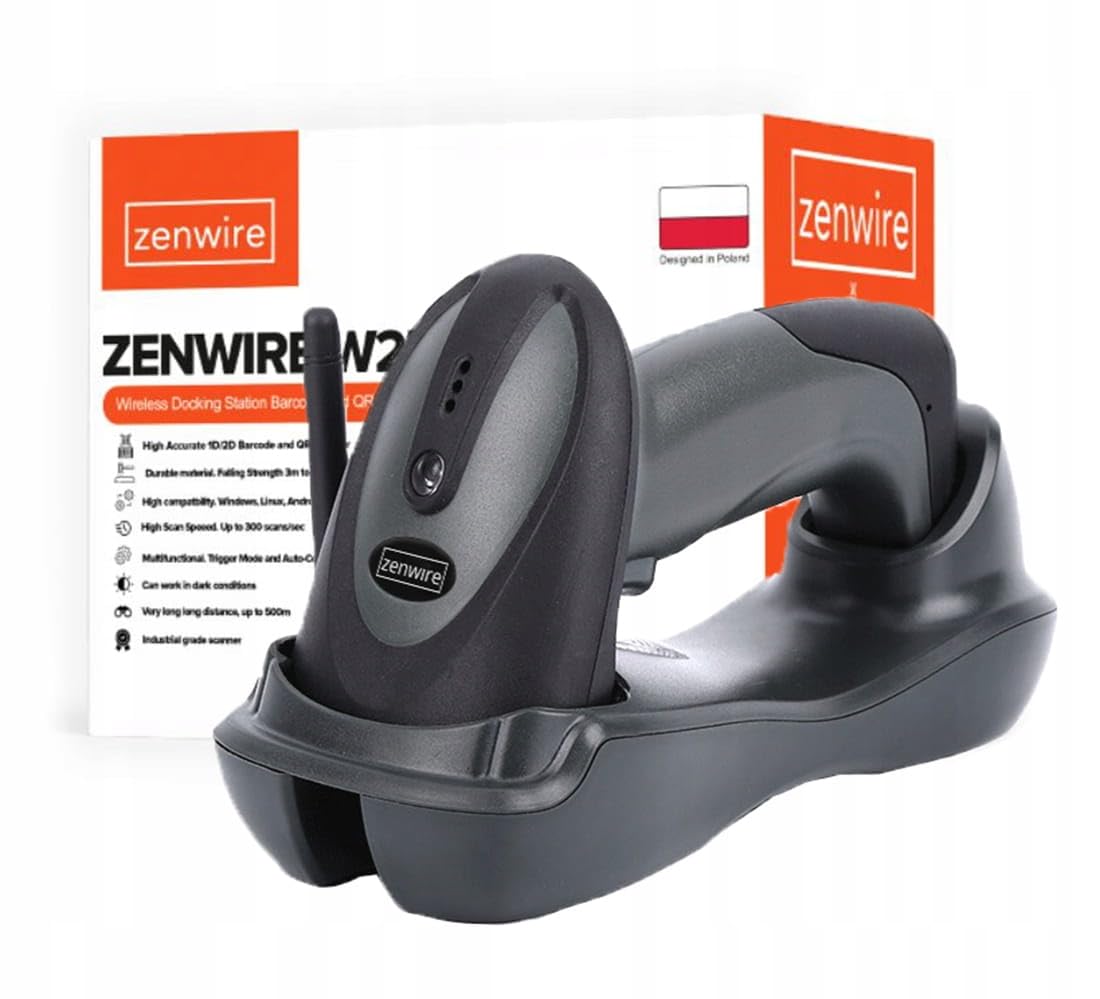
Image: Zenwire W2503 Wireless Barcode Scanner placed in its charging dock. The scanner features a green indicator light.
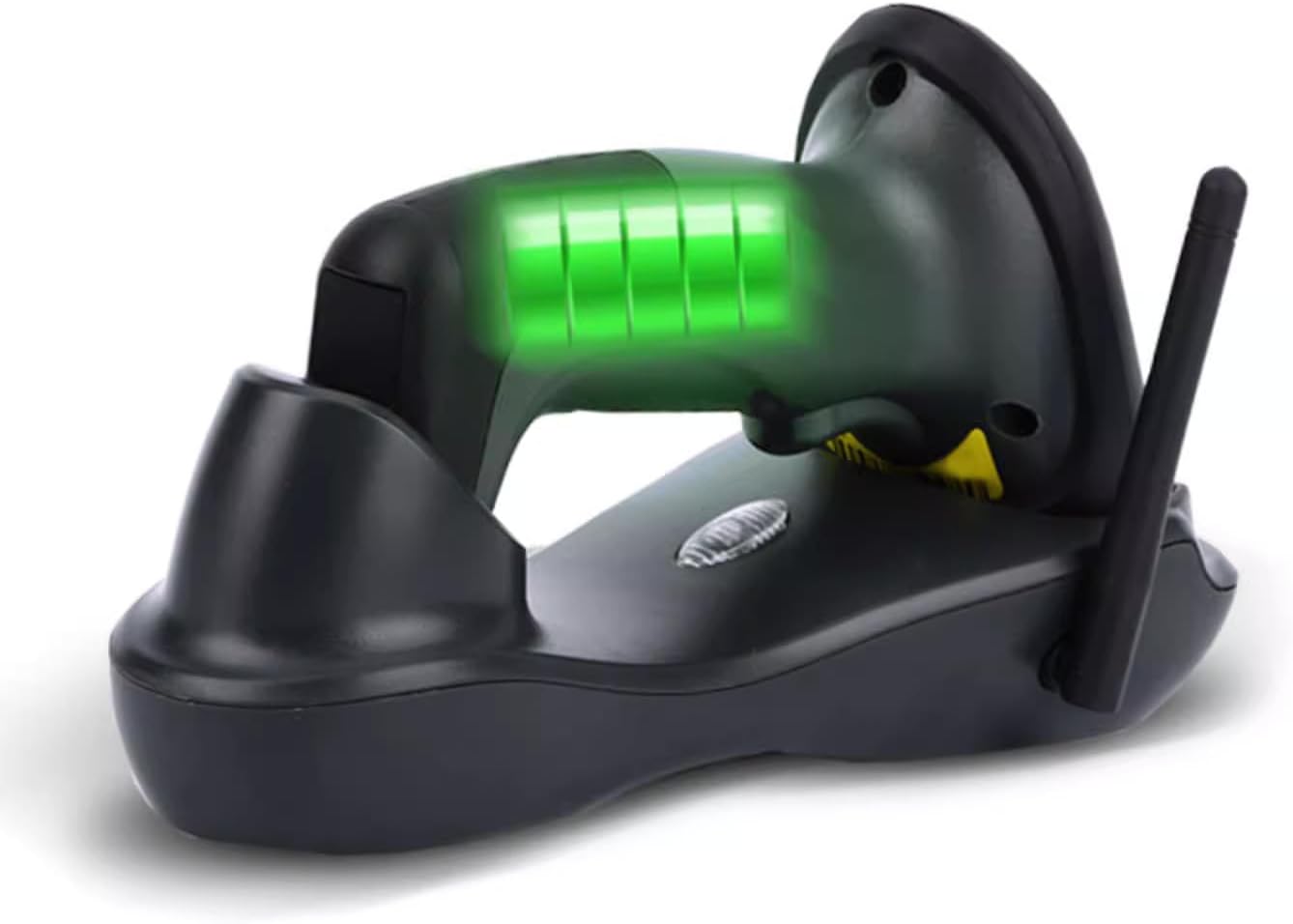
Image: The Zenwire W2503 Barcode Scanner and its charging dock shown separately. The dock has an antenna.
3.1 Componentes del escáner
- Ventana de escaneo: Área donde se leen los códigos de barras.
- Botón de disparo: Activa el haz de escaneo en modo manual.
- Luces indicadoras: Provide status information (e.g., power, connection, scan success).
- Contactos de carga: Se conecta a la base de carga.
3.2 Componentes de la base de carga
- Ranura de carga: Holds the scanner for charging.
- Puerto USB: Connects the dock to a host computer.
- Antena: Enhances wireless communication range.
- Botón de emparejamiento: Used for establishing wireless connection.
4. Configuración
- Conecte la base de carga: Plug the USB cable into the charging dock's USB port and connect the other end to an available USB port on your computer or a USB power adapter.
- Cargar el escáner: Place the Zenwire W2503 scanner into the charging slot of the dock. Ensure the charging contacts align. The indicator light on the scanner will show charging status.
- Establecer conexión: The scanner and dock are typically pre-paired. If not, press the pairing button on the dock and then scan the pairing barcode (usually found in a quick start guide or on the dock itself) with the scanner.
- Instalación del controlador (Plug & Play): The device is plug-and-play. For Windows, Mac, and Linux operating systems, drivers should install automatically upon connection. No additional software is usually required.
5. Instrucciones de funcionamiento
5.1 Modos de escaneo
The Zenwire W2503 supports two primary scanning modes:
- Modo manual: Press the trigger button to activate the scanning beam and read a barcode. Release the button after a successful scan.
- Modo automático: The scanner continuously emits a scanning beam, automatically detecting and reading barcodes placed within its field of view. This mode is suitable for high-volume scanning.
To switch between modes, refer to the configuration barcodes provided in the full user manual (if applicable) or contact support.
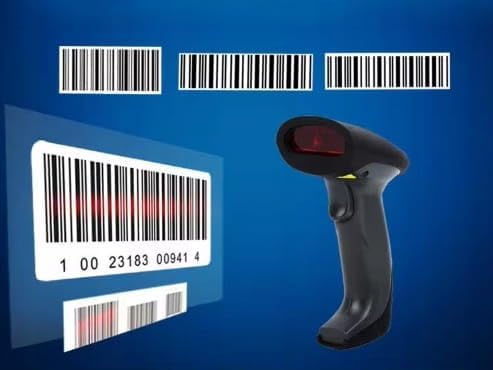
Image: A barcode scanner actively reading a 1D barcode, illustrating the scanning process.
5.2 Escaneo de un código de barras
- Ensure the scanner is powered on and connected to the charging dock (which is connected to your computer).
- Point the scan window at the barcode you wish to read.
- If in manual mode, press the trigger button. If in automatic mode, simply position the barcode.
- A successful scan is typically indicated by an audible beep and/or a change in the indicator light. The barcode data will be transmitted to your connected device.
The scanner supports 1D, 2D, and QR codes.
6. Mantenimiento
- Limpieza: Use a soft, dry cloth to clean the scanner's exterior and scan window. Do not use abrasive cleaners or solvents.
- Almacenamiento: Store the scanner and dock in a cool, dry place away from direct sunlight and extreme temperatures.
- Cuidado de la batería: For optimal battery life, avoid fully discharging the scanner frequently. Charge it regularly using the provided dock.

Image: A Zenwire barcode scanner depicted with a cracked surface effect, symbolizing durability. While the image suggests robustness, proper care is still recommended.
7. Solución de problemas
| Problema | Posible causa | Solución |
|---|---|---|
| Scanner not connecting | Out of range, not paired, USB cable loose | Move closer to the dock, re-pair the scanner, check USB connection |
| No se pueden leer códigos de barras | Barcode damaged, incorrect scanning angle, low battery | Try a different barcode, adjust angle, charge scanner |
| No data transmitted | Software issue, incorrect configuration | Restart computer, check software settings, reset scanner to factory defaults (if applicable) |
For further assistance, please contact Zenwire customer support.
8. Especificaciones
| Característica | Detalle |
|---|---|
| Modelo | W2503 |
| Tipos de códigos de barras | 1D, 2D, QR |
| Conectividad | Wireless (up to 400m range), USB |
| Modos de escaneo | Automático, Manual |
| Compatibilidad | Windows, Mac, Linux |
| Fuerza | Rechargeable via Charging Dock |
| Dimensions (Scanner in Dock) | Aproximadamente 22 cm (largo) x 8.5 cm (ancho) x 12 cm (alto) |

Image: Diagram showing the approximate dimensions of the Zenwire W2503 barcode scanner when placed in its charging dock: 22cm length, 8.5cm width, and 12cm height.
9. Garantía y soporte
Zenwire products are designed for reliability and performance. For warranty information, please refer to the documentation included with your purchase or visit the official Zenwire websitio.
If you encounter any issues or have questions regarding your Zenwire W2503 barcode scanner, please contact Zenwire customer support.
Información del contacto:
- Websitio: www.zenwire.eu (Examp(el enlace real puede variar)
- Correo electrónico: support@zenwire.eu (Examp(el correo electrónico real puede variar)