
1. Introducción
Thank you for choosing the Leaven K610 Tri-Mode Mechanical Wireless Gaming Keyboard. This manual provides detailed instructions on how to set up, operate, and maintain your new keyboard. Designed for versatility and performance, the K610 offers seamless connectivity via Bluetooth 5.0, 2.4 GHz wireless, and wired Type-C connections, along with vibrant RGB lighting and a satisfying mechanical typing experience.
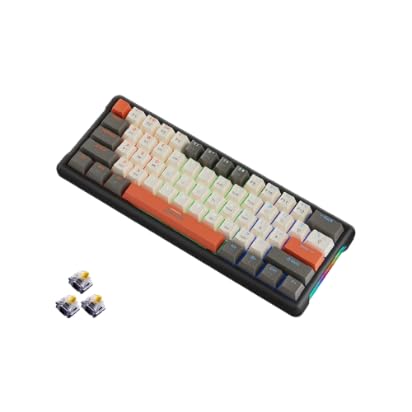
Image: Leaven K610 Tri-Mode Mechanical Wireless Gaming Keyboard, showcasing its compact design and included spare switches.
2. Características del producto
- Conectividad tri-modo: Supports Bluetooth 5.0, 2.4 GHz wireless, and wired (Type-C) connections for maximum compatibility and flexibility.
- Interruptores de llave mecánicos: Provides tactile feedback and a responsive typing experience, ensuring accuracy and durability.
- Diseño intercambiable en caliente: Allows for easy replacement of key switches without soldering, enabling customization and maintenance.
- Iluminación RGB vibrante: Features 16.8 million colors with customizable backlighting to personalize your setup and enhance the gaming atmosphere.
- Diseño compacto de 61 teclas: A streamlined arrangement that saves desk space while retaining essential functions.
- Diseño ergonómico: Crafted for comfortable typing posture, reducing strain during extended use.
- Construcción duradera: Built with high-quality ABS material for long-lasting performance.
- Batería de larga duración: Ensures extended periods of uninterrupted wireless performance.

Imagen: Explotada view diagram of the Leaven K610 keyboard, illustrating its internal components including ABS three-color keycaps, cover, RGB water cooling tube, pluggable mechanical switches, positioning plate, PCB board, and lower lid.
3. Contenido del paquete
Por favor revise el paquete para ver los siguientes artículos:
- Leaven K610 Tri-Mode Mechanical Wireless Gaming Keyboard
- Cable USB tipo C
- 2.4 GHz USB Receiver (usually stored in the keyboard's battery compartment or a dedicated slot)
- Manual de usuario (este documento)
- Extractor de teclas (puede incluirse para interruptores intercambiables en caliente)
- Extractor de interruptores (puede incluirse para interruptores intercambiables en caliente)
- Spare Mechanical Switches (typically 2-3 pieces)
4. Guía de configuración
4.1. Carga del teclado
Before first use, it is recommended to fully charge the keyboard. Connect the supplied USB Type-C cable to the keyboard's Type-C port and the other end to a USB power source (e.g., computer USB port, USB wall adapter). The charging indicator light will show the charging status and turn off when fully charged.
4.2. Connecting via 2.4 GHz Wireless Mode
- Locate the 2.4 GHz USB receiver. It is usually stored in a slot on the keyboard itself.
- Conecte el receptor USB de 2.4 GHz a un puerto USB disponible en su computadora.
- Switch the keyboard's mode switch (usually on the back or side) to the "2.4G" or wireless icon position.
- The keyboard should automatically connect. If not, press the designated pairing key combination (refer to keyboard markings, often Fn + R or a specific key with a 2.4G icon) to initiate pairing.
4.3. Conexión mediante el modo Bluetooth
- Switch the keyboard's mode switch to the "BT" or Bluetooth icon position.
- The keyboard typically has multiple Bluetooth channels (e.g., BT1, BT2, BT3). Press and hold the Fn key along with the corresponding Bluetooth channel key (e.g., Fn + Q for BT1, Fn + W for BT2, Fn + E for BT3) for 3-5 seconds until the indicator light flashes rapidly, indicating pairing mode.
- On your device (PC, smartphone, tablet), open Bluetooth settings and search for new devices.
- Select "Leaven K610" or a similar name from the list of available devices.
- Follow any on-screen prompts to complete the pairing process. The indicator light on the keyboard will stop flashing and remain solid when connected.
- To switch between paired Bluetooth devices, simply press Fn + Q/W/E (for BT1/BT2/BT3) once.
4.4. Conexión por cable
- Conecte el cable USB Tipo-C suministrado al puerto Tipo-C del teclado.
- Conecte el otro extremo del cable USB tipo C a un puerto USB disponible en su computadora.
- Switch the keyboard's mode switch to the "Wired" or cable icon position.
- The keyboard will be recognized as a standard USB keyboard and is ready for use.
5. Instrucciones de funcionamiento
5.1. Control de iluminación RGB
The Leaven K610 features dynamic RGB lighting. Use the following key combinations to control the lighting effects:
- Fn + \ |: Recorra diferentes efectos/modos de iluminación.
- Fn + [{: Disminuye el brillo.
- Fn + ]}: Incrementa el brillo.
- Fn + ;:: Disminuir la velocidad de iluminación.
- Fn + '": Aumentar la velocidad de la iluminación.
- Fn + Mayús derecha: Cambiar el color de la iluminación (para modos estáticos).

Imagen: Vista lateral en primer plano view of the Leaven K610 keyboard, highlighting the "Side Wing Water Cooling Pipe" which illuminates with RGB lighting, adding to the aesthetic appeal.
5.2. Combinaciones de teclas de función (tecla Fn)
Due to its compact 61-key layout, many functions are accessed via the Fn (Function) key in combination with other keys. Refer to the keycap legends for specific functions. Common combinations include:
- Fn + A/S/D: Switch between Bluetooth channels (BT1/BT2/BT3).
- Fn + R: Activate 2.4G pairing mode.
- Fn+T: Cambie al modo cableado.
- Fn + Retroceso: Delete (on some layouts).
- Fn+P: Imprimir pantalla.
- Fn + L: Lock Windows key.
- Fn + U/I/O/P/J/K/L: Media controls (Play/Pause, Stop, Previous, Next, Mute, Volume Down, Volume Up).
- Fn + M/<, Fn + >./ Fn + ?/: Navigation keys (Home, End, Page Up, Page Down).
Note: Specific key combinations may vary slightly. Always refer to the legends printed on your keycaps.

Image: Diagram illustrating the 61-key compact arrangement of the Leaven K610 keyboard, emphasizing its minimalist design while retaining essential functionality.
6. Mantenimiento y cuidado
- Limpieza: Use a soft, dry cloth to wipe the keyboard surface. For deeper cleaning, use a can of compressed air to remove dust and debris from between keycaps. For stubborn stains, a slightly damp Se puede utilizar un paño con jabón suave, asegurándose de que no entre líquido en el teclado.
- Reemplazo de teclas e interruptores: If your keyboard comes with a keycap puller and switch puller, you can carefully remove keycaps and switches for cleaning or replacement. Always pull keycaps straight up to avoid damaging the switch stem. When replacing switches, align the pins correctly before gently pushing them into the hot-swap socket.
- Almacenamiento: Guarde el teclado en un lugar fresco y seco, alejado de la luz solar directa y de temperaturas extremas.
- Evite los líquidos: Do not expose the keyboard to water or other liquids. Liquid damage is not covered under warranty.

Imagen: Un primer plano view of a mechanical switch on the Leaven K610 keyboard, demonstrating the hot-swappable nature of the switches, allowing for easy replacement or customization.
7. Solución de problemas
- El teclado no responde:
- Asegúrese de que el teclado esté cargado.
- Check the mode switch (Wired/2.4G/BT) is in the correct position.
- Para 2.4G, asegúrese de que el receptor USB esté conectado de forma segura. Pruebe con un puerto USB diferente.
- For Bluetooth, ensure Bluetooth is enabled on your device and the keyboard is paired to the correct channel. Try re-pairing.
- For wired mode, ensure the Type-C cable is securely connected to both the keyboard and the computer. Try a different cable or USB port.
- Reinicie su computadora/dispositivo.
- Teclas que no se registran o se escriben dos veces:
- Limpie debajo de la tecla con aire comprimido.
- If hot-swappable, try removing and re-inserting the switch. If the issue persists, replace the switch with a spare one.
- La iluminación RGB no funciona:
- Asegúrese de que el teclado esté encendido.
- Try cycling through lighting modes and adjusting brightness using Fn key combinations.
- Asegúrese de que el firmware del teclado esté actualizado (si corresponde, consulte la información del fabricante). websitio).
- Conexión Bluetooth inestable:
- Ensure there are no strong interferences (e.g., other wireless devices, thick walls).
- Keep the keyboard within the recommended Bluetooth range.
- Try forgetting the device on your computer/smartphone and re-pairing.
8. Especificaciones
| Parámetro | Detalle |
|---|---|
| Modelo | K610 |
| Conectividad | Bluetooth 5.0, 2.4 GHz inalámbrico, USB tipo C con cable |
| Tipo de teclado | Mecánico, intercambiable en caliente |
| Disposición de teclas | 61-Key Compact Arrangement |
| Contraluz | RGB (16.8 millones de colores) |
| Material | Acrilonitrilo butadieno estireno (ABS) |
| Fuente de poder | Battery Powered and USB Cable |
| Dispositivos compatibles | Laptop, PC (Win XP/7/8/10, MAC and Above 10.2), Mobile Devices |
| Dimensiones del producto | 30 x 11 x 2 cm |
| Peso del artículo | 400 gramos |
| País natal | Porcelana |
9. Garantía y soporte
This Leaven K610 keyboard comes with a Garantía de 6 meses from the date of purchase. This warranty covers manufacturing defects and issues arising from normal use. It does not cover damage caused by misuse, accidents, unauthorized modifications, or liquid damage.
For warranty claims or technical support, please contact your retailer or the manufacturer's authorized service center. Please retain your proof of purchase for warranty validation.