
PCsensor B0DHHG29DW
Manual del usuario del teclado inalámbrico Bluetooth y con cable USB de 4 teclas PCsensor
1. Introducción
This manual provides comprehensive instructions for the PCsensor 4 Key Mini Keypad, model B0DHHG29DW. It covers product features, setup procedures for both wired USB and Bluetooth wireless connections, key programming, operational guidelines, maintenance, and troubleshooting. Please read this manual thoroughly to ensure proper use and optimal performance of your device.
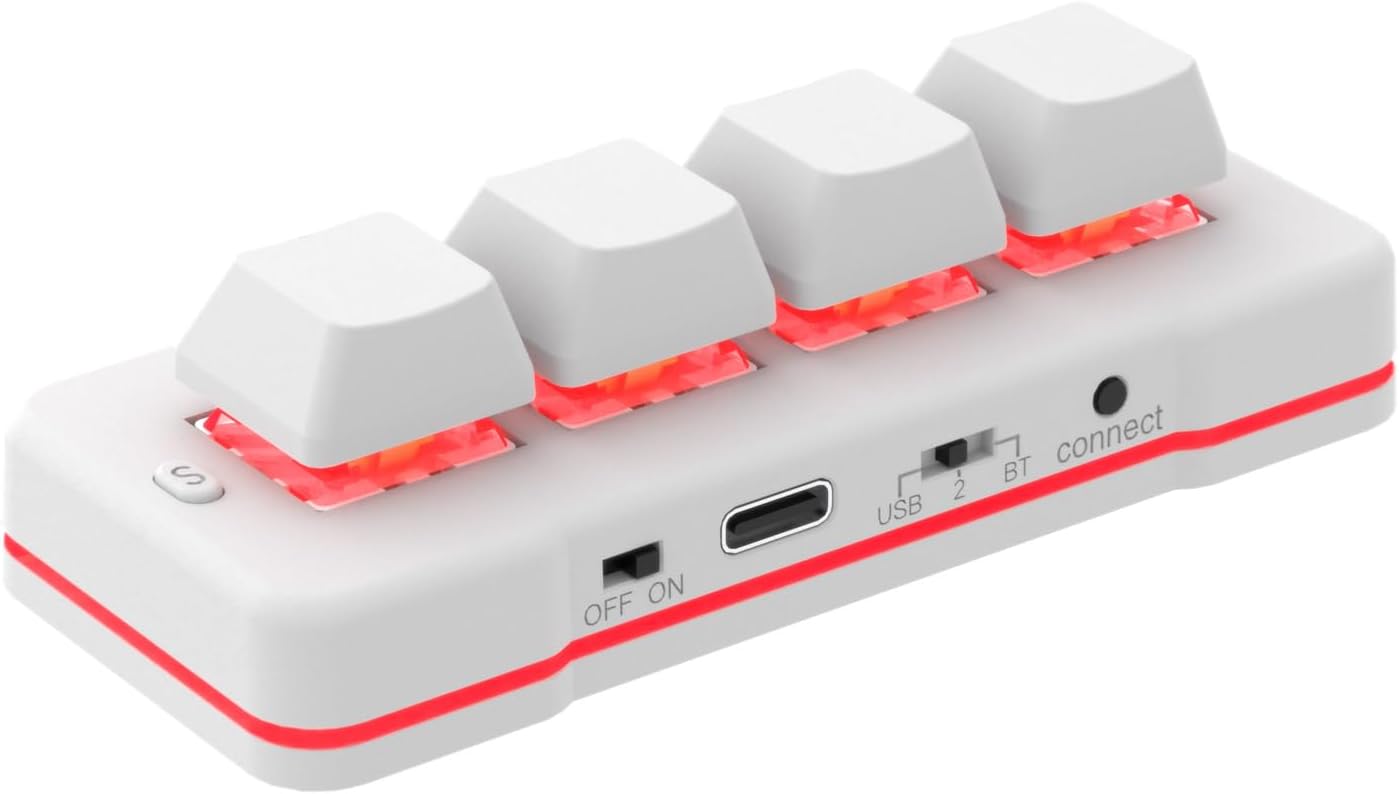
Image 1.1: The PCsensor 4 Key Mini Keypad, showcasing its compact design and illuminated keys.
2. Características del producto
- Conectividad dual: Supports both wired USB and Bluetooth wireless connections for versatile use.
- Llaves programables: Each of the four keys can be configured for various functions including single key presses, key combinations, hotkeys, shortcuts, mouse actions, multimedia controls, video game commands, and string inputs.
- Batería recargable: Equipped with a built-in rechargeable battery, offering extended use on a single charge. An LED indicator signals low battery status.
- Amplia compatibilidad: Configurable on Windows or macOS systems, then usable across multiple operating systems including iOS, Android, Windows, Linux, and Mac.
- Diseño compacto: Small form factor suitable for various applications such as gaming, office work, sheet music page turning, and industrial control.

Image 2.1: The PCsensor 4 Key Mini Keypad available in both black and white variants.
3. Configuración
3.1. Carga del teclado
The keypad features a rechargeable battery. Before initial use, or when the low battery indicator flashes, connect the keypad to a USB power source using the provided USB-C cable. A full charge typically takes approximately 2 hours and can provide up to 3 months of use, depending on usage patterns.
3.2. Conexión USB con cable
- Ensure the keypad's power switch is in the 'ON' position.
- Connect the provided USB-C cable to the Type-C Port on the keypad.
- Conecte el otro extremo del cable USB a un puerto USB disponible en su computadora.
- The keypad will be recognized as a standard HID device and is ready for use. In wired mode, the backlight may display a blue light.
3.3. Conexión inalámbrica Bluetooth
- Ensure the keypad's power switch is in the 'ON' position.
- Slide the toggle switch to the 'BT' position.
- Press the 'connect' button (located near the BT switch) to initiate pairing mode. The 'connect mode LED' will indicate pairing status.
- On your host device (computer, smartphone, tablet), navigate to Bluetooth settings and search for new devices.
- Select the PCsensor keypad from the list of available devices to pair. The default PIN code for Bluetooth pairing is 1234.
- Once paired, the keypad is ready for wireless operation. In Bluetooth mode, the backlight may display a red light.

Image 3.1: Labeled components of the keypad, including the S key, OFF/ON switch, Type-C Port, USB/BT toggle switch, connect button, and connect mode LED.
4. Operación
4.1. Teclas de programación
The PCsensor 4 Key Mini Keypad requires dedicated software for key configuration. This software is typically available for Windows and macOS. Once configured, the settings are stored on the keypad and will function across compatible operating systems without the need for the software to be running.
- Download and install the programming software from the official PCsensor websitio.
- Connect the keypad to your computer via USB.
- Launch the software. You will see an interface allowing you to assign functions to each of the four keys.
- Select a key and choose its desired function:
- Función del teclado: Assign single keys, key combinations (e.g., Ctrl+C), or hotkeys.
- Función del ratón: Assign mouse clicks (left, right, middle), scroll up/down, or mouse movement.
- String Input: Program a sequence of characters or text to be typed with a single press.
- Control Multimedia: Assign functions like play/pause, volume up/down, next/previous track.
- Definición de macro: Create complex sequences of actions.
- Configure the 'OutMode' for each key (e.g., single output, continuous output while held, retrigger, loop, double trigger).
- Save your configuration to the keypad. The settings are now stored on the device.

Image 4.1: The PCsensor software interface for programming the keypad's functions.

Image 4.2: A closer look at the software's key configuration section, highlighting different output modes.
4.2. Key Functions and Applications
The programmable nature of the keypad allows for diverse applications:
- Juego de azar: Assign complex in-game actions, macros, or frequently used commands for quick execution.
- Trabajo de oficina: Create shortcuts for common tasks like copy, paste, undo, or launching applications.
- Control Multimedia: Easily manage music and video playback, adjust volume, or switch tracks.
- Sheet Music Page Turner: Program keys to advance or rewind pages in digital sheet music applications.
- Specialized Control: Useful for equipment image capture, factory machine control, or piano keyboard testing.

Imagen 4.3: Examples of keypad applications including keyboard functions, multimedia control, video games, medical equipment image collection, and string/mouse functions.

Image 4.4: The keypad being used in a gaming scenario with a laptop, demonstrating its utility for quick actions.
4.3. Compatibilidad
The PCsensor 4 Key Mini Keypad is designed as a Human Interface Device (HID). Once configured on a Windows or macOS system, its programmed functions are stored internally and can be used with a wide range of devices and operating systems without requiring driver installation or software to be running on the target device. Compatible operating systems include:
- Windows (todas las versiones)
- macOS
- Linux
- Androide
- iOS

Image 4.5: Visual representation of the keypad's broad operating system compatibility.
5. Mantenimiento
5.1. Cuidado de la batería
To prolong battery life, avoid fully discharging the keypad frequently. Recharge the device when the low battery indicator appears. If storing the keypad for an extended period, ensure it has a partial charge (around 50%) and recharge it every few months.
5.2. Limpieza
Use a soft, dry cloth to clean the exterior of the keypad. For stubborn dirt, a slightly damp cloth with mild soap can be used, ensuring no moisture enters the device. Avoid using harsh chemicals or abrasive materials.
6. Solución de problemas
- El teclado no se enciende: Ensure the power switch is in the 'ON' position and the battery is charged. Connect via USB to check if it powers on.
- Conexión cableada no reconocida: Prueba con otro puerto o cable USB. Asegúrate de que el cable esté bien insertado.
- Problemas de emparejamiento de Bluetooth: Ensure the keypad is in pairing mode (connect button pressed, BT switch engaged). Check your device's Bluetooth settings and try re-scanning. Ensure the keypad is sufficiently charged.
- Keys not performing programmed functions: Reconnect the keypad to the programming software and verify the key assignments. Ensure the configuration was saved to the device.
- Conexión intermitente: For wireless mode, ensure the keypad is within range of the host device and there are no significant obstructions. For wired mode, check the USB cable and port for damage.
7. Especificaciones
| Característica | Detalle |
|---|---|
| Modelo | B0DHHG29DW |
| Tecnología de conectividad | Bluetooth, USB-C |
| Número de llaves | 4 |
| Tipo de batería | 1 batería de litio metálico (incluida) |
| Peso del artículo | 3.2 onzas (aprox. 90.7 gramos) |
| Dimensiones del paquete | 2 x 1.2 x 1 pulgadas (aprox. 5.08 x 3.05 x 2.54 cm) |
| Fabricante | Sensor de PC |
| Familia de sistemas operativos compatibles | Windows, macOS, Linux, Android, iOS |
| Característica especial | Teclas programables |

Image 7.1: Physical dimensions of the keypad and the length of the charging cable.
8. Garantía y soporte
PCsensor provides lifetime technical support and 24/7 service for its products. All PCsensor products have obtained relevant certifications, ensuring quality and reliability. For technical assistance or warranty inquiries, please contact PCsensor customer service through their official channels or the retailer where the product was purchased.
Ask a question about this manual
Ask about setup, troubleshooting, compatibility, parts, safety, or missing instructions. Manuals+ will review the question and use this page’s manual context to help answer it.