
Trueque Trueque Wireless Keyboard
Trueque Wireless Keyboard with Wrist Rest & Phone Holder
Manual de usuario
Producto terminadoview
The Trueque Wireless Keyboard is designed for enhanced productivity and comfort, featuring a full-size layout, integrated wrist rest, and a convenient phone/tablet holder. It offers 7 colored backlights with adjustable brightness, silent keys, and a rechargeable battery for extended use. This keyboard connects wirelessly via 2.4 GHz technology, providing a stable and responsive typing experience.

Image: Two Trueque wireless keyboards, one purple and one black, showcasing their full-size layout and integrated wrist rests.
Guía de configuración
- Desempaquetado: Carefully remove the keyboard and any accessories from the packaging. Ensure all components, including the USB receiver and Type-C charging cable, are present.
- Carga inicial: Before first use, it is recommended to fully charge the keyboard. Connect the provided Type-C charging cable to the keyboard's charging port and the other end to a USB power source (e.g., computer USB port, wall adapter). The blue light will appear during charging and turn off when fully charged.
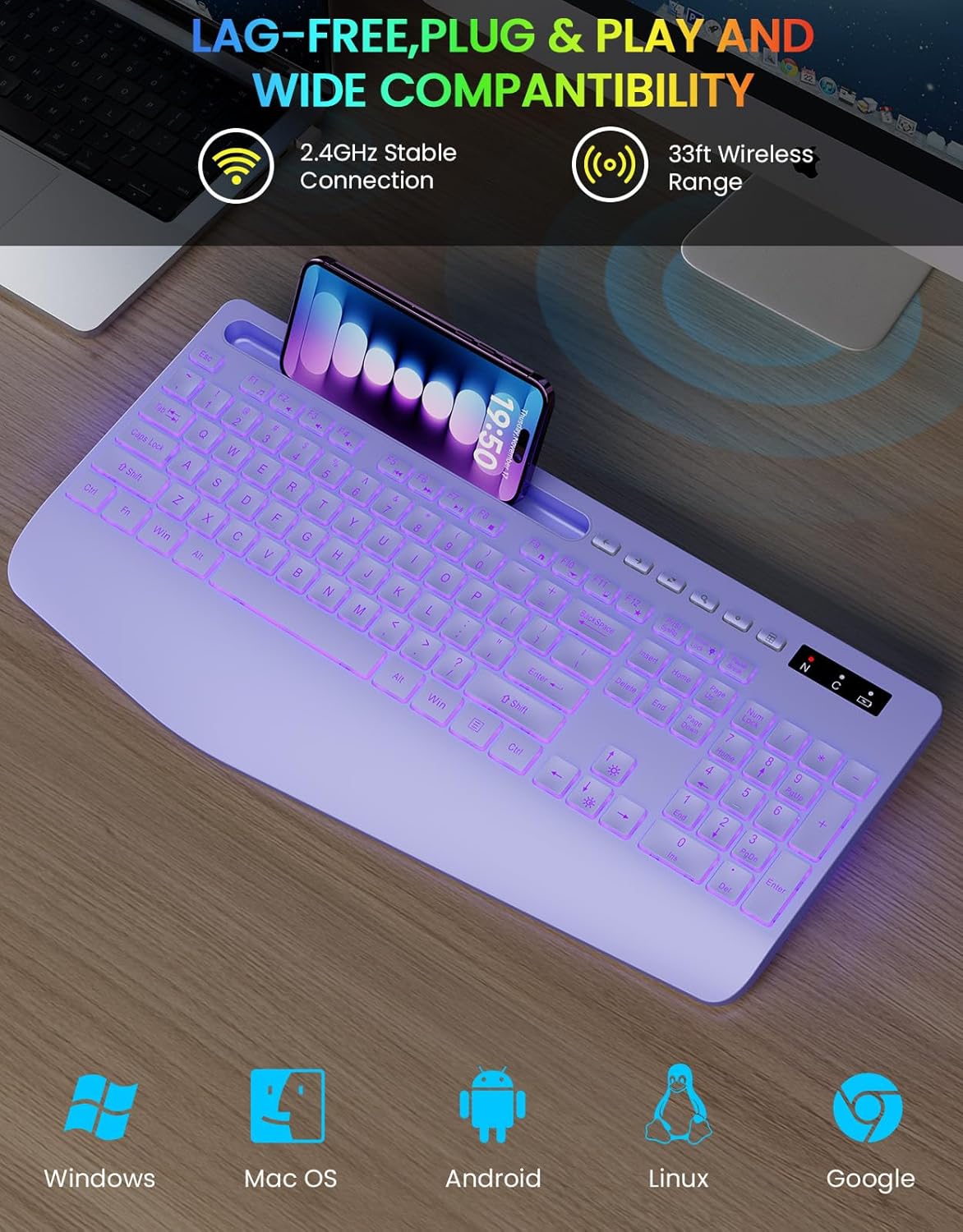
Image: Close-up of the keyboard's Type-C charging port with a cable connected, illustrating the charging process and indicators.
- Conexión del receptor USB: Locate the 2.4 GHz USB receiver, usually stored in a compartment on the keyboard. Insert the USB receiver into an available USB port on your computer, laptop, or compatible device.
- Encendido: Locate the power switch on the keyboard (typically on the side or back) and slide it to the "ON" position. The keyboard should automatically connect to your device. No additional drivers are required for most operating systems.
Instrucciones de funcionamiento
Control de luz de fondo
- Encender/apagar la luz de fondo: Presione el Fn + Bloqueo de desplazamiento keys simultaneously to toggle the backlight on or off.
- Cambiar los colores de la luz de fondo: The keyboard features 7 different backlight colors. Press Fn + Bloqueo de desplazamiento repeatedly to cycle through the available colors.
- Ajuste del brillo: There are 3 levels of adjustable brightness. Press Fn + Flecha arriba para aumentar el brillo y Fn + Flecha abajo para disminuir el brillo.

Image: Diagram illustrating the function keys for controlling the 7 colored backlights and 3 levels of adjustable brightness.
Integrated Phone/Tablet Holder
The keyboard includes a built-in slot at the top designed to securely hold your smartphone or tablet, keeping your desk tidy and your device at an optimal viewángulo de ing.

Image: A black Trueque keyboard with a smartphone and a tablet placed in its integrated holder, demonstrating the convenience of the feature.
Diseño ergonómico
The keyboard features an ergonomic design with an integrated wrist rest and an optimized typing angle (10 degrees) to provide support and reduce strain on your wrists during prolonged use.
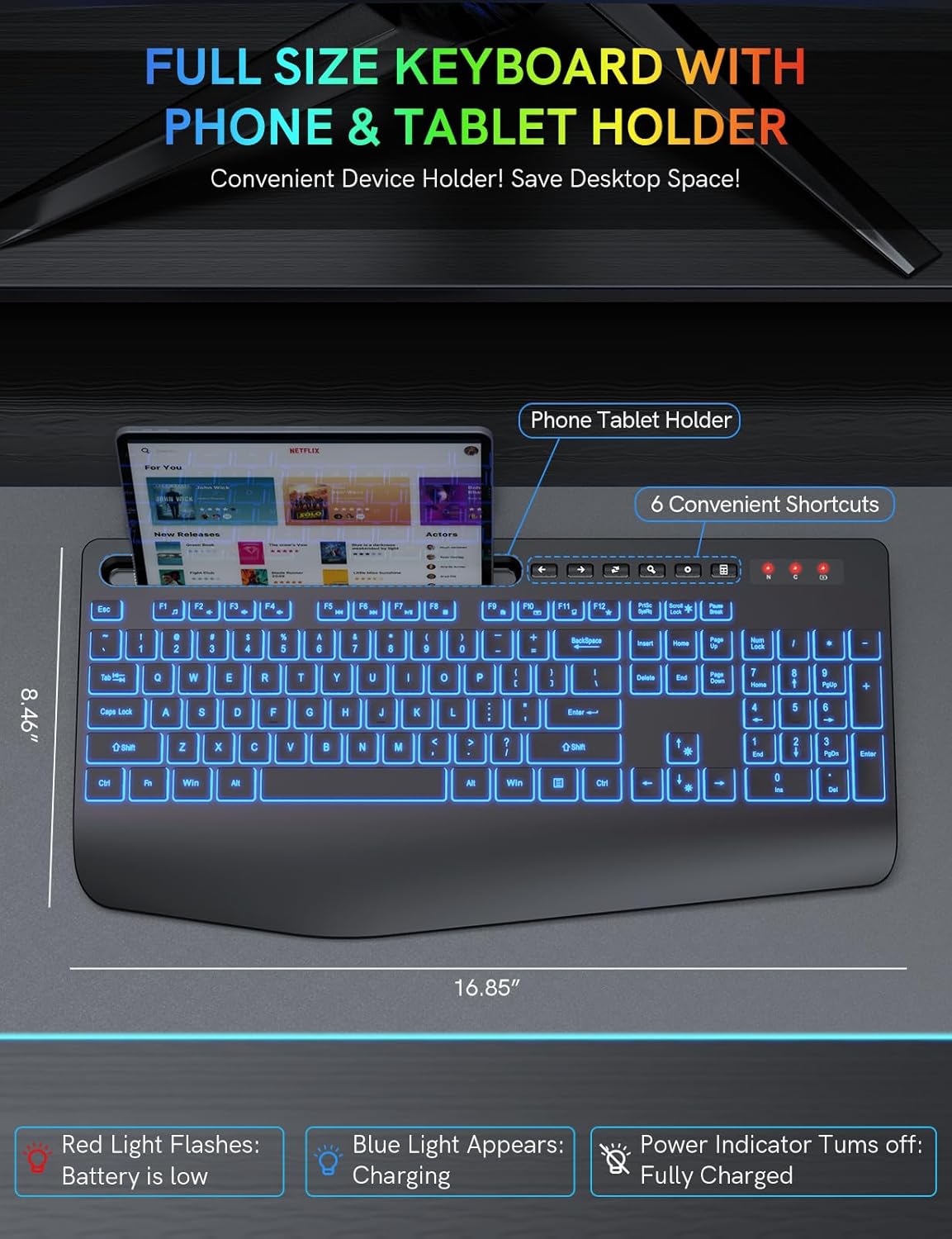
Image: Illustration showing hands comfortably resting on the keyboard's integrated palm rest, highlighting the ergonomic benefits and 10-degree typing angle.
Silent Keys and Responsive Typing
The keyboard is engineered with silent keys, providing a quiet typing experience with 95% noise reduction, while maintaining a sensitive and responsive tactile keystroke for efficient input.

Imagen: Primer plano view of the keyboard keys, emphasizing the quiet and responsive nature of the keystrokes compared to traditional keyboards.
Compatibilidad
The Trueque Wireless Keyboard is compatible with a wide range of operating systems and devices, including:
- Ventanas
- macOS
- Androide
- Linux
- Google OS
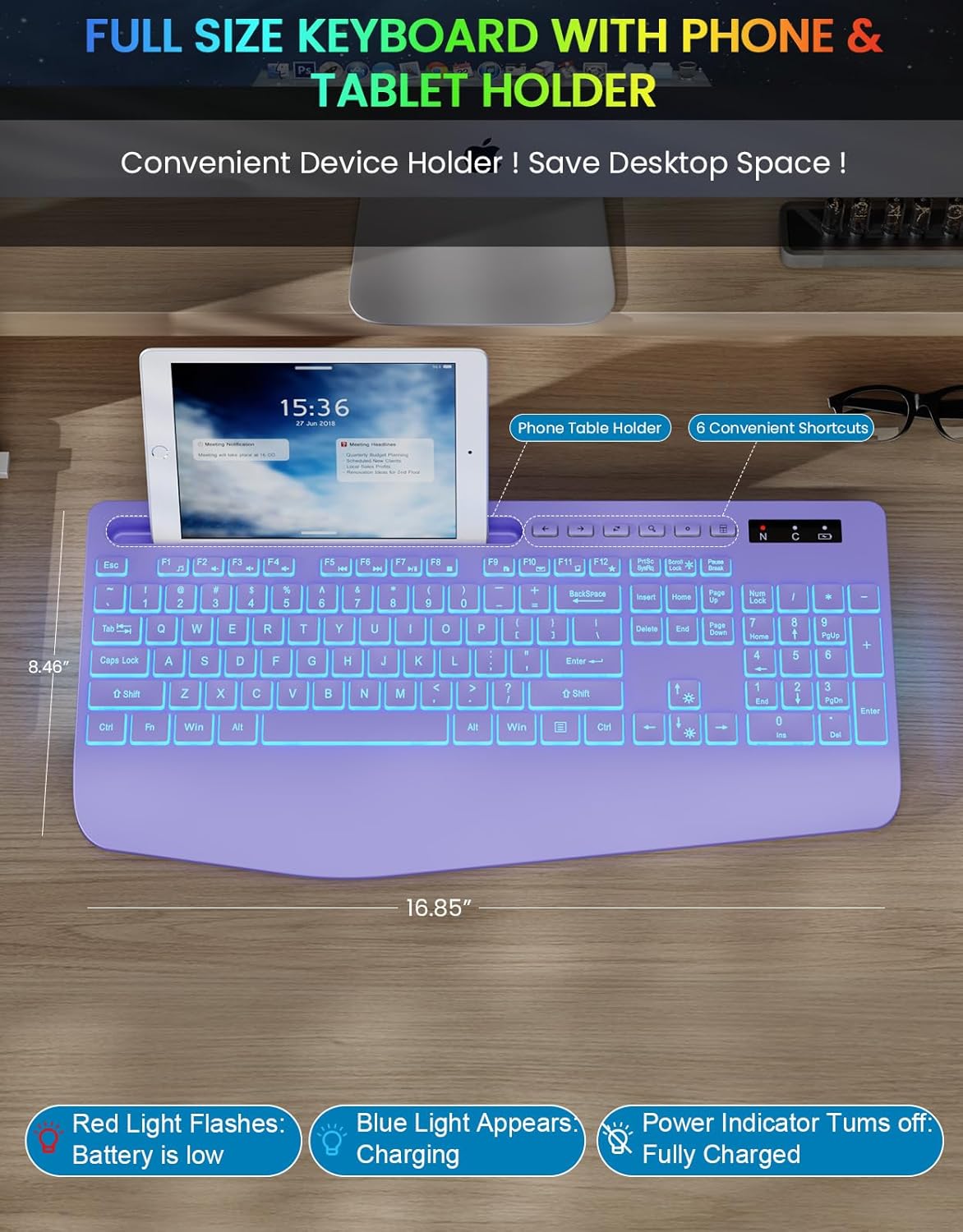
Image: A purple Trueque keyboard with icons representing Windows, macOS, Android, Linux, and Google OS, indicating broad compatibility.
Mantenimiento
- Cargando: Recharge the keyboard when the battery low indicator (red light flashes) appears. A full charge typically takes 2-3 hours. The keyboard has a standby time of up to 2000 hours and a smart sleep mode to conserve power.
- Limpieza: Utilice un paño suave y seco para limpiar la superficie del teclado. Para la suciedad difícil, utilice un paño ligeramente seco.amp Se puede usar un paño con jabón suave, asegurándose de que no entre líquido en el teclado. Evite limpiadores abrasivos o disolventes.
- Almacenamiento: When not in use for extended periods, turn off the keyboard using the independent power switch to save battery life. Store in a cool, dry place away from direct sunlight and extreme temperatures.
- Resistencia a derrames: The keyboard is designed to be splash-proof. In case of accidental spills, immediately power off the keyboard and allow it to dry completely before resuming use.
Solución de problemas
| Problema | Posible causa | Solución |
|---|---|---|
| Teclado no responde | Batería baja; receptor USB no conectado; teclado no encendido; fuera de rango. | Charge the keyboard; Ensure USB receiver is securely plugged in; Turn on the keyboard; Move keyboard closer to the receiver (within 33 ft/10m). |
| La luz de fondo no funciona | La luz de fondo está apagada; batería baja. | Prensa Fn + Bloqueo de desplazamiento to turn on/cycle backlight; Charge the keyboard. |
| Las teclas están pegajosas o no responden | Dirt or debris under keys; Liquid damage. | Clean the keyboard; If liquid damage, power off and allow to dry completely. |
| Conexión inalámbrica inestable | Interference from other devices; Distance from receiver. | Move keyboard away from other wireless devices; Ensure clear line of sight to receiver; Stay within 33 ft (10m) range. |
Presupuesto
- Modelo: Trueque Wireless Keyboard
- Conectividad: 2.4 GHz Wireless, USB
- Alcance inalámbrico: Hasta 10 metros (33 pies)
- Tipo de teclado: Tamaño completo
- Iluminar desde el fondo: 7 Colors, 3 Adjustable Brightness Levels
- Batería: Rechargeable (Type-C charging)
- Tiempo de carga: 2-3 horas
- Tiempo en espera: Hasta 2000 horas
- Dispositivos compatibles: Tablet, Personal Computer, Laptop
- Sistemas operativos: Windows, macOS, Android, Linux, Google OS
- Características: Integrated Wrist Rest, Phone/Tablet Holder, Silent Keys, Splash-proof, Non-slip
Garantía y soporte
Specific warranty details are not provided in this manual. For warranty information, technical support, or customer service inquiries, please refer to the product packaging or contact Trueque customer support through their official websitio o el minorista donde se compró el producto.
Ask a question about this manual
Ask about setup, troubleshooting, compatibility, parts, safety, or missing instructions. Manuals+ will review the question and use this page’s manual context to help answer it.