
1. Configuración
1.1. Contenido del paquete
Asegúrese de que todos los componentes estén presentes en el paquete:
- AUSDOM 108-Key Wireless Keyboard
- AUSDOM Wireless Mouse
- Receptor USB (almacenado en el ratón)
- Cable de carga USB-C
- Manual de usuario
1.2. Connecting the Combo
- Localice el receptor USB: The 2.4GHz USB receiver is conveniently stored in a compartment on the underside of the wireless mouse. Gently slide open the battery cover to access it.
- Insertar el receptor: Plug the USB receiver into an available USB port on your computer (PC, laptop, or tablet). The system will automatically detect and install the necessary drivers.
- Dispositivos de encendido: Ensure both the keyboard and mouse are switched to the 'ON' position. The power switch for the keyboard is located on its top edge, and for the mouse, it is on the underside.

1.3. Charging the Combo
Both the keyboard and mouse are equipped with built-in rechargeable Lithium Polymer batteries. Use the provided USB-C cable to charge them.
- Connect the USB-C end of the cable to the charging port on the keyboard (located on the top edge) or the mouse (located on the front).
- Conecte el extremo USB-A del cable a un puerto USB con alimentación de su computadora o a un adaptador de pared USB.
- A full charge takes approximately 2 hours and provides up to 300 hours of standby time.

2. Instrucciones de funcionamiento
2.1. Características del teclado
The AUSDOM KAM200X keyboard features a full-size 108-key layout, including a dedicated numeric keypad and various function keys for enhanced productivity.
- Mechanical-Feel Keys: Experience tactile feedback similar to mechanical keyboards, combined with quiet scissor-switch mechanisms and a short 3.8mm key travel for comfortable and precise typing.
- Multimedia and Shortcut Keys: Utilize dedicated media controls (volume, play/pause) and app-switching shortcuts for streamlined workflow. Refer to the user manual for a complete list of function key combinations.
- Cambio de sistema operativo: Easily switch between Windows and macOS layouts using specific function key combinations (e.g., Fn + P for Windows, Fn + O for Mac).


2.2. Características del ratón
The ergonomic wireless mouse is designed for comfortable use and precise control.
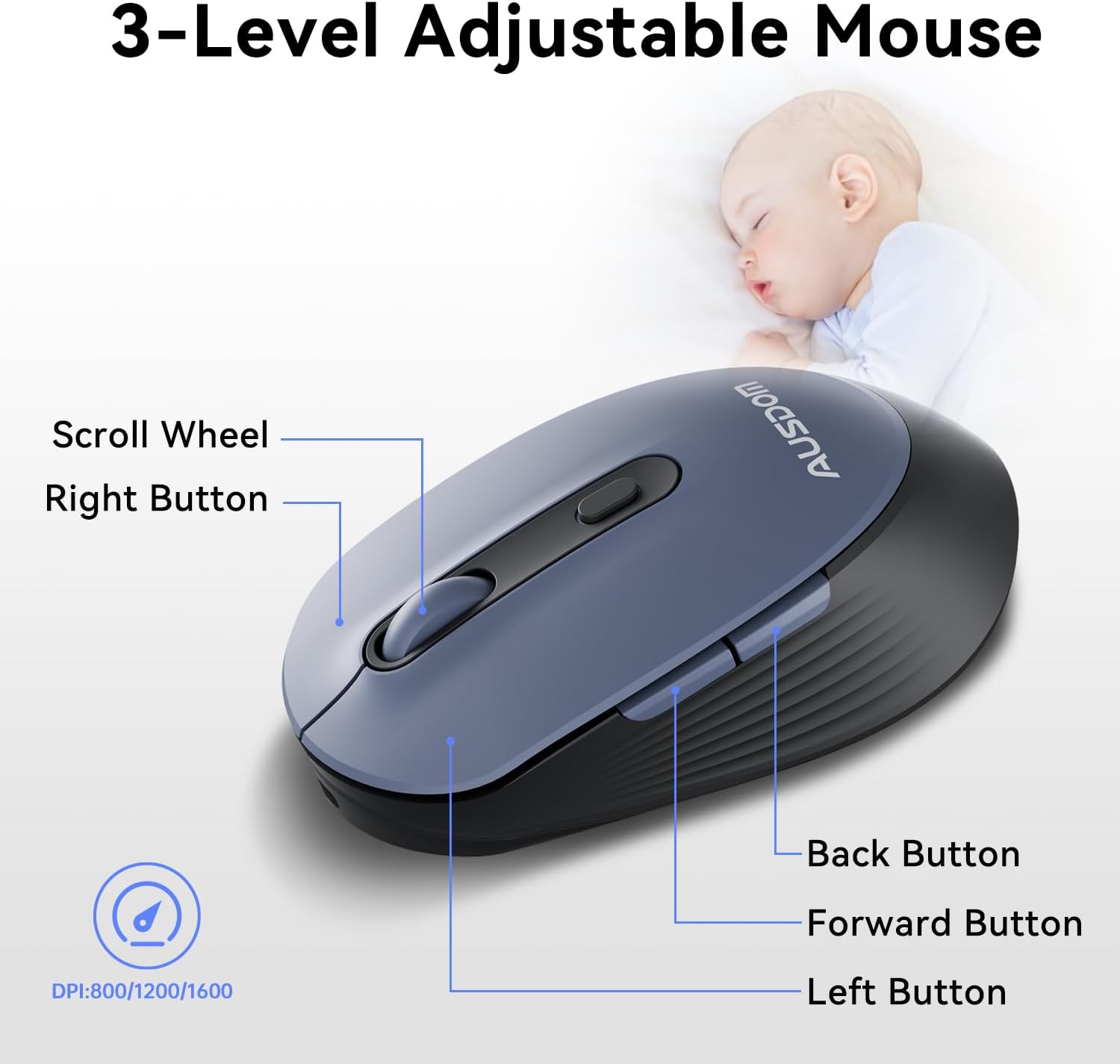
- DPI ajustable: Cycle through 3 DPI levels (800, 1200, 1600) using the dedicated DPI button to adjust cursor sensitivity for different tasks.
- Botones de avance/retroceso: Utilice los botones laterales para navegar rápidamente en web navegadores y aplicaciones.
- Clics silenciosos: The mouse features silent click buttons to minimize noise in quiet environments.
2.3. Amplia compatibilidad
The AUSDOM wireless combo is compatible with a broad range of operating systems and devices, ensuring seamless integration into your existing setup.
- Sistemas operativos: Compatible with Windows XP/ME/Vista/7/8/10/11 and macOS.
- Dispositivos: Works instantly with desktops, laptops, and other computers without requiring additional software or drivers.

3. Mantenimiento
3.1. Limpieza
To ensure the longevity and optimal performance of your AUSDOM combo, regular cleaning is recommended.
- Utilice un paño suave, seco y sin pelusa para limpiar las superficies del teclado y el mouse.
- Para suciedad difícil, ligeramente dampen the cloth with water or a mild cleaning solution, ensuring no liquid enters the device openings.
- Evite utilizar productos químicos agresivos, limpiadores abrasivos o disolventes.
3.2. Almacenamiento
When not in use for extended periods, store the keyboard and mouse in a cool, dry place away from direct sunlight and extreme temperatures. The USB receiver can be stored inside the mouse to prevent loss.
4. Solución de problemas
4.1. Problemas de conexión
- Comprobar receptor: Ensure the USB receiver is firmly plugged into a working USB port on your computer.
- Encendido: Verify that both the keyboard and mouse are switched to the 'ON' position.
- Nivel de batería: Confirm that both devices have sufficient battery charge. Recharge if necessary.
- Pruebe un puerto diferente: Conecte el receptor USB a un puerto USB diferente en su computadora.
4.2. Lag or Unresponsiveness
- Reducir la interferencia: Acerque el teclado y el ratón al receptor USB. Evite colocar objetos metálicos grandes entre los dispositivos y el receptor.
- Check for Other Devices: Other 2.4GHz wireless devices might cause interference. Try to minimize their use or move them further away.
- recarga: Asegúrese de que ambos dispositivos estén completamente cargados.
4.3. Keyboard Specific Issues
- Las teclas no responden: Limpie suavemente alrededor de las teclas afectadas para eliminar cualquier residuo.
- Salida de clave incorrecta: Check your computer's operating system settings to ensure the correct keyboard layout is selected.
4.4. Mouse Specific Issues
- Erratic Cursor: Clean the optical sensor on the underside of the mouse. Ensure you are using the mouse on a suitable, non-reflective surface.
- Ajuste de DPI: Press the DPI button on the top of the mouse to cycle through the 800/1200/1600 DPI settings.
5. Especificaciones del producto
| Característica | Especificación |
|---|---|
| Marca | AUSDOM |
| Número de modelo | KAM200X |
| Dimensiones del producto | 17.44 x 5.31 x 0.79 pulgadas |
| Peso del artículo | 1.8 libras |
| Baterías | Se requieren 2 baterías de polímero de litio (incluidas) |
| Tecnología de conectividad | 2.4 GHz inalámbrico |
| Características especiales | Lightweight, Rechargeable, Scissor Switch, Wireless |
| Dispositivos compatibles | Computadora portátil, computadora personal, tableta |
6. Información de garantía
For detailed warranty information regarding your AUSDOM KAM200X Wireless Keyboard and Mouse Combo, please refer to the official documentation included in your product packaging or visit the manufacturer's official webSitio. Los términos y condiciones de la garantía pueden variar según la región y el producto.
7. Atención al cliente
If you encounter any issues or have questions about your AUSDOM KAM200X Wireless Keyboard and Mouse Combo, please contact AUSDOM customer support through their official channels. You can often find support contact information, FAQs, and additional resources on the AUSDOM Store Page o su funcionario websitio.


