
1. Introducción
Thank you for choosing the TECPHILE K936 Wireless Keyboard and Mouse Combo. This product is designed to provide versatile and efficient input for multiple devices, featuring both Bluetooth 5.0 and 2.4GHz USB connectivity. This manual will guide you through the setup, operation, and maintenance of your new keyboard and mouse.
2. Contenido del paquete
- TECPHILE K936 Wireless Keyboard
- TECPHILE Wireless Mouse
- Receptor USB (almacenado en el compartimento de la batería del mouse)
- Cable de carga USB-C
- Keyboard Protective Cover
- Manual de usuario
3. Producto terminadoview
Familiarize yourself with the components of your TECPHILE K936 Wireless Keyboard and Mouse Combo.

Imagen 3.1: The TECPHILE K936 Wireless Keyboard and Mouse Combo in Grey. The keyboard features a full layout with a numeric keypad, and the mouse is a compact, ergonomic design.

Imagen 3.2: Diagram showing the dimensions of the keyboard (368mm x 121mm) and mouse (110mm x 63mm x 30mm).
Características del teclado:
- Multi-device connectivity: 3 x Bluetooth 5.0, 1 x 2.4GHz USB
- Dedicated function keys (F1-F12) with multimedia controls
- Batería de litio recargable 300mAh
- Puerto de carga tipo C
- Automatic sleep mode for power saving
- Scissor-leg key structure for comfortable typing
- Transparent protective cover included
Características del mouse:
- Dual-mode connectivity: 1 x Bluetooth, 1 x 2.4GHz USB
- Optical movement detection technology
- Diseño ambidiestro
- Quiet click buttons
4. Configuración
4.1 Carga inicial
Before first use, fully charge both the keyboard and mouse. Connect the provided USB-C charging cable to the charging port on the keyboard and mouse, and the other end to a 5V/1A power adapter (not included) or a computer USB port. The charging indicator light will show charging status and turn off when fully charged.
Note: Only use a 5V/1 Amp power adapter for charging to ensure optimal battery life.

Imagen 4.1: Illustration of the keyboard's battery specifications: 2-4 hours charging time, 300mAh battery capacity, and up to 180 days standby time.
4.2 Conexión del teclado
The keyboard supports up to three Bluetooth connections and one 2.4GHz USB connection.

Imagen 4.2: Diagram illustrating the keyboard's ability to connect to multiple devices via Bluetooth (3 channels) and 2.4GHz USB.
Conexión USB de 2.4 GHz:
- Localice el receptor USB dentro del compartimiento de la batería del mouse.
- Conecte el receptor USB a un puerto USB disponible en su computadora o dispositivo.
- Enciende el teclado. El teclado debería conectarse automáticamente.
Conexión Bluetooth (BT1, BT2, BT3):
- Encienda el teclado.
- Mantenga pulsado el Fn tecla y una de las teclas Bluetooth (BT1, BT2, o BT3) for 3-5 seconds until the corresponding indicator light flashes rapidly. This indicates pairing mode.
- En su dispositivo (computadora, tableta, teléfono inteligente), vaya a la configuración de Bluetooth y busque nuevos dispositivos.
- Select "TECPHILE Keyboard" from the list of available devices to pair.
- Una vez emparejado, la luz indicadora dejará de parpadear y permanecerá fija durante unos segundos antes de apagarse.
- Repeat for other Bluetooth channels to connect to additional devices.
4.3 Conexión del ratón
The mouse supports one Bluetooth connection and one 2.4GHz USB connection.
Conexión USB de 2.4 GHz:
- Asegúrese de que el receptor USB esté conectado a su dispositivo.
- Switch the mouse to 2.4GHz mode using the switch on the bottom of the mouse.
- El ratón debería conectarse automáticamente.
Conexión Bluetooth:
- Switch the mouse to Bluetooth mode using the switch on the bottom of the mouse.
- Press and hold the Bluetooth pairing button on the bottom of the mouse for 3-5 seconds until the indicator light flashes.
- En su dispositivo, vaya a la configuración de Bluetooth y busque nuevos dispositivos.
- Select "TECPHILE Mouse" from the list to pair.
5. Instrucciones de funcionamiento
5.1 Switching Between Devices (Keyboard)
To switch between connected devices on the keyboard, simply press the Fn key along with the corresponding connection key (BT1, BT2, BT3, o 2.4G for USB). The keyboard will switch to the selected device instantly.
5.2 Switching Between Devices (Mouse)
To switch between 2.4GHz USB and Bluetooth modes on the mouse, use the toggle switch located on the bottom of the mouse.
5.3 Function Keys (Keyboard)
The keyboard features dedicated function keys (F1-F12) that can be used in conjunction with the Fn Tecla para diversos controles multimedia y del sistema.
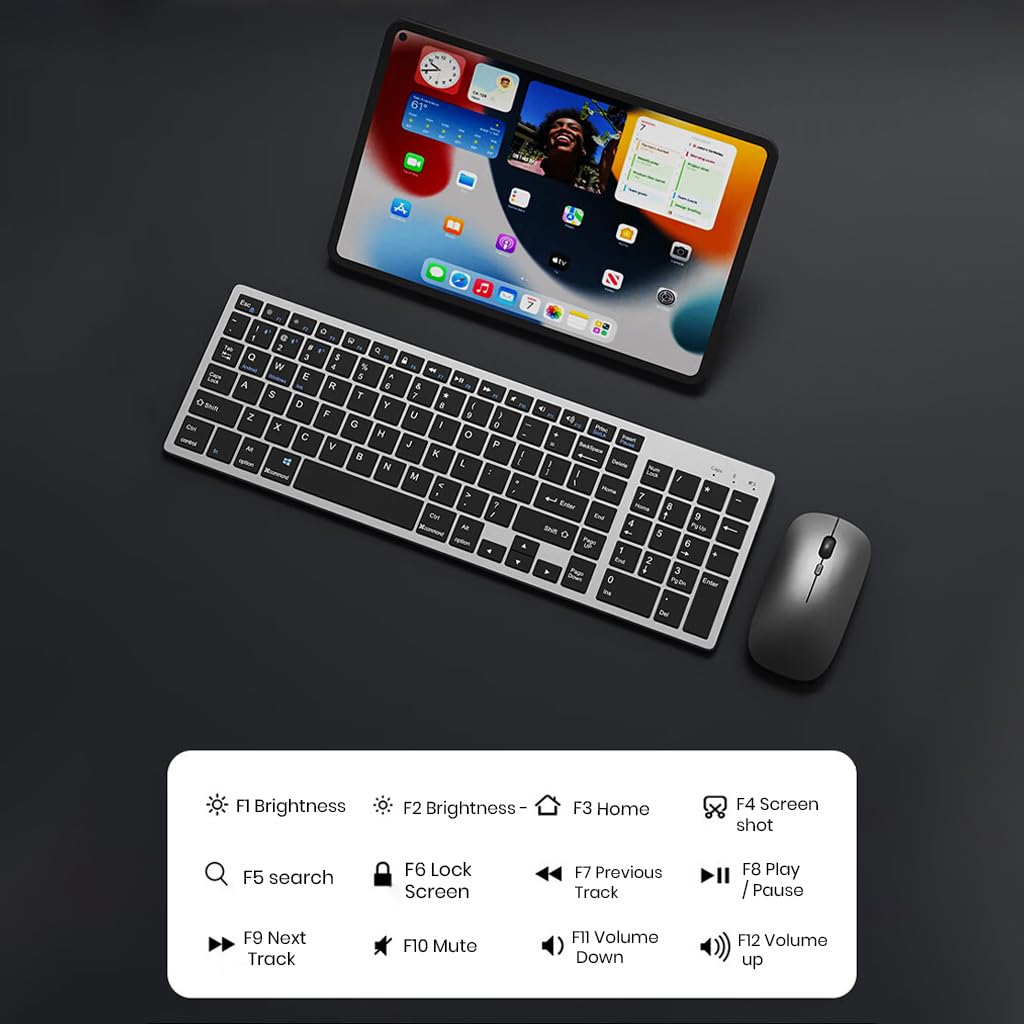
Imagen 5.1: The keyboard displaying its function keys and their associated actions, such as brightness control, home, screen shot, search, lock screen, media playback, and volume control.
- Fn+F1: Brillo hacia abajo
- Fn+F2: Brillo arriba
- Fn+F3: Hogar
- Fn+F4: Captura de pantalla
- Fn+F5: Buscar
- Fn+F6: Pantalla de bloqueo
- Fn+F7: Pista anterior
- Fn+F8: Reproducir/Pausa
- Fn+F9: Pista siguiente
- Fn+F10: Silenciar
- Fn+F11: Bajar volumen
- Fn+F12: Subir volumen
5.4 Modo de ahorro de energía
The keyboard and mouse are equipped with an automatic sleep mode to conserve battery life. If inactive for 10 minutes, the devices will enter sleep mode. To wake them up, simply press any key on the keyboard or move/click the mouse.

Imagen 5.2: Diagram illustrating the auto-sleep mode and how to reactivate the keyboard and mouse by pressing any key.
6. Mantenimiento
- Limpieza: Utilice un paño suave y seco para limpiar el teclado y el ratón. Para la suciedad difícil, utilice un paño ligeramente seco.amp Se puede utilizar un paño, asegurándose de que no entre líquido en el dispositivo.
- Cubierta protectora: Utilize the included transparent protective cover for the keyboard to guard against dust and accidental spills.
- Almacenamiento: Guarde los dispositivos en un lugar fresco y seco, alejado de la luz solar directa y de temperaturas extremas.
- Cargando: Always use a 5V/1A power adapter for charging to prevent damage and ensure battery longevity.

Imagen 6.1: The keyboard shown with its transparent protective keyskin, designed to prevent dust and spills.
7. Solución de problemas
| Problema | Posible causa | Solución |
|---|---|---|
| Keyboard/Mouse not connecting via 2.4GHz USB. | USB receiver not properly inserted, low battery, incorrect mode selected. |
|
| El teclado/ratón no se conecta a través de Bluetooth. | Not in pairing mode, device's Bluetooth is off, already connected to max devices, low battery. |
|
| Conexión retardada o intermitente. | Interferencia, distancia del receptor/dispositivo, batería baja. |
|
| Las teclas del teclado no responden. | Low battery, device in sleep mode, connection issue. |
|
8. Especificaciones
| Característica | Detalle |
|---|---|
| Marca | TÉCNICO |
| Modelo | K936 |
| Tecnología de conectividad | Keyboard: 3 x Bluetooth 5.0, 1 x 2.4GHz USB; Mouse: 1 x Bluetooth, 1 x 2.4GHz USB |
| Dispositivos compatibles | Portátil, computadora personal, teléfono inteligente, tableta |
| Sistema operativo | Android, iOS, Windows, macOS |
| Batería del teclado | Batería de iones de litio de 300 mAh (recargable) |
| Puerto de carga | USB tipo C |
| Tiempo de carga | 2-4 horas (aprox.) |
| Tiempo de espera | Hasta 180 días |
| Dimensiones del teclado (LxAnxAl) | 36 x 13 x 1.5 cm |
| Dimensiones del ratón (largo x ancho x alto) | 11 x 6.3 x 3 cm (aprox.) |
| Peso del artículo | 661 g (combinado) |
| Tecnología de detección de movimiento | Óptico |
| Orientación de la mano | Ambidextro |
9. Garantía y soporte
TECPHILE products come with a standard warranty. For warranty claims, technical support, or any product-related inquiries, please contact TECPHILE customer service through the retailer where the product was purchased or visit the official TECPHILE websitio para información de contacto.
Conserve su comprobante de compra para fines de garantía.
Manufacturer/Importer: TECPHILE, 2nd Floor, A36, Block B, Naraina Industrial Area Phase 2, Naraina, New Delhi, Delhi, 110028