
1. Introducción
Thank you for choosing the KOORUI N07 27-inch 4K UHD Monitor. This monitor is designed to provide a superior visual experience with its 3840x2160 resolution, IPS panel, 60Hz refresh rate, HDR10 support, and Adaptive Sync technology. This manual provides essential information for setting up, operating, and maintaining your monitor to ensure optimal performance and longevity. Please read this manual thoroughly before using the product.
2. Información de seguridad
- Coloque siempre el monitor sobre una superficie plana y estable.
- No bloquee las aberturas de ventilación.
- Utilice únicamente el adaptador de corriente proporcionado por el fabricante.
- Mantenga el monitor alejado del agua y la humedad excesiva.
- Avoid exposing the monitor to direct sunlight or high temperatures.
- Desconecte el cable de alimentación durante tormentas eléctricas o cuando no vaya a utilizarlo durante períodos prolongados.
3. Contenido del paquete
Por favor, revise el contenido del paquete al abrirlo. Si falta algún artículo o está dañado, contacte con su vendedor.
- KOORUI N07 27-inch 4K UHD Monitor
- Soporte para monitor (base y mástil)
- Adaptador de corriente y cable de alimentación
- Cable HDMI
- Cable DisplayPort
- Manual de usuario
4. Monitor Assembly and Setup
4.1 Fijación del soporte
- Coloque con cuidado el monitor boca abajo sobre un paño suave y limpio para evitar rayones.
- Coloque el cuello del soporte en la parte posterior del monitor, alineando los puntos de montaje.
- Asegure el cuello del soporte con los tornillos provistos.
- Coloque la base del soporte en el cuello del soporte y apriete el tornillo de mariposa.

Figura 4.1: Posterior view of the monitor showing VESA mount and tilt adjustment.
4.2 Cables de conexión
The KOORUI N07 monitor offers versatile connectivity options. Ensure your computer is turned off before making any connections.
- Conexión de energía: Connect the power adapter to the monitor's DC input port, then plug the power cable into a power outlet.
- Conexión de vídeo: Connect one end of the HDMI or DisplayPort cable to the corresponding port on your computer's graphics card and the other end to an HDMI (HDMI1 or HDMI2) or DisplayPort (DP) input on the monitor.
- Salida de audio: If desired, connect external speakers or headphones to the 3.5mm audio output port on the monitor.

Figure 4.2: Connectivity options for the KOORUI N07 monitor.
4.3 Encendido
After connecting all necessary cables, press the power button on the monitor to turn it on. The monitor will automatically detect the active input source.
5. Instrucciones de funcionamiento
5.1 Menú de visualización en pantalla (OSD)
The OSD menu allows you to adjust various monitor settings. Use the buttons located on the bottom right of the monitor to navigate and select options.
- Botón de encendido: Enciende/apaga el monitor.
- Botón de menú: Abre el menú OSD.
- Botones de navegacion: Se utiliza para moverse por las opciones del menú y ajustar valores.
- Botón de salida: Sale del menú OSD.
5.2 Configuraciones clave del OSD
- Configuración de imagen: Ajuste el brillo, el contraste, la nitidez y la temperatura del color.
- Modos de color: Select from various preset modes like Standard, Movie, Game, and Eye Care.
- Fuente de entrada: Manually select between HDMI1, HDMI2, or DisplayPort inputs.
- Sincronización adaptativa: Enable or disable Adaptive Sync for smoother gameplay.
- HDR10: Activate HDR10 for enhanced dynamic range with compatible content.
6. Funciones terminadasview
6.1 4K UHD Resolution (3840x2160)
Experience incredible detail and clarity with a resolution four times higher than Full HD. This monitor provides 8.3 million pixels for a sharper and more colorful image.

Figura 6.1: Comparación de detalles de resolución 4K UHD.
6.2 IPS Panel Technology
The IPS panel offers a wide 178° viewing angle and vibrant color reproduction (90% DCI-P3, 99% sRGB), ensuring consistent image quality from almost any perspective. This is ideal for graphic designers, gamers, and movie enthusiasts.

Figure 6.2: IPS panel with 99% sRGB color accuracy.
6.3 Compatibilidad con HDR10
Enjoy content with enhanced dynamic range. HDR10 provides brighter whites, deeper blacks, and more vivid colors, bringing your favorite movies and games to life with greater realism.

Figure 6.3: HDR10 technology for improved image quality.
6.4 Tecnología de sincronización adaptativa
Adaptive Sync eliminates screen tearing and stuttering, providing a smoother and more fluid visual experience, especially during fast-paced gaming or video playback.

Figure 6.4: Adaptive Sync in action, preventing screen tearing.
6.5 Tecnología para el cuidado de los ojos
The monitor features a Blue Light Filter and Flicker-Free technology to reduce eye strain during prolonged use. The Eye Care mode optimizes settings to minimize blue light emission, promoting visual comfort.
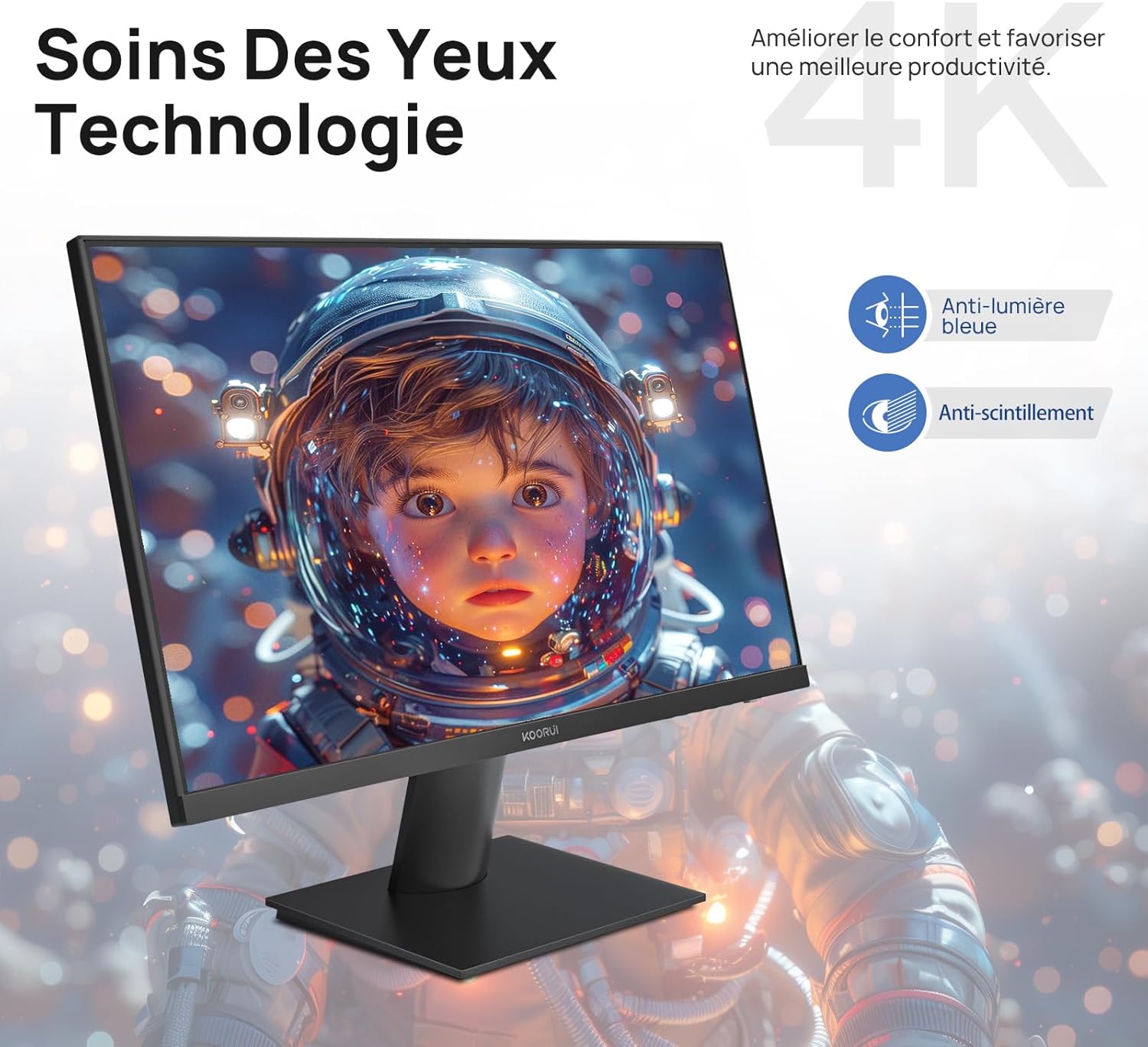
Figure 6.5: Eye Care technology for reduced eye strain.
6.6 Diseño ergonómico
The monitor stand allows for tilt adjustment from -5° to 20°, enabling you to find the most comfortable viewing angle for your posture.
6.7 Compatibilidad con soportes VESA
The KOORUI N07 supports 100x100mm VESA mounting, allowing you to easily attach it to a wall mount or an articulated monitor arm for a flexible and clutter-free workspace.

Figura 6.6: Compatibilidad de montaje VESA para una configuración flexible.
7. Vídeo del producto terminadoview
Vídeo 7.1: Un finalview of the KOORUI N07 27-inch 4K UHD monitor, highlighting its key features such as 4K resolution, DCI-P3 color gamut, HDR10 support, versatile usage for creation, viewing, and gaming, adjustable tilt, and VESA mounting capabilities.
8. Solución de problemas
Si tiene problemas con su monitor, consulte los siguientes problemas y soluciones comunes:
| Problema | Posible solución |
|---|---|
| No hay imagen en la pantalla | Ensure power cable is securely connected. Check video cable connection (HDMI/DP) to both monitor and computer. Verify correct input source is selected in OSD. |
| La imagen está borrosa o distorsionada. | Check display resolution settings on your computer. Ensure it is set to 3840x2160. Adjust sharpness in the OSD menu. |
| Los colores parecen incorrectos | Adjust color temperature and color settings in the OSD menu. Try resetting picture settings to factory defaults. |
| parpadeo de la pantalla | Ensure the video cable is securely connected. Disable Adaptive Sync if enabled, or update your graphics card drivers. |
9. Especificaciones
| Característica | Detalle |
|---|---|
| Marca | KOORUI |
| Número de modelo | N07 |
| Tamaño de pantalla | 27 pulgadas |
| Resolución | 4K UHD (3840 x 2160 píxeles) |
| Tipo de panel | IPS |
| Frecuencia de actualización | 60 Hz |
| Tiempo de respuesta | 4 milisegundos |
| Relación de aspecto | 16:9 |
| Relación de contraste | 1000:1 |
| Brillo | 300 cd/m² |
| Viewángulo de ing | 178 grados |
| Conectividad | 2x HDMI 2.0, 1x DisplayPort 1.4, 1x Salida de audio |
| Compatibilidad VESA | 100x100 mm |
| Características especiales | Blue Light Filter, Tilt Adjustment, Frameless, Flicker-Free, Adaptive Sync, HDR10 |
| Dimensiones (D x W x H) | 20.5P x 61l x 45H centímetros |
| Peso | 3 kilogramos |
10. Mantenimiento
To ensure the longevity and optimal performance of your KOORUI N07 monitor, follow these maintenance guidelines:
- Limpieza de la pantalla: Limpie suavemente la pantalla con un paño suave que no deje pelusa. Para manchas difíciles,ampEnjuague ligeramente el paño con agua o un limpiador de pantallas especializado. Nunca rocíe líquido directamente sobre la pantalla.
- Limpieza de la Casing: Utilice un paño suave y seco para limpiar el monitor.asing. Evite el uso de limpiadores abrasivos o disolventes.
- Ventilación: Asegúrese de que las aberturas de ventilación del monitor no estén bloqueadas para evitar el sobrecalentamiento.
- Apagado: Turn off the monitor when not in use for extended periods.
11. Garantía y soporte
The KOORUI N07 monitor comes with a Garantía del fabricante de 2 años. This warranty covers defects in materials and workmanship under normal use. For warranty claims or technical support, please contact KOORUI customer service or your retailer with your proof of purchase.
For additional support, troubleshooting guides, and driver downloads, please visit the official KOORUI websitio.