
1. Producto terminadoview
The KOORUI G2722P is a 27-inch QHD (2560x1440) gaming monitor designed for an immersive visual experience. It features a Fast IPS panel with a 200Hz refresh rate and a 1ms response time, ensuring smooth and responsive gameplay. The monitor supports HDR 400 for enhanced contrast and color depth, and Adaptive Sync technology to minimize screen tearing and stuttering. Its ergonomic stand allows for height, tilt, and pivot adjustments, and it is VESA 75x75mm compatible for flexible mounting options.

The KOORUI G2722P monitor integrated into a typical gaming environment.
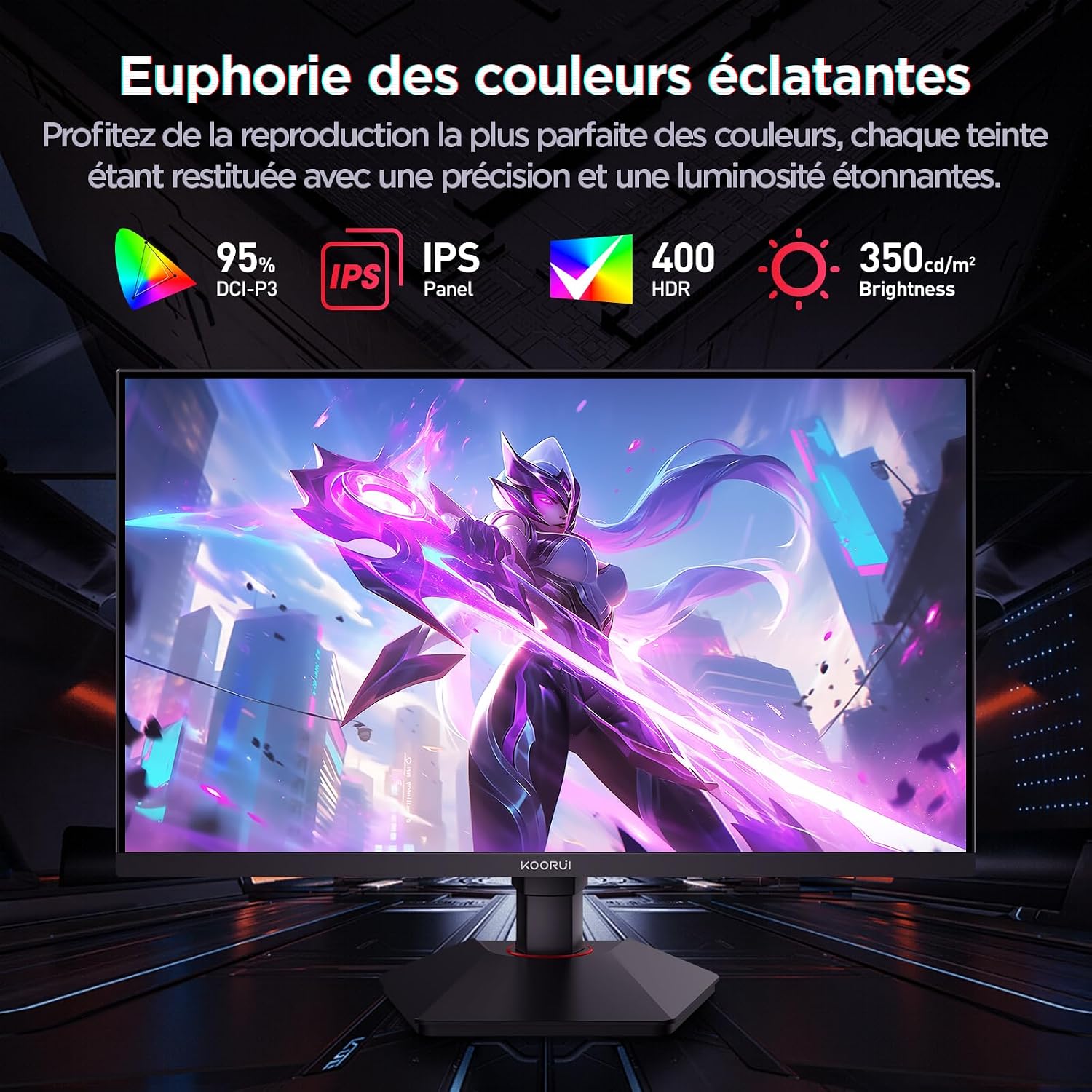
This image highlights the monitor's color capabilities, including 95% DCI-P3 color gamut, IPS panel technology, HDR 400 support, and 350 cd/m² brightness.
2. Información de seguridad
- Lea todas las instrucciones atentamente antes de utilizar el monitor.
- No exponga el monitor a la lluvia ni a la humedad para evitar riesgos de incendio o descarga eléctrica.
- No abra el monitor casing. No hay piezas que el usuario pueda reparar en el interior. Encargue cualquier reparación a personal cualificado.
- Coloque el monitor sobre una superficie plana y estable para evitar que se caiga.
- Mantenga el monitor alejado de la luz solar directa, fuentes de calor y temperaturas extremas.
- Asegúrese de que haya una ventilación adecuada alrededor del monitor. No bloquee las aberturas de ventilación.
- Utilice únicamente el adaptador de corriente y los cables proporcionados o recomendados por el fabricante.
- Desconecte el monitor de la toma de corriente durante tormentas eléctricas o cuando no lo utilice durante períodos prolongados.
3. Contenido del paquete
Verifique que todos los artículos estén presentes en el paquete:
- KOORUI G2722P Monitor
- Soporte para monitor (base y mástil)
- Adaptador de corriente y cable de alimentación
- Cable DisplayPort (DP)
- Manual de usuario (este documento)
- Tornillos para montaje de soporte.
4. Montaje del monitor
4.1 Fijación del soporte
- Coloque con cuidado el monitor boca abajo sobre un paño suave y limpio para evitar rayones.
- Attach the stand neck to the back of the monitor until it clicks into place or is secured with screws (refer to specific instructions in the included quick start guide).
- Coloque la base del soporte en el cuello del soporte y fíjela con el tornillo provisto.
- Levante con cuidado el monitor y colóquelo sobre un escritorio estable.
4.2 Montaje VESA
The monitor supports VESA 75x75mm mounting. To use a VESA mount:
- Retire el soporte si ya está colocado.
- Attach your VESA-compatible mount (sold separately) to the 75x75mm screw holes on the back of the monitor using appropriate screws.
- Asegúrese de que el soporte esté bien fijado antes de soltarlo.asing el monitor.

This image demonstrates the monitor's ergonomic adjustments (height, tilt, pivot) and provides a visual reference for stand attachment points.
5. Conexión del monitor
Conecte el monitor a su computadora u otros dispositivos utilizando los puertos disponibles.
- Conexión de energía: Connect the power cable to the power adapter, then connect the adapter to the monitor's power input and a wall outlet.
- Conexión de vídeo:
- For optimal performance (QHD @ 200Hz), use the provided DisplayPort (DP 1.4) cable to connect the monitor to your graphics card.
- Alternatively, use an HDMI 2.0 cable to connect to an HDMI port on your device.
- Salida de audio: Connect external speakers or headphones to the 3.5mm audio output jack on the monitor if you wish to use the monitor's audio passthrough.

This image displays the rear of the monitor, highlighting the available connectivity options: two HDMI 2.0 ports, one DisplayPort 1.4, an audio output jack, and the VESA 75x75mm mounting pattern.
6. Funcionamiento del monitor
6.1 Encendido y apagado
- Presione el botón de encendido ubicado en el monitor para encenderlo o apagarlo.
- La luz indicadora de encendido se iluminará cuando el monitor esté encendido.
6.2 Menú de visualización en pantalla (OSD)
The OSD menu allows you to adjust various monitor settings. Typically, buttons are located on the back or bottom right of the monitor.
- Presione uno de los botones OSD para activar el menú.
- Use the navigation buttons (usually directional or a joystick) to browse through menu options.
- Presione el botón de selección para ingresar a un submenú o confirmar una configuración.
- Presione el botón de salida para cerrar el menú OSD.
7. Configuración de pantalla
7.1 Resolución y frecuencia de actualización
The monitor supports a native resolution of 2560x1440 (QHD) and a maximum refresh rate of 200Hz. Ensure your graphics card and operating system are configured to use these settings for the best experience.

This image illustrates the difference in motion clarity between a 75Hz and a 200Hz refresh rate, emphasizing the 1ms response time for reduced blur and ghosting.
7.2 Sincronización adaptativa (FreeSync)
This monitor supports Adaptive Sync technology (compatible with AMD FreeSync) to synchronize the monitor's refresh rate with your graphics card's frame rate, eliminating screen tearing and reducing stuttering.
- Enable Adaptive Sync in the monitor's OSD menu.
- Ensure Adaptive Sync (or FreeSync) is enabled in your graphics card control panel.

This image visually compares the display with Adaptive Sync enabled versus disabled, demonstrating how Adaptive Sync eliminates screen tearing for a smoother visual experience.
7.3HDR 400
The monitor supports HDR 400, providing a wider dynamic range for brighter whites and deeper blacks, resulting in more vibrant and realistic images.
- Enable HDR in your operating system's display settings and in the monitor's OSD menu if available.
7.4 Configuración de colores
The Fast IPS panel offers excellent color reproduction and wide viewángulos de ing.
- Adjust color temperature, gamma, and saturation through the OSD menu to suit your preferences.
- The monitor features a 178-degree wide viewing angle, ensuring consistent color and image quality from various perspectives.
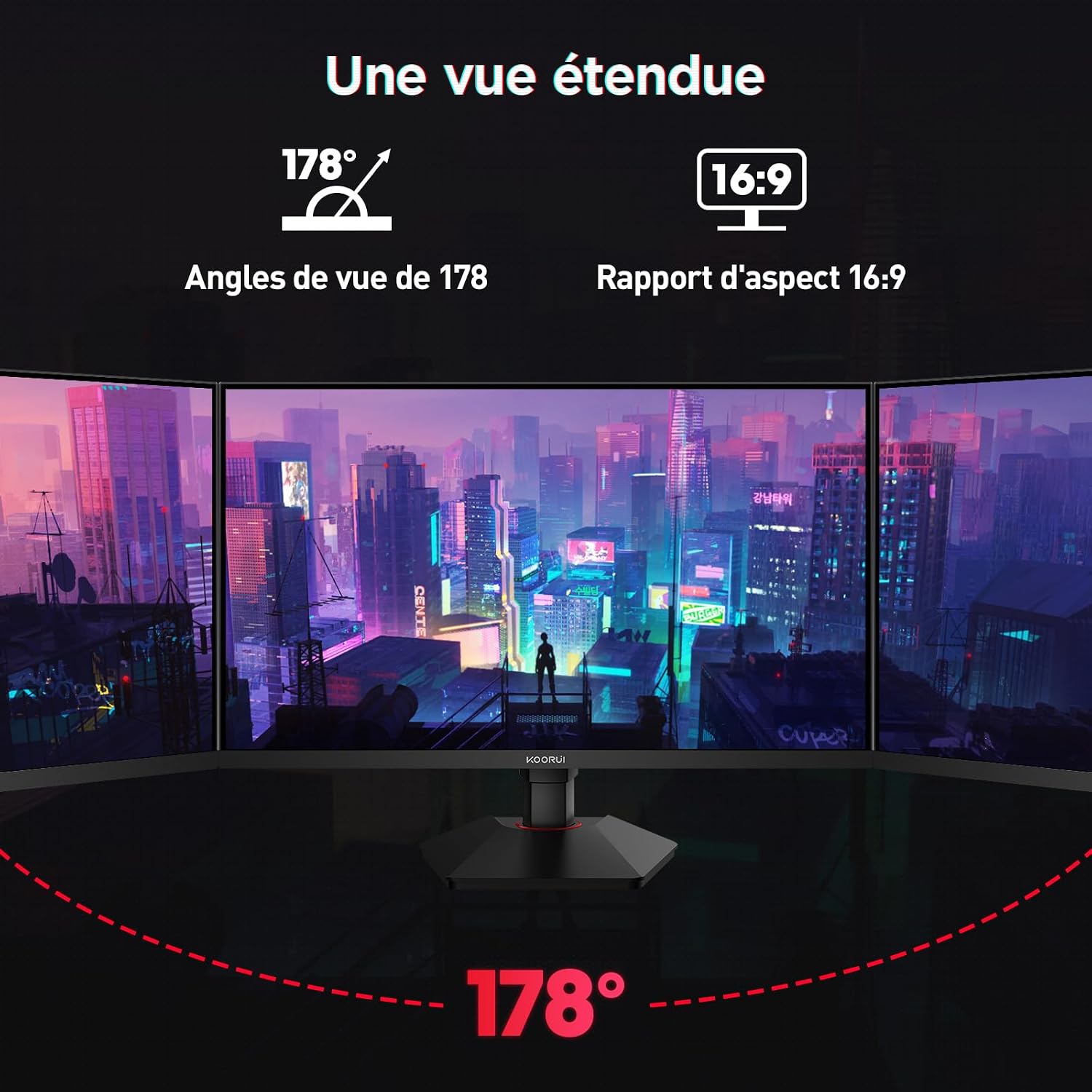
This image demonstrates the monitor's wide 178-degree viewing angle, illustrating how the display maintains clarity and color consistency even when viewed from extreme angles, ideal for multi-monitor setups.
8. Ajustes ergonómicos
El soporte del monitor permite varios ajustes para optimizar su viewcomodidad:
- Ajuste de altura: Adjust the monitor height by up to 100mm by gently pushing or pulling the monitor up or down.
- Ajuste de inclinación: Tilt the screen from -5° (forward) to +20° (backward) to find your preferred viewángulo de ing.
- Pivote (Rotación): Gire la pantalla 90° para cambiar entre orientación horizontal y vertical.
This image illustrates the full range of ergonomic adjustments available: 100mm height adjustment, -5° to +20° tilt, and 90° pivot rotation for optimal viewing comodidad.
9. Características para el cuidado de los ojos
The KOORUI G2722P monitor incorporates features designed to reduce eye strain during prolonged use:
- Tecnología sin parpadeo: Reduce el parpadeo de la pantalla, que puede causar fatiga ocular.
- Filtro de luz azul baja: Minimizes harmful blue light emissions to protect your eyes. This feature can usually be adjusted or enabled/disabled in the OSD menu.
10. Mantenimiento
Un mantenimiento adecuado garantiza la longevidad y el rendimiento óptimo de su monitor.
- Limpieza de la pantalla: Limpie suavemente la pantalla con un paño suave que no deje pelusa. Para manchas difíciles, utilice una solución de limpieza específica para monitores aplicada al paño, no directamente a la pantalla.
- Limpieza de la Casing: Utilice un paño suave y seco para limpiar el monitor.asing. Evite utilizar limpiadores abrasivos o disolventes.
- Manejo: Avoid touching the screen directly with your fingers or sharp objects. Do not place heavy objects on the monitor.
11. Solución de problemas
Si tiene problemas con su monitor, consulte los siguientes problemas y soluciones comunes:
| Problema | Posible solución |
|---|---|
| No hay imagen en la pantalla |
|
| Imagen parpadeante o rasgada |
|
| No hay sonido en la salida de audio |
|
| El monitor no alcanza los 200 Hz |
|
12. Especificaciones
Key technical specifications for the KOORUI G2722P monitor:
| Característica | Especificación |
|---|---|
| Tamaño de pantalla | 27 pulgadas |
| Tipo de panel | Casi IPS |
| Resolución | QHD (2560 x 1440) |
| Frecuencia de actualización | 200 Hz |
| Tiempo de respuesta | 1 ms |
| Compatibilidad con HDR | HDR400 |
| Sincronización adaptativa | Sincronización libre |
| Relación de contraste | 1000:1 (estático) |
| Brillo | 350 cd/m² |
| Viewángulo de ing | 178° (alto/bajo) |
| Gama de colores | 95% DCI-P3 |
| Entradas de video | 2 HDMI 2.0, 1 DisplayPort 1.4 |
| Salida de audio | 1 salida de audio de 3.5 mm |
| Compatibilidad VESA | 75x75 mm |
| Consumo de energía | 19 vatios (típico) |
| Ergonomía | Height, Tilt, Pivot Adjustment |

This diagram provides the physical dimensions of the monitor, including width, height, and depth.
Para obtener información energética detallada, consulte la base de datos EPREL: https://eprel.ec.europa.eu/qr/2216313
13. Garantía y soporte
The KOORUI G2722P monitor comes with a Garantía del fabricante de 2 añosEsta garantía cubre defectos de materiales y mano de obra en condiciones normales de uso.
For technical support, warranty claims, or further assistance, please contact KOORUI customer service through their official websitio o el minorista donde se compró el producto.